

Are you ready to make your WordPress website more engaging and boost your online presence? Adding a blog page is one of the easiest and smartest ways to do just that.
Imagine having a space where you can share your ideas, connect with your audience, and improve your site’s visibility—all in one place. If you’ve been wondering how to add a blog page to your WordPress website without any hassle, you’re in the right spot.
Keep reading, and by the end of this guide, you’ll have a fully functional blog page up and running, ready to attract visitors and grow your brand. Let’s get started!
Create A New Page
Creating a new page on your WordPress website is simple and quick. This step is important to build a dedicated space for your blog posts. A new page acts as the main area where all your blog entries will appear.
Follow these clear steps to set up your blog page correctly. No technical skills needed. Just a few clicks and your blog page will be ready.
Create The Page
Log in to your WordPress dashboard. Find the “Pages” menu on the left side. Click “Add New” to start a new page. Give your page a clear title like “Blog” or “News.” This title shows visitors where to find your posts.
Save The Page
After naming your page, look for the “Publish” button. Click it to save the new page. Your page is now live but empty. Don’t worry, it will show your blog posts soon.
Set The Page As Your Blog
Go to “Settings” and then “Reading” in the dashboard. Find the option “Posts page.” Select the new page you created from the dropdown menu. Click “Save Changes” at the bottom. Now WordPress will use this page to display all blog posts.
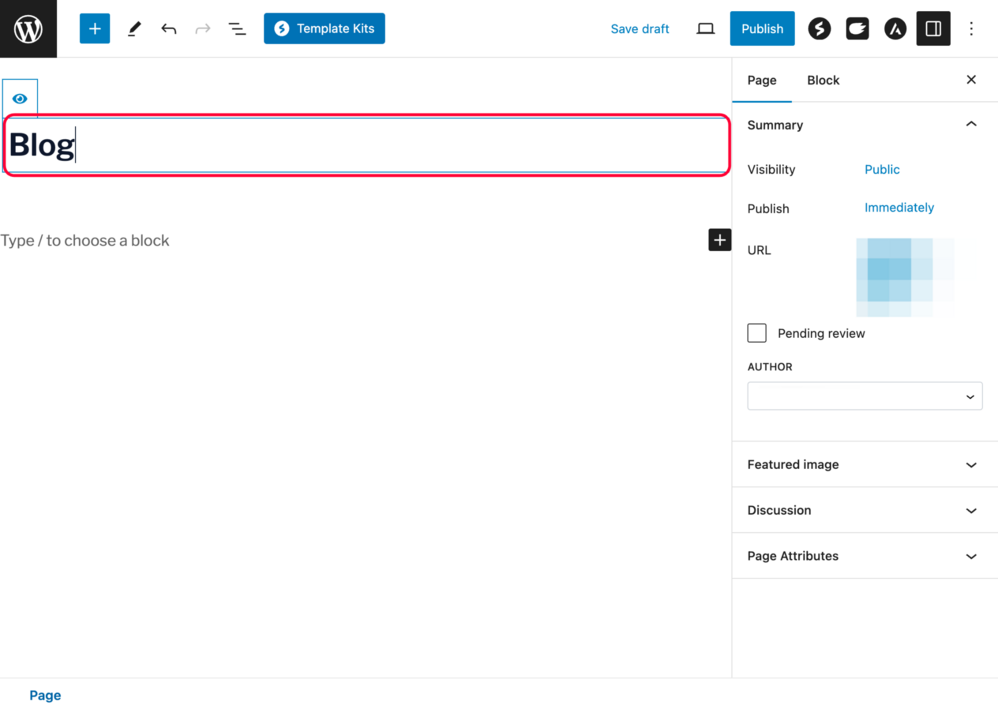
Credit: zipwp.com
Set Page Template
Setting the page template is an important step to create a blog page in WordPress. The template controls how your blog looks and functions. Choosing the right template makes your blog easy to read and navigate.
WordPress themes often include different page templates. These templates can change the layout and style of your blog page. Some templates focus on full-width content, while others add sidebars or extra features.
What Is A Page Template?
A page template is a design layout for a WordPress page. It defines where content, images, and widgets appear. Templates help keep your site design consistent. They also make your blog more attractive and user-friendly.
How To Select A Page Template In WordPress
Go to your WordPress dashboard. Open the page you want to use as your blog. On the right side, find the “Page Attributes” box. Under “Template,” click the drop-down menu. Choose the template that fits your blog style. Save or update the page to apply the template.
Custom Templates For Advanced Design
Some themes offer custom templates made for blogs. These can show posts in grids, lists, or other formats. Developers can also create custom templates with code. This option gives more control over your blog’s look and feel.
Assign Blog Page In Settings
Assigning a blog page in WordPress settings is an important step. It tells WordPress where to show your blog posts. This helps visitors find your latest articles easily. You must select a specific page to serve as your blog page.
This process is simple and quick. It involves changing a few settings in the WordPress dashboard. After assignment, WordPress will display posts on the chosen page automatically. Let’s explore how to do this step-by-step.
Open WordPress Dashboard And Go To Settings
Start by logging into your WordPress dashboard. On the left menu, find and click the “Settings” option. Under it, select “Reading.” This area controls how your website shows content.
Choose A Static Page For Your Homepage
In the Reading settings, look for “Your homepage displays.” Select “A static page.” This lets you pick a page for your homepage and another for your blog.
Select The Blog Page
Under “Posts page,” click the dropdown menu. Pick the page you want to use as your blog page. This page will list all your blog posts in order.
Save Your Changes
After selecting the blog page, scroll down and click “Save Changes.” WordPress will update your site to show posts on the assigned page.

Credit: www.youtube.com
Customize Blog Layout
Customizing your blog layout helps make your blog unique and user-friendly. It controls how your posts, images, and widgets appear. A clean and clear layout keeps visitors interested and encourages them to explore more.
Here are simple steps to customize your blog layout on WordPress.
Choose A Theme
The theme sets the style and look of your blog page. WordPress offers many free and paid themes. Pick a theme that matches your blog’s topic and style. Themes control colors, fonts, and overall design. You can preview themes before activating them. Choose a theme that looks good on both computers and phones.
Use Widgets
Widgets add extra content blocks to your blog page. Common widgets include recent posts, categories, search bars, and social media links. Use widgets to help visitors find content quickly. WordPress lets you drag and drop widgets in your sidebar or footer. Keep widgets simple. Too many widgets can slow your site and confuse visitors.
Adjust Sidebar Options
Sidebars show extra information beside your main blog posts. You can place widgets here for easy access. Choose to show or hide the sidebar based on your design. Some themes allow sidebars on the left or right side. Adjust sidebar width to balance space with your blog content. A well-planned sidebar improves navigation and user experience.
Publish Your Blog Page
Publishing your blog page on WordPress is the last step to make it visible to visitors. This step lets readers find and enjoy your posts. The process is simple and fast. Follow the steps carefully to avoid errors. Your blog page will be live in no time.
Creating The Blog Page
Start by going to your WordPress dashboard. Click on “Pages” and then “Add New.” Name your page something like “Blog” or “News.” This title helps visitors understand where to find your posts.
In the page editor, leave the content area blank. WordPress will fill this space with your blog posts automatically.
Setting The Blog Page In WordPress Settings
Next, open “Settings” and go to “Reading.” Here, choose “A static page” option. Then, select the page you created for the blog from the dropdown menu next to “Posts page.”
Click “Save Changes” at the bottom. This tells WordPress to use that page to show your blog posts.
Previewing And Publishing The Blog Page
Return to “Pages” and find your blog page. Click “View” to see how it looks on your site. Check if the posts appear correctly and the layout fits your theme.
If everything looks good, click “Publish” or “Update.” Your blog page is now live for visitors to see and read your posts.
Add Blog To Navigation Menu
Adding a blog to your website is a smart way to share updates and ideas. Visitors find your blog easily when it appears in the navigation menu. The navigation menu is the list of links at the top or side of your site. It guides users to important pages, including your blog.
Placing the blog link in this menu helps users find your posts quickly. It also improves your site’s structure and SEO. Follow simple steps to add the blog page to your WordPress navigation menu.
Add Your Blog Page To The Menu
Go to your WordPress dashboard. Find the “Appearance” section and click “Menus.” Select the menu where you want to add your blog page. Look for your blog page in the list of pages. Check the box next to it and click “Add to Menu.”
Arrange The Menu Items
Drag the blog page link to the spot you want. Usually, the blog link goes after Home or About pages. This keeps the menu clear and easy to use. Save the menu once you finish arranging.
Check The Menu On Your Site
Visit your website to see the updated menu. Click the blog link to make sure it opens the correct page. Make adjustments in the menu editor if needed. Your blog is now easy to find for all visitors.
Optimize Blog For Seo
Optimizing your blog for SEO helps your website get found by search engines. It makes your content easier to read and more attractive to visitors. Small changes can improve your blog’s ranking and bring more traffic.
Focus on clear structure, keywords, and fast loading times. Use tools and techniques that support SEO best practices. This section explains how to use SEO plugins, create meta descriptions, and optimize images.
Use Seo Plugins
SEO plugins help you manage your blog’s SEO easily. Popular plugins like Yoast SEO or Rank Math offer simple tools. They guide you to add keywords, set titles, and check readability. These plugins also create sitemaps that help search engines find your pages.
Create Meta Descriptions
Meta descriptions are short summaries shown in search results. They explain what the blog post is about. Write clear and catchy descriptions under 160 characters. Include main keywords naturally. Good meta descriptions increase click rates to your blog.
Optimize Images
Images improve user experience but can slow down your site. Use compressed files to keep load times fast. Add descriptive file names and alt text with keywords. This helps search engines understand your images and improves SEO. Proper image optimization balances quality and speed.
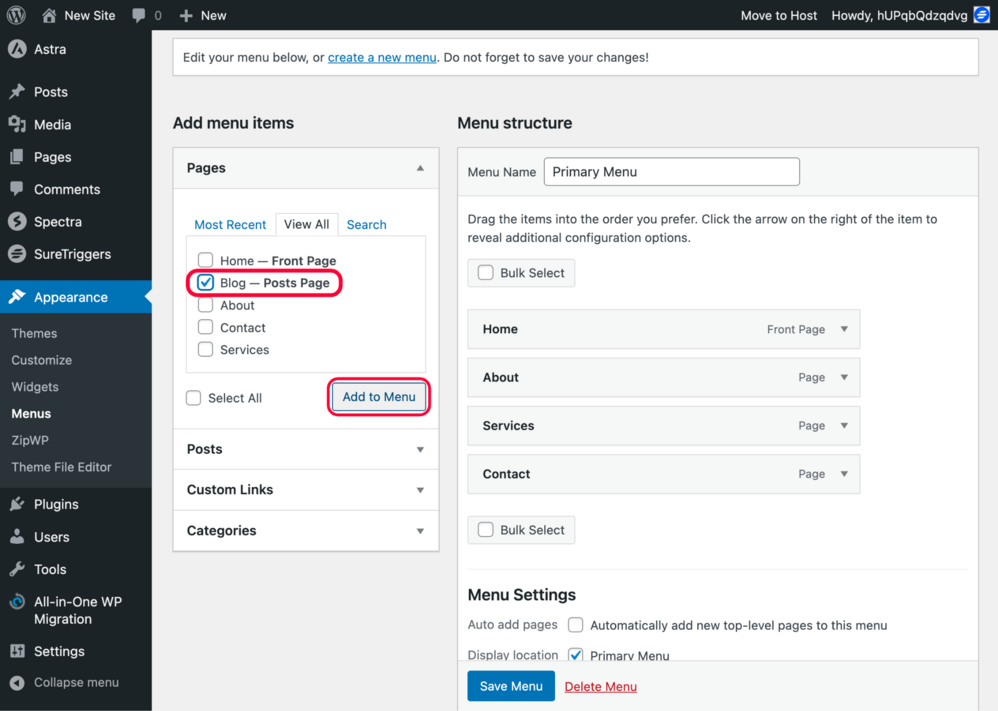
Credit: zipwp.com
Troubleshoot Common Issues
Adding a blog page to your WordPress website can sometimes come with small problems. These issues can stop your posts from showing or cause menu links to fail. Troubleshooting these common problems helps your blog work smoothly and keeps visitors happy.
Page Not Showing Posts
Sometimes the blog page appears empty. This happens if the page is not set as the posts page in WordPress settings. Go to Settings > Reading and check if the correct page is selected for posts. Also, clear your browser cache and refresh the page. If the problem stays, check if your posts are published and not set to draft or private.
Menu Link Problems
Menu links may not lead to the blog page. This issue occurs if the menu is not updated after creating the blog page. Go to Appearance > Menus and add the blog page to your menu. Save the changes and test the link. If the link still breaks, check for typos or broken URLs in the menu settings.
Theme Compatibility
Some themes do not support blog pages well. This can cause layout problems or missing post content. Test your blog page by switching to a default theme like Twenty Twenty-One. If the blog works with the default theme, your main theme may need an update. Contact the theme developer or look for a compatible theme for blogging.
Frequently Asked Questions
How Do I Create A Blog Page In WordPress?
To create a blog page, go to Pages > Add New. Name it “Blog” and publish. Then, set it as your Posts page under Settings > Reading.
Can I Customize My WordPress Blog Page Layout?
Yes, you can customize the blog page using themes or page builders. Many themes offer built-in blog layout options for better design control.
How Do I Display Blog Posts On A WordPress Page?
Set your newly created page as the Posts page under Settings > Reading. This will automatically display your latest blog posts there.
Is It Necessary To Have A Blog Page On WordPress?
Having a blog page improves SEO, engages visitors, and showcases your expertise, making it essential for most websites.
Conclusion
Adding a blog page to your WordPress site is simple and useful. It helps share your ideas and connect with visitors. Just follow the steps carefully and customize your blog page. Keep your posts clear and interesting for readers. Regular updates keep your site fresh and active.
A blog page can grow your audience and improve your website’s value. Start today and enjoy sharing your story with the world.


