

Have you ever landed on a long webpage and wished there was a quick way to jump back to the top? Adding a “Back to Top” button on your WordPress site can make a huge difference in how your visitors experience your content.
It’s simple, user-friendly, and keeps people engaged longer. In this post, you’ll learn exactly how to add this handy feature to your site, step by step. By the end, your visitors will thank you for making navigation effortless—and you’ll enjoy seeing your site’s usability improve instantly.
Let’s get started!
Benefits Of Back To Top Buttons
Back to Top buttons offer many benefits for website visitors. They help users move through long pages quickly. This small feature improves the overall experience on your site.
These buttons make navigation smooth and simple. Visitors can return to the top with just one click. This saves time and reduces frustration during browsing.
Enhancing User Navigation
Back to Top buttons make it easy to jump back to the start. Visitors don’t need to scroll up manually. This helps users find menus or key sections faster. Clear navigation keeps users on your site longer.
Improving Mobile Experience
On mobile devices, scrolling can be tiring. These buttons reduce the need to swipe up repeatedly. Mobile users can reach the top quickly with a tap. This makes browsing on phones and tablets much smoother.
Increasing Page Engagement
Easy navigation encourages visitors to explore more content. Users stay engaged because they can move easily. Back to Top buttons reduce bounce rates by improving comfort. More engagement means better chances of conversions.

Credit: aoxoa.co
Choosing The Right Back To Top Button
Choosing the right back to top button improves user experience on your WordPress site. It helps visitors navigate long pages easily. The right button fits your website style and works well with your theme. Consider the button’s look, features, and compatibility to make the best choice.
Types Of Buttons
Back to top buttons come in various styles. Some are simple arrows, while others use text labels. Floating buttons stay visible as users scroll down the page. Some buttons appear only after scrolling a certain distance. Choose a style that matches your site’s design and user needs.
Customizable Features
Customization lets you change button size, color, and shape. You can add animation effects like fading or sliding. Some plugins allow you to place the button anywhere on the screen. Custom features help the button blend well with your website’s look. They also improve visibility without being distracting.
Compatibility With Themes
Ensure the back to top button works well with your WordPress theme. Some buttons may conflict with certain themes or page builders. Test the button on different devices and browsers. A compatible button loads quickly and does not slow down your site. Check for plugin updates and support before installing.
Adding Back To Top Button Using Plugins
Adding a back to top button with plugins is an easy way to improve user experience. Plugins do all the work for you. No coding skills are needed. Just install, configure, and the button appears on your site. Visitors can quickly return to the top of any page. This saves time and makes navigation smoother.
Popular Plugin Options
Several plugins offer back to top button features. “WPFront Scroll Top” is simple and reliable. “To Top” provides multiple styles and animations. “Simple Back To Top Button” is lightweight and fast. Choose one based on your site’s needs and compatibility.
Step-by-step Installation
Open your WordPress dashboard. Go to Plugins and click Add New. Type the plugin name in the search box. Find the plugin and click Install Now. After installation, click Activate to enable it. The button will now be ready for setup.
Configuring Button Appearance
Go to the plugin settings page in your dashboard. Choose the button style, color, and size. Set the position on the screen, usually bottom right. Some plugins allow smooth scroll speed adjustments. Save the settings and check your website to see changes.
Manual Method: Adding Back To Top Button With Code
Adding a Back to Top button manually in WordPress gives you full control. You can customize its look and how it works. This method requires adding a bit of code to your site. It is perfect for those who like to work directly with HTML, CSS, and JavaScript.
This process involves three main steps. First, you add the button’s HTML and style it with CSS. Second, you insert JavaScript to make the button work. Lastly, you test the button on your site to ensure it functions well.
Adding Html And Css
Create the button using simple HTML. Place it near the end of your site’s footer or inside a widget area. Use a or tag with an ID for easy targeting.
Next, style the button with CSS. Make it visible, fixed at the bottom right corner. Choose colors and size that match your site design. Hide it initially and show it only when scrolling down.
backToTop { position: fixed; bottom: 30px; right: 30px; display: none; background-color: 333; color: fff; border: none; padding: 10px 15px; cursor: pointer; border-radius: 5px; z-index: 1000; } Inserting Javascript For Functionality
Add JavaScript to handle the button’s behavior. Show the button once the user scrolls down 100 pixels. Clicking the button scrolls the page smoothly back to the top.
window.onscroll = function() {scrollFunction()}; function scrollFunction() { const btn = document.getElementById("backToTop"); if (document.body.scrollTop > 100 || document.documentElement.scrollTop > 100) { btn.style.display = "block"; } else { btn.style.display = "none"; } } document.getElementById("backToTop").onclick = function() { window.scrollTo({top: 0, behavior: 'smooth'}); }; Testing The Button
Open your website in a browser. Scroll down to see if the button appears. Click the button to confirm it scrolls the page smoothly to the top.
Test on different devices and screen sizes. Check if the button stays visible and works properly. Fix any issues by reviewing the code.
Optimizing Button Performance
Optimizing the performance of your Back to Top button improves user experience. A fast, accessible, and mobile-friendly button keeps visitors engaged. It helps users navigate your site with ease and speed. Follow these tips to enhance your button’s efficiency on WordPress.
Speed Considerations
Keep your Back to Top button code light and simple. Avoid heavy scripts that slow down page loading. Use CSS for smooth scrolling instead of bulky JavaScript. Test your site speed after adding the button to ensure it loads quickly. Fast buttons make navigation seamless and reduce bounce rates.
Accessibility Best Practices
Make sure the button is easy to see and use for all users. Use clear labels like “Back to Top” for screen readers. Ensure the button can be reached using a keyboard. Choose colors with good contrast for better visibility. Accessibility makes your website friendly to everyone.
Mobile Responsiveness
Design the button to work well on small screens. Place it where it doesn’t cover important content. Use a size that users can tap easily with fingers. Test the button on different devices to ensure smooth function. Mobile-friendly buttons improve navigation for smartphone users.
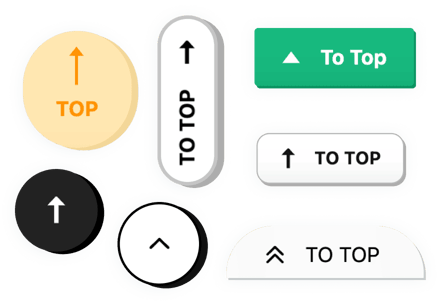
Credit: elfsight.com
Troubleshooting Common Issues
Adding a Back to Top button in WordPress is simple. Sometimes, issues occur that stop it from working right. Troubleshooting helps find and fix these problems fast. Understanding common issues saves time and keeps your site user-friendly.
Button Not Showing
Check if the button code is correctly added to your theme. Missing or incorrect placement can hide the button. Clear your browser cache to see recent changes. Disable caching plugins temporarily to test. Verify the button’s visibility settings in the plugin or theme options.
Scroll Behavior Problems
The button must scroll smoothly to the top. Sometimes, it jumps or does nothing. Check JavaScript errors in your browser console. Conflicts with other scripts can stop smooth scrolling. Try changing the scroll speed in settings. Ensure your theme supports smooth scroll features.
Compatibility Conflicts
Plugins or themes may clash with the Back to Top button. Disable other plugins one by one to find conflicts. Switch to a default WordPress theme to test compatibility. Update all plugins and themes to the latest versions. Use plugins known for good compatibility with your site.

Credit: www.youtube.com
Frequently Asked Questions
What Is A Back To Top Button In WordPress?
A Back to Top button is a clickable icon that quickly scrolls users to the top of a webpage. It improves navigation and user experience on long pages in WordPress sites.
How Do I Add A Back To Top Button Manually?
You can add it by inserting custom HTML, CSS, and JavaScript code into your WordPress theme files. This method requires basic coding knowledge.
Can Plugins Help Add A Back To Top Button?
Yes, many WordPress plugins offer easy Back to Top button integration without coding. Popular plugins include WPFront Scroll Top and Elementor.
Does A Back To Top Button Improve Seo?
Indirectly, yes. It enhances user experience by making navigation easier, which can reduce bounce rates and improve engagement metrics that affect SEO.
Conclusion
Adding a back to top button improves website navigation. Visitors can easily return to the top of any page. It saves time and makes browsing smooth. WordPress offers simple ways to add this feature. Choose a plugin or add custom code.
Make sure the button matches your website style. Test it on different devices for best results. A small change that helps visitors a lot. Try adding a back to top button today. Your users will appreciate the easy navigation.


