
Are you struggling to show the author’s name on your WordPress posts? Adding the author name is a simple step that can boost your blog’s credibility and help readers connect with your content.
Whether you’re running a personal blog or a multi-author site, knowing how to display the author name clearly can make a big difference. You’ll learn easy, practical ways to add the author name to your WordPress posts—no complicated coding needed.
Keep reading, and you’ll have your posts looking professional in no time.
Why Add Author Name
Showing the author’s name on a WordPress post adds more than just a personal touch. It helps readers know who wrote the content. This small detail builds trust and makes the website feel more real. Author names connect the audience to the person behind the words. Let’s explore why adding an author name matters for your blog or site.
Benefits For Readers
Readers feel more connected to posts with an author’s name. They know who to credit for the information. This clarity helps readers decide how much to trust the content. It also allows them to follow writers they like. Author names create a sense of community and loyalty.
Boosting Credibility
Author names add professionalism to your website. They show the content is written by real people. This builds trust with visitors. Credible author names can improve the reputation of your site. It also reduces doubts about the accuracy of the content.
Enhancing Seo
Search engines favor posts with clear author information. Author names help Google understand who creates the content. This can improve your search rankings. It also helps prevent duplicate content issues. Adding author names boosts your site’s visibility in search results.
Credit: www.hostinger.com
Default Author Settings In WordPress
WordPress comes with built-in author settings that help display the author’s name on posts. These default settings work well for simple blogs. They let you show who wrote each post without extra work. Understanding these settings is key to managing author information on your site.
Where Author Name Appears
The author name usually shows up near the post title or at the end of the article. Many WordPress themes place the author name under the post title. This makes it easy for readers to see who wrote the content. Some themes also show the author name in the post metadata or byline area. The name links to the author’s archive page, listing all posts by that author.
Limitations Of Default Setup
The default author setup has limits. It only shows one author per post. Team posts or guest authors cannot be added easily. Customizing how the author name looks may require coding. Some themes do not display the author name clearly. The default settings also lack options for author bios or pictures. For more control, plugins or custom code might be needed.
Adding Author Name Via WordPress Dashboard
Adding the author name to your WordPress posts helps readers know who wrote the content. This builds trust and makes your site look professional. You can easily set or change the author name using the WordPress dashboard. The process involves editing user profiles and assigning authors to posts.
Editing User Profile
Start by logging into your WordPress dashboard. Go to the “Users” menu and select “All Users.” Click on the user whose name you want to display as the author. Scroll down to find the “Name” section. Enter the first name and last name for the user. Below, choose the “Display name publicly as” option. Select the preferred name from the dropdown list. Save the changes by clicking the “Update Profile” button. This name will appear as the author on your posts.
Assigning Author To Posts
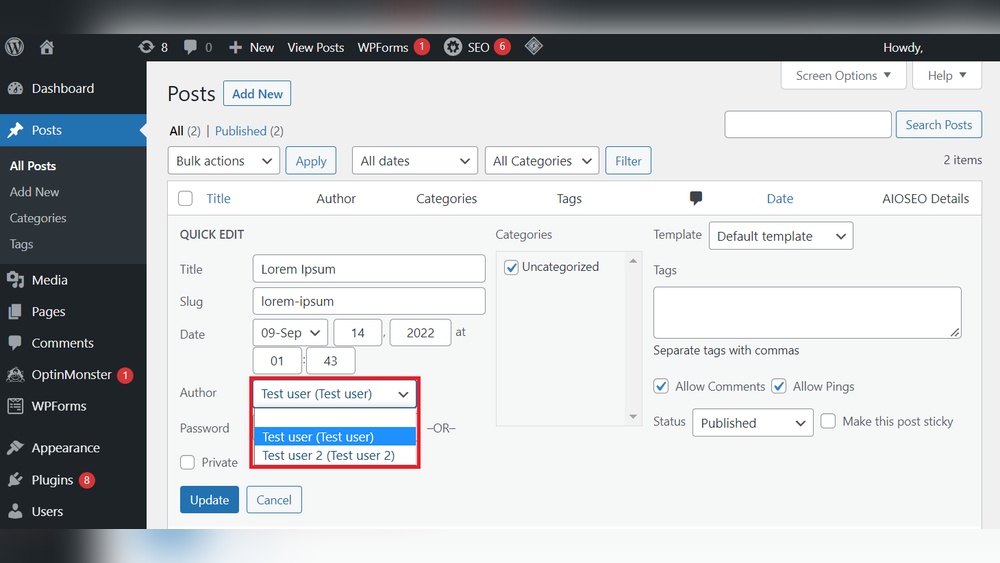
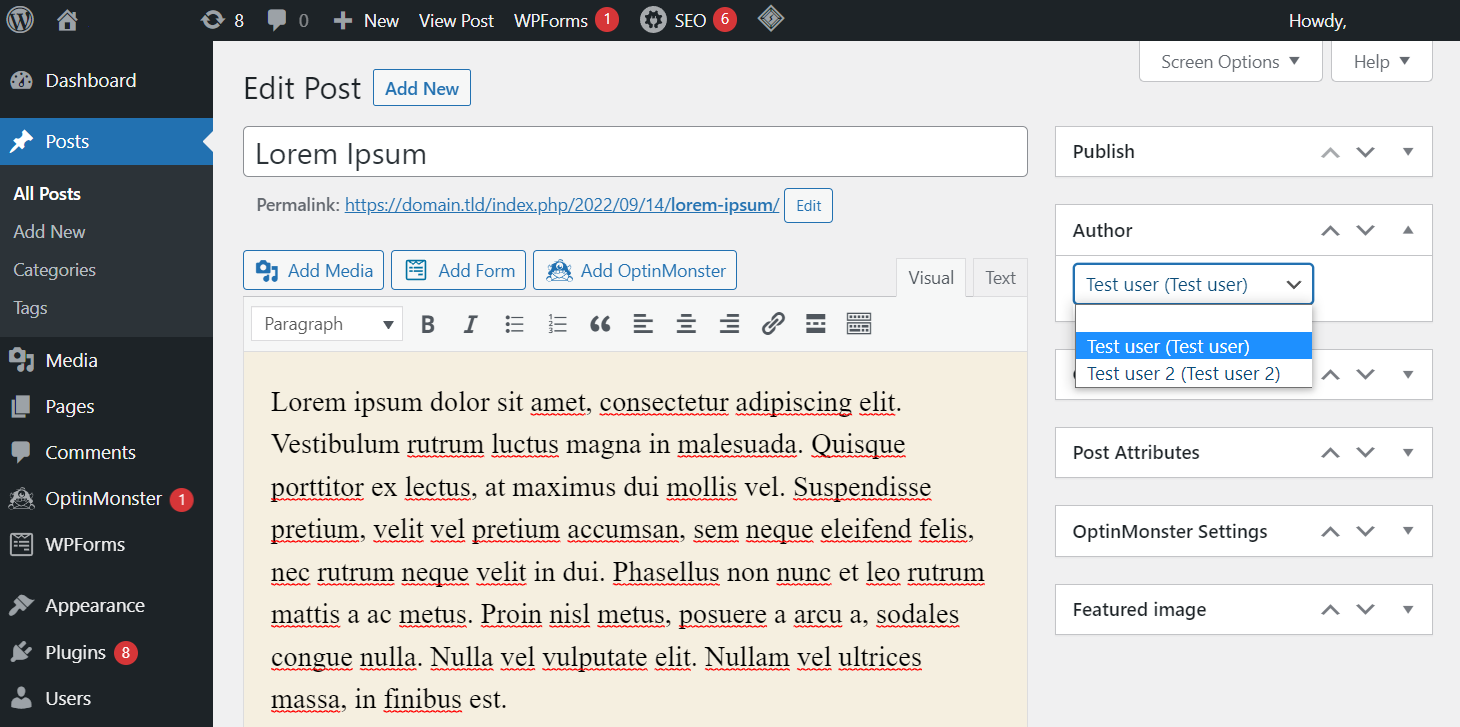
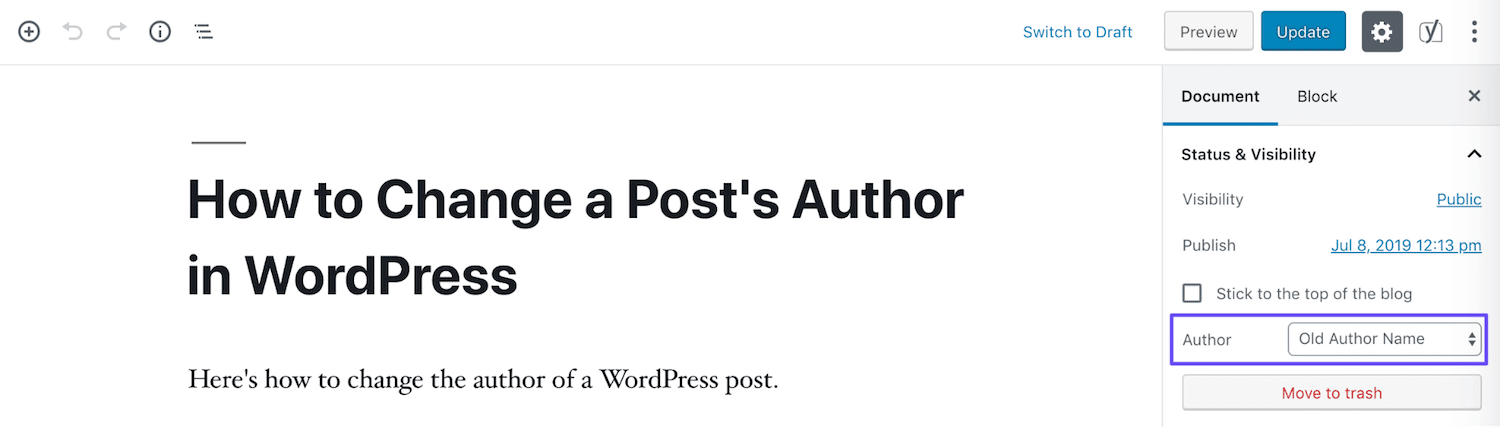
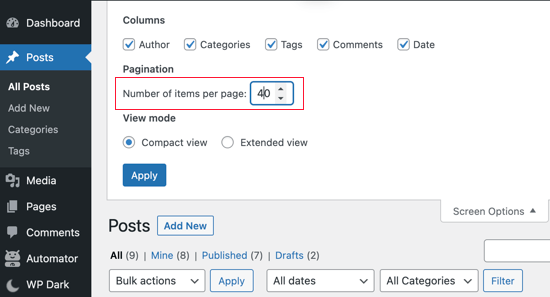
Go to the “Posts” menu and select “All Posts.” Find the post where you want to add or change the author. Click “Edit” under the post title. On the post editing screen, look for the “Author” box on the right sidebar. If you don’t see it, open “Screen Options” at the top and check “Author.” Choose the desired author from the dropdown menu. Update the post by clicking the “Update” button. The post will now show the selected author’s name.
Using Plugins For Author Names
Adding author names to WordPress posts helps readers see who wrote the content. Plugins make this process simple and flexible. They offer different styles and features to display author information clearly. Using plugins saves time and avoids coding. Many plugins also allow custom author profiles and social links. This section explains how to choose and use plugins for author names.
Top Plugins To Consider
Several plugins work well for showing author names. “Simple Author Box” adds a clean box with the author’s name and avatar. “Co-Authors Plus” allows multiple authors per post, useful for collaborations. “Author Bio Box” offers customizable bio sections with social media icons. These plugins have good reviews and easy setup. They work with most WordPress themes.
Step-by-step Plugin Setup
First, go to your WordPress dashboard. Click “Plugins” and then “Add New.” Search for the plugin you want. Click “Install Now” and then “Activate.”
Next, go to the plugin settings. Customize the author box style and details. Some plugins let you choose where the box appears.
Finally, create or edit a post. The author name shows automatically if the plugin is active. You can add author info in the user profile section. Save changes and view your post to confirm.
Customizing Author Display
Customizing the author display on your WordPress posts helps make your site more personal. It lets readers connect with the writer. You can change how the author’s name looks and add more details like a bio or photo. These small touches build trust and improve the reader’s experience.
Changing Author Name Style
Changing the author name style is easy and effective. Use CSS to adjust font size, color, and style. You can make the name bold or italic. Position the name above or below the post title. This helps the author name stand out or blend in with your design.
To apply these changes, go to your theme’s stylesheet. Add CSS rules targeting the author name class. For example, change the color to match your brand. Keep the style simple and readable on all devices.
Adding Author Bio And Image
An author bio adds a personal touch. It tells readers about the writer’s background and interests. You can add a small photo next to the bio for a friendly look. WordPress has built-in fields for author bios and avatars.
Go to the user profile section in the dashboard. Fill in the bio and upload a photo. You may need a plugin or theme support to display this info on posts. Make sure the bio is short and clear. A good bio helps readers trust the content more.
Adding Multiple Authors To A Post
Adding multiple authors to a WordPress post can improve collaboration and show credit to all contributors. It allows readers to see who wrote the content. This is helpful for teamwork or guest posts. WordPress does not support multiple authors by default, but there are easy ways to do it.
Below are two main ways to add multiple authors to a post. One is using plugins that simplify the process. The other is a manual method for those who want more control.
Plugins For Multiple Authors
Plugins make adding multiple authors simple and quick. Many plugins let you assign more than one author to a post. They also display all author names on the post page clearly.
Co-Authors Plus is a popular plugin. It adds a box on the post editor to select multiple authors. Each author gets a link to their profile. The plugin also works with custom post types and themes.
Other plugins like PublishPress Authors offer similar features. They also allow author bios, photos, and social links. These plugins save time and do not require coding skills.
Manual Methods
Manual methods require editing your theme files. This method is best if you want full control over how authors appear. You can add custom fields or use shortcodes.
One way is to add a custom field for co-authors. Enter their names separated by commas. Then edit your theme’s single post template to display this field.
You can also create a custom taxonomy for authors. Assign multiple authors to the post. This method needs some coding and WordPress knowledge.
Manual methods give flexibility but require care. Always back up your site before editing theme files.
Troubleshooting Author Name Issues
Sometimes, the author name does not show up correctly on WordPress posts. This can confuse readers and reduce trust. Troubleshooting these issues helps maintain a professional look. It ensures your content always credits the right person.
Author name problems often stem from simple settings or technical glitches. Knowing common problems speeds up fixing them. Quick fixes restore the author display without complex steps.
Common Problems
The author name may be missing from the post. This happens if the author profile is incomplete or deleted. Another issue is showing the wrong author name. This can occur if multiple users share similar roles.
Sometimes, themes do not support author display. Plugins can also interfere and hide author info. Caching plugins might show old versions without updated author names.
Quick Fixes
Check the user profile to ensure the name is entered correctly. Assign the correct author to the post in the post editor. Switch to a default WordPress theme to test if the theme causes the issue.
Deactivate plugins one by one to find conflicts. Clear your site and browser cache to see recent changes. Update WordPress, theme, and plugins to the latest versions to avoid bugs.
Credit: kinsta.com
Credit: www.wpbeginner.com
Frequently Asked Questions
How Do I Show Author Name In WordPress Posts?
To show the author name, enable the author bio box or use a theme that displays it. Some plugins also help showcase author info easily.
Can I Add Multiple Authors To One WordPress Post?
Yes, by using co-author plugins like Co-Authors Plus, you can add multiple authors and display their names on posts.
How To Customize Author Name Display In WordPress?
Customize author name display by editing your theme’s single post template or using CSS for styling author info.
Why Is Author Name Missing From My WordPress Posts?
Author names may be missing if your theme doesn’t support it or the author box is disabled in settings.
Conclusion
Adding an author name to your WordPress post helps readers know who wrote it. It builds trust and gives credit to the writer. You can easily show the author’s name using built-in settings or plugins. This small step makes your blog look professional and organized.
Keep your readers connected by sharing author details clearly. Try these methods to improve your WordPress posts today.


