
Are you looking to give someone else full control over your WordPress site? Adding an admin user is the key step to sharing management tasks safely and efficiently.
But if you’re unsure how to do it, don’t worry—this guide will walk you through every simple step. By the end, you’ll know exactly how to add an admin user without risking your site’s security. Ready to take control and collaborate like a pro?
Let’s dive in!
Accessing The WordPress Dashboard
Accessing the WordPress dashboard is the first step to managing your website. It is the control panel where you can add users, write posts, and change settings. The dashboard shows all tools you need in one place. Understanding how to open it makes site management easier.
You can reach the dashboard through your web browser. The login page is simple to find. Knowing the right URL and login details helps you get inside quickly. Let’s explore the steps to access the WordPress dashboard.
Navigate To The WordPress Login Page
Open your web browser. Type your website address followed by /wp-admin or /wp-login.php. For example, www.yoursite.com/wp-admin. Press Enter. This opens the login screen.
Enter Your Username And Password
On the login page, enter your username. Then type your password. These are the details created when you installed WordPress or were given by the admin. Click the “Log In” button.
Access The Dashboard Interface
After logging in, the dashboard appears. It shows a menu on the left side. The main area displays recent activity and quick links. You can start managing your site from here.
Credit: wp-staging.com
Navigating To User Management
Navigating to the User Management area in WordPress is simple. This section lets you control who can access your site and what they can do. Adding an admin user starts here. Follow clear steps to reach this part of your dashboard quickly.
Understanding where User Management is helps manage your website efficiently. It keeps your site safe and organized. Let’s explore how to find this section in WordPress.
First, log in to your WordPress site. Use your username and password on the login page. After logging in, you will see the WordPress Dashboard. This is the main control panel for your website.
Finding The Users Menu
Look at the left sidebar in the dashboard. You will find a menu labeled “Users.” Click on it to open the user options. This menu shows all users registered on your site.
Selecting The Add New Option
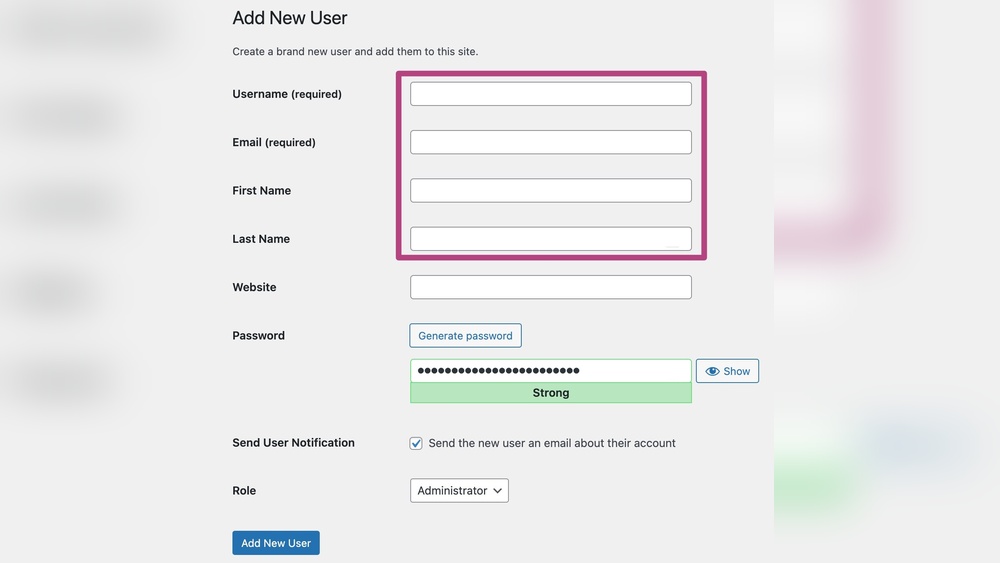
Under the “Users” menu, find and click “Add New.” This page allows you to create a new user account. It lets you set roles, like admin, editor, or subscriber.
Creating A New User Account
Creating a new user account in WordPress is simple and quick. This step helps you manage who controls your website. You can give different people different roles. Each role has its own powers. For full control, assign the admin role. Start by filling in the user details carefully. Next, set a strong password. Finally, assign the correct role to the user. This guide shows you each step clearly.
Filling In User Details
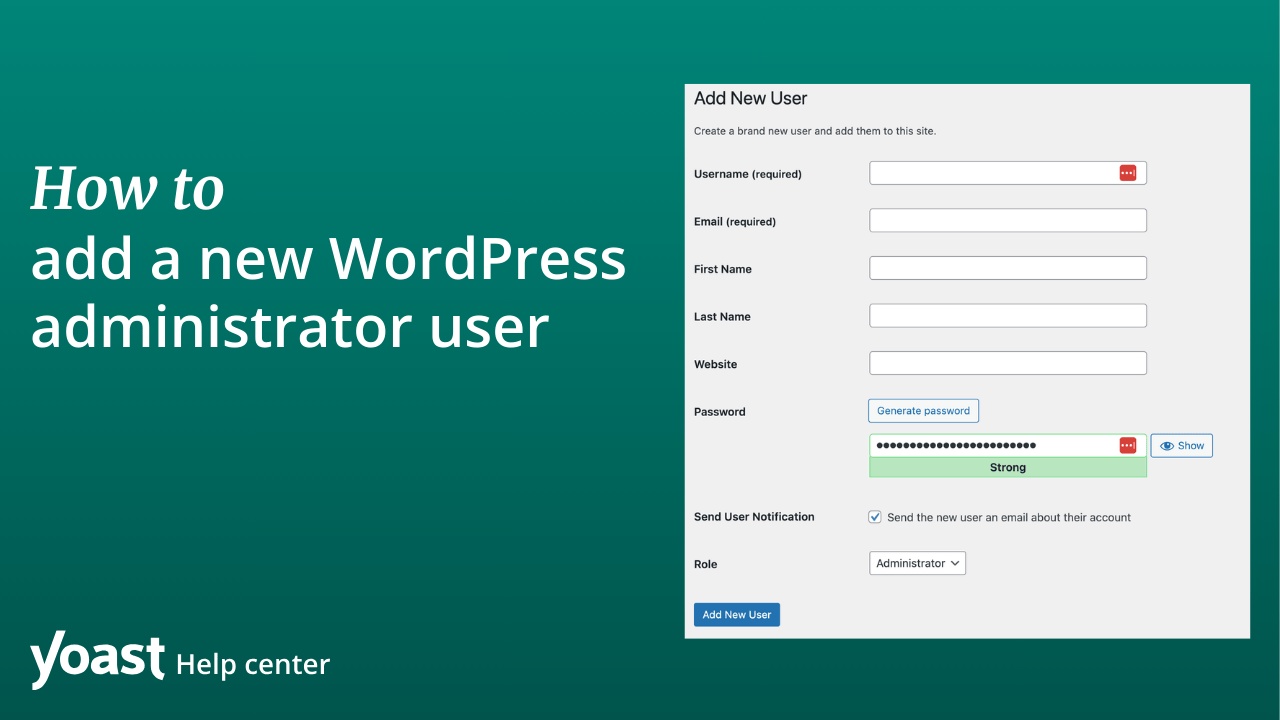
Go to your WordPress dashboard. Find the “Users” menu and click “Add New.” You must enter the new user’s name and email. The username is important. It cannot be changed later. Add first and last names for clarity. The email must be valid. WordPress uses it to send notifications. Filling these details correctly helps keep your site organized.
Setting A Strong Password
WordPress suggests a strong password automatically. You can use it or create your own. A strong password has letters, numbers, and symbols. Avoid simple words or repeated characters. This protects your site from hackers. Make sure the password is easy for the user to remember. Write it down safely if needed. A strong password is a key step for security.
Assigning The Admin Role
Scroll down to the “Role” section. Click the dropdown menu to see options. Choose “Administrator” to give full access. This role can edit, delete, and add content. It can also change settings and manage users. Be careful to assign this role only to trusted people. Giving admin rights means giving full control. Check everything before clicking “Add New User.”
Reviewing User Permissions
Reviewing user permissions is a key step after adding an admin user to WordPress. It helps keep your site safe and organized. Each user role has specific rights. Understanding these rights prevents mistakes and misuse.
Admin users have full control over the site. This makes it important to check their permissions carefully. Only trusted people should have admin access.
Understanding Different User Roles
WordPress has several user roles. Each role has set permissions. Roles include Subscriber, Contributor, Author, Editor, and Administrator. Admins have the highest level of access. Other roles have limited access to posts, pages, and settings.
Checking Admin User Capabilities
Admins can install themes and plugins. They can add, edit, or delete any content. Admins manage other users too. This means admins can change roles or remove users. Review these rights to avoid giving too much power.
Adjusting Permissions For Security
Limit the number of admins to reduce risks. Use roles like Editor or Author for other team members. Avoid sharing admin accounts. Strong passwords and two-factor authentication add extra security.
Managing Existing Admin Users
Managing existing admin users is important for website security and control. Admin accounts have full access to your WordPress site. Too many admins can cause confusion and increase risk. Regularly review admin users to keep your site safe.
Editing User Roles
Sometimes, a user does not need full admin rights. You can change their role to editor, author, or contributor. This limits their access and protects your site. To edit roles, go to Users in the dashboard. Select the user and choose a new role from the dropdown menu. Save your changes to update their permissions.
Removing Unnecessary Admins
Remove admin users who no longer need access. This reduces the chance of unauthorized changes. To delete an admin, go to the Users list. Find the user and click Delete. WordPress will ask what to do with their content. Choose to attribute it to another user or delete it. Confirm the deletion to finish.
Best Practices For Admin Access
Admin access controls who can manage your WordPress site. It is important to keep this access secure. Following best practices helps protect your site from hackers and mistakes. Careful management of admin accounts keeps your website safe and running smoothly.
Using Two-factor Authentication
Two-factor authentication adds an extra security layer. It asks for a code from your phone after entering a password. This step blocks unauthorized users even if they steal your password. Many WordPress plugins offer easy setup for two-factor authentication. Enable it for all admin accounts to increase protection.
Regularly Updating Passwords
Changing passwords regularly helps keep accounts secure. Use strong passwords with letters, numbers, and symbols. Avoid simple or common passwords that are easy to guess. Set reminders to update admin passwords every few months. This reduces the risk of hackers gaining access.
Limiting Admin Accounts
Only give admin rights to trusted users. Each admin has full control over the website. Too many admins increase the risk of errors or security problems. Remove admin access from users who no longer need it. Keep the number of admins as low as possible for better safety.
Troubleshooting Common Issues
Troubleshooting common issues when adding an admin user to WordPress can save time and stress. Problems might stop you from completing tasks smoothly. Knowing how to fix these issues helps you keep control of your site. This section covers solutions for frequent problems faced by WordPress users.
Fixing User Role Errors
User role errors happen if the wrong role is assigned. This can block access or permissions. Check the user role in the WordPress dashboard under Users. Make sure it is set to “Administrator” for full access. Sometimes plugins change roles; deactivate them to test.
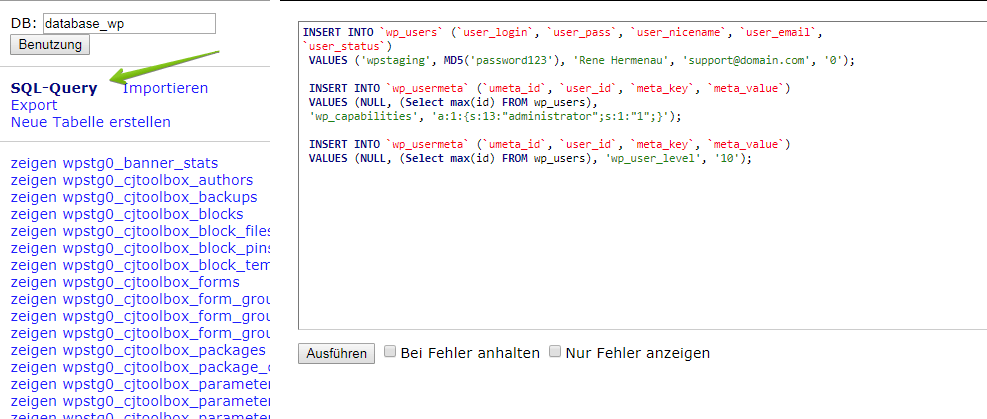
If you cannot change roles in the dashboard, try editing the database. Use phpMyAdmin and find the wp_usermeta table. Look for the user’s role and change it to “administrator.” Always back up your site before this step.
Recovering Lost Admin Access
Lost admin access stops you from managing your site. This happens due to password issues or user deletion. Reset your password using the “Lost your password?” link on the login page. Check your email for reset instructions.
If email reset fails, use phpMyAdmin to update your password. Go to the wp_users table, find your username, and edit the password field. Use the MD5 function to encrypt your new password. Another way is to add a new admin user through the database to regain access.

Credit: www.youtube.com
Credit: yoast.com
Frequently Asked Questions
How Do I Add An Admin User In WordPress?
Go to Users > Add New in your WordPress dashboard. Fill in the user details. Set the role to “Administrator” and click “Add New User. ”
Can I Assign Admin Rights To An Existing User?
Yes, navigate to Users > All Users. Click “Edit” on the user. Change their role to “Administrator” and save the changes.
Is Adding Multiple Admin Users Safe?
Adding multiple admins is fine if you trust them. Limit admin accounts to prevent unauthorized changes and protect your site.
What Permissions Does An Admin User Have?
Admin users have full control. They can add content, manage plugins, themes, users, and change site settings.
Conclusion
Adding an admin user to WordPress is simple and quick. Just follow the steps carefully. This helps you manage your website better. Always choose strong passwords for new users. Keep your site safe by limiting admin access. Regularly review user roles to avoid risks.
Now, you can add admins with confidence. Your WordPress site will stay secure and well-managed. Try it today and see how easy it is.


