

Are you looking to boost your website’s advertising potential? Adding an Ad TXT file to your WordPress site is a simple step that can protect your ad revenue and improve trust with advertisers.
But if you’re unsure where to start or worried it might be complicated, you’re in the right place. You’ll discover an easy, step-by-step guide to add Ad TXT to your WordPress site quickly—no technical skills needed. Keep reading to unlock a smarter way to manage your ads and maximize your earnings.
Credit: www.infolinks.com
Why Add Ad Txt To WordPress
Adding an ads.txt file to your WordPress site helps control who can sell your ad space. It protects your site from unauthorized sellers. This keeps your ads safe and your earnings more secure.
Many advertisers prefer websites with ads.txt because it shows trust and transparency. It also helps ad networks verify your site’s ad inventory. This simple step improves how your ads perform and how much you earn.
Benefits For Ad Performance
Ads.txt helps ad networks confirm authorized sellers. This leads to better quality ads on your site. Advertisers are more confident placing ads with you. It reduces fake ads and increases real ad impressions.
Impact On Ad Revenue
By limiting unauthorized sellers, ads.txt keeps your ad revenue safe. Advertisers pay more for verified ad space. This can increase your earnings. It stops revenue loss from fake or low-quality ads.
Improving User Experience
Better ads mean a cleaner, less annoying website. Users see relevant ads, which keeps them engaged. Less fake or harmful ads improve your site’s reputation. Visitors stay longer and come back more often.
Credit: ultimateblocks.com
Preparing Your Ad Txt File
Preparing your ad txt file is an important step for your website. This file helps control who can sell ads on your site. Proper preparation keeps your ads safe from fraud. It also improves your site’s ad revenue and trust.
Creating and managing this file needs care. A small mistake can stop ads from showing. Let’s explore what an ad txt file is, how to create it, and common errors to avoid.
What Is An Ad Txt File
An ad txt file is a simple text file. It lists authorized digital sellers for your website. This file helps advertisers verify who can sell ads on your site. It works to prevent unauthorized ad sales. It is placed in the root directory of your website.
Creating The File
Open a plain text editor like Notepad or TextEdit. Add your authorized seller information in the correct format. Each line should include the domain, publisher ID, and type of relationship. Save the file as “ads.txt” without quotes. Upload it to the root folder of your WordPress site using FTP or a file manager plugin.
Common Mistakes To Avoid
Do not use uppercase letters in the file name; keep it “ads.txt.” Avoid extra spaces or blank lines inside the file. Ensure each seller line uses the correct format and spelling. Do not forget to update the file if you change ad partners. Check the file is accessible online after uploading.
Methods To Add Ad Txt In WordPress
Adding an ads.txt file to your WordPress site helps control who can sell your ad space. This file prevents unauthorized sellers and protects your revenue. There are a few simple ways to upload this file to your website. Choose the method that fits your comfort level and access to your site’s backend.
Using Ftp To Upload
FTP, or File Transfer Protocol, lets you connect directly to your website’s server. Use an FTP client like FileZilla to access your site files. Locate the root folder, often called “public_html” or “www.” Upload your ads.txt file here. This method gives full control and works for all hosting providers.
Adding Via File Manager
Many web hosts offer a File Manager in their control panel. Log into your hosting account and open the File Manager. Find the root directory of your WordPress site. Upload the ads.txt file directly from your computer. This method is fast and does not need extra software.
Plugins That Simplify The Process
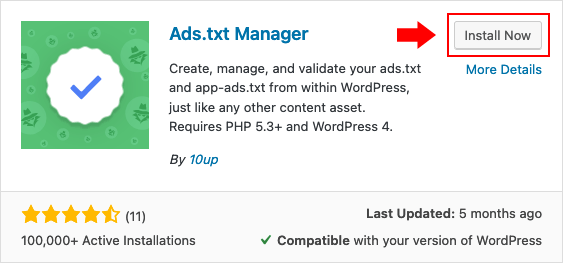
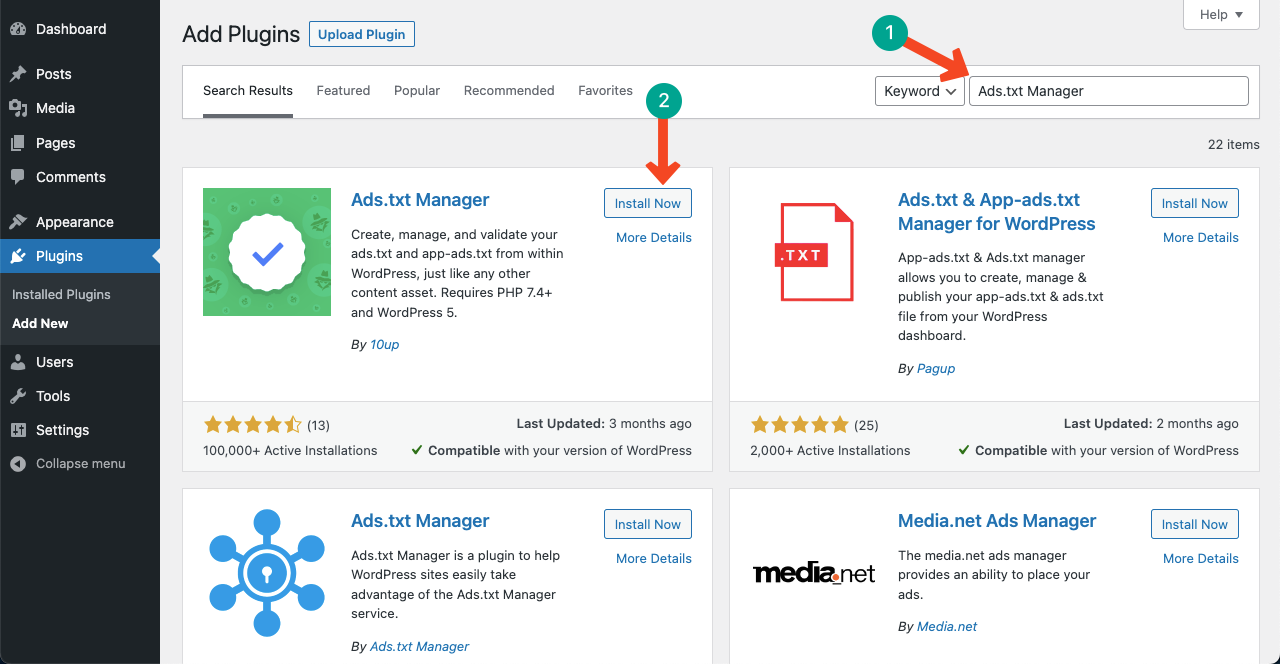
Plugins can make adding an ads.txt file easier. They offer a user-friendly interface inside WordPress. Install a plugin designed for ads.txt management. Upload your file or create it within the plugin settings. This option suits users who prefer working inside WordPress without server access.

Credit: wpcode.com
Step-by-step Guide To Uploading Ad Txt
Adding an ads.txt file to your WordPress site helps control who can sell your ad space. This guide shows each step clearly. Follow these instructions to upload the ads.txt file correctly. No technical skills needed.
Accessing Your WordPress Root Directory
Start by logging into your web hosting account. Find the File Manager or use an FTP client like FileZilla. The root directory is usually named “public_html” or your website name. This folder holds all your WordPress files. Open this folder to prepare for uploading the ads.txt file.
Uploading The Ad Txt File
Create or download the ads.txt file with your authorized sellers’ details. In the root directory, click the “Upload” button in File Manager or drag the file via FTP. Make sure the file name is exactly “ads.txt.” Wait until the upload finishes before moving on.
Verifying The Upload
Check if the ads.txt file is in the root directory. Open your browser and type your website URL followed by “/ads.txt.” For example, www.yoursite.com/ads.txt. The file should appear with all listed sellers. If you see it, the upload was successful.
Troubleshooting Common Issues
Troubleshooting common issues with adding an ads.txt file in WordPress helps keep ads running smoothly. Errors can stop your ads from showing or reduce your site’s earnings. Fixing these problems quickly improves ad delivery and trust from advertisers.
Many issues happen because of simple mistakes in file handling or settings. Understanding these errors saves time and frustration. Here are key problems you might face and how to solve them.
File Not Found Errors
This error appears when your ads.txt file is missing from your website. The ad network looks for the file but cannot find it.
Check if the file is uploaded to the correct folder. Ensure the file name is exactly “ads.txt” without extra spaces or different spelling.
Clear your website cache and refresh the page. Sometimes, the file is there but not visible immediately.
Incorrect File Placement
Ads.txt must be in your website’s root directory. This means it should be in the main folder where your homepage files live.
Placing the file in subfolders or themes will not work. The ad network only reads the root directory.
Use an FTP client or your hosting file manager to upload the file to the root folder. Double-check the path after uploading.
Permissions And Access Problems
Your ads.txt file must have the right permissions to be read by web servers and ad networks.
Set file permissions to 644 or similar so it is readable but secure. Too restrictive permissions block access.
Check your hosting control panel or contact support to fix permission issues. A locked file stops ads from verifying your sellers.
Optimizing Ad Txt For Better Results
Optimizing your Ad Txt in WordPress helps improve ad delivery and performance. It ensures the correct ads appear on your site. Proper optimization increases trust with ad networks and boosts revenue. Small updates can make a big difference in ad success.
Keeping Your Ad Txt Updated
Regular updates keep your Ad Txt accurate and relevant. Check for new authorized sellers or changes in your ad partners. Remove outdated information to avoid ad delivery issues. Fresh Ad Txt files maintain strong relationships with ad networks.
Monitoring Ad Performance
Track how ads perform after adding Ad Txt. Use analytics tools to see click rates and impressions. Identify ads that do not match your site or audience. Adjust your Ad Txt or ad settings based on this data for better results.
Adapting To Ad Network Changes
Ad networks change their rules and requirements often. Stay informed about updates from your ad partners. Modify your Ad Txt to follow new guidelines quickly. Adapting fast helps keep your ads running smoothly without interruptions.
Frequently Asked Questions
What Is Ad Txt And Why Is It Important In WordPress?
Ad TXT is a text file that authorizes ad sellers on your site. It prevents ad fraud and improves ad revenue. Adding it to WordPress ensures only approved advertisers can sell your ad space.
How Do I Add Ad Txt File To WordPress?
Upload your Ad TXT file to your WordPress root directory using an FTP client or hosting file manager. This makes it accessible to ad networks and search engines.
Can I Edit Ad Txt Directly In WordPress Dashboard?
WordPress doesn’t support direct Ad TXT editing by default. Use plugins like “Ad TXT Manager” for easy editing and management within your dashboard.
How Often Should I Update My Ad Txt File?
Update your Ad TXT file whenever you add or remove authorized sellers. Regular updates keep your ad inventory safe and maximize ad revenue.
Conclusion
Adding Ad TXT in WordPress helps keep your ads safe and trusted. It takes just a few simple steps to add the file correctly. Doing this improves your website’s ad performance and protects your brand. Keep your site updated with the right TXT records.
This small task can make a big difference. Start today and see the benefits soon.


