

Are you looking to make your WordPress site more organized and user-friendly? Adding an accordion can help you do just that.
Imagine giving your visitors a clean, clickable menu that reveals content only when they want to see it. This keeps your pages neat and easy to navigate. You’ll learn simple steps to add an accordion to your WordPress site—no coding skills required.
By the end, you’ll have a powerful tool to engage your audience and improve their experience. Ready to get started? Let’s dive in!
Benefits Of Using Accordions
Accordions help organize content in a clear and neat way. They allow users to see only what they want. This keeps pages clean and easy to read. Using accordions can make your WordPress site look professional and user-friendly.
Improved User Experience
Accordions let visitors control what they see. Users can open sections they find interesting. This reduces clutter and distraction. It makes browsing faster and more enjoyable. Visitors stay longer and explore more content.
Space-saving Design
Accordions save space on your page. Long texts or many details fit into small areas. This stops pages from becoming too long. Visitors do not need to scroll endlessly. Your site looks tidy on all devices, even phones.
Enhanced Page Organization
Accordions group related content together. This helps users find information quickly. Clear sections make the page easier to scan. You can highlight key points without overload. This structure improves the overall flow of your site.
Choosing The Right Accordion Plugin
Choosing the right accordion plugin makes your WordPress site easy to use. The right plugin improves site navigation and saves space. It also helps keep visitors interested in your content. Many plugins offer different features. Some are free, and some cost money. You must pick one that fits your needs and skill level. Consider your website’s design and technical setup too.
Popular Free Plugins
Free accordion plugins offer basic features without cost. They are easy to install and use. Popular options include Accordion, Easy Accordion, and Shortcodes Ultimate. These plugins let you create simple, clean accordions. They work well for small sites or blogs. Updates and support might be limited. Still, free plugins suit many users well.
Premium Options
Premium plugins provide advanced features and better support. Examples include WPBakery Accordion, Ultimate Addons for Elementor, and Thrive Architect. These plugins offer more design choices and customization. They often include animation effects and responsive layouts. Premium options suit professional websites and businesses. They come with regular updates and customer help.
Compatibility Considerations
Check plugin compatibility with your WordPress version. Make sure it works with your theme and other plugins. Some plugins may slow down your site or cause conflicts. Test the plugin on a staging site first. Look for plugins that follow WordPress coding standards. Compatibility ensures smooth performance and fewer errors.
Installing An Accordion Plugin
Installing an accordion plugin on WordPress is simple. This tool helps organize content neatly. Visitors can click to expand or collapse sections easily. This keeps your pages clean and user-friendly. Follow these steps to install the plugin quickly.
Accessing The WordPress Dashboard
First, log in to your WordPress dashboard. Use your username and password to enter. The dashboard is the control center for your website. From here, you manage plugins, posts, and settings.
Searching For Plugins
Next, look for the accordion plugin. On the dashboard menu, click “Plugins.” Then select “Add New” to open the plugin search page. Type “accordion” in the search bar. A list of plugins will appear. Choose one with good ratings and recent updates.
Activating The Plugin
After choosing the plugin, click “Install Now.” Wait a few seconds for installation. When done, click “Activate” to enable the plugin. Now, you can start creating accordion sections on your site.
Creating Accordion Sections
Creating accordion sections in WordPress helps organize content clearly. It lets visitors find information quickly. Accordions save space and improve page design. This section explains how to build and customize these accordion parts easily.
Adding New Accordion Items
Start by opening your accordion plugin or editor. Look for the option to add a new item or section. Click on it to create a fresh accordion panel. Each item will hold a title and content area. Add as many items as needed to cover your topics.
Customizing Titles And Content
Give each accordion item a clear, short title. Use simple words that describe the content well. Then, fill the content box with your text, images, or links. Keep the text easy to read and relevant. This helps visitors understand what each section offers.
Setting Default States
Decide which accordion items open automatically when the page loads. Some plugins let you set one or more sections to open by default. Choose the most important or popular content to show first. This guides visitors to key information right away.
Embedding Accordions Into Pages
Embedding accordions into your WordPress pages improves content organization. Accordions help hide and show information neatly. This makes pages easier to read and navigate. You can embed accordions in several ways. Each method fits different needs and skill levels.
Using Shortcodes
Shortcodes offer a quick way to add accordions. Many accordion plugins generate shortcodes automatically. Copy the shortcode and paste it into any page or post. WordPress then turns the shortcode into a working accordion. This method requires no coding skills. It works well for simple accordion layouts.
Block Editor Integration
The WordPress Block Editor often includes accordion blocks. These blocks let you add and customize accordions visually. You can insert, expand, or collapse sections easily. Editing content inside accordion blocks is straightforward. This method suits users who prefer a drag-and-drop interface.
Widget Placement
Widgets can display accordions in sidebars or footers. Some accordion plugins provide widget support. You add the accordion widget through the Appearance > Widgets menu. Widgets are ideal for showing FAQ or menu lists. This method helps place accordions outside the main page content.

Credit: herothemes.com
Styling And Customizing Accordions
Styling and customizing accordions lets you create a unique look for your WordPress site. It helps your content stand out and improves user experience. You can change colors, fonts, and animations to match your site’s style. Making your accordion responsive ensures it works well on all devices. Let’s explore how to style and customize your accordions easily.
Adjusting Colors And Fonts
Colors and fonts set the tone for your accordion. Choose colors that fit your website’s theme. Use contrasting colors for better readability. Adjust font size and style to make the text clear and attractive. Most WordPress accordion plugins allow easy changes in the settings panel. Custom CSS can also help if you want more control over styles.
Animation Effects
Animation makes your accordion more engaging. Simple slide or fade effects work best for smooth transitions. Avoid overly fast or slow animations to keep users comfortable. Many plugins offer built-in animation options. Test different effects to find the one that suits your content style and audience.
Responsive Design Tips
Responsive design ensures your accordion looks good on phones and tablets. Use percentage widths instead of fixed pixels. Check font sizes for readability on smaller screens. Test your accordion on various devices before publishing. Plugins often have built-in responsive features. Add custom media queries if needed for extra control.
Troubleshooting Common Issues
Adding an accordion to WordPress is simple but sometimes issues appear. These problems can stop your accordion from working well. Knowing common issues helps fix them fast. This saves time and keeps your site smooth.
Below are common problems with accordion plugins and easy fixes. Follow these tips to keep your accordion working.
Plugin Conflicts
Sometimes, two plugins do not work well together. This stops the accordion from opening or closing. To find the problem, turn off all plugins except the accordion plugin. Then turn on plugins one by one. This shows which plugin causes the conflict.
Update all plugins to the newest version. Old plugins can cause issues. Also, check if the accordion plugin is compatible with your WordPress version.
Accordion Not Expanding
The accordion stays closed and does not expand. This can happen if JavaScript is blocked or broken. Clear your browser cache and try again. Sometimes the browser stores old code.
Check your theme for JavaScript errors. Switch to a default WordPress theme like Twenty Twenty-One to test. If it works, your theme may need fixing.
Make sure the accordion plugin settings are correct. Sometimes a setting hides the content by mistake.
Mobile Display Problems
Accordions may look fine on desktop but break on phones. This problem often comes from CSS styles. Check if your theme or plugin has mobile support.
Test the accordion on different devices. Use browser developer tools to simulate mobile views. Adjust CSS to fix text size or button touch areas.
Some plugins have a responsive mode. Enable it for better mobile display. Clear caches after changes to see results immediately.

Credit: codexpert.io
Alternatives To Accordion Plugins
Accordion plugins are popular for organizing content on WordPress sites. Yet, not every site owner wants to use a plugin. Some prefer simpler, lighter options or want to avoid extra plugins for faster site speed. Here are two useful alternatives to accordion plugins that work well for many WordPress users.
Using Theme Features
Many WordPress themes come with built-in tools for content display. These tools sometimes include accordion or toggle options. Check your theme’s documentation or settings panel. You might find an easy way to add accordion effects without extra plugins. Themes like Astra, OceanWP, or GeneratePress often include such features. This method keeps your site light and avoids plugin conflicts.
Custom Coding Solutions
Adding accordion sections with custom code is another option. Simple HTML, CSS, and JavaScript can create clean, fast accordions. Use basic HTML for structure and CSS for styling. A few lines of JavaScript make the accordion interactive. This method requires basic coding knowledge but offers full control over design and function. It also avoids plugin updates and security risks.
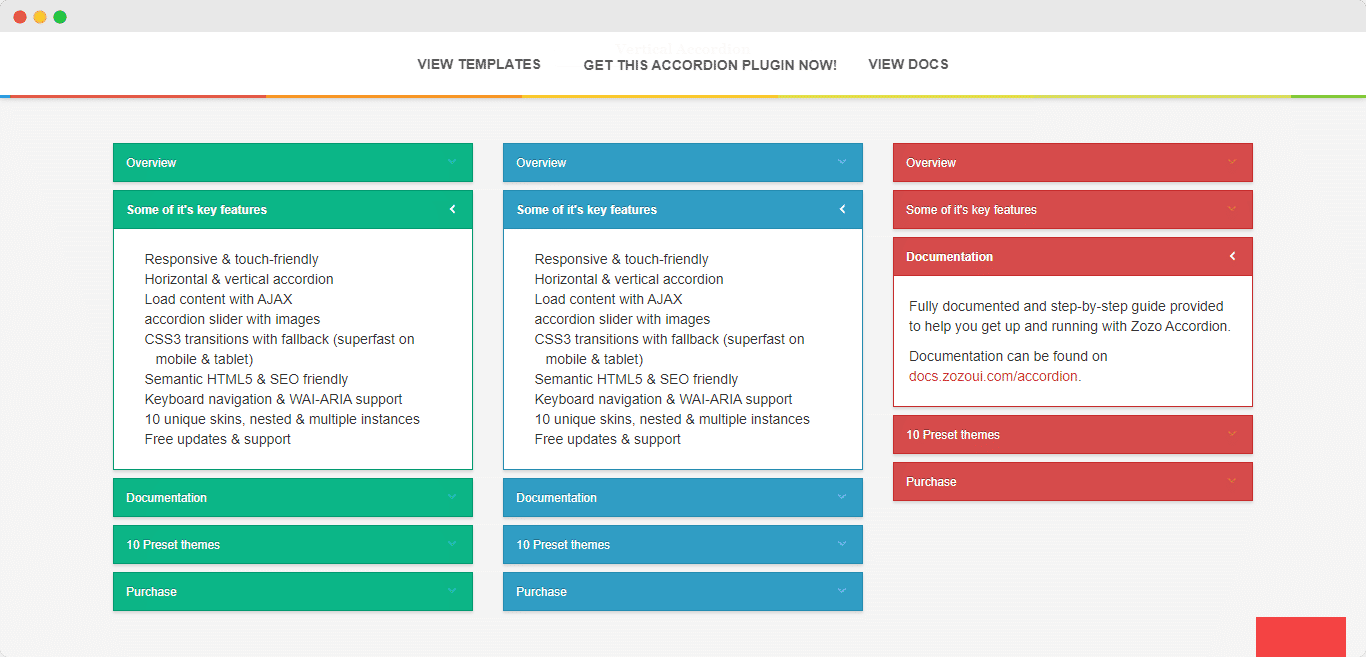
Credit: essential-blocks.com
Frequently Asked Questions
What Is An Accordion In WordPress?
An accordion in WordPress is a collapsible content section. It helps organize information into expandable panels. This improves user experience by saving space and making content easier to navigate.
How Do I Add An Accordion Using A Plugin?
To add an accordion via plugin, install a WordPress accordion plugin. Activate it, then use its shortcode or block to insert accordions into posts or pages.
Can I Create An Accordion Without A Plugin?
Yes, you can create an accordion using custom HTML, CSS, and JavaScript. This method requires coding knowledge but gives more control over design and functionality.
Are WordPress Block Editors Compatible With Accordions?
Most modern WordPress block editors support accordion blocks. You can add, customize, and manage accordions easily without extra plugins in block-based themes.
Conclusion
Adding an accordion to your WordPress site makes content neat and easy to read. It helps visitors find information faster without scrolling too much. You can use simple plugins or code to create accordions. Keep your steps clear and test your work on different devices.
Small changes like this improve user experience a lot. Try it today and see how it works for your site.


