

Are you looking to make your WordPress site more dynamic by adding posts directly to your pages? You’re in the right place.
Adding a post to a page can boost engagement, keep your visitors hooked, and give your content a fresh, organized look. But if you’re not sure how to do it, don’t worry — this guide will walk you through the process step-by-step.
By the end, you’ll have the confidence to seamlessly integrate posts into any page on your site, making your WordPress experience smoother and more powerful. Ready to get started? Let’s dive in!
Create A New Post
Creating a new post is the first step to sharing content on your WordPress site. It lets you add fresh information, stories, or updates. This section guides you through the basic steps of making a new post.
Follow these steps carefully to ensure your post is ready for your audience.
Access The WordPress Dashboard
Start by logging into your WordPress account. The dashboard is the control center for your site. Here, you can manage posts, pages, and settings. Use the menu on the left to find different options.
Navigate To Posts Section
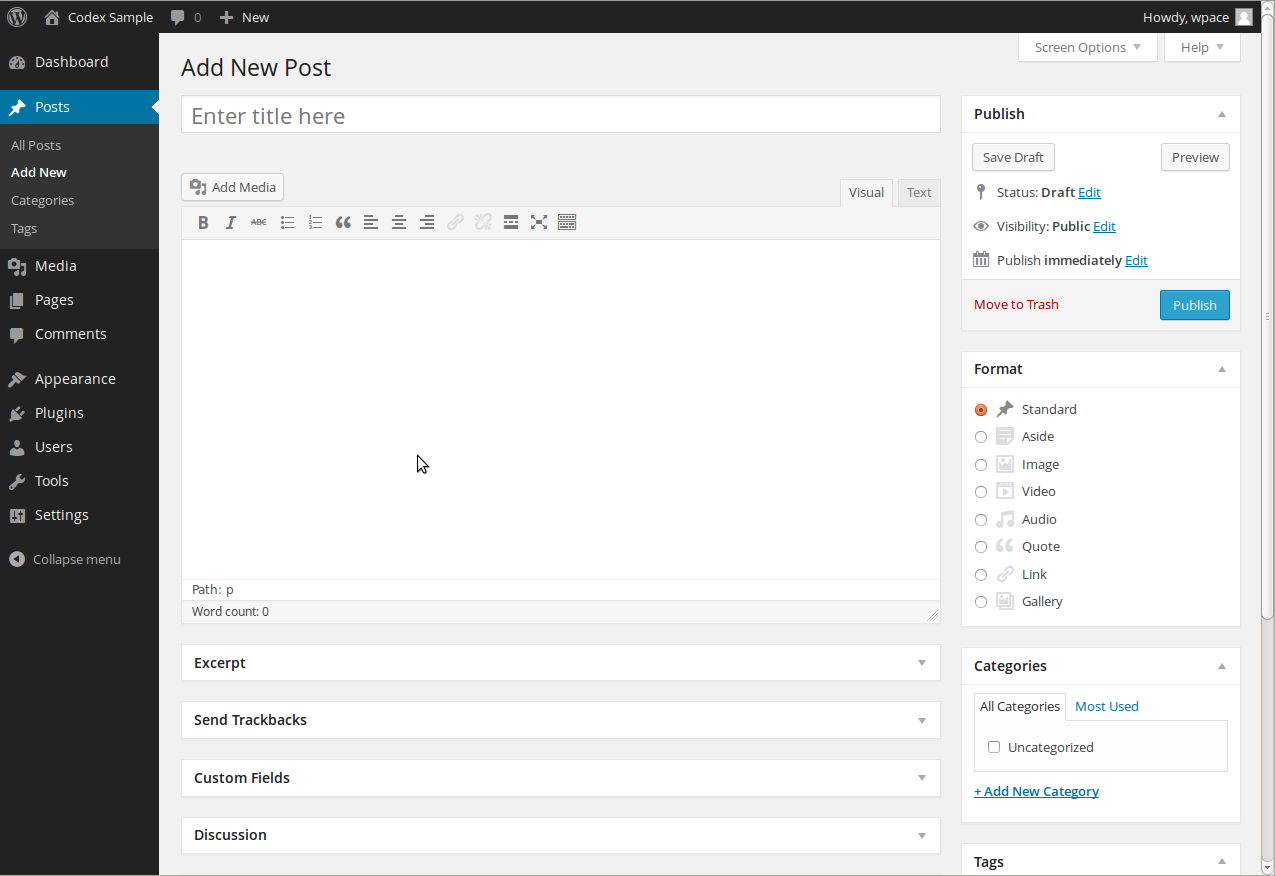
Look for the “Posts” option in the dashboard menu. Click on it to see all your current posts. To create a new one, click the “Add New” button at the top. This opens a blank post editor for your content.
Add Title And Content
Type your post title in the top field. Make it clear and catchy. Below the title, add your main content. Use short paragraphs and simple words. This helps readers understand your message quickly.
Set Categories And Tags
On the right side, find the categories and tags boxes. Choose a category that fits your post topic. Add tags to highlight important keywords. These help visitors find your post more easily.

Credit: www.theblogmechanic.com
Publish The Post
Publishing a post on your WordPress page is the final step in sharing your content with visitors. This process ensures your post looks good, reaches the right audience, and appears at the best time. Take a moment to prepare your post before making it live.
Preview Your Post
Preview your post to see how it appears on your site. Check the layout, images, and text formatting. Make sure everything looks clear and professional. This step helps catch errors before publishing. Use the Preview button in the editor for a quick look.
Choose Visibility Options
Select who can see your post with visibility settings. Choose Public to share with everyone. Set it to Private if only you or selected users should view it. Use Password Protected to require a password for access. These options control your post’s audience.
Publish Immediately Or Schedule
Decide when to publish your post. Click Publish to make it live right away. Or pick a future date and time to schedule the post. Scheduling helps plan content release for peak visitor times. Use the calendar tool in the editor for easy scheduling.
Add Post To A Page
Adding posts to a page in WordPress helps keep your website fresh and engaging. It shows your visitors the latest content without navigating away from the page. This method works well for blogs, news sites, or any content that updates often. WordPress offers simple tools to display posts directly on any page you choose.
Use Gutenberg Block Editor
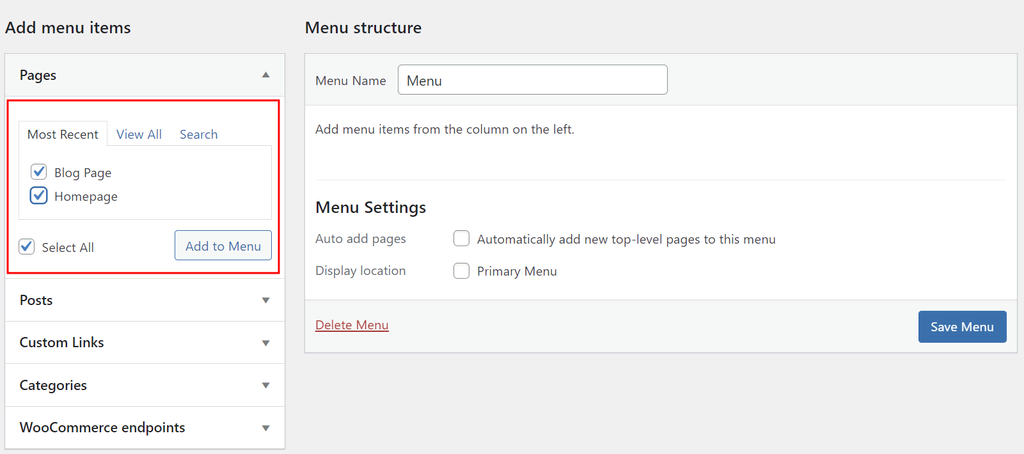
Open the page where you want to add posts. WordPress uses the Gutenberg block editor by default. It lets you add different types of content blocks easily. Click the plus (+) icon to add a new block. This editor makes it simple to insert posts without coding.
Insert Latest Posts Block
Search for the “Latest Posts” block in the block menu. Select it to add recent posts to your page. This block automatically pulls the newest posts from your blog. You can display titles, excerpts, dates, and featured images. It updates automatically as you publish new posts.
Customize Post Display
Adjust the block settings to fit your page style. Choose how many posts to show at once. Decide if you want to display post dates or featured images. You can also select the order, like newest first or oldest first. Customize the layout to match your website design.
Save And Update The Page
After adding and customizing the posts block, save your changes. Click the “Update” button to publish the updated page. Visit the page to see how the posts appear. This way, your visitors always see fresh content on your page.
Credit: www.hostinger.com
Alternative Methods
There are simple alternative ways to add posts to a page in WordPress. These methods do not require complex coding or heavy customization. They help you display posts easily and improve your website’s user experience.
Use these options to customize how posts appear on your pages. Each method fits different needs and skill levels.
Embed Post Using Shortcodes
Shortcodes are small bits of code that show posts inside pages. WordPress has built-in shortcodes to list posts by category or tag. You can also create custom shortcodes for specific posts.
Just add the shortcode in the page editor where you want the post to appear. The post content loads automatically without extra steps. This method is fast and works well for beginners.
Use Plugins For Post Display
Plugins offer powerful tools to display posts on any page. Many plugins let you create post grids, sliders, or lists with no coding.
Install a post display plugin and choose how posts should look. Some plugins include filtering options to show posts by date or category. Plugins save time and add visual appeal to your pages.
Add Post Links Manually
Manually adding post links is the simplest option. Copy the post URL and paste it inside your page content as a link.
This method does not show full posts but allows visitors to access them easily. Use descriptive link text so readers know what the post is about. It works well for linking a few important posts.
Troubleshooting Tips
Troubleshooting problems while adding a post to a page in WordPress can save time and stress. Small issues often block your content from showing correctly. Following simple steps helps find and fix these issues fast. Below are key tips to check and correct common problems.
Check Permalink Settings
Permalink settings control how your URLs appear. Incorrect settings can cause posts not to show on pages. Go to WordPress dashboard, then Settings > Permalinks. Choose a common structure like “Post name.” Save changes to refresh links. This often fixes broken or missing post links.
Clear Cache After Changes
Caching stores older versions of your site. It can prevent new posts from appearing. Clear your browser cache first. Then clear any cache plugins or server cache. This forces WordPress to load the latest content. After clearing cache, reload your page to see updates.
Verify Theme Compatibility
The theme controls how posts display on pages. Some themes limit post visibility or layouts. Test your site with a default WordPress theme like Twenty Twenty-Three. If posts appear correctly, your theme might cause the problem. Consider updating or switching themes for better compatibility.
Credit: wordpress.org
Frequently Asked Questions
How Do I Add A Post To A WordPress Page?
To add a post to a WordPress page, use the “Latest Posts” block or a shortcode. This dynamically displays recent posts on any page without manual updates.
Can I Display Specific Posts On A WordPress Page?
Yes, you can show specific posts by using categories or tags with blocks or plugins. This filters posts for targeted content display.
Is There A Plugin To Add Posts To Pages Easily?
Yes, plugins like “Display Posts” help insert posts into pages with shortcodes. They offer customization without coding knowledge.
How To Update Posts Shown On A WordPress Page?
Posts update automatically when using dynamic blocks or shortcodes. You don’t need to manually refresh the page content.
Conclusion
Adding posts to a WordPress page is simple and useful. You can show your content exactly where you want. Follow the steps carefully to avoid mistakes. Use categories or plugins to organize posts better. Check your page after adding posts to see the result.
Keep practicing to get comfortable with WordPress tools. This skill helps make your website clearer and more engaging. Try it yourself and watch your site improve.


