
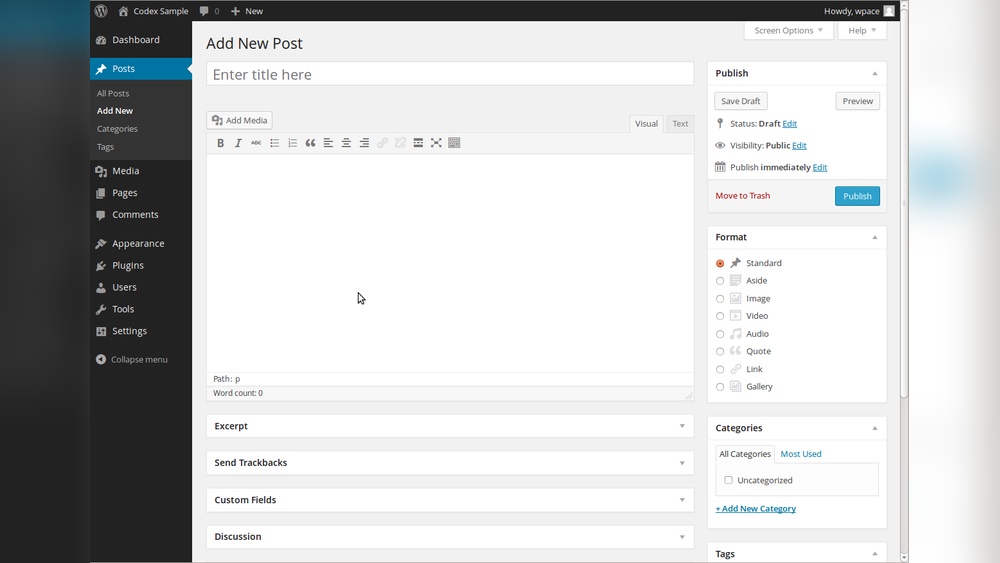
Want to share your thoughts, stories, or ideas with the world? Adding a post on WordPress is the first step to making your voice heard online.
If you’ve ever felt stuck or unsure about where to start, this guide is made just for you. By the end, you’ll know exactly how to create and publish your own WordPress post quickly and easily. Ready to turn your ideas into content that connects?
Let’s dive in.
Getting Started With WordPress
Starting with WordPress is simple and quick. It helps you create and manage your website easily. This section guides you through the first steps to add a post. Understanding the basics of WordPress will save time and reduce confusion.
Accessing The Dashboard
The dashboard is your WordPress control center. Log in using your username and password. Usually, the login page is at yoursite.com/wp-admin. After logging in, you see the dashboard screen. It shows you the latest updates and shortcuts. This place lets you manage everything on your site.
Navigating The Admin Panel
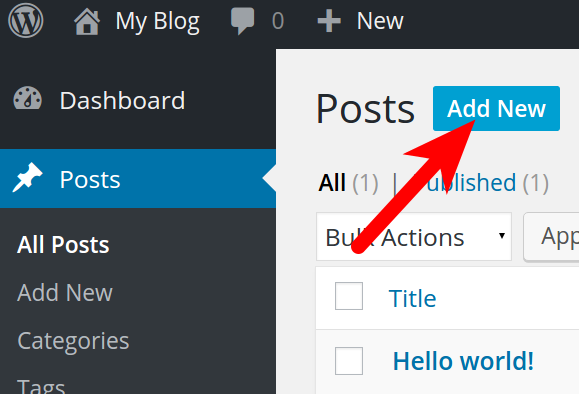
The admin panel is the menu on the left side. It has all the tools you need. Posts, Pages, Media, and Settings are some main sections. Click “Posts” to start writing or managing articles. The panel is easy to use with clear labels. It helps you find what you need fast.
Credit: www.inmotionhosting.com
Creating A New Post
Creating a new post in WordPress is simple and quick. It lets you share ideas, news, or stories with your readers. This process starts with opening the post editor and then picking a good title. Both steps are important to make your content clear and easy to find.
Opening The Post Editor
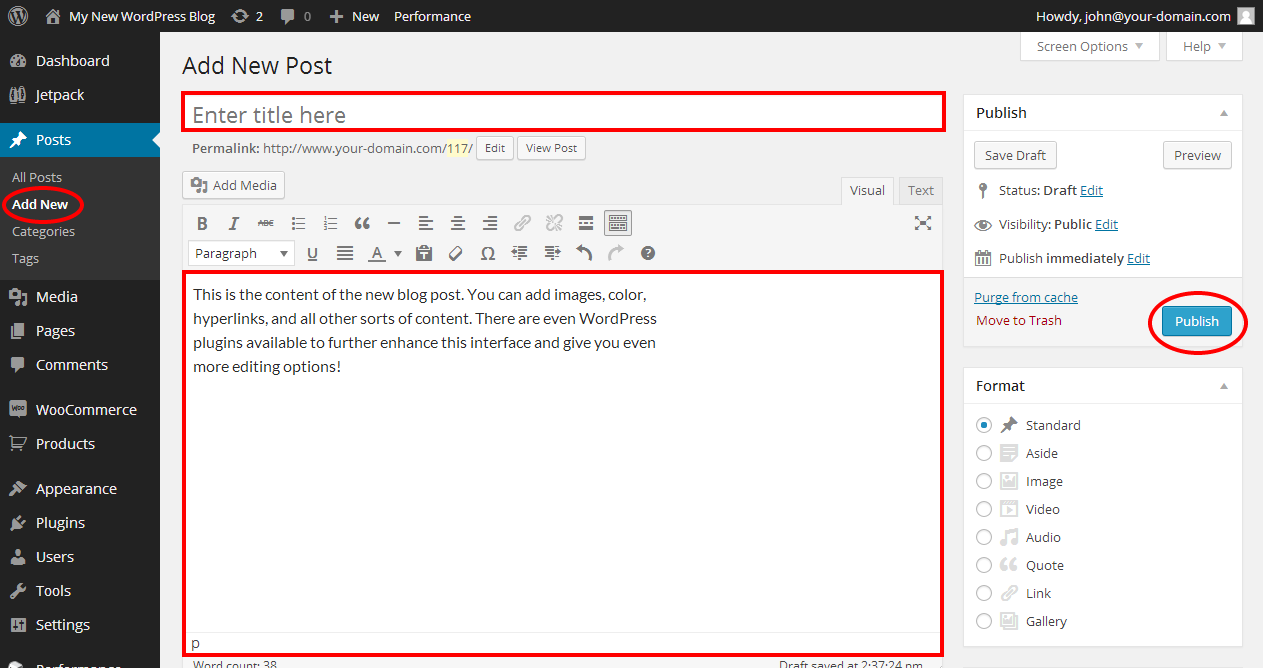
First, log in to your WordPress dashboard. On the left menu, find and click “Posts.” Then select “Add New.” This opens the post editor where you write your content. The editor looks clean and easy to use. You can type text, add images, and format your post here. It saves your work automatically, so no need to worry about losing progress.
Choosing A Post Title
The post title shows at the top of your post. It should be short and describe the main idea. A clear title helps readers understand what your post is about. It also improves your post’s SEO. Use simple words that your audience will know. Avoid long titles. Aim for 5 to 10 words. This makes your post easy to find on search engines.
Writing Your Content
Writing your content is a key step in creating a WordPress post. This stage lets you share your ideas clearly and attract readers. Focus on making your text easy to read and engaging. Use the tools WordPress offers to build your story effectively.
Using The Block Editor
The WordPress block editor divides content into blocks. Each block can hold different types of content like text, images, or videos. This setup makes editing simple and flexible. You can move blocks around to change the layout quickly. The block editor also lets you add new blocks with just a click. It helps keep your post organized and neat.
Adding Text And Media
Start by typing your main text in a paragraph block. You can add headings to break your content into sections. Use image blocks to include pictures that support your message. Videos and audio can also be added using their blocks. Adding media makes posts more interesting and helps explain your points better. Make sure each media item has a clear purpose.
Formatting Tips
Keep sentences short and clear. Use headings to guide readers through your post. Bold important words to highlight key ideas. Use bullet points or numbered lists for easy reading. Avoid large blocks of text that can tire readers. Add space between paragraphs for a clean look. These simple steps improve the reading experience.
Enhancing Your Post
Enhancing your post helps it stand out and reach the right readers. Simple steps make your content clearer and more attractive. Proper organization and visuals improve user experience and SEO. Focus on categories, tags, images, and excerpts to boost your post’s appeal.
Setting Categories And Tags
Categories group your posts by broad topics. They help readers find related content quickly. Choose categories that match your post’s main idea. Use tags for specific details or keywords. Tags highlight important points in your post. Adding both makes your site easier to navigate. It also helps search engines understand your content.
Adding Featured Images
Featured images catch readers’ attention at first glance. Pick clear, relevant pictures for your post. Images break up text and make reading enjoyable. They also improve social media sharing. Always use images with good quality and proper size. Add alt text to describe the image for SEO and accessibility. A great featured image invites clicks and shares.
Using Excerpts
Excerpts are short summaries of your post. They give readers a quick idea of the content. Write clear and interesting excerpts to encourage clicks. Keep them brief—around 20 to 30 words works well. Excerpts appear on archive and search pages. They improve user experience and help with SEO. A strong excerpt makes your post more inviting.
Publishing Your Post
Publishing your post on WordPress is the final step to share your content with the world. It lets you control when and how your post appears. You can check your work, decide the timing, and set who can see it. These options help you manage your content easily and clearly.
Previewing The Post
Before publishing, preview your post to see how it looks. Click the “Preview” button. This opens a new tab showing your post exactly as readers will see it. Check for mistakes, layout issues, and readability. Make changes if needed to improve your post.
Scheduling Or Publishing Immediately
You can publish your post right away or schedule it for later. To publish now, click the “Publish” button. To schedule, click the date and time settings. Choose the day and hour you want your post to appear. WordPress will publish it automatically at that time.
Managing Visibility Settings
Visibility controls who can view your post. Choose “Public” for everyone to see. Select “Private” to limit access to site admins and editors only. Use “Password Protected” to ask readers for a password. This is useful for exclusive content or small groups.
Editing And Updating Posts
Editing and updating posts in WordPress is simple and important. It helps keep your content fresh and accurate. You can change text, images, or links anytime after publishing. WordPress offers tools to save your work and track changes. These features protect your content and make editing easy.
Making Changes After Publishing
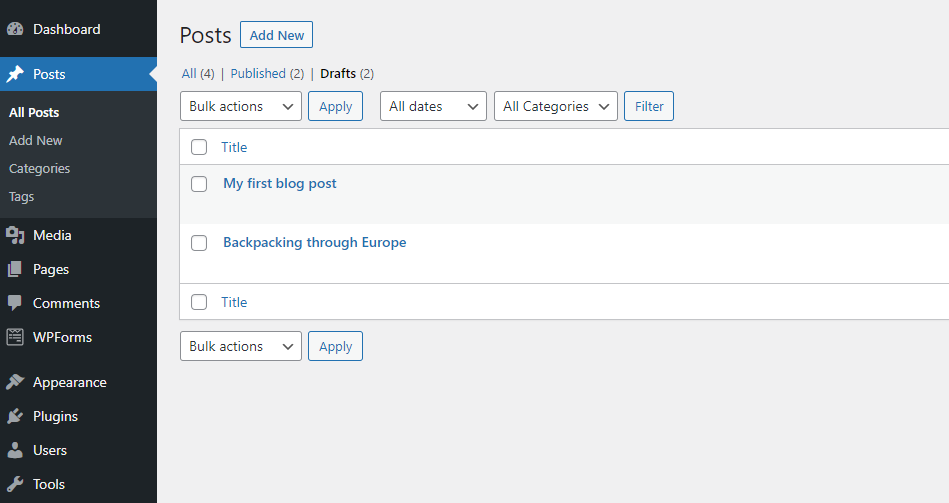
To edit a published post, go to the WordPress dashboard. Click on “Posts” and select the post you want to change. Make your edits in the content area. You can update text, add images, or fix mistakes. After editing, click the “Update” button to save changes. Your post will refresh with the new content online.
Revisions And Autosave Features
WordPress saves your work automatically every few seconds. This autosave feature prevents losing content during editing. You can also view past versions of your post. Click “Revisions” in the editor to see previous changes. Restore older versions if needed. These tools help manage edits and keep your work safe.
Troubleshooting Common Issues
Adding a post on WordPress is simple but can sometimes bring small problems. These issues may stop you from publishing your content smoothly. Understanding common problems helps you fix them fast. This keeps your blog running well and your readers happy.
Fixing Formatting Problems
Formatting errors can make your post look messy. Text may appear too large, too small, or out of place. Use the WordPress editor’s toolbar to correct font size and style. Clear any extra spaces or line breaks that cause odd gaps.
Switch to the “Text” tab in the editor to check for hidden HTML tags. Remove any strange codes that affect your layout. Also, use the “Preview” button to see how your post looks before publishing.
Resolving Media Upload Errors
Uploading images or videos might fail due to file size or format issues. Check that your media files are within WordPress limits. Supported formats include JPG, PNG, GIF for images, and MP4 for videos.
Clear your browser cache and try uploading again. Sometimes, slow internet or server problems cause upload failures. If errors persist, deactivate plugins one by one to find conflicts blocking uploads.
Credit: www.hostinger.com
Credit: www.ipage.com
Frequently Asked Questions
How Do I Create A New Post On WordPress?
To create a new post, log in to your WordPress dashboard. Click “Posts” then “Add New. ” Enter your title and content, then click “Publish” to make it live.
Can I Add Images To My WordPress Post?
Yes, you can add images by clicking the “Add Media” button above the editor. Upload or select an image from your media library, then insert it into your post.
How Do I Schedule A WordPress Post For Later?
In the post editor, find the “Publish” box. Click “Edit” next to “Publish immediately. ” Choose your date and time, then click “Schedule” to set your post for future publication.
What Are The Best Practices For Writing WordPress Posts?
Use clear titles, short paragraphs, and relevant keywords. Add images and use headings to improve readability and SEO. Always preview before publishing to ensure quality.
Conclusion
Adding a post on WordPress is simple and fast. Just follow the steps carefully. Write your content clearly and add images to attract readers. Use categories and tags to organize your posts well. Preview your post to check how it looks.
Finally, publish it with one click. Keep practicing to get better. Your blog will grow with regular posting. Enjoy sharing your ideas with the world!


