
Are you looking to share important documents with your website visitors? Adding a PDF as a clickable link in WordPress is a simple way to do just that.
Whether it’s a brochure, guide, or report, linking your PDF lets your audience access valuable information instantly. You’ll learn step-by-step how to add a PDF link to your WordPress site—no tech skills needed. Keep reading, and you’ll have your PDF ready to share in no time!
Prepare Your Pdf File
Preparing your PDF file is an important step before adding it as a link in WordPress. It helps ensure the file works well and is easy to find. Proper preparation also improves your website’s performance and user experience. Follow these simple steps to get your PDF ready.
Check File Size And Format
Check the size of your PDF file first. Large files can slow down your website. Keep the file size under 5MB for faster loading. Use PDF format only, as WordPress supports it best. If your file is too large, try compressing it without losing quality.
Rename Your Pdf For Seo
Rename your PDF file with clear, simple words. Use keywords that describe the content of the PDF. Avoid spaces and special characters; use hyphens instead. For example, “marketing-tips-2024.pdf” is better than “doc123.pdf”. This helps search engines find your file more easily.
Credit: www.youtube.com
Upload Pdf To WordPress
Uploading a PDF to WordPress lets you share documents easily. You can link to manuals, brochures, or reports directly on your site. The process is simple and fast, even for beginners. This section shows how to upload your PDF files for use in posts or pages.
Use The Media Library
Start by opening your WordPress dashboard. Find the “Media” menu and click “Add New.” Drag your PDF file into the upload area or click “Select Files” to browse your computer. WordPress will upload and save the PDF for you.
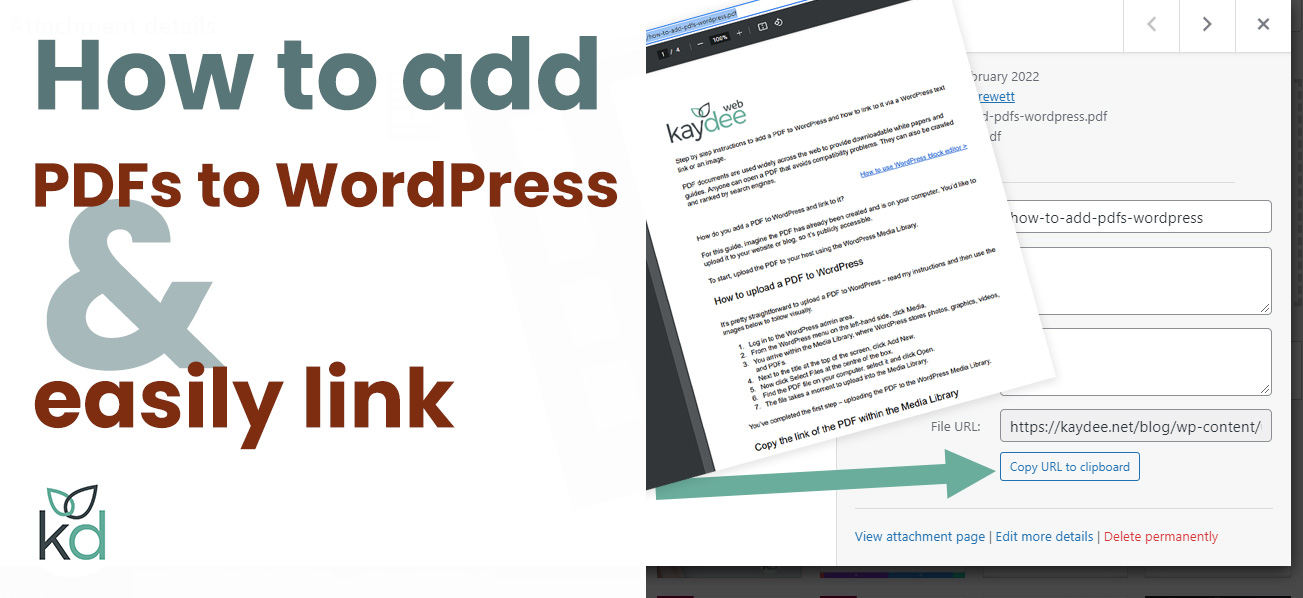
Once uploaded, click the file in the Media Library. Copy the URL shown on the right side. This link is what you will use to add the PDF to your content.
Alternative Upload Methods
You can also upload PDFs using the block editor. In a post or page, click the “+” button to add a new block. Choose the “File” block. Upload your PDF or select one from the Media Library.
The File block automatically creates a download link. You can customize the link text to make it clear for readers. This method is quick and works well for most needs.
Create A Pdf Link In A Post Or Page
Creating a PDF link in a WordPress post or page helps share documents easily. Visitors can click the link and open or download the PDF file. This process works well for manuals, guides, or reports on your site.
WordPress offers two main editors: Block Editor and Classic Editor. Each editor has a simple way to insert a PDF link. Follow these steps to add your PDF file link quickly.
Insert Link Using Block Editor
Start by uploading your PDF file to the Media Library. Click “Add Media” inside your post or page. Select “Upload Files” and choose your PDF.
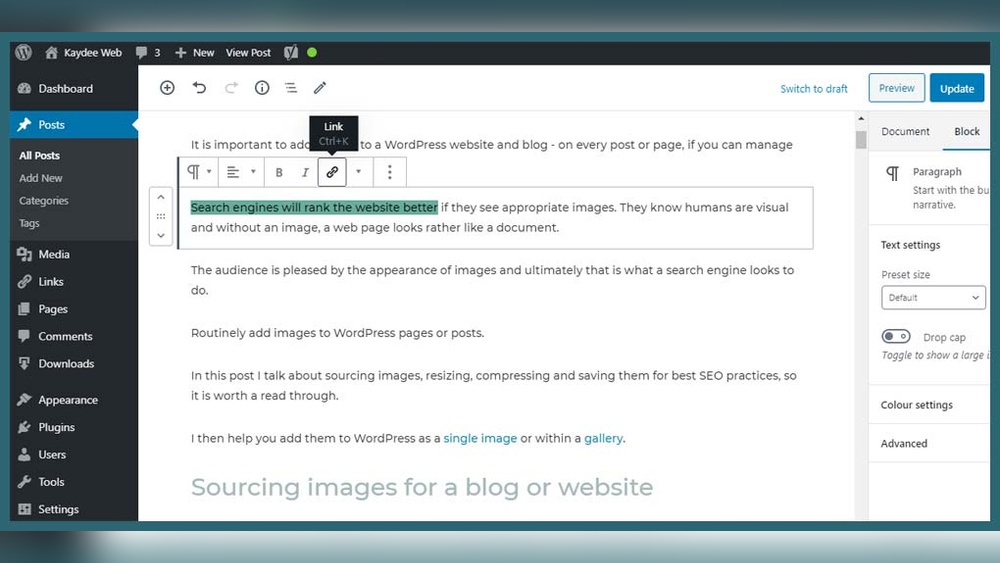
After upload, copy the file URL from the Media Library. Next, highlight the text you want to turn into a link. Click the link icon in the toolbar above the text.
Paste the PDF URL in the link box. Press “Enter” or click the “Apply” button. Your text now links to the PDF file. Save or update your post to publish.
Add Link In Classic Editor
Upload the PDF to the Media Library using the “Add Media” button. Once uploaded, copy the PDF URL shown on the right side.
Select the text you want to link in your post or page editor. Click the “Insert/edit link” button in the toolbar.
Paste the copied URL into the link field. Click “Add Link” to apply it. Finally, save or update your content to make the link active.
Customize Link Appearance
Customizing the link appearance helps your PDF links stand out. It makes your site look neat and professional. Clear links also improve user experience. Visitors find what they need faster. This section shows simple ways to change how your PDF link looks.
Change Link Text
Default PDF links often show the file name. This can be confusing or ugly. Change the link text to something clear and inviting. Use words like “Download PDF” or “View Guide.” This tells visitors what to expect. Edit the link text easily in the WordPress editor. Just click the link and type your new text. Keep it short and simple for better clarity.
Open Pdf In New Tab
By default, PDF links open in the same tab. This can make visitors leave your site. Set the link to open in a new tab. It keeps your website open in the original tab. Users can view the PDF and return quickly. To do this, click the link in the editor. Then choose the option to open in a new tab. This small step improves navigation and user comfort.
Test Your Pdf Link
Testing your PDF link ensures visitors can access your document without trouble. This step confirms the link works and directs users to the right file. It helps avoid broken links and improves user experience on your site.
Verify Link Functionality
Click the PDF link on your WordPress page or post. Check if the PDF opens in a new tab or downloads properly. Make sure the document loads quickly and displays clearly. Test on different devices like phones, tablets, and computers. Confirm the link works in multiple browsers such as Chrome, Firefox, and Safari.
Troubleshoot Common Issues
If the PDF does not open, check the file URL for errors. Ensure the PDF is uploaded to your media library correctly. Clear your browser cache and try clicking the link again. Confirm file permissions allow public access. Rename the PDF file if the name has spaces or special characters. Replace the link if it still fails to work after these steps.
Credit: formidableforms.com
Enhance Pdf Accessibility
Making PDFs easy to access helps all users. It improves user experience and site quality. Accessibility means clear, simple links and images that everyone can understand. This section explains how to enhance PDF accessibility on WordPress sites.
Add Descriptive Link Titles
Use clear and specific titles for your PDF links. For example, write “Download Annual Report 2023 PDF” instead of “Click here.” Descriptive titles help users know what to expect. Screen readers also read these titles aloud. This helps visually impaired users navigate your site better.
Use Alt Text For Thumbnails
If you use images or thumbnails to link to PDFs, add alt text. Alt text describes the image for users who cannot see it. Keep alt text short and meaningful, like “Cover of Annual Report 2023 PDF.” This improves accessibility and helps search engines understand your content.
Credit: kaydee.net
Frequently Asked Questions
How Do I Upload A Pdf To WordPress?
To upload a PDF, go to your WordPress dashboard. Click “Media” then “Add New. ” Select your PDF file and upload it. Once uploaded, copy the file URL to use as a link.
How Can I Add A Pdf Link In A WordPress Post?
Edit your post, highlight the text to link, and click the link icon. Paste the PDF URL and apply the link. Publish or update the post to make the link live.
Can I Open A Pdf Link In A New Tab?
Yes, when adding your PDF link, select the option “Open link in a new tab. ” This improves user experience by keeping visitors on your site.
Is It Possible To Track Pdf Link Clicks In WordPress?
Yes, use plugins like Google Analytics or MonsterInsights. They help you monitor how many times users click your PDF links.
Conclusion
Adding a PDF link in WordPress is simple and useful. It helps share documents with visitors easily. You only need to upload the file and insert the link in your post. This keeps your site organized and professional. Visitors can download or view the PDF quickly.
Try this method to improve your content sharing. Practice a few times to get comfortable. Soon, you will add links without any trouble. Keep your website clear and easy to use. That makes visitors happy and engaged.


