
Are you looking to boost your sales and attract more customers on your WordPress site? Adding a discount code is one of the easiest and most effective ways to do just that.
Imagine giving your visitors a reason to buy right now, making them feel special and saving money at the same time. In this guide, you’ll learn exactly how to add a discount code on WordPress quickly and without any hassle.
By the end, you’ll have a simple tool that can turn casual visitors into loyal buyers. Ready to see how it’s done? Let’s dive in!
Choose The Right Plugin
Choosing the right plugin for adding discount codes on WordPress is key. The plugin controls how you create and manage discounts. It affects your site’s speed and user experience. A good plugin saves time and helps increase sales.
Many plugins offer different features. Some are simple, while others have many options. Picking one that fits your needs makes a big difference. Consider ease of use, compatibility, and support before deciding.
Popular Discount Plugins
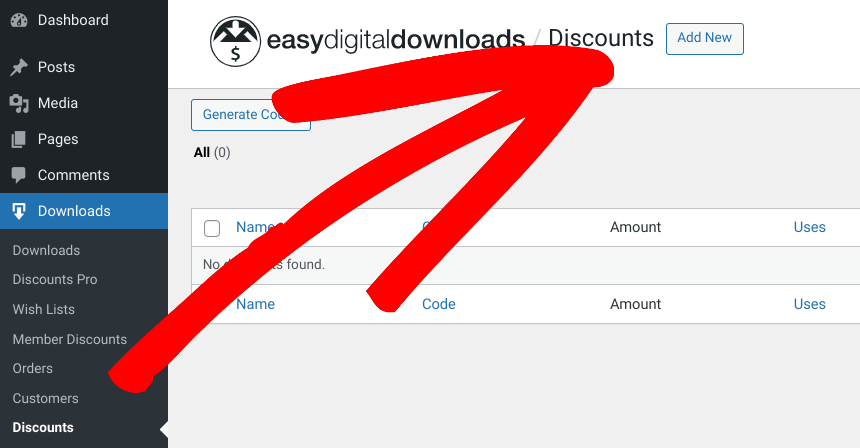
WooCommerce is the most common plugin for discounts. It works well with online stores. Another option is Easy Digital Downloads, which suits digital products. WP Coupons and Deals is good for creating coupon codes. Each plugin has a strong user base and regular updates.
Plugin Features To Consider
Look for plugins that allow flexible discount types. Percentage, fixed amount, or free shipping discounts are useful. Check if the plugin supports expiry dates for codes. User restrictions, like limiting use per customer, are also important. Compatibility with your theme and other plugins matters. Good customer support and clear documentation help solve issues fast.
Install And Activate The Plugin
Installing and activating a plugin is the first step to add a discount code on WordPress. Plugins extend the functionality of your website. They make tasks easier without needing coding skills. Follow the simple steps below to install and activate the right plugin.
Step-by-step Installation
Log in to your WordPress dashboard. On the left menu, find and click “Plugins.” Choose “Add New” from the submenu. Use the search box to find a discount code plugin. Look for one with good reviews and recent updates. Click the “Install Now” button next to the plugin. Wait a few seconds for the installation to complete. After that, click “Activate” to start using the plugin.
Configuring Basic Settings
Go to the plugin’s settings page. Usually, it appears in the dashboard menu after activation. Set the basic options such as currency, discount type, and usage limits. Save your changes to apply the settings. These settings control how your discount codes work on your site. Adjust them based on your store’s needs.
Create Your Discount Code
Creating a discount code in WordPress is a simple way to attract customers and boost sales. This step lets you set specific rules for your discounts. You control how much the discount is and who can use it. Setting up the code clearly helps avoid confusion for your buyers. Follow these steps to create a discount code that fits your needs perfectly.
Setting Discount Amounts
Choose the type of discount you want to offer. You can set a fixed amount off or a percentage discount. For example, $10 off or 20% off. Enter the exact value in the discount field. Make sure the discount makes sense for your product prices. Keep discounts attractive but still profitable for your business.
Choosing Usage Limits
Decide how many times the discount code can be used. Limit it to one use per customer or allow multiple uses. Set an overall usage limit to control the total number of redemptions. This prevents the code from being overused. Usage limits help manage your sales and keep discounts fair.

Credit: www.youtube.com
Apply Discount Codes To Products
Applying discount codes to products in WordPress is a smart way to boost sales. It helps attract customers and encourages them to buy more. You can assign discount codes to specific products or apply them to the entire cart. Both methods are easy to set up and manage.
Assigning Codes To Specific Items
To assign discount codes to specific products, start by creating a coupon in your WordPress dashboard. Set the discount type, like a fixed amount or percentage off. Next, restrict the coupon to certain products. This option ensures the discount applies only to those items. Customers will see the reduced price only on selected products at checkout.
This method works well for promotions on new arrivals or clearance items. It also helps control how discounts affect your inventory.
Using Cart-wide Discounts
Cart-wide discounts apply a coupon to the entire order. These discounts reduce the total price of all items in the cart. Set up a cart-wide discount by creating a coupon without product restrictions. You can also set minimum purchase amounts or usage limits.
Cart-wide discounts encourage customers to add more items. They feel rewarded for buying more, which can increase your store’s average order value. This approach suits sales events and special promotions.
Test The Discount Code
Testing your discount code is vital before sharing it with customers. It ensures the code works as expected and avoids any checkout problems. Testing saves time and improves user experience.
Simulating A Purchase
Start by adding a product to your cart on your WordPress store. Enter the discount code at checkout. Check if the discount applies correctly to the total price. Confirm the final amount matches the discount value. Complete the purchase process without submitting payment. This process helps verify the discount is active and accurate.
Troubleshooting Common Issues
If the discount does not apply, check the code spelling carefully. Ensure the code is active and not expired. Verify the conditions set for the discount, like minimum order value or product restrictions. Clear your browser cache and try again. Disable conflicting plugins that may block discounts. These steps help fix common problems efficiently.
Credit: wpforms.com
Promote Your Discount Codes
Promoting your discount codes helps increase sales and customer interest. Sharing these codes widely makes more people aware of your offers. Use clear and simple messages to attract attention. Focus on channels where your audience spends time. This boosts the chances of your discount codes being used.
Email Campaigns
Email campaigns reach customers directly in their inbox. Send a short message about your discount code and its benefits. Include a clear call-to-action button to encourage clicks. Personalize emails by using the recipient’s name. Schedule emails for the best times to improve open rates. Keep the design clean and mobile-friendly for easy reading.
Social Media Strategies
Share discount codes on social media platforms regularly. Use eye-catching images and simple text to highlight the offer. Post short videos explaining the discount and how to use it. Engage with followers by asking questions or running polls. Pin your discount code posts to the top of your profile. Use stories to create urgency with limited-time offers.
Track Discount Code Performance
Tracking the performance of your discount codes helps you see their true impact. It shows which codes bring in more customers and sales. You get clear data to make smart decisions for your marketing efforts. This part explains how to track and use discount code data effectively.
Using Analytics Tools
Use tools like Google Analytics to monitor discount code use. Set up goals to track when customers use a code. Check how many people visit your site from each campaign. See which code leads to the most sales and revenue. These insights help you understand customer behavior better.
Adjusting Campaigns Based On Data
Look at your data regularly to improve your discount campaigns. Stop using codes that do not bring sales. Focus more on codes that attract many buyers. Change your marketing messages based on what works best. Small changes can increase your sales over time.
Credit: easydigitaldownloads.com
Frequently Asked Questions
How Do I Create A Discount Code In WordPress?
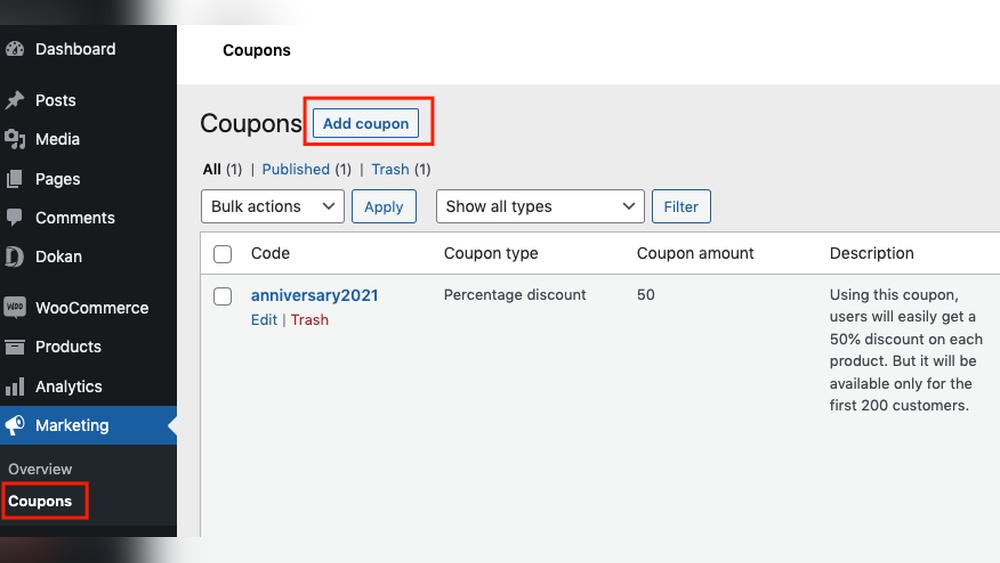
To create a discount code, install a WooCommerce plugin. Go to WooCommerce > Coupons, click “Add Coupon,” enter a code, set discount details, and save it. This enables discount codes for your WordPress store easily.
Where Can I Add Discount Codes In WordPress?
Discount codes are added via the WooCommerce Coupons section. Navigate to WooCommerce > Coupons in your WordPress dashboard. Here, you can create, manage, and customize all your discount codes efficiently.
Can I Set Expiration Dates For Discount Codes?
Yes, WooCommerce lets you set expiration dates. While creating a coupon, specify the expiry date. This automatically disables the code after that date, ensuring timely promotions and better control.
Are Discount Codes Compatible With All WordPress Themes?
Most WordPress themes support discount codes if WooCommerce is installed. The discount functionality depends on WooCommerce, not the theme. Ensure your theme supports WooCommerce for smooth integration.
Conclusion
Adding a discount code on WordPress is simple and quick. Just follow the steps carefully. This helps attract more customers and boost sales. You can change or remove codes anytime you want. Keep codes clear and easy to use. Test the discount before sharing it with buyers.
With these tips, your store will run smoothly. Try it today and see the difference.


