
Want to make your WordPress site stand out? Adding a background is one of the easiest ways to give your website a fresh, unique look that grabs attention.
Whether you want a solid color, a pattern, or an image, you can create a vibe that matches your style and message perfectly. In this guide, you’ll learn simple, step-by-step methods to add a background to your WordPress site—no coding skills needed.
Keep reading, and by the end, you’ll have a site that looks professional and feels truly yours.
Choosing The Right Background
Choosing the right background in WordPress helps set the tone for your site. It creates the first impression for visitors. A good background supports your content without distracting from it. Think about your website’s purpose and audience before deciding. The background should match your brand and style. Simple choices often work best for clear communication.
Types Of Backgrounds
There are several types of backgrounds to consider. Solid colors offer a clean and minimal look. Images add personality and can highlight your brand. Videos provide dynamic and engaging visuals but may slow down your site. Gradients combine colors for a smooth, modern effect. Choose the type that fits your message and site speed needs.
Colors Vs. Images
Colors are easy to change and load quickly. They create a calm or energetic feel depending on the shade. Images can tell a story or show products clearly. They may require optimization for faster loading. A color background works well for text-heavy sites. Images suit portfolios or blogs that need visual appeal.
Patterns And Textures
Patterns add subtle interest without overpowering content. They work well behind text or simple layouts. Textures give a tactile feel, making your site feel real. Use them sparingly to avoid clutter. Light patterns or textures keep focus on your main content. Test how they look on different screen sizes.

Credit: www.youtube.com
Using WordPress Customizer
The WordPress Customizer is a simple tool to change your site’s look. It lets you add backgrounds easily. You can see changes live before saving them. This helps you make your site unique without coding.
Accessing The Customizer
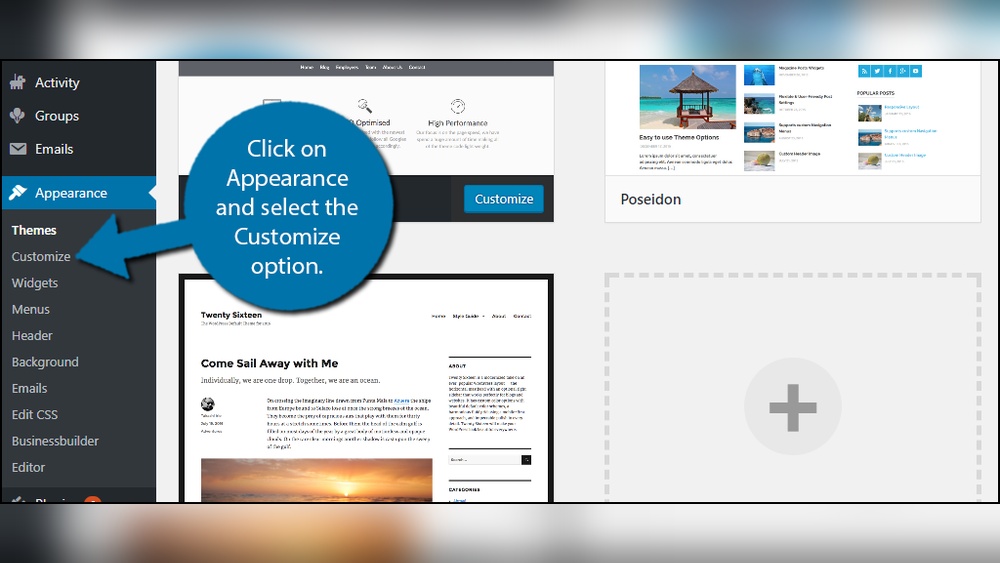
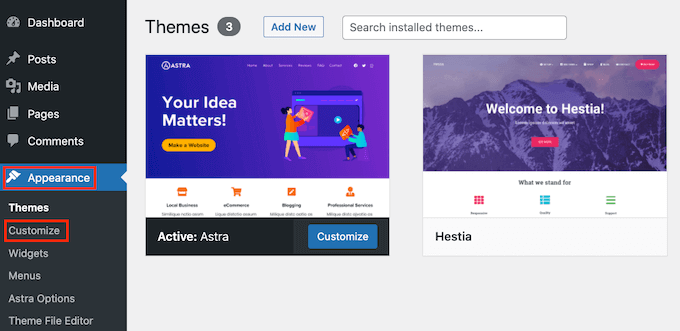
First, log in to your WordPress dashboard. On the left menu, find “Appearance” and click it. Then, select “Customize” from the submenu. The Customizer panel opens on the left side. Your website preview shows on the right side. This is where you will make background changes.
Setting A Background Image
In the Customizer panel, find the “Background Image” option. Click “Select Image” to upload a new picture. Choose a photo from your computer or media library. After selecting, you can crop or skip cropping. The image will appear as your site background. Use the preview to check how it looks.
Adjusting Background Colors
Find the “Colors” or “Background Color” section in the Customizer. Click the color picker to choose a new color. You can select a soft or bright shade. The background color will update instantly in preview. Pick a color that fits your site style. Save your changes by clicking “Publish”.
Adding Backgrounds With Themes
Adding backgrounds with themes in WordPress is a simple way to change your site’s look. Themes often include built-in options that let you set colors or images as backgrounds. This method works well for beginners because it requires no coding skills. You can quickly make your website look unique and match your style.
Theme Compatibility
Not all themes support custom backgrounds. Some themes have limited or no background options. Check your theme’s description or settings to see if it supports backgrounds. Using a compatible theme ensures smooth background changes without issues.
Built-in Background Options
Many themes offer background settings in the WordPress Customizer. You can find options to add a color, image, or pattern. These settings are easy to use. Upload your background image or select a color. Preview your changes live before saving.
Customizing Theme Backgrounds
Some themes allow more detailed background tweaks. You can adjust image position, repeat, and size. These controls help your background fit perfectly on all devices. Experiment with these settings to get the look you want. Remember to save and check your site on different screens.
Credit: hoztlr.com
Using Plugins For Backgrounds
Using plugins to add backgrounds in WordPress offers more options and flexibility. Plugins allow you to customize backgrounds without touching code. You can choose images, colors, patterns, or even videos as backgrounds. Many plugins come with easy controls and settings. This method suits users who want quick and simple ways to change backgrounds.
Popular Background Plugins
Several plugins help add beautiful backgrounds to WordPress sites. Simple Full Screen Background Image lets you set a full-screen background image easily. Background Manager offers multiple images and slideshow options. WP Backgrounds Lite supports colors, gradients, and images. These plugins are popular because they are user-friendly and work well with many themes.
Installing And Activating Plugins
To install a background plugin, go to your WordPress dashboard. Click on Plugins and select Add New. Type the plugin name in the search box. Find the plugin and click Install Now. After installation, click Activate to enable the plugin on your site. The plugin will appear in your dashboard menu for easy access.
Configuring Plugin Settings
Open the plugin’s settings from your dashboard menu. Upload your background image or choose a color. Adjust size, position, and repeat options as needed. Some plugins allow you to add multiple backgrounds or slideshows. Save your changes and check your site to see the new background. Make tweaks until the background fits your site’s style perfectly.
Custom Css For Backgrounds
Custom CSS gives you control over WordPress backgrounds beyond built-in options. It lets you style backgrounds exactly how you want. You can add images, colors, gradients, or patterns with CSS code. This method works for any theme, even those without background settings.
Using custom CSS for backgrounds helps create unique website looks. It also improves site performance by controlling image size and placement. Let’s explore how to add CSS, set background image properties, and keep backgrounds responsive.
Adding Css In WordPress
To add custom CSS in WordPress, open the Customizer from your dashboard. Go to Appearance > Customize > Additional CSS. Paste your CSS code in the box. Click Publish to save changes. Your background styles will apply immediately.
You can also add CSS through a child theme style.css file or a CSS plugin. These options keep your styles safe during theme updates. Choose the method that fits your skill level and site setup.
Background Image Properties
Control your background image with CSS properties like background-image, background-repeat, and background-position. Use background-size: cover; to fill the area without stretching.
Set background-repeat: no-repeat; to avoid tile effects. Position images with background-position: center; or custom values. Adjust opacity using RGBA colors for overlay effects. These properties shape your site’s visual appeal.
Responsive Background Tips
Responsive backgrounds adapt to different screen sizes. Use background-size: cover; for full coverage on any device. Combine this with media queries to tweak styles on phones and tablets.
Test your background on various devices. Ensure images don’t cut off important parts. Keep file sizes small for faster loading. Responsive design improves user experience and site SEO.

Credit: kinsta.com
Optimizing Backgrounds For Performance
Background images can make your WordPress site look great. But they can also slow it down. Optimizing backgrounds for performance helps your site load faster. A fast site keeps visitors happy and improves SEO. Focus on image size, loading methods, and balance between looks and speed.
Image Size And Format
Choose the right image size. Large images take longer to load. Resize images to fit your site’s display area. Use web-friendly formats like JPEG or WebP. WebP offers good quality with smaller file sizes. Compress images to reduce file size without losing quality. Small images load faster and save bandwidth.
Lazy Loading Backgrounds
Lazy loading delays loading images until needed. Background images load only when visible on the screen. This reduces initial load time. Use plugins or code snippets that support lazy loading. It helps especially on long pages with many backgrounds. Visitors see content faster without waiting for all images.
Balancing Aesthetics And Speed
Find a good balance between looks and speed. High-quality images look nice but can slow the site. Use subtle textures or simple patterns instead of complex images. Test your site speed after adding backgrounds. Adjust image size or replace images if loading is slow. A clean, fast site keeps users engaged.
Frequently Asked Questions
How Do I Add A Background Image In WordPress?
To add a background image, go to Appearance > Customize > Background Image. Upload your image, adjust settings, and save changes. This feature works with most themes supporting custom backgrounds.
Can I Use A Video As A WordPress Background?
Yes, some themes and plugins allow video backgrounds. Use a plugin like “Video Background” or check your theme’s customization options for video support.
How Do I Change Background Color In WordPress?
Go to Appearance > Customize > Colors or Background Color. Pick your desired color and save. This option varies depending on your WordPress theme.
Are There Plugins To Customize WordPress Backgrounds?
Yes, plugins like “Advanced WordPress Backgrounds” offer more customization. They allow adding images, videos, gradients, and animations easily without coding.
Conclusion
Adding a background in WordPress makes your site look unique. It helps catch visitors’ attention and sets the mood. You can change colors, images, or patterns with ease. Use simple steps to update your background anytime. This small change improves your site’s style and feel.
Keep experimenting until you find the perfect look. Your WordPress site can stand out with a nice background. Try it today and see the difference yourself.


