

Are you ready to unlock the full potential of your website? Knowing how to access WordPress is the first step to taking control of your online presence.
Whether you want to update your blog, add new pages, or customize your site’s look, accessing WordPress easily and quickly makes everything smoother. You’ll discover simple, clear steps to get into your WordPress dashboard without any hassle. Keep reading, and you’ll be managing your site like a pro in no time.

Credit: stackoverflow.com
Setting Up Hosting And Domain
Setting up hosting and a domain is the first step to access WordPress. These two elements work together. Hosting stores your website files. The domain is the address people use to find your site online.
Choosing the right hosting and domain ensures your website runs smoothly. It also helps visitors reach your site without problems. Let’s break down the process into easy parts.
Choosing A Hosting Provider
Pick a hosting provider that fits your needs. Look for good speed and uptime. These keep your website available all the time. Check if the provider offers easy WordPress installation. Good customer support is important too. It helps solve problems fast.
Registering A Domain Name
Choose a domain name that matches your website’s purpose. Keep it short and easy to remember. Use simple words that people can spell. Register your domain through a trusted registrar. This makes sure your site has a unique address.
Connecting Domain To Hosting
Link your domain to your hosting account. This step makes your site visible online. Update the domain’s nameservers to point to your host. Your hosting provider gives you these details. After updating, it may take a few hours to work.
Credit: www.youtube.com
Installing WordPress
Installing WordPress is the first step to creating your website. It sets up the platform where you will build and manage your content. There are two main ways to install WordPress. Each method suits different skill levels and needs.
Using One-click Installers
One-click installers are the easiest way to install WordPress. Many web hosts offer this feature. It requires no coding or technical knowledge.
You just log in to your hosting control panel. Find the WordPress installer tool. Then, click a few buttons to start the process.
The installer sets up the database and files automatically. It also creates the default WordPress settings. This method saves time and reduces errors.
Manual Installation Process
Manual installation gives you full control over setup. It involves downloading WordPress files and uploading them to your server.
First, download the latest WordPress package from the official site. Then, upload the files using an FTP client or file manager.
Create a new database and user through your hosting control panel. Edit the wp-config.php file to add your database details.
Finally, visit your site URL to complete the installation. Follow the on-screen instructions to finish setup.
Logging Into Your WordPress Dashboard
Accessing the WordPress dashboard is the first step to managing your website. The dashboard lets you add posts, change settings, and control your site’s look. Logging in is simple but important to keep your site safe.
Locating The Login Url
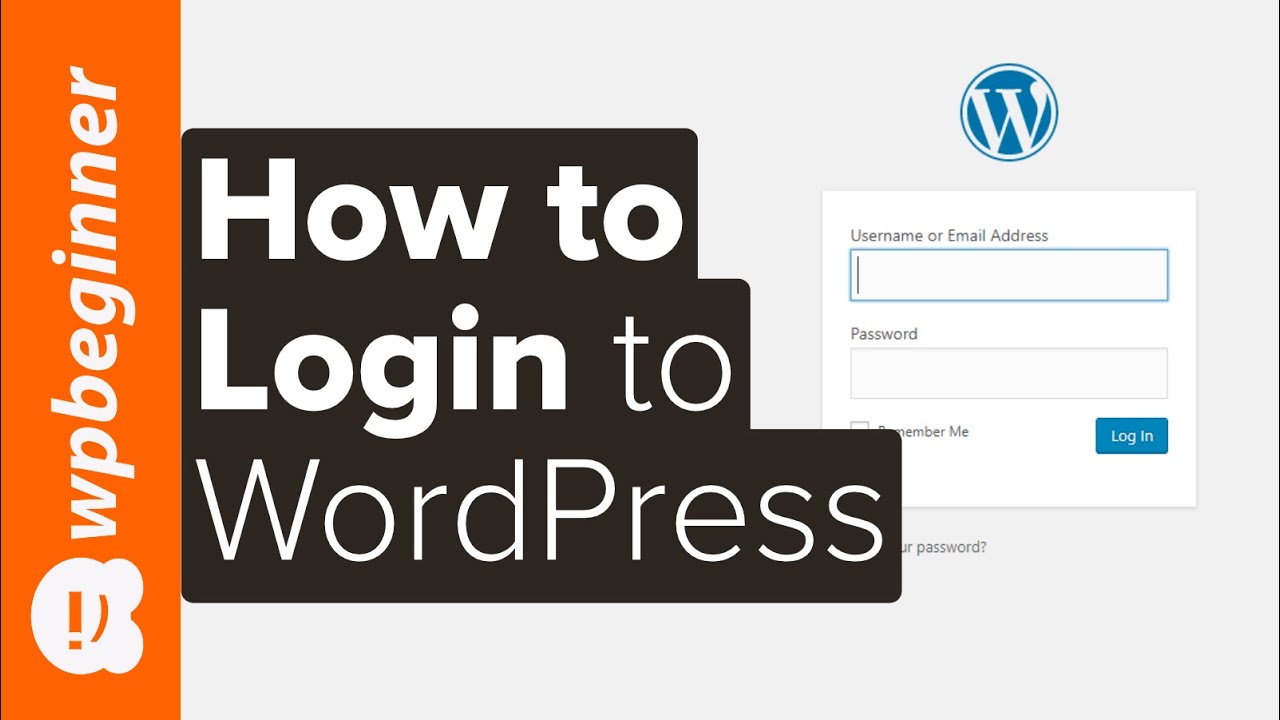
Your WordPress login page usually has a special URL. This URL ends with /wp-login.php or /wp-admin. Type your website address, then add one of these endings. For example, www.yoursite.com/wp-login.php.
Sometimes, the login URL changes for security. Check your website setup or hosting provider if you cannot find it.
Resetting Your Password
Forgot your password? No problem. On the login page, click the “Lost your password?” link. Enter your username or email address. WordPress sends a reset link to your email.
Follow the link to create a new password. Use a strong password with letters, numbers, and symbols. This keeps your site secure.
Navigating The Dashboard
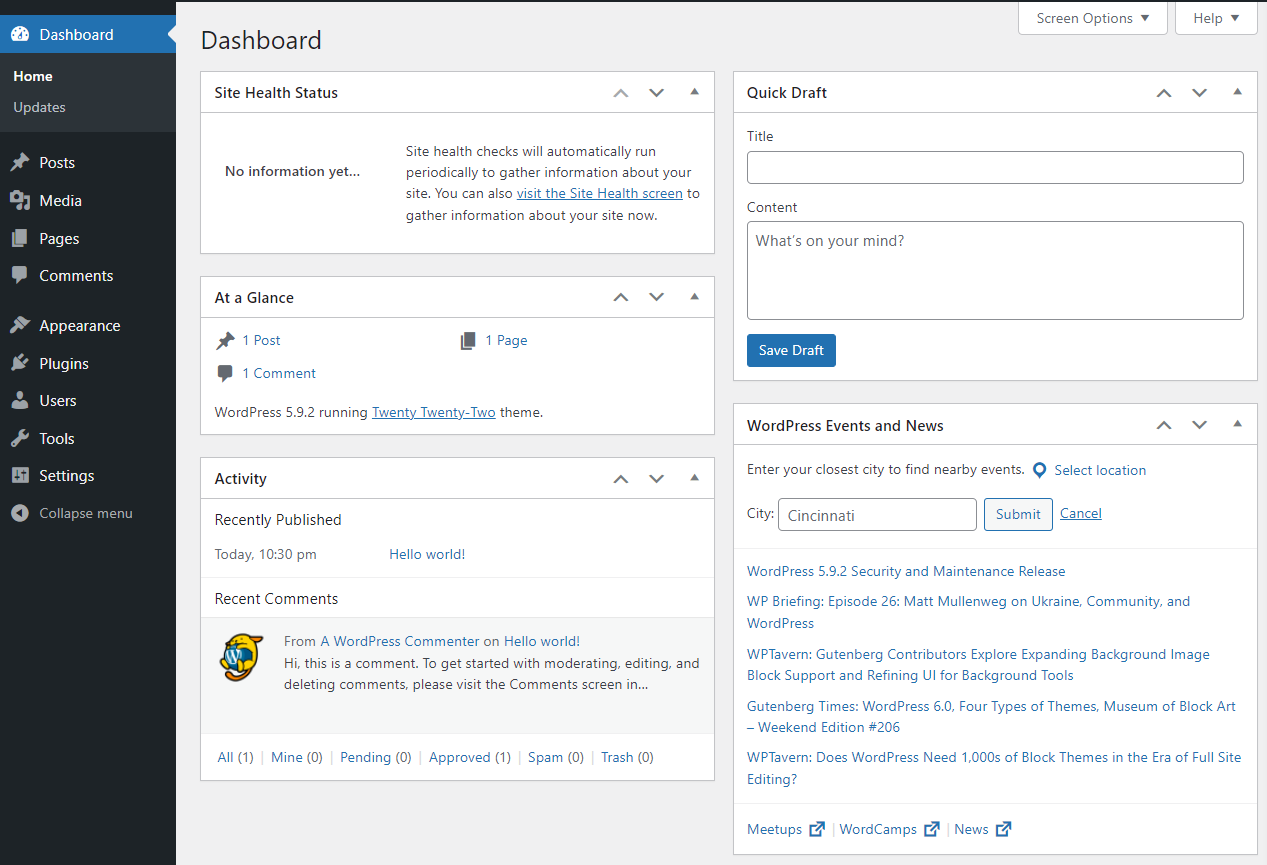
The WordPress dashboard is your control center. It shows tools and options to manage your website. Understanding the dashboard helps you work faster. You can find everything you need in one place.
Dashboard Overview
The dashboard has several sections. The top shows site name and quick links. The main area displays widgets with useful info. You see site stats, recent activity, and updates here. Widgets can be moved or hidden as you like.
Key Menu Items
The left sidebar holds the main menu. It has links to posts, pages, and media. You can add or edit content from here. Appearance lets you change themes and customize design. Plugins help add new features. Settings control general site options. Each menu item opens submenus for detailed tasks.
Customizing Your Site
Customizing your WordPress site lets you create a unique online space. It helps your website look and work the way you want. You can change colors, fonts, and layouts. You can also add new features to improve user experience.
Two key ways to customize your site are choosing themes and adding plugins. These options give you control over your site’s design and functions. Both are simple to use and do not need coding skills.
Choosing And Installing Themes
The theme controls your site’s appearance. You can pick a theme that fits your style and purpose. WordPress offers many free and paid themes. To install, go to the dashboard and click “Appearance.” Then select “Themes” and “Add New.”
Browse or search for themes. Preview them to see how they look. Once you find one you like, click “Install” and then “Activate.” Your site will update with the new design immediately.
Adding Plugins
Plugins add new features to your site. They can improve SEO, add contact forms, or boost security. To add plugins, go to the dashboard and click “Plugins.” Then select “Add New.”
Search for the plugin you need. Click “Install Now” and then “Activate.” The new functions will be ready to use. Manage plugins anytime from the dashboard to keep your site efficient.
Creating Your First Content
Creating your first content on WordPress is simple and fun. Content brings your website to life. It helps visitors learn about your topic or business. WordPress offers two main ways to add content: posts and pages. Both are easy to create and manage.
Adding Posts
Posts are timely content pieces. Use them for news, updates, or articles. To add a post, go to the WordPress dashboard. Click on “Posts” and then “Add New.” Enter your title and write your content in the editor.
You can add images, links, and format text. Posts are listed by date on your blog page. Use categories and tags to organize posts. This helps visitors find related articles easily.
Creating Pages
Pages hold static content. Use them for information like “About Us” or “Contact.” To create a page, click “Pages” then “Add New.” Write your title and content in the editor.
Pages do not show dates and stay fixed in your menu. You can add images and customize them like posts. Pages help build the main structure of your site.
Managing Users And Permissions
Managing users and permissions in WordPress is important for site security and teamwork. You control who can access your site and what they can do. This keeps your site safe and organized. WordPress lets you add users and give them specific roles. Each role has different access levels and capabilities.
Adding New Users
To add a new user, go to the WordPress dashboard. Find the “Users” menu and click “Add New.” Enter the user’s details like username and email. Set a strong password for the new user. You can send the new user an email about their account.
Assigning Roles
Choose a role that fits the user’s tasks. Roles include Administrator, Editor, Author, Contributor, and Subscriber. Administrators have full control over the site. Editors can manage and publish posts. Authors can write and publish their own posts. Contributors can write but cannot publish. Subscribers can only manage their profiles. Assign roles carefully to protect your site.
Credit: jetpack.com
Frequently Asked Questions
How Do I Log In To WordPress?
To log in, go to yoursite. com/wp-admin. Enter your username and password, then click “Log In. ” This grants access to your WordPress dashboard.
What Is The WordPress Admin Url?
The WordPress admin URL is yoursite. com/wp-admin. It directs you to the login page where you manage your website’s content and settings.
Can I Access WordPress From A Mobile Device?
Yes, WordPress is mobile-friendly. Use a mobile browser or the official WordPress app to log in and manage your site on the go.
What If I Forget My WordPress Password?
Click the “Lost your password? ” Link on the login page. Enter your email to receive password reset instructions instantly.
Conclusion
Accessing WordPress is simple with the right steps. First, open your browser and go to your site’s login page. Enter your username and password carefully. Always keep your login details safe. Remember to log out after using WordPress on shared devices.
Regular access helps you manage your website smoothly. Practice these steps to feel confident. Starting today, managing your WordPress site can be easy and stress-free. Keep learning and exploring its features as you go.


