
Are you ready to unlock the full potential of your WordPress site? Knowing how to access your WordPress code puts you in control.
You can customize your website exactly the way you want it, fix issues quickly, and add features that make your site stand out. This guide will show you simple, clear steps to access your WordPress code safely and easily. By the end, you’ll feel confident diving into your site’s files and making changes that truly reflect your vision.
Keep reading, because mastering this skill can transform your website experience.

Credit: wpbuffs.com
Accessing WordPress Files
Accessing WordPress files is a key step for customizing your website. These files hold all the code, themes, and settings. Knowing how to reach them lets you make changes safely.
This section explains easy ways to find and edit WordPress files. Each method suits different users and hosting setups.
Using Ftp Clients
FTP clients let you connect directly to your website server. You need a username, password, and server address from your host. Popular FTP clients include FileZilla and Cyberduck.
After connecting, you see all website files in a folder list. The main WordPress files are in the “public_html” or “www” directory. You can download, edit, and upload files with FTP.
Navigating Cpanel File Manager
Many hosts provide cPanel, a control panel for managing your site. It includes a File Manager tool for quick file access. You log in to cPanel and open File Manager.
Inside, you find the WordPress folder, usually in “public_html.” File Manager lets you edit files online or upload new ones. This tool is user-friendly for beginners.
Exploring Hosting File Access Options
Some hosts offer custom dashboards for file management. These dashboards might have built-in file explorers. They work like cPanel File Manager but with extra features.
Check your hosting provider’s help pages for specific instructions. Using these tools avoids installing extra software. They keep file access simple and secure.
Locating Key WordPress Files
Locating key WordPress files is the first step to customizing your website. These files control the design, functions, and core features. Knowing where to find them helps you make safe and effective changes.
Accessing the right files is easy once you understand the WordPress folder structure. You can use a file manager or FTP client to explore your site’s files. Let’s break down the main files you need.
Finding Theme Files
Theme files define your site’s look and layout. Find them inside the /wp-content/themes/ folder. Each theme has its own subfolder here. Common files include style.css for styles and index.php for the main template. Editing these files changes how your site looks and feels.
Accessing Plugin Files
Plugins add extra features to WordPress. They are stored in /wp-content/plugins/. Each plugin has its own folder. You can edit plugin files to modify or add new functions. Be careful, as wrong changes may break your site or plugin.
Editing Core WordPress Files
Core files handle WordPress’s basic operations. They are in the root directory and folders like /wp-includes/ and /wp-admin/. Avoid editing core files directly. Changes here can cause site errors and get overwritten during updates. Use child themes or plugins instead for custom code.
Editing WordPress Code Safely
Editing WordPress code can improve your site’s look and function. Doing this safely protects your site from errors and downtime. Small mistakes in code can cause big problems. Follow simple steps to keep your site safe while making changes.
Creating Child Themes
A child theme copies the main theme’s design and code. You can change the child theme without touching the original. This keeps your changes safe during theme updates. Create a folder and add a style sheet for the child theme. Activate the child theme to start editing safely.
Using Staging Environments
A staging environment is a test site. It copies your live website for testing changes. Make code edits here first to find errors. No risk to your real site. Many hosts offer easy staging setup. Test all changes before moving to the live site.
Backing Up Before Changes
Always save a backup of your site before editing. Backups include your files and database. Use plugins or your hosting service for this. If changes cause issues, restore from the backup. This step prevents loss of data and time.
Using WordPress Built-in Editors
WordPress offers built-in editors that let you access and change your site’s code directly from the dashboard. These editors help you work with themes and plugins without needing extra software. Understanding how to use them safely is key to managing your site effectively.
Theme Editor
The Theme Editor allows you to edit theme files like style.css and functions.php. You can find it under Appearance > Theme Editor in your WordPress dashboard. It shows your theme’s code in a simple text editor. This tool is useful for small changes like fixing a style or adding a custom function.
Always save a backup before editing. Mistakes can break your site. The editor highlights some code syntax, helping you spot errors. Still, it is best for users who have basic coding knowledge.
Plugin Editor
The Plugin Editor lets you modify plugin files directly from WordPress. Access it under Plugins > Plugin Editor. It works like the Theme Editor but focuses on plugin code. You can fix bugs or customize features this way.
Editing plugins can affect your site’s functionality. Only change code if you understand what it does. Keep copies of original files. This editor is less common for beginners but useful for quick fixes.
Limitations And Risks
Built-in editors lack advanced tools like debugging and version control. They do not offer error recovery if something goes wrong. A single mistake can cause your site to crash or show errors.
Use these editors with caution. Always back up your site before making changes. For complex coding, use a local development environment or FTP client. The editors are best for quick edits, not full development.
Best Tools For Code Editing
Editing WordPress code requires the right tools. Good code editors make your work easier and faster. They help you write clean and error-free code. They also offer features that save time and improve accuracy.
Some tools focus on writing code, while others help with testing or tracking changes. Using these tools will improve your coding experience and website quality.
Popular Code Editors
Many developers use code editors like Visual Studio Code, Sublime Text, and Atom. These editors support WordPress coding with features like syntax highlighting and auto-completion. They show errors as you type and help you fix them quickly.
Most editors allow you to customize the interface and install useful plugins. This makes working on WordPress files smoother and more efficient.
Browser Developer Tools
Browser developer tools are built into browsers like Chrome, Firefox, and Edge. They let you inspect and edit your website’s code in real time. You can test changes without affecting the live site.
These tools are great for debugging and checking how your website looks on different devices. They show HTML, CSS, and JavaScript details instantly.
Version Control With Git
Git helps you keep track of changes in your WordPress code. It saves different versions of your files, so you can go back if needed. Git also allows teamwork without conflicts.
Using Git with platforms like GitHub or Bitbucket helps manage code updates safely. It makes collaboration easier and protects your work from mistakes.

Credit: www.youtube.com
Common Code Edits And Customizations
Common code edits and customizations allow you to change your WordPress site’s look and functions. These edits help make your site unique and better fit your needs. You can adjust styles, change templates, or add new features by editing code directly.
Many WordPress users start by tweaking small parts of the site’s code. These changes can improve user experience or match your branding. Understanding basic edits helps you maintain control over your website’s design and behavior.
Modifying Css Styles
CSS controls the colors, fonts, and layout of your site. Changing CSS styles lets you alter how your website looks. You can make your site brighter, cleaner, or more modern by editing style rules. Use the WordPress Customizer or a child theme to add your CSS safely.
Tweaking Php Templates
PHP templates build the pages and posts on your site. Editing these files changes how content appears. You can add new sections or remove unwanted parts. Always use a child theme to keep your changes safe during updates.
Adding Custom Javascript
JavaScript adds interactivity to your website. Use it to create sliders, pop-ups, or form validations. Adding custom scripts helps make your site more dynamic and user-friendly. Place JavaScript in the header or footer using theme options or plugins.
Troubleshooting Code Changes
Troubleshooting code changes in WordPress can seem difficult. Small mistakes often cause big problems. Knowing how to find and fix these errors saves time and stress.
Here are some simple ways to handle issues after editing your WordPress code. Follow these steps to quickly restore your site’s function.
Identifying Common Errors
Look for syntax mistakes like missing semicolons or brackets. These cause the site to break or show errors. Check for typos in function names or variables. A small spelling error can stop code from running.
Use error messages on your site to find the problem area. Often, WordPress shows the file and line number causing the error. This helps narrow down what needs fixing.
Restoring From Backup
Always keep a backup before changing code. If something goes wrong, restore the backup to fix your site fast. Use your hosting provider’s backup tool or a plugin to save copies regularly.
Restoring a backup returns your site to its last good state. This avoids long downtime and lost visitors. Make backups a habit before any code edits.
Using Debugging Plugins
Debugging plugins help find hidden errors in your WordPress code. They show detailed messages and logs to guide fixes. Popular tools include Query Monitor and Debug Bar.
Enable debugging mode in WordPress to see warnings and errors on screen. These plugins give clear clues about what went wrong. Use them to check plugin conflicts or theme issues.

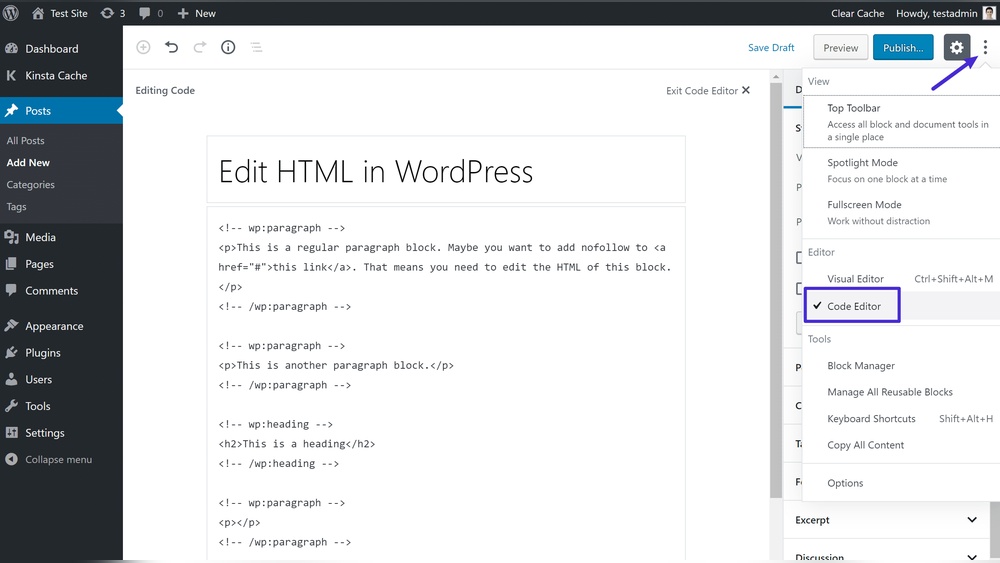
Credit: kinsta.com
Frequently Asked Questions
How Can I Access WordPress Theme Code?
You can access WordPress theme code via the Appearance > Theme Editor in your dashboard. Alternatively, use FTP or a file manager for direct access. Always back up your site before editing code to prevent accidental damage.
Where Is WordPress Core Code Located?
WordPress core code resides in the root directory of your installation. It includes files like wp-config. php, wp-includes, and wp-admin folders. Editing core files is not recommended to avoid update conflicts and security risks.
Can I Edit WordPress Plugin Code Directly?
Yes, you can edit plugin code via Plugins > Plugin Editor or FTP. However, direct edits may be overwritten during updates. Use child themes or custom plugins for safer, update-proof customizations.
What Tools Help Me View WordPress Code?
Use code editors like Visual Studio Code, Sublime Text, or Notepad++ for easy viewing. FTP clients like FileZilla help access files remotely. These tools improve code readability and editing efficiency.
Conclusion
Accessing WordPress code helps you customize your site easily. You can edit themes or plugins directly. Always back up your site before making changes. Using the right tools makes coding safer and faster. Practice regularly to become comfortable with the process.
Small edits can improve your website’s look and function. Keep learning step by step, and don’t rush. This skill gives you more control over your site. Coding can seem hard but gets easier with time. Start simple and build your confidence slowly.


