
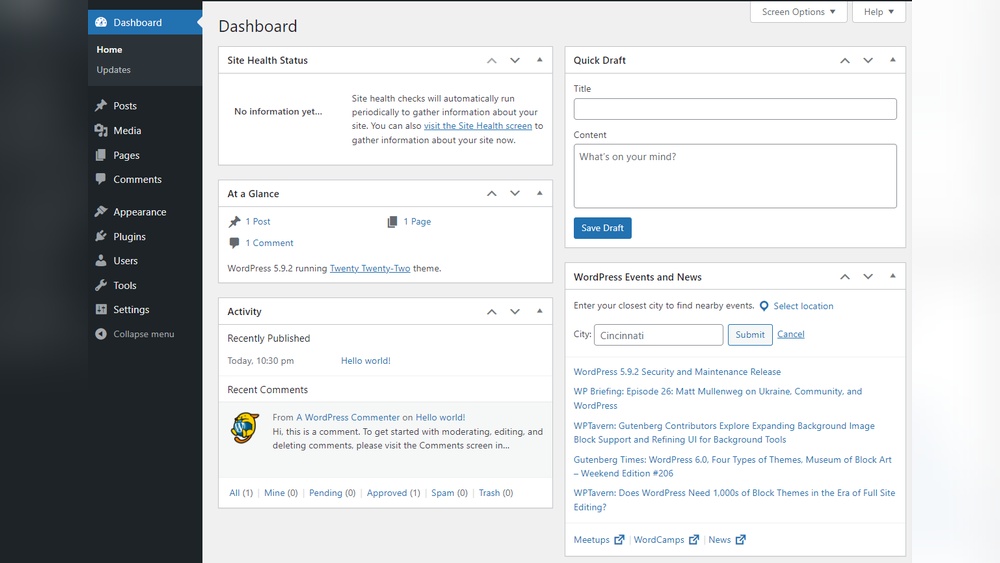
Are you struggling to find your WordPress admin page? Accessing it is the first step to customizing your site, managing content, and unlocking powerful tools.
Without easy access, you can feel stuck and frustrated. But don’t worry—this guide will show you simple, clear steps to get you right where you need to be. Keep reading, and you’ll gain quick control over your WordPress site in no time.
Credit: www.hostinger.com
Locate Your Login Url
Finding your WordPress login URL is the first step to access your admin dashboard. This URL lets you enter your username and password to manage your site. Knowing where to find it saves time and avoids confusion.
Different WordPress setups may use different login URLs. Some use the default settings, while others customize the login page for security or branding. Understanding both types helps you locate your admin page easily.
Default WordPress Login Urls
The most common WordPress login URL is yourwebsite.com/wp-admin. This link takes you directly to the admin login page. Another popular option is yourwebsite.com/wp-login.php. Both URLs work the same way and lead to the login form.
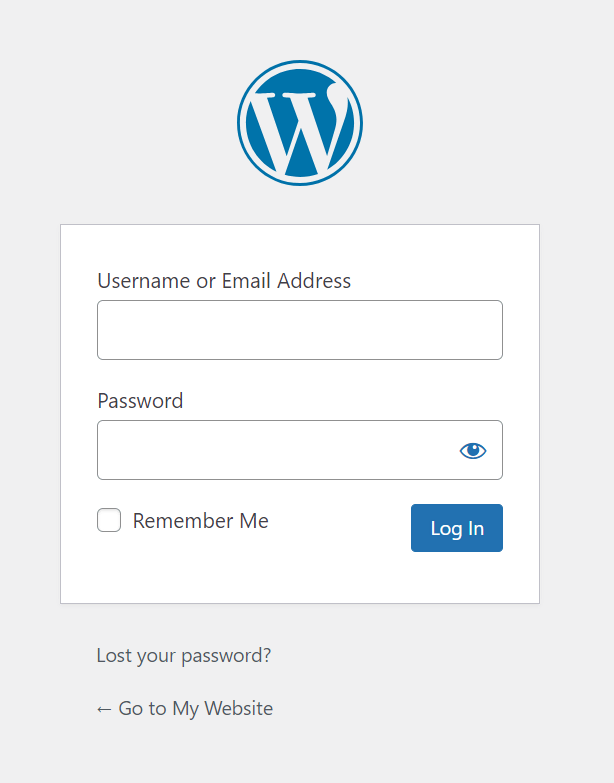
Type the URL in your browser’s address bar. Then enter your username and password on the login screen. If you have a standard WordPress setup, these URLs will always work.
Custom Login Urls
Some websites change their login URL for extra security. Custom login URLs stop hackers from trying to guess your password. They also help with site branding.
These custom URLs can look like yourwebsite.com/my-login or something unique. You may find this URL in your website setup or by asking your site manager. Plugins like WPS Hide Login let you create and change custom URLs easily.
Remember to save your custom login URL somewhere safe. You must use this URL to access your WordPress admin page instead of the default links.
Enter Your Credentials
Entering your credentials is the key step to access the WordPress admin page. This process confirms your identity and keeps your site safe. You need to provide both your username and password to log in successfully.
Make sure to type your details carefully. Small mistakes can prevent access. Keep your credentials private to protect your website from unauthorized use.
Username And Password
Your username identifies you on the WordPress site. It is usually set when you first create your account. You can use your email address as a username on some installations.
The password protects your account. It should be strong and hard to guess. Use a mix of letters, numbers, and symbols for better security. Avoid common words or simple sequences.
Resetting Forgotten Passwords
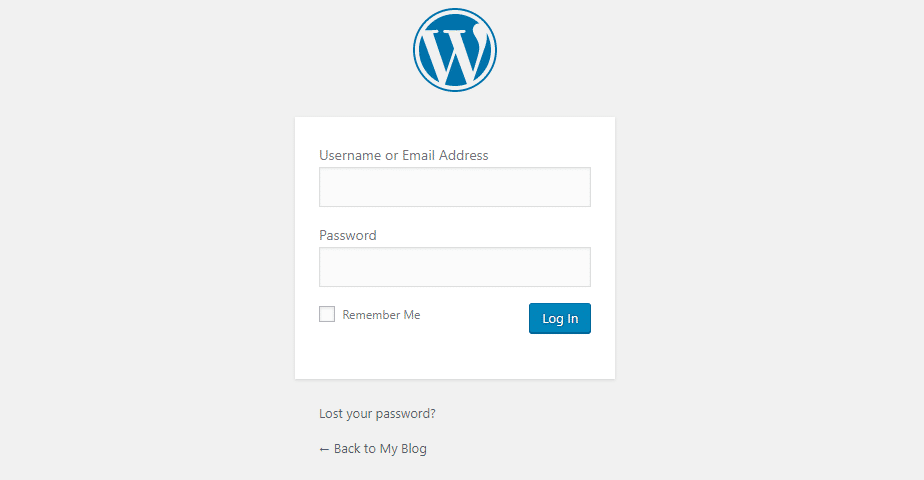
Forgetting a password is common. WordPress offers an easy way to reset it. Click the “Lost your password?” link on the login page.
Enter your username or email address. WordPress will send a reset link to your email. Follow the link and choose a new password. Make sure to create a strong new password to keep your account safe.
Troubleshoot Login Issues
Sometimes, you cannot log into your WordPress admin page. This can happen for several reasons. Troubleshooting login issues helps you find the problem and fix it quickly. Follow these steps to solve common login problems and regain access to your site.
Clearing Browser Cache
Browser cache stores old data that may block your login. Clear your cache to remove outdated files. This helps your browser load the latest version of the login page. Restart the browser and try logging in again.
Disabling Plugins
Some plugins cause conflicts that stop login access. Disable all plugins to see if one is the cause. You can do this by renaming the plugins folder via FTP or hosting file manager. Check if you can log in after disabling plugins. Reactivate plugins one by one to find the troublemaker.
Checking .htaccess File
The .htaccess file controls site permissions and access rules. A wrong setting here can block the login page. Rename the .htaccess file to disable it temporarily. Try to log in again. If successful, generate a new .htaccess file by saving your permalink settings in WordPress.
Credit: kinsta.com
Secure Your Admin Access
Keeping your WordPress admin page safe is very important. Protecting it stops hackers from breaking in. A secure admin area gives peace of mind. Simple steps can make your site much safer.
Focus on strong security methods. They help keep your login details private. Use tools and smart settings to guard your admin access.
Using Two-factor Authentication
Two-factor authentication adds an extra step to login. It needs a code from your phone or email. This code changes often and is unique. Even if someone has your password, they cannot enter without this code.
Many plugins offer easy setup for two-factor authentication. Activate it to add strong protection quickly. It stops many common hacking attempts.
Limiting Login Attempts
Limiting login attempts blocks repeated tries to guess passwords. After several wrong tries, the user is locked out. This reduces the risk of brute force attacks. Brute force means trying many passwords fast.
Use plugins to set limits on login tries. Set a short lockout time. This keeps your admin page safer from hackers.
Changing Default Admin Username
The default username “admin” is easy to guess. Hackers often try this first. Changing the username to something unique adds safety. Use a name that is hard to guess but easy to remember.
Change the username during setup or later with plugins. This simple step makes it harder for attackers to break in.
Access Admin Page Via Hosting Control Panel
Accessing the WordPress admin page through your hosting control panel simplifies website management. This method helps users bypass the usual login page by directly linking to the admin area. It saves time and avoids confusion, especially for beginners. Most hosting providers offer tools to access the admin dashboard easily.
Using Cpanel
Many hosting services use cPanel to manage websites. Log in to your cPanel account first. Find the “WordPress Manager” or “Softaculous Apps Installer” section. Click on it to see your installed WordPress sites. There is usually a direct “Admin” button next to your site name. Click this button to open the WordPress admin page immediately.
This method skips manual URL typing. It also confirms which WordPress site you manage. The process is quick and reduces login errors. You can manage multiple sites easily from one place.
Using Managed WordPress Hosting Tools
Managed WordPress hosting providers offer custom dashboards. These dashboards include WordPress admin access. Log in to your hosting account dashboard first. Look for the WordPress section or site list. Each site will have an admin access button or link.
Clicking this link takes you directly to the WordPress admin page. No need to enter usernames or passwords again. This feature keeps access simple and secure. It is useful for users who host several websites.

Credit: support.hcommons.org
Frequently Asked Questions
How Do I Find My WordPress Admin Login Url?
You can find the login URL by adding /wp-admin or /wp-login. php at your website’s root domain. For example, www. yoursite. com/wp-admin. This URL directs you to the WordPress admin login page quickly and easily.
What Username And Password Do I Use For WordPress Admin?
Use the username and password created during WordPress installation. If you forget them, reset your password via the “Lost your password? ” link on the login page.
Can I Change The WordPress Admin Url For Security?
Yes, you can change the admin URL using plugins like WPS Hide Login. This enhances security by preventing unauthorized access attempts on the default login page.
Why Can’t I Access My WordPress Admin Page?
Access issues may arise from incorrect URL, wrong login details, or plugin conflicts. Clear your browser cache, disable plugins via FTP, or check your URL to troubleshoot.
Conclusion
Accessing the WordPress admin page is simple and quick. Just type your site’s URL followed by /wp-admin. Enter your username and password to log in. Keep your login details safe to protect your site. Remember, regular access helps you manage content and settings easily.
Now, you can update your site anytime without hassle. Practice these steps to feel confident every time you log in. Your WordPress site is ready for you to control and grow.


