

Are you struggling to find your WordPress dashboard? You’re not alone.
The dashboard is the control center of your website, where you manage posts, customize your design, and track your growth. Without easy access to it, running your site becomes frustrating and confusing. But don’t worry—this guide will show you simple, step-by-step ways to get to your WordPress dashboard quickly.
By the end, you’ll feel confident and ready to take full control of your website. Keep reading to unlock the key to managing your online presence like a pro.

Credit: wordpress.com
Locate Your WordPress Login Url
Finding your WordPress login URL is the first step to access your dashboard. This URL lets you enter your website’s admin area. Knowing the correct address saves time and avoids confusion.
WordPress sites often use standard login URLs. Sometimes, site owners change these URLs for security. Both types need simple methods to find and use.
Default Login Paths
The most common WordPress login URL is yourwebsite.com/wp-admin. Typing this in your browser leads you to the login page. Another common path is yourwebsite.com/wp-login.php. Both work on new WordPress installs.
These default paths are easy to remember. They are the first place to try when accessing your dashboard. If these do not work, your login URL might be customized.
Custom Login Urls
Some websites change their login URLs to protect from hackers. Custom URLs can be different from default paths. They might look like yourwebsite.com/login or yourwebsite.com/myadmin.
To find a custom login URL, check your site’s setup or ask the developer. Some security plugins let you set a unique login URL. Look for instructions in your plugin’s settings or documentation.

Credit: www.hosted.com
Enter Your Login Credentials
Entering your login credentials is the key step to access your WordPress dashboard. These credentials include your username and password. Both must be correct to let you into your site’s admin area.
Take your time to enter each detail carefully. A small mistake can block your access. Keep your credentials private for security reasons. Never share them with others.
Username And Password Tips
Choose a username that is easy for you to remember. Avoid common names like “admin” or “user”. They are easy targets for hackers.
Create a strong password using letters, numbers, and symbols. Make it at least 8 characters long. Change passwords regularly to keep your site safe.
Using Password Managers
Password managers help store and fill your login details safely. They create strong passwords and save them for you. This tool reduces the chance of forgetting your credentials.
Use a trusted password manager app. It protects your information with encryption. This keeps your WordPress account secure without extra effort.
Troubleshoot Login Issues
Accessing your WordPress dashboard can sometimes be tricky. Login issues are common for many users. These problems stop you from managing your website easily. Troubleshooting these issues helps you get back quickly. This section explains simple ways to fix common login problems.
Resetting Your Password
Forgot your password? No worries. Reset it with a few steps. Go to the login page and click “Lost your password?” Enter your username or email. WordPress sends a reset link to your email. Open the link and create a new password. Use a strong password but easy to remember. This method solves most login problems fast.
Handling Locked Accounts
Too many wrong attempts can lock your account. This protects your site from hackers. Wait for a while before trying again. Some hosts clear the lock automatically. Contact your hosting provider if locked longer. They can unlock your account quickly. You can also use security plugins to manage locks safely. Keeping calm helps you fix this problem fast.
Credit: kinsta.com
Navigate The Dashboard Interface
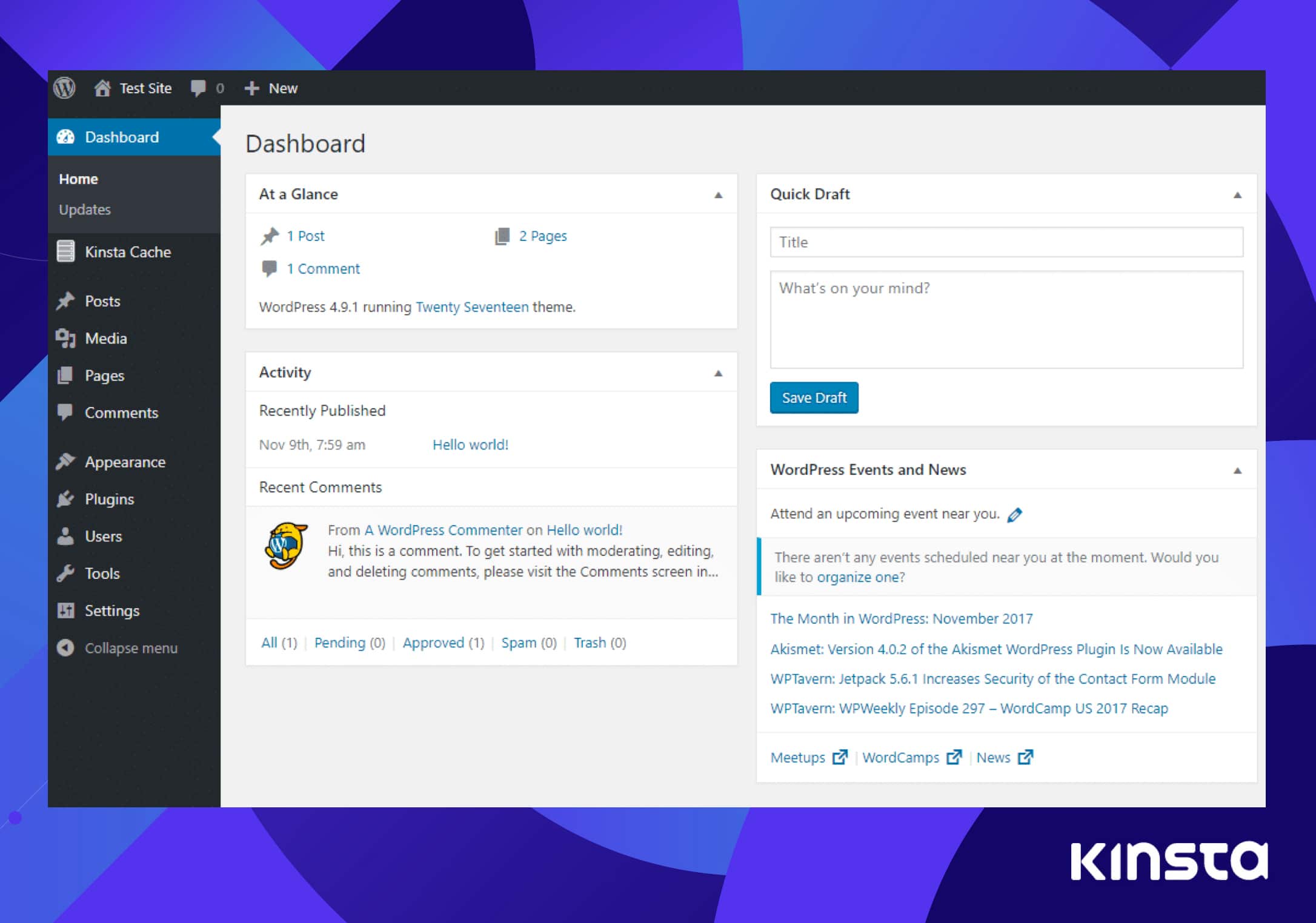
Understanding how to navigate the WordPress dashboard is important for managing your website. The dashboard is your main control center. It shows all the tools and options you need to update your site. Learning the layout helps you work faster and with less confusion.
Key Dashboard Sections
The dashboard has several important parts. The left menu contains links to posts, pages, comments, and settings. The top bar shows quick links and your profile. The main area displays widgets with site stats and updates. Each section has a clear purpose to help you manage your site easily.
Customizing Your View
You can change the dashboard to fit your needs. Use the “Screen Options” tab at the top right to show or hide widgets. Drag widgets to rearrange them on the screen. Customizing your view makes the dashboard simpler and more useful for your tasks.
Secure Your WordPress Access
Securing your WordPress dashboard is crucial. It stops hackers from getting inside your site. Strong security keeps your content safe and your visitors’ trust intact.
Simple steps can make your dashboard much safer. Two-factor authentication and managing user roles are key. These methods add strong protection to your WordPress access.
Enabling Two-factor Authentication
Two-factor authentication adds a second step to login. After typing your password, you enter a code from your phone. This code changes every time you log in.
This method blocks most hackers. They rarely have access to your phone. Plugins like Google Authenticator or Authy can set this up fast.
Turn on two-factor authentication in your WordPress security settings. It only takes a few minutes but greatly boosts your site’s safety.
Managing User Roles
User roles control what each person can do on your site. Not everyone needs full access to your dashboard. Give each user only the permissions they need.
For example, authors can write posts but cannot change site settings. Editors can manage posts and pages. Only trusted users should have admin rights.
Regularly check user roles. Remove access for users who no longer need it. This practice limits risks and keeps your WordPress dashboard secure.
Frequently Asked Questions
How Do I Log Into My WordPress Dashboard?
To log in, go to yourwebsite. com/wp-admin. Enter your username and password. Click the “Log In” button. This grants access to your dashboard.
What If I Forget My WordPress Password?
Click the “Lost your password? ” link on the login page. Enter your email to receive a reset link. Follow instructions to set a new password.
Can I Access WordPress Dashboard On Mobile?
Yes, WordPress dashboard is mobile-friendly. Use your phone’s browser or the WordPress app. Log in with your credentials to manage your site anywhere.
How Do I Change My WordPress Dashboard Url?
Changing the URL requires a plugin like WPS Hide Login. Install and configure it to set a custom login URL for better security.
Conclusion
Accessing your WordPress dashboard is simple and quick. Just remember your login details and website URL. Use the correct address to reach the login page easily. Once logged in, you can manage your site without trouble. Keep your password safe to protect your site.
Regularly check for updates to keep everything secure. Now, you are ready to control your website confidently. Start exploring and enjoy building your online presence.


