
Are you struggling to find your WordPress cPanel? You’re not alone.
Accessing your cPanel is the key to managing your website’s files, emails, and databases easily. Imagine having full control over your site’s settings right at your fingertips. In this guide, you’ll learn simple, step-by-step methods to access your WordPress cPanel quickly—no technical jargon, just clear instructions.
Keep reading to unlock the power behind your website and take charge like a pro.
What Is Cpanel
cPanel is a popular web hosting control panel. It helps manage your website easily. You do not need special skills to use it. Many web hosts offer cPanel to manage servers and files. It provides a simple interface to handle complex tasks.
Using cPanel, you can install WordPress, manage emails, and view website statistics. It saves time and reduces errors. cPanel is a secure way to control your hosting environment.
What Is Cpanel Used For?
cPanel helps manage your website files and databases. You can create email accounts linked to your domain. It also allows backups and restores with a few clicks. Managing domains and subdomains is easy too.
How Does Cpanel Work?
You log in to cPanel using your hosting credentials. The dashboard shows different tools in categories. Clicking a tool opens its settings and options. It uses a graphical interface, so no coding is needed.
Why Choose Cpanel For WordPress?
cPanel simplifies WordPress installation and updates. It offers one-click installers to add WordPress quickly. Managing plugins and themes is easier via cPanel. It also provides security features to protect your site.
Why Access WordPress Cpanel
Accessing your WordPress cPanel is important for managing your website. It gives you control over files, databases, and settings. Using cPanel helps you keep your site secure and running smoothly.
Many tasks are easier with cPanel. It offers tools to back up your site and restore it if needed. You can also install software, manage emails, and check site statistics.
Manage Files Easily
cPanel allows you to upload, delete, and organize website files. It has a file manager that works like a computer folder system. This makes updating your site simple and fast.
Control Databases
Your WordPress site uses databases to store content and settings. cPanel lets you create, edit, and back up these databases. This helps keep your site data safe and accessible.
Install Applications Quickly
With cPanel, you can install WordPress or other apps with a few clicks. This saves time and avoids complex manual setups. You can also update apps easily to keep them secure.
Manage Email Accounts
Create and manage email accounts linked to your domain. cPanel offers tools to set up email forwarding, autoresponders, and spam filters. This keeps your communication professional and organized.
Monitor Website Performance
cPanel provides access to site statistics and logs. You can track visitor numbers, errors, and bandwidth use. This information helps improve your site’s performance and user experience.
Prerequisites Before Accessing Cpanel
Before accessing your WordPress cPanel, some steps must be completed. These steps help ensure you have smooth and safe access to your control panel. Preparing ahead saves time and avoids confusion.
Understanding what you need before logging in is important. The following sections explain the key prerequisites to get started.
Check Hosting Provider
Identify your web hosting company first. This is where your WordPress site is stored. Your hosting provider offers the cPanel access. Some popular hosts are Bluehost, SiteGround, and HostGator.
Confirm your provider supports cPanel. Some hosts use custom dashboards. Knowing this helps you find the right login page.
Gather Login Credentials
Collect your username and password for cPanel. These details come from your hosting account setup. You receive them via email or your hosting dashboard.
Keep your credentials safe. Incorrect login details prevent access and cause delays. Write them down or use a password manager.
Ways To Access WordPress Cpanel
Accessing the WordPress cPanel is essential for managing your website files, databases, and email accounts. There are several simple ways to reach your cPanel, depending on your hosting setup and preferences. Each method offers a quick path to control your WordPress hosting environment.
Direct Url Method
You can access cPanel by typing the direct URL into your browser. Usually, it looks like yourdomain.com/cpanel. Enter your username and password to log in. This method is fast and easy if you know your login details.
Through Hosting Account Dashboard
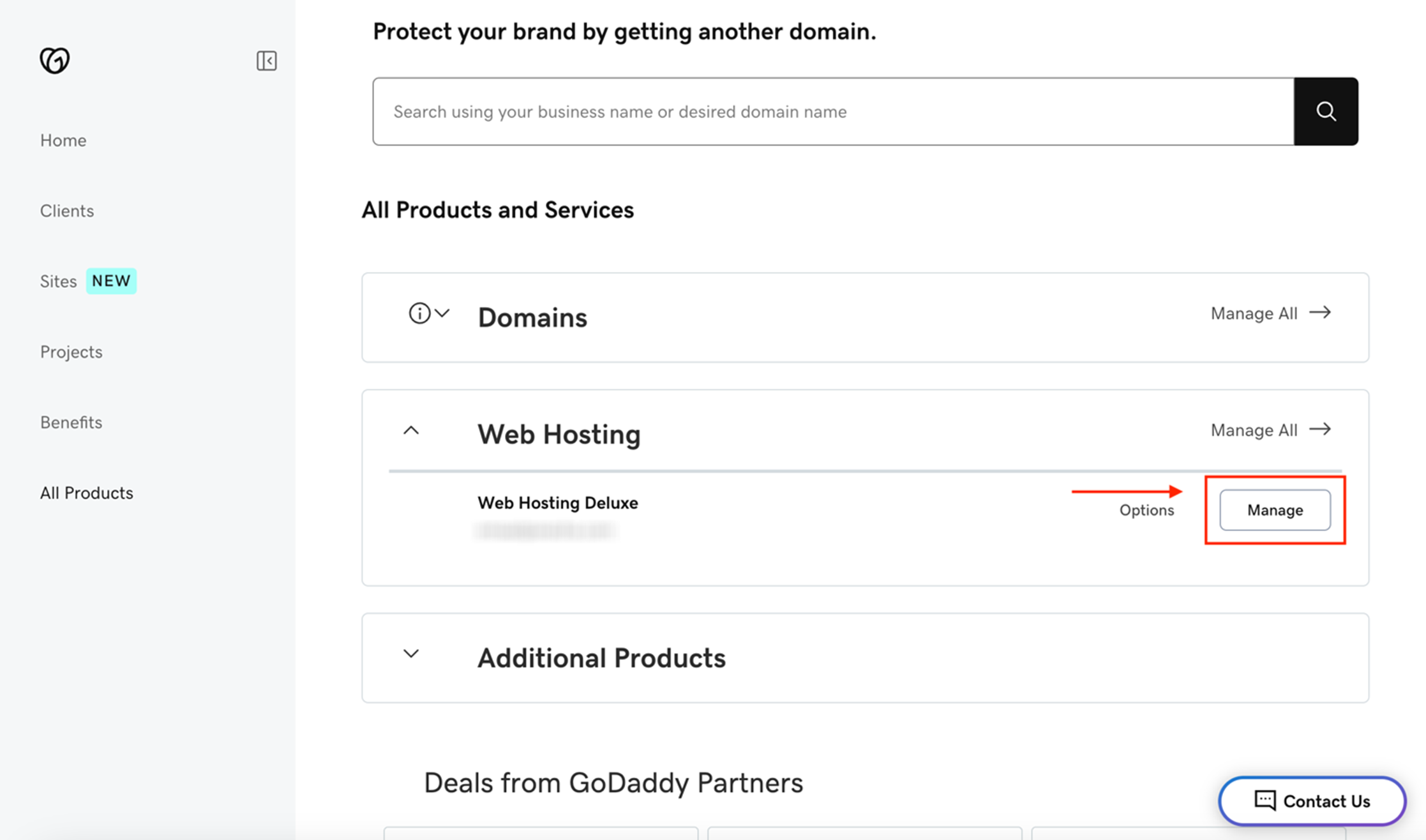
Most hosting providers offer a dashboard to manage your account. Log in to your hosting dashboard first. From there, find the cPanel link or button. This option helps if you forget the direct URL or want to manage multiple sites.
Using Domain With Port Number
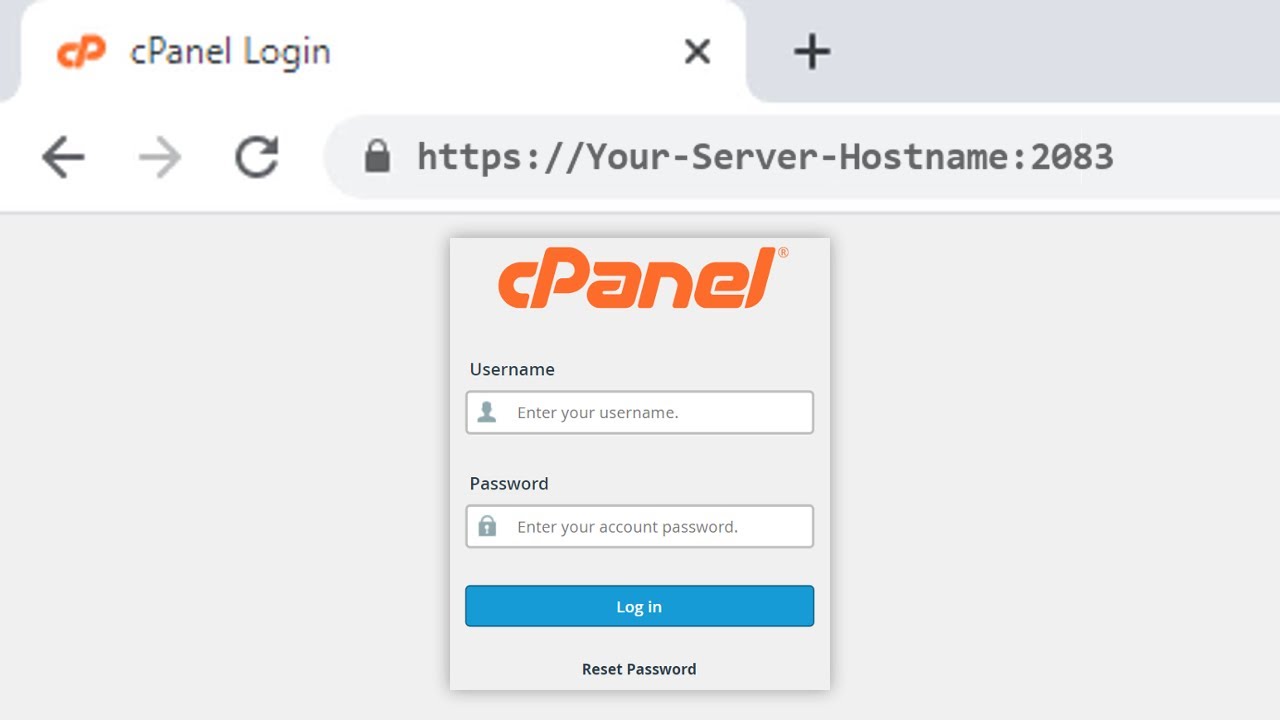
Another way is to use your domain with a special port number. Type yourdomain.com:2083 for a secure cPanel login. This method works if the direct URL does not load properly. Use your credentials to sign in and access your cPanel.
Logging Into Cpanel
Logging into cPanel is the first step to managing your WordPress website. This control panel allows you to access important tools and settings. Accessing it is simple and secure. Follow these steps to log in quickly and safely.
Enter Username And Password
Start by opening your web browser and typing your cPanel URL. This URL usually looks like yourdomain.com/cpanel. On the login page, enter the username provided by your hosting provider. Next, type your password carefully. Make sure there are no typos. Click the login button to continue.
Two-factor Authentication
Two-factor authentication adds extra security to your cPanel login. After entering your username and password, you might need to enter a code. This code comes from an app on your phone or via email. Enter the code quickly before it expires. This step keeps your account safe from hackers.
Credit: www.godaddy.com
Navigating Cpanel For WordPress
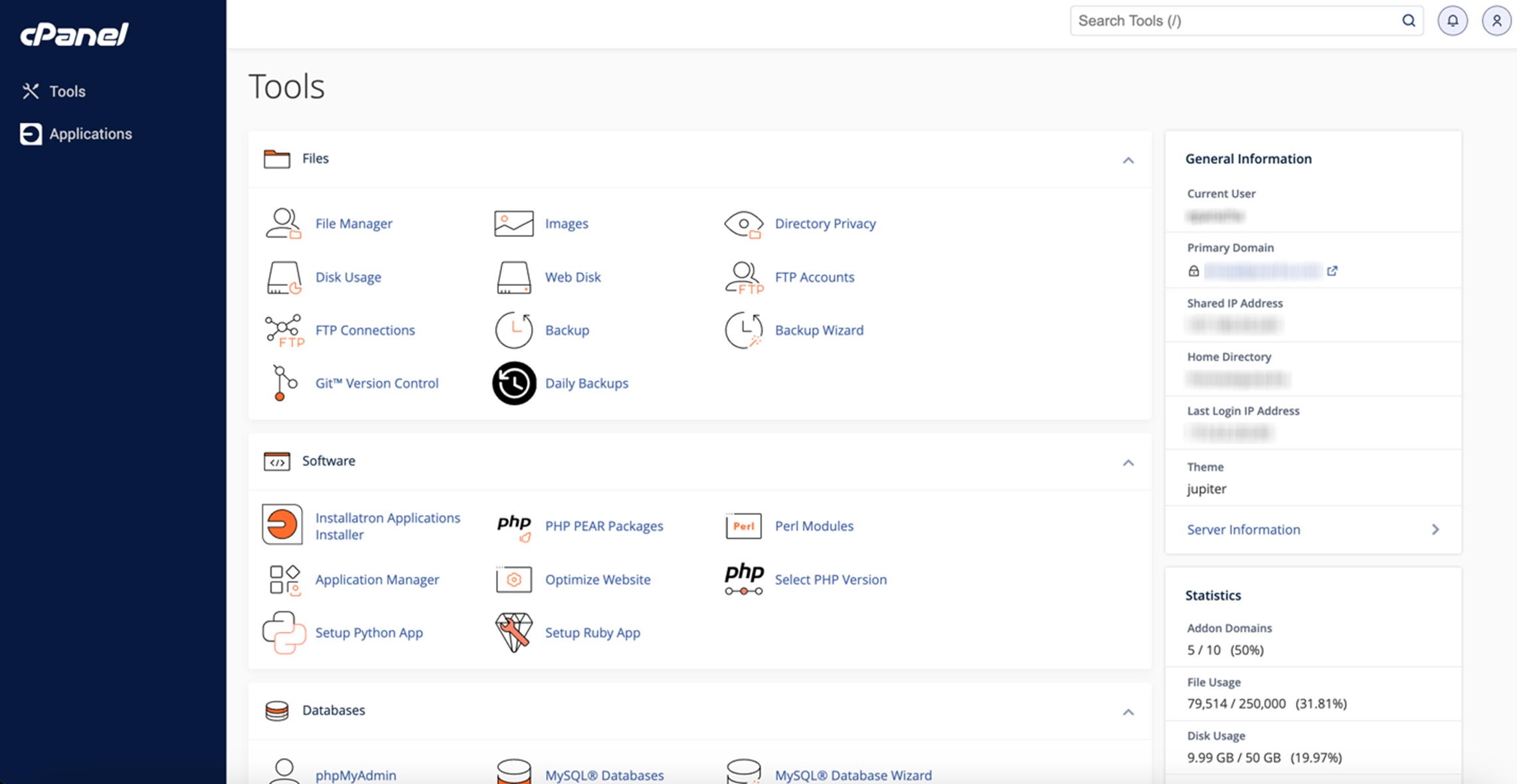
cPanel is a control panel that helps manage your WordPress site easily. It offers tools to manage files, databases, and backups. Knowing how to navigate cPanel saves time and avoids common issues.
This guide explains key areas in cPanel that help maintain your WordPress site. Each section focuses on simple steps to keep your site running smoothly.
File Manager Access
File Manager lets you view and edit your WordPress files directly. You can upload themes, plugins, or make quick changes. It shows all folders and files in a clear layout.
To open File Manager, find the icon in cPanel’s main page. Click it, then browse the public_html folder. This is where WordPress files live. Be careful when editing files to avoid site errors.
Database Management
Your WordPress site uses a database to store content and settings. cPanel provides tools like phpMyAdmin to manage this database easily. You can run queries, check tables, and fix issues here.
Access phpMyAdmin from cPanel’s Databases section. Select your WordPress database to view its contents. This helps you understand how data is stored and troubleshoot problems.
Backup Options
Backing up your site protects data from loss or damage. cPanel offers simple ways to create full or partial backups. You can save copies of files and databases separately.
Find Backup or Backup Wizard icons in cPanel. Choose the type of backup you want, then download the files to your computer. Regular backups keep your WordPress site safe and easy to restore.
Troubleshooting Access Issues
Accessing your WordPress cPanel might sometimes be tricky. Issues can stop you from logging in smoothly. This section helps solve common problems fast. It guides you step-by-step to get back access quickly.
Forgot Password
Forget passwords happen to everyone. Use the “Lost your password?” link on the login page. Enter your email or username carefully. Check your email inbox for a reset link. Click the link and create a new password. Make it strong but easy to remember. Save it somewhere safe to avoid future issues.
Connection Errors
Connection errors may block cPanel access. Check your internet connection first. Try opening other websites to confirm. Restart your router if needed. Sometimes the server is down for maintenance. Wait a few minutes and try again. Clear your browser cache to remove old data. Contact your hosting provider if problems last long.
Browser Compatibility
Not all browsers work well with cPanel. Use popular browsers like Chrome, Firefox, or Edge. Keep your browser updated to the latest version. Disable browser extensions that might block scripts. Clear cookies and cache before logging in. Avoid using private or incognito mode. These steps improve loading speed and access stability.
Credit: www.godaddy.com
Tips For Secure Cpanel Access
Accessing your WordPress cPanel safely is important. It protects your website from hackers and data theft. Follow simple steps to keep your cPanel secure. These tips reduce risks and help keep your site online.
Use Strong Passwords
Create passwords with letters, numbers, and symbols. Avoid simple words or common phrases. Change passwords regularly to stop unauthorized access. Use a password manager to keep track of complex passwords.
Enable Ssl
SSL encrypts data between your browser and server. It stops hackers from stealing sensitive information. Use HTTPS in your cPanel URL for safer access. Many hosts offer free SSL certificates to protect your site.
Limit Login Attempts
Set limits on how many times users can try to log in. This stops hackers from guessing passwords by trying many times. Use plugins or cPanel settings to block repeated login failures. It helps keep your site safe from brute force attacks.
Credit: www.youtube.com
Frequently Asked Questions
How Do I Find My WordPress Cpanel Login?
You can find your WordPress cPanel login in your hosting provider’s welcome email. Alternatively, access it via your hosting dashboard or by visiting yourdomain. com/cpanel.
Can I Access Cpanel Directly From WordPress Dashboard?
No, WordPress dashboard does not provide direct access to cPanel. You must log in to your hosting provider’s control panel separately.
What Information Is Needed To Access WordPress Cpanel?
To access WordPress cPanel, you need your cPanel username and password provided by your hosting provider during account setup.
Is Cpanel Access Necessary For WordPress Management?
Yes, cPanel access is essential for advanced WordPress management, including file access, backups, database management, and email settings.
Conclusion
Accessing your WordPress cPanel is easy once you know the steps. Just follow the simple instructions provided. This control panel helps you manage files, databases, and emails. Regular use keeps your site healthy and secure. Remember to keep your login details safe at all times.
Visit your hosting provider’s site if you need extra help. Now, you can confidently manage your WordPress site through cPanel without stress. Simple, fast, and effective.


