

Are you looking to customize your WordPress site but don’t know how to access the head tag? The head tag is crucial—it controls important elements like your site’s title, meta descriptions, and scripts.
If you want to improve your SEO, add tracking codes, or tweak your site’s appearance, knowing how to find and edit the head tag is a must. In this guide, you’ll learn simple, step-by-step methods to access and modify the head tag in WordPress without any confusion.
Keep reading, and you’ll have full control over your site’s head section in no time.
Locate Theme Files
Locating theme files is the first step to access the head tag in WordPress. These files control the design and structure of your website. Editing them allows you to add custom code or scripts inside the head tag.
Finding the right file requires navigating through the WordPress dashboard. You need to access the theme editor and open the header.php file. This file contains the head tag and all its contents.
Access WordPress Dashboard
Start by logging into your WordPress dashboard. This is the main control panel for your website. Use your username and password to sign in. After logging in, you will see the dashboard menu on the left side.
Navigate To Theme Editor
Look for the “Appearance” section in the dashboard menu. Click on it to expand the options. Then, select “Theme Editor” from the list. This opens the editor where you can change theme files directly.
You might see a warning about editing code. Be careful while making changes here. Mistakes can break your site.
Find Header.php File
On the right side of the theme editor, find the list of theme files. Scroll to locate the file named “header.php.” This file usually holds the head tag content.
Click on “header.php” to open it in the editor. You will see the HTML code for the head tag. Now, you can add or edit scripts and styles inside the head tag.
Credit: kinsta.com
Use Plugins To Edit Head
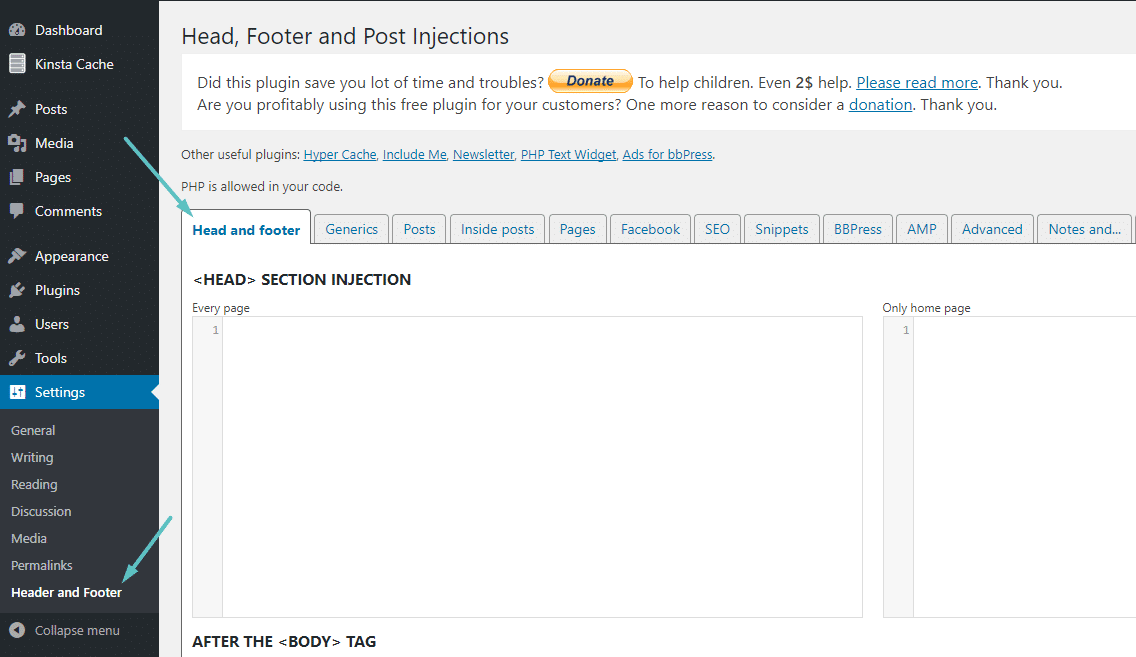
Editing the head tag in WordPress is easier with plugins. They let you add code without touching theme files. This keeps your site safe and updates smooth. Plugins offer a simple way to control your head section.
Here is how to use plugins to edit the head tag in WordPress.
Install Head Tag Plugins
Start by finding a plugin made for editing the head tag. Popular options include “Insert Headers and Footers” or “Head, Footer and Post Injections.” Go to your WordPress dashboard, click Plugins > Add New, and search for these names. Click install and then activate the plugin.
Add Custom Code Safely
After activation, open the plugin settings. You will see a box to add code for the head tag. Paste your custom code here. This could be meta tags, verification codes, or scripts. The plugin keeps your site safe by adding code without changing core files.
Manage Plugin Settings
Check the plugin options to control how and where your code appears. Some plugins let you add code only on certain pages. Save your changes and clear any cache to see updates. Managing settings helps keep your site clean and fast.
Edit Head Via Child Theme
Editing the head tag in WordPress is safer using a child theme. This method keeps your changes safe during theme updates. You can customize the head tag without touching the main theme files. It also helps keep your site organized and easier to manage.
Using a child theme lets you add scripts, styles, or meta tags in the head area. It gives full control over the content that loads on every page. Let’s see how to do this step-by-step.
Create A Child Theme
First, create a new folder in the wp-content/themes directory. Name it clearly, like yourtheme-child. Inside this folder, add a style.css file. Add the required header comment to it with the parent theme name. Next, create a functions.php file. Use it to enqueue the parent theme style properly. This setup tells WordPress to load your child theme and inherit the main theme styles.
Override Header File
Find the header.php file in your parent theme folder. Copy it to your child theme folder. This file controls the head tag and header content. Editing this copied header.php lets you change the head tag safely. WordPress uses the child theme header file instead of the parent’s. Make sure to keep the basic structure intact to avoid errors.
Add Custom Head Content
Open your child theme’s header.php file for editing. Add your custom meta tags, scripts, or styles inside the
section. You can insert SEO tags or custom CSS links here. Save the file and refresh your site to see changes. This method keeps your custom head content safe from theme updates. It also helps improve your site’s SEO and functionality.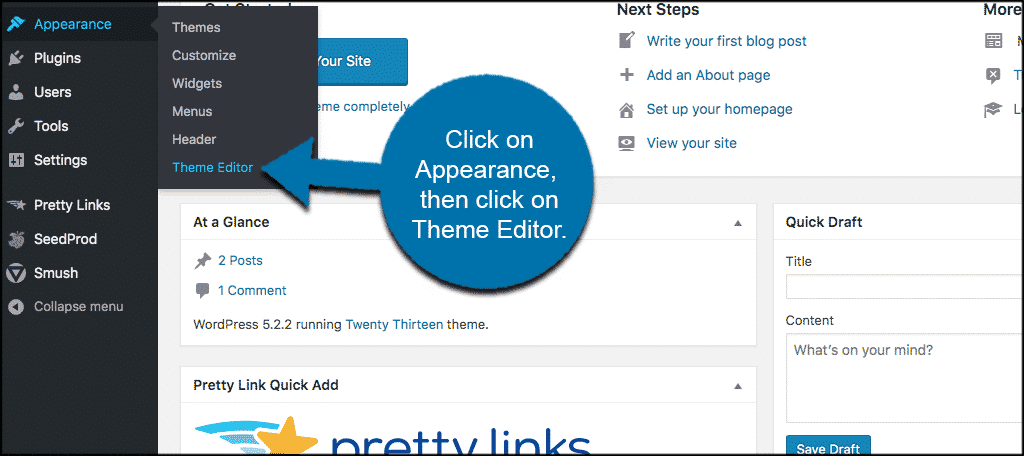
Credit: www.greengeeks.com
Insert Scripts And Styles
Inserting scripts and styles into your WordPress site helps customize its look and functionality. The head tag is the best place for these codes. This section explains how to add meta tags, CSS, and JavaScript properly. It also shows how to use the wp_enqueue_scripts hook for better results.
Add Meta Tags
Meta tags provide information about your webpage to browsers and search engines. You can add meta tags inside the head tag to improve SEO and control page behavior. To insert meta tags in WordPress, you need to edit the header.php file or use a plugin that allows custom code in the head section.
Common meta tags include description, keywords, and viewport settings. These tags help search engines understand your page and improve mobile responsiveness.
Include Css And Js
Adding CSS styles and JavaScript scripts makes your site more attractive and interactive. Instead of placing these codes directly in header.php, use WordPress functions to keep things organized. CSS files control the design, while JS files add dynamic effects and user interactions.
You can add custom CSS and JS by linking external files or writing inline code. Proper placement inside the head tag ensures these resources load early for a smooth user experience.
Use Wp_enqueue_scripts Hook
The wp_enqueue_scripts hook is the recommended way to add CSS and JS in WordPress. It keeps your code clean and prevents conflicts with other plugins and themes. Use this hook in your theme’s functions.php file.
To add a style or script, call wp_enqueue_style() or wp_enqueue_script() inside a function attached to wp_enqueue_scripts. This method ensures your files load in the correct order and only when needed.
Using wp_enqueue_scripts helps improve site speed and maintainability.
Test Changes And Troubleshoot
After you make changes to the head tag in WordPress, testing is important. Testing ensures your updates work correctly and your site runs smoothly. Troubleshooting helps fix any problems that might appear. This section covers key steps to test changes and solve common issues.
Clear Cache
Clearing your cache shows the latest version of your site. Browsers and plugins often save old data to speed up loading. This can hide your recent changes. Clear your browser cache first. Then clear any caching plugins or server cache. This ensures you see your new head tag updates right away.
Check Site Performance
Check how fast your site loads after changes. A slow site can hurt user experience and search rankings. Use free tools like Google PageSpeed Insights or GTmetrix. These tools highlight performance issues. Fixing these can improve speed and keep your head tag working well.
Fix Common Errors
Look for common errors after editing the head tag. Broken links, missing scripts, or incorrect meta tags cause problems. Use the browser’s developer tools to find errors. Fix any HTML or code mistakes you find. Also, check for plugin conflicts that may affect your head tag.

Credit: www.youtube.com
Frequently Asked Questions
How Do I Access The Head Tag In WordPress?
You can access the head tag by editing your theme’s header.php file. It contains the
section of your site’s HTML structure.Can I Add Custom Code To The WordPress Head Tag?
Yes, you can add custom code using the wp_head() hook or by editing header. php directly for scripts and meta tags.
Is Using A Plugin Safer To Edit The Head Tag?
Yes, plugins like “Insert Headers and Footers” allow safe editing without touching theme files, reducing the risk of errors.
Where Is The Head Tag Located In WordPress Themes?
The head tag is inside the header. php file of your active theme. It controls metadata and scripts site-wide.
Conclusion
Accessing the head tag in WordPress is simple and useful. You can edit it using theme files or plugins. This helps add codes like SEO tags, scripts, or styles. Always back up your site before making changes. Small steps make your site better and more functional.
Try these methods to manage your WordPress head tag with confidence.


