

If you want to customize your WordPress site beyond the basics, knowing how to access and edit the functions.php file is a must. This file holds the key to adding new features, tweaking your theme, and making your site truly your own.
But diving into functions. php can feel tricky if you’re not sure where to start. Don’t worry—this guide will walk you through simple, clear steps to safely access and work with functions. php. By the end, you’ll have the confidence to unlock powerful changes on your site without breaking anything.
Ready to take control of your WordPress site? Let’s get started.
What Is Functions.php
The functions.php file is a key part of any WordPress theme. It acts like a plugin, allowing you to add custom features and functions to your site. This file helps you change how your site works without editing WordPress core files.
Every WordPress theme can have its own functions.php file. It loads automatically with your theme. You can use it to add new code snippets, enable features, or modify default behavior. It is a simple way to customize your site safely.
What Does Functions.php Do?
The functions.php file lets you add PHP code to your theme. It controls many parts of your site’s functionality. For example, you can register new menus, add widget areas, or change image sizes. It also allows you to enqueue styles and scripts.
Where Is Functions.php Located?
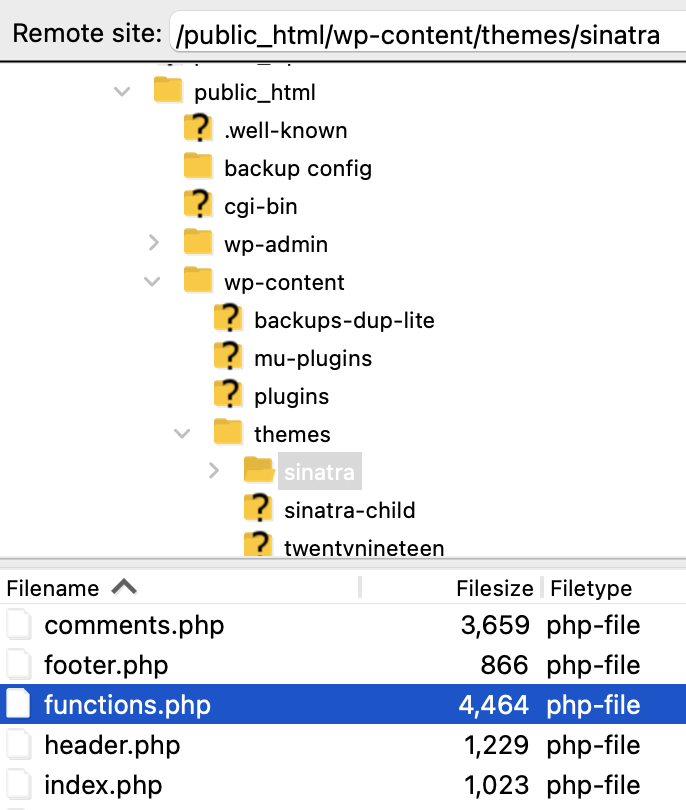
You can find functions.php inside your active theme’s folder. The path is usually /wp-content/themes/your-theme/functions.php. Each theme can have its own functions.php file, which works only for that theme.
Is Functions.php Safe To Edit?
Editing functions.php is safe if done correctly. Always back up your site before making changes. Small mistakes can cause errors or break your site. Use a child theme to keep your changes when updating the theme.

Credit: jetpack.com
Locating Functions.php File
The functions.php file is important for adding custom code to a WordPress site. It controls how your theme behaves. Finding this file is the first step before editing or adding functions. You can locate it in several ways. Each method fits different skill levels and tools. Below are simple ways to find the functions.php file.
Using WordPress Dashboard
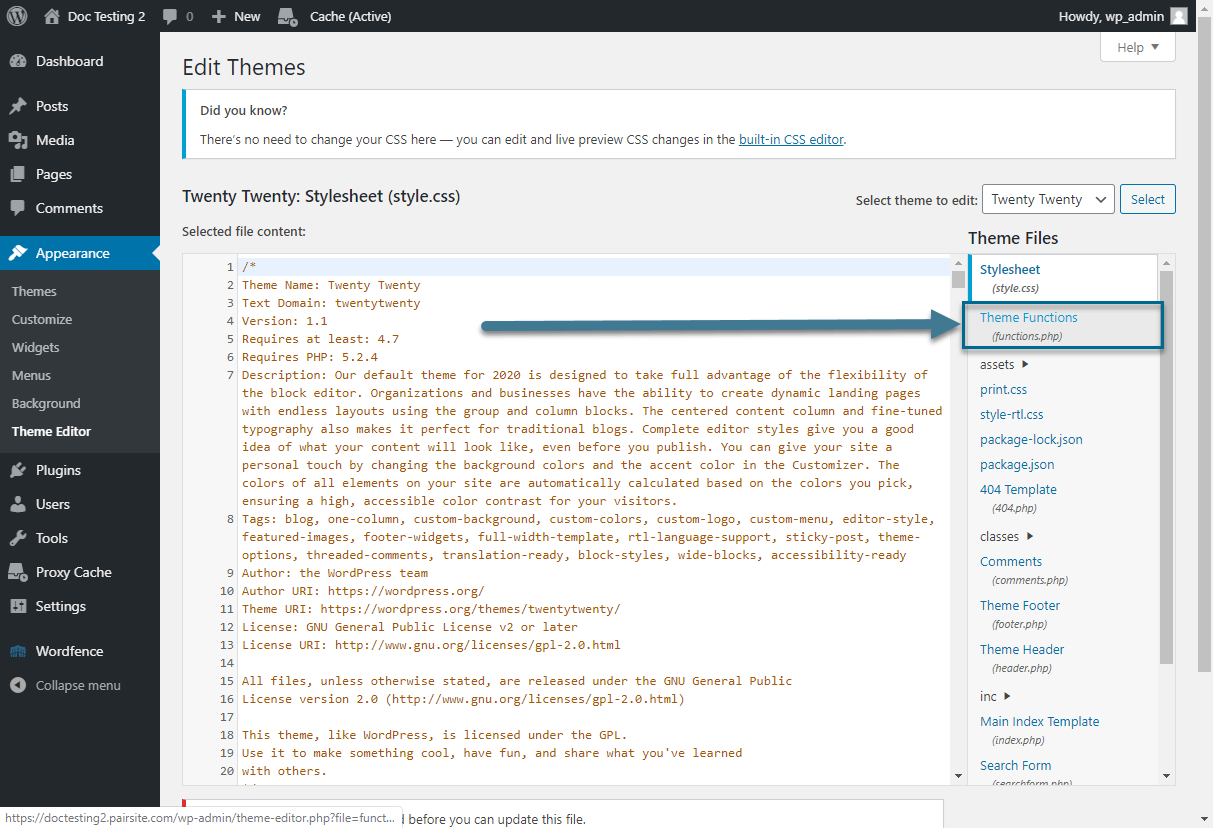
Log in to your WordPress dashboard. Go to Appearance and click Theme Editor. On the right side, find and select functions.php. This file is also called the Theme Functions file. Make sure to back up before editing. You can now view or change the code directly here.
Accessing Via Ftp
Use an FTP client like FileZilla. Connect to your website server with your FTP login details. Navigate to /wp-content/themes/your-theme-folder/. Find the functions.php file inside the theme folder. Download it to your computer to edit safely. After changes, upload it back to the same folder.
Using File Manager In Hosting
Log in to your hosting control panel. Open the File Manager tool. Go to the root directory of your website. Navigate to wp-content/themes/your-theme-folder/. Locate the functions.php file here. You can edit it directly using the file editor. Save your changes carefully to avoid errors.
Editing Functions.php Safely
Editing the functions.php file in WordPress can change how your site works. It controls many important features of your theme. Making mistakes in this file can break your site. Safe editing helps avoid problems and keeps your site running well.
Always take steps to protect your website before making any changes. Use methods that let you fix errors quickly. This way, you can try new code without fear of losing your work or crashing the site.
Creating A Child Theme
A child theme lets you change your site without touching the original files. It keeps your edits separate from the main theme. This means updates to the main theme will not erase your changes.
Create a folder for the child theme. Add a style sheet and a functions.php file there. Activate the child theme from your WordPress dashboard. Now, you can safely add new functions or modify existing ones.
Using Code Editors
Use a good code editor to edit functions.php. Editors like Visual Studio Code or Sublime Text highlight errors. They make your code easier to read and fix. Avoid using the WordPress built-in editor for big changes. It is easy to make mistakes that break the site.
Code editors also help with auto-completion and formatting. These features reduce errors and speed up coding. Save your file with the correct extension, .php, to avoid issues.
Backing Up Files
Always back up your functions.php file before editing. Save a copy on your computer or cloud storage. This lets you restore the original file if something goes wrong.
Use backup plugins or tools provided by your hosting service. Regular backups protect your whole site, not just one file. This safety net prevents data loss and downtime.
Common Uses For Functions.php
The functions.php file in WordPress is a powerful tool for customizing a website. It allows users to add new features and change existing ones without altering core files. This file acts like a plugin, running PHP code that affects the whole site.
Many WordPress users utilize functions.php to improve their themes. This file helps add custom code, load scripts and styles, and adjust theme options. Understanding these common uses can help site owners build better websites.
Adding Custom Functions
Custom functions can make a website unique. You can write small PHP snippets to add new features. For example, you might create a function to show a custom greeting or change how posts display. These functions run automatically and improve user experience.
Enqueueing Scripts And Styles
Loading JavaScript and CSS files correctly is important. Use functions.php to enqueue scripts and styles safely. This method avoids conflicts and ensures files load only when needed. Proper enqueuing keeps the site fast and stable.
Modifying Theme Features
The functions.php file lets you change theme settings. You can enable features like custom logos, post thumbnails, or menus. This control helps tailor the theme to your needs without editing theme files directly.
Troubleshooting Errors
Errors in the functions.php file can break your WordPress site. Fixing these errors quickly is important. Troubleshooting helps find and solve problems fast. This section explains simple ways to fix common issues in functions.php.
Restoring From Backup
Backups save your site’s files and data. Restore your site using a backup if functions.php causes errors. This returns your site to the last working state. Many hosting providers offer easy backup and restore options. Always create backups before editing functions.php.
Debugging Syntax Issues
Syntax errors in functions.php stop your site from loading. Check for missing semicolons, brackets, or quotes. Use an online PHP syntax checker to find mistakes. Fix errors by carefully editing the code. Always test changes on a staging site if possible.
Using Recovery Mode
WordPress has a recovery mode for fatal errors. It lets you access the dashboard despite a broken functions.php. You receive an email with a special login link. Use this link to fix or delete the faulty code safely. Recovery mode helps avoid full site downtime.
Credit: jetpack.com
Credit: www.pair.com
Frequently Asked Questions
What Is The Purpose Of Functions.php In WordPress?
Functions. php is a theme file that adds custom PHP code to WordPress. It helps modify theme behavior and extend functionality without editing core files.
How Do I Safely Edit Functions.php In WordPress?
Always back up your site before editing. Use a child theme or a code editor with error checking to avoid site crashes.
Can I Add Custom Functions To Functions.php?
Yes, you can add custom PHP functions to functions. php. This allows you to enhance features and customize your WordPress site easily.
Where Is The Functions.php File Located In WordPress?
Functions. php is located in your active theme’s folder inside /wp-content/themes/your-theme-name/. You can access it via FTP or the theme editor.
Conclusion
Accessing the functions. php file in WordPress is simple and useful. It lets you add custom code to your site easily. Always back up your site before making changes to avoid problems. Use a child theme to keep your edits safe during updates.
This file helps improve your website’s features without plugins. Keep your code clear and test it carefully. Now, you can confidently work with functions. php to enhance your WordPress site.


