
Are you thinking about giving your WordPress site a fresh new look? Changing your theme can be an exciting way to breathe new life into your online presence.
But perhaps you’re wondering just how challenging it might be. Is it a quick switch, or could it lead to unforeseen complications? In this blog post, we’re diving deep into the process of changing WordPress themes. We’ll unravel the myths, lay out the facts, and equip you with everything you need to know to make a smooth transition.
Whether you’re a seasoned WordPress user or just starting out, understanding the nuances can save you time, effort, and potential headaches. Stay with us, and you’ll discover not only how to change themes effectively but also how to ensure your site’s functionality and SEO remain intact. Let’s make sure your theme change is as seamless as possible!
Credit: jetpack.com
Choosing The Right Theme
Switching WordPress themes might seem complex, but it’s manageable with the right preparation. Ensure backups and compatibility checks are in place to avoid issues. Selecting a compatible theme simplifies the process and keeps your site running smoothly.
Assessing Your Needs
Think about what you want. Do you need a blog or shop? Consider your site’s purpose. A simple design may suit a personal blog. A complex one might fit a business site. Decide what features are essential. Make a list. This helps you find the right theme.
Researching Options
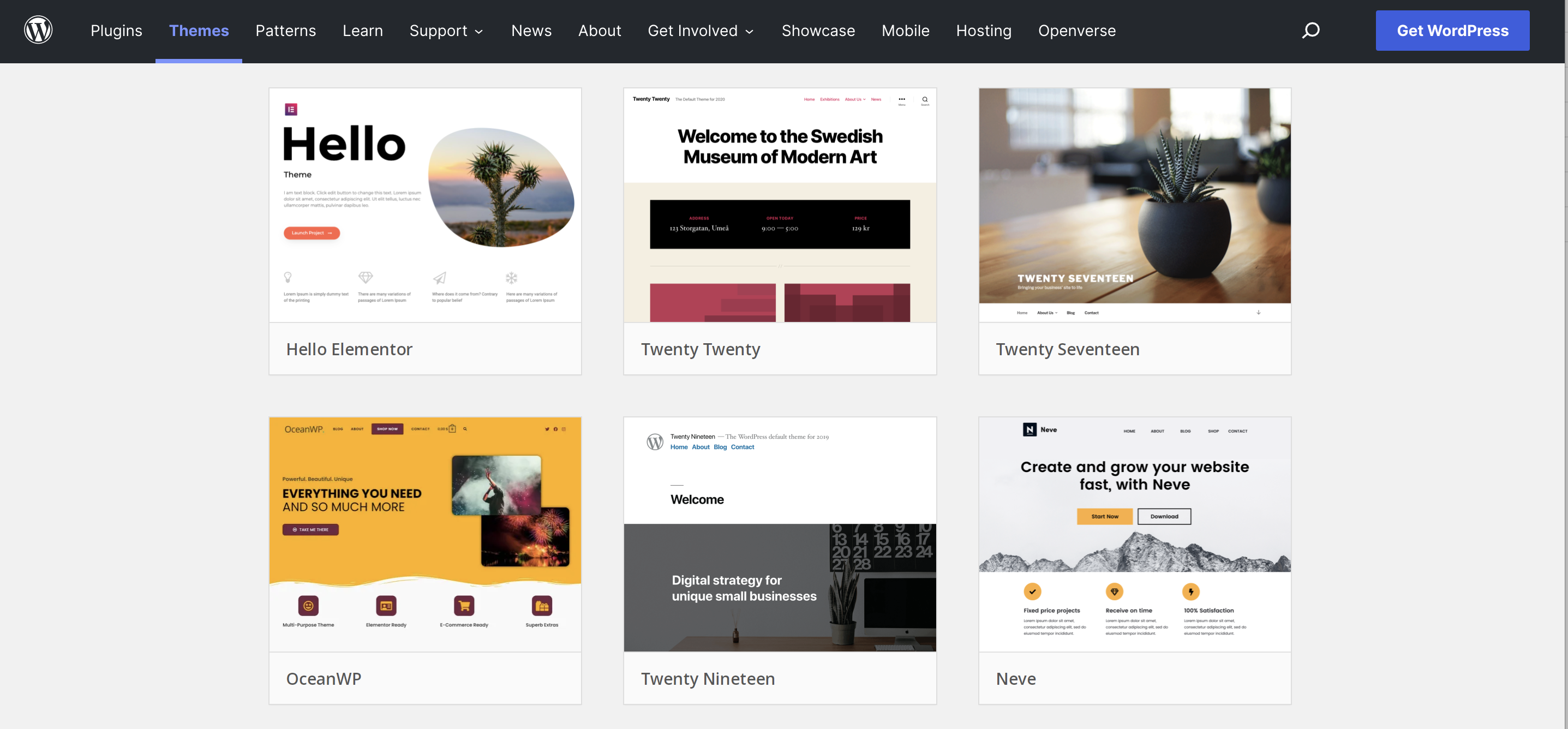
Explore different themes online. Many sites offer free themes. Some are paid. Look at user reviews. Ratings can help you choose. Try demo versions if available. This gives you a feel for the theme. Check if it fits your needs. Take your time to find a good match.
Compatibility Considerations
Ensure the theme works with your plugins. Some themes clash with certain plugins. This can cause problems. Check theme updates. Regular updates mean better compatibility. Verify if the theme supports the latest WordPress version. This ensures smooth operation. Look at theme documentation. It helps you understand theme features.
Preparing For The Change
Backup keeps your site safe. Mistakes can happen. Save your site files. Save your database too. Use plugins like UpdraftPlus. Store backups in cloud or on a hard drive. Check the backup. Make sure it works. This way, your data stays safe.
Check your site customizations. Note changes in design. Note changes in settings. Write them down. Make a list. You might lose them during theme change. Some themes have features. Some themes lack features. Compare them. Choose wisely.
Use a staging site. It’s a copy of your site. Test changes there first. It keeps your real site safe. Install new themes. Check if they work. Check plugins too. Make sure everything looks good. Avoid surprises on the real site.
Installing The New Theme
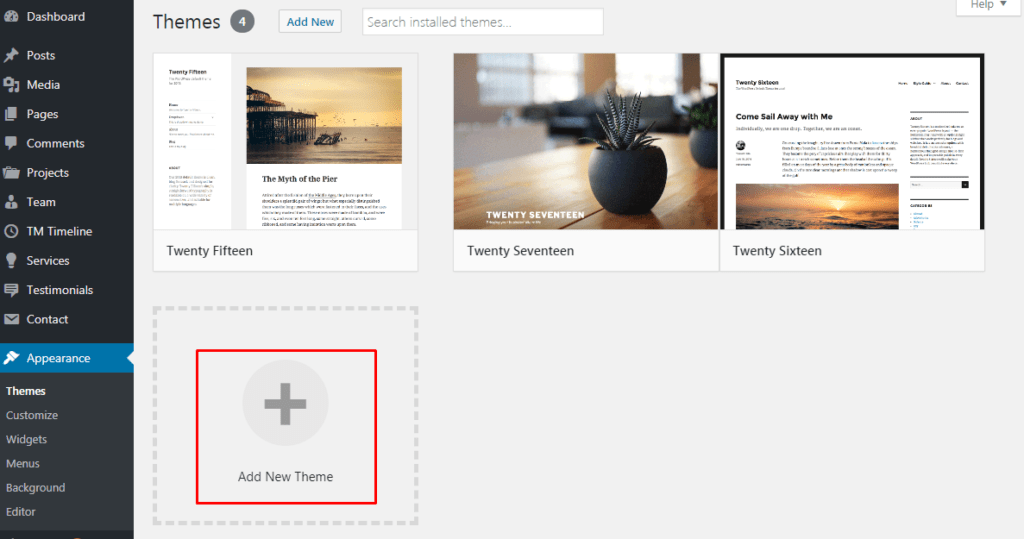
Uploading a new theme is simple. Go to your WordPress dashboard. Click on Appearance and then Themes. You will see an “Add New” button. Click it to upload your theme file. Make sure your theme file is in a .zip format. Click on “Upload Theme” and choose your file. After uploading, click on “Install Now”. Wait for the installation to finish. It only takes a few seconds.
After installation, you need to activate the theme. Go to the Themes page in your dashboard. Find your new theme on the list. Click on the “Activate” button. Your site will change to the new look. Check if everything looks good. Some changes may need adjustments. This is normal.
Sometimes, issues can occur. Maybe the theme does not look right. Or some features are missing. First, clear your browser cache. This can solve many problems. If the issue persists, check your plugins. Some plugins might not work with the new theme. Deactivate plugins one by one to find the problem. Still facing issues? Visit the theme’s support page. They can help you solve problems.
Credit: www.templatemonster.com
Customizing The New Look
Changing a theme can be fun. Start with the layout first. Use theme options to change the design. Make sure it fits your style. Keep it simple and clean. A good design is easy to read.
Add your brand colors to the theme. Use your logo for identity. Place it at the top. Make sure your fonts match your brand. This keeps everything consistent. It’s important for your brand image.
Widgets are helpful tools. They add extra features. Customize them to fit your needs. Menus help people navigate your site. Place them in easy-to-see spots. Make sure they are easy to use. This makes your site better for visitors.
Ensuring Compatibility
Plugins must work with the new theme. Some themes may not support certain plugins. Test each plugin after changing the theme. Ensure everything functions as expected. Sometimes, updates help. Some plugins require special settings. Adjust these settings if needed.
New themes can break your site’s layout. CSS rules might change. HTML structures may differ. Fix these issues quickly. Use a child theme for custom styles. Check each page for errors. Correct any broken elements.
Mobile users need a smooth experience. Themes must be responsive. Test the site on different devices. Look for issues in the layout. Fix any problems you find. Mobile optimization is crucial. Fast loading times matter for users.
Testing And Final Adjustments
Changing WordPress themes involves careful testing and adjustments. It ensures compatibility with existing plugins and widgets. Some challenges include design tweaks and layout fixes to maintain a consistent look.
Checking For Broken Links
Broken links can confuse visitors. Check all links on your site. Use tools to find broken links. Fix any broken links quickly. This keeps your site user-friendly.
Ensuring Seo Settings
New themes can change SEO settings. Check the SEO settings after a theme switch. Make sure your keywords are still in place. Adjust any changes needed for SEO. Keep your site search engine friendly.
Performance Testing
A new theme might slow your site. Test the site’s speed with a speed tool. Fast sites make visitors happy. Optimize images and scripts if needed. Aim for a quick and smooth experience.
Common Challenges
Changing a WordPress theme can cause plugin conflicts. Some plugins may not work well with the new theme. This can lead to issues with your website’s features. It’s crucial to check all plugins after changing a theme. Ensure they are compatible. Update or replace incompatible plugins. This keeps your website running smoothly.
A new theme may change your site’s layout. Some parts might not look right. This is called a layout breakage. It’s important to review each page. Fix any layout problems you find. Use theme settings to adjust the design. This helps maintain a professional look.
Users may have opinions about the new theme. Feedback is important. Listen to what they say. Make changes based on their comments. This keeps users happy. It shows you care about their experience. Happy users are likely to return.

Credit: jetpack.com
Frequently Asked Questions
Do You Lose Content When Changing WordPress Themes?
Changing WordPress themes doesn’t delete content. Posts, pages, and media stay intact. Widgets and customizations might need reconfiguration. Always back up your site before switching themes.
Is It Easy To Change A WordPress Theme?
Changing a WordPress theme is straightforward. Navigate to the dashboard, select “Appearance,” then “Themes. ” Choose a theme and activate it. Ensure compatibility with plugins and backup your site before switching. Customizations may require adjustments post-change. Always preview and test your site after applying a new theme.
Will Changing The WordPress Theme Affect Seo?
Changing your WordPress theme can impact SEO. Themes affect site speed, mobile responsiveness, and code quality, influencing rankings. Ensure the new theme is SEO-optimized. Keep permalinks, meta tags, and headings intact during the change. Regularly monitor your site’s performance and update as needed to maintain SEO health.
Why Can’t I Change My WordPress Theme?
You might face issues changing your WordPress theme due to plugin conflicts, theme restrictions, or insufficient permissions. Check your user role settings, deactivate conflicting plugins, or consult your hosting provider for assistance. Always back up your site before making changes to avoid data loss.
Conclusion
Changing WordPress themes isn’t as hard as it seems. With some practice, anyone can do it. The process involves choosing a theme and customizing it. Backing up your site is crucial before any changes. It protects your content and settings.
Remember, some themes may need adjustments. This could mean tweaking plugins or widgets. Take your time and explore options. Patience and caution lead to a smooth transition. Always keep your website’s user experience in mind. A well-chosen theme enhances both design and functionality.
Enjoy the journey of creating your perfect site.


