
Are you struggling to customize your WordPress site and make it truly your own? You’re not alone.
Many website owners find themselves wanting to tweak their theme’s code, especially when it comes to removing unwanted tabs or features. But diving into theme code can feel like navigating a maze. You know the end goal, but the path seems confusing and daunting.
What if there was an easy way to understand and accomplish this without the stress? In this guide, we’ll walk you through the steps to confidently edit your WordPress custom theme code and remove that pesky tab that’s been bothering you. Imagine the satisfaction of having a website that perfectly aligns with your vision. Stick with us, and we’ll make it happen together.
Accessing WordPress Theme Files
Editing WordPress theme files can customize your website. Access the theme editor through the WordPress dashboard. Locate the specific file to remove the tab. Make changes carefully to avoid errors. Always back up your theme before editing.
Using File Manager
The File Manager is inside your hosting account. Find it in the cPanel. Click on the File Manager. Look for the folder named wp-content. Inside this folder, find themes. Open the themes folder. Here, you will see your theme’s files. Click on the folder of your theme. You can now edit the theme code. Be careful with changes. They affect the website’s look.
Utilizing Ftp Client
An FTP Client helps access files. Download an FTP program. FileZilla is a popular choice. Open the FTP program. Enter your website’s FTP details. Connect to the server. Navigate to the wp-content folder. Find the themes folder. Open your theme’s folder. You can edit theme files here. Remember to save changes. Check your site after editing.
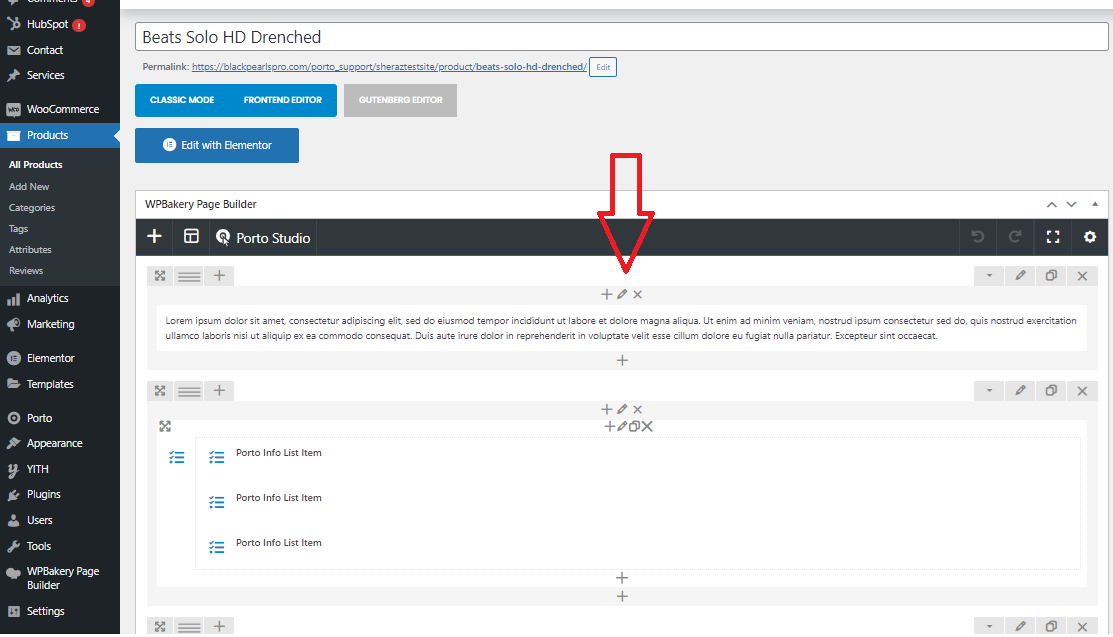
Credit: www.portotheme.com
Identifying Theme File Containing Tab Code
Locating Template Files in WordPress is crucial. Each theme has a unique structure. Start by checking the theme’s folder. Look for files named header.php, footer.php, or single.php. These files might hold the tab code you want to edit. Open each file with a text editor. Search for the specific tab code you want to change or remove. This step helps in understanding where the code is located.
Knowing the theme structure helps a lot. Themes often have folders like template-parts or inc. These may contain more files with relevant code. It’s like a puzzle. Find each piece and understand how it fits. This way, you can confidently edit the right file.
Editing Theme Code Safely
Create a child theme to keep changes safe. This is a copy of the main theme. It protects your edits during updates. First, make a new folder in the themes directory. Name it after your main theme with “-child” at the end. Add a style.css file. Write a few lines to link it with the main theme. This helps keep everything organized.
Always back up your files before editing. This means saving copies of the original files. You can use an FTP client or your hosting provider’s file manager. Keep these backups in a safe place. This way, if something goes wrong, you can restore your site easily.
Removing Tab Code
First, open your WordPress theme files. Look for a file named header.php, footer.php, or functions.php. These files often contain tab code blocks. Use a text editor to find lines with tab structures. Search for words like tab or menu in the code. This helps you locate the exact block to edit.
To remove the tab, you can delete the code. Be careful to not break the theme. Another way is to comment out the code. Add and around the tab code. This keeps the code, but it won’t run. This method is safer if you’re unsure. Always save your changes and refresh the page to check.
Testing Changes On WordPress
Testing changes is important. First, open the WordPress dashboard. Find the “Appearance” tab. Click on “Editor.” Here, you can see your theme’s files. Make sure you are editing the right file. Always check twice before saving changes. This helps prevent mistakes.
Previewing Changes
After editing, always preview your changes. Click on “Live Preview” to see them. Check if everything looks good. Does the page load? Is the text readable? If yes, you can save the changes. If not, go back and edit again. Always remember to preview first.
Troubleshooting Common Issues
Sometimes, changes don’t work. The website might look broken. Don’t worry. Go back to the “Editor” and check your code. Look for missing tags or brackets. If unsure, ask for help. You can also search for solutions online. Fixing small errors can solve big problems.

Credit: pinegrow.com
Restoring Original Code
Always keep a backup of your theme. Backups help restore lost code. You can use a plugin for automatic backups. Manual backup is also possible. Download your theme files regularly. Store them safely on your computer. If you make mistakes, simply upload the backup. This restores your original code. No need to worry about errors.
Switching to the default theme can fix problems. Go to your WordPress dashboard. Click on Appearance, then Themes. Find the default theme. It is often named “Twenty Twenty-Three” or similar. Click Activate to switch themes. This will revert your site to default settings. Your customizations will be lost. But your site will work correctly again.

Credit: rudrastyh.com
Frequently Asked Questions
How Do I Remove A Tab In WordPress?
Go to your WordPress dashboard. Navigate to the page or post. Edit the content. Locate the tab section. Remove the desired tab using the editor. Save or update the changes.
Why Can’t I Edit My WordPress Theme?
You might lack permissions or be using a theme that restricts edits. Ensure you have administrative access. Check for theme settings that allow modifications, or consider using a child theme. Sometimes, caching plugins may also prevent changes from showing. Disable such plugins to see if this resolves the issue.
How To Create Custom Tabs In WordPress?
Install a custom tabs plugin. Access WordPress dashboard, go to Plugins, and click “Add New”. Search for “custom tabs”, install, and activate. Navigate to the plugin settings to create and customize tabs for your site. Save changes and preview to ensure they display correctly.
How To Rearrange Tabs In WordPress?
Rearrange tabs in WordPress using drag-and-drop in the Appearance menu. Access your dashboard, click Appearance, then Menus. Adjust tab order by dragging them to desired positions. Save changes to update your site navigation. Ensure tabs are correctly linked for optimal user experience.
Conclusion
Editing WordPress custom theme code can seem tricky. But it’s doable. Follow the steps carefully. Remove unwanted tabs to improve your site. This makes your theme cleaner and faster. Always back up your site first. Mistakes can happen. Having a backup saves time.
Check changes after editing. Ensure everything works well. Seek help if you get stuck. Online communities can be useful. Keep learning and experimenting. It builds your confidence. Soon, you’ll handle more complex tasks with ease. Happy coding!


