
Thinking about building a website but worried it might be too complicated? You’re not alone.
Many people ask, “How easy is it to use WordPress for a website? ” The good news is, WordPress is designed to make website creation simple—even if you have no technical skills. Imagine having the power to create a professional-looking site without hours of frustration or expensive help.
You’ll discover just how user-friendly WordPress really is, and how it can help you bring your ideas to life quickly and smoothly. Ready to see how easy it can be? Let’s dive in.
Getting Started With WordPress
Getting started with WordPress is simple and quick. It offers tools that make website building easy. Beginners can set up a site without deep technical skills. The process involves picking hosting, installing WordPress, and learning the dashboard. Each step helps you create a site that fits your needs.
Choosing The Right Hosting
Hosting is where your website lives on the internet. Choose a hosting provider that supports WordPress well. Look for features like fast speed, good security, and reliable uptime. Many hosts offer one-click WordPress installation. This saves time and simplifies setup. Affordable plans are available for beginners and small sites.
Installing WordPress
Installing WordPress takes just a few clicks. Most hosts provide automatic installers in their control panels. You enter basic info like site name and admin details. The system sets up the files and database for you. Manual installation is also possible but less common. After installation, your site is ready to customize.
Navigating The Dashboard
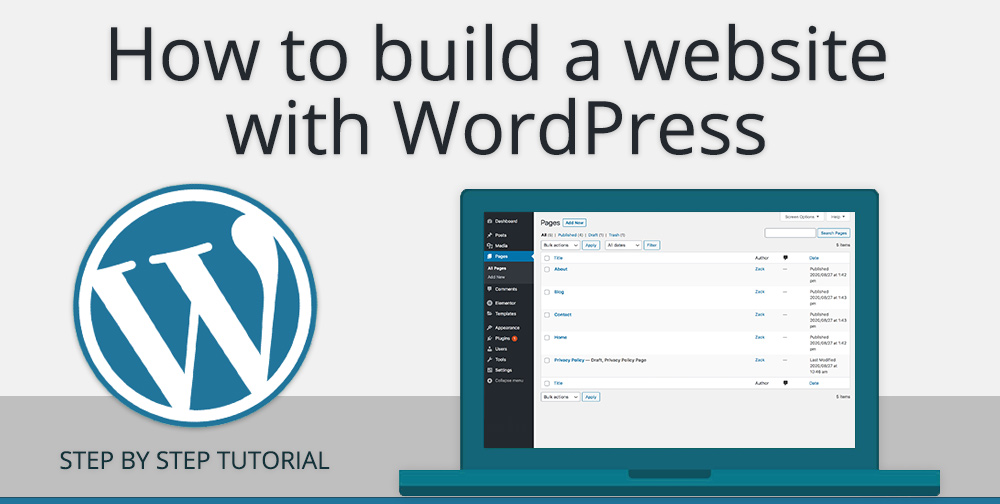
The WordPress dashboard is the control center of your site. It shows menus for posts, pages, and settings. The interface is user-friendly and clean. Beginners can easily add content and change designs. Tools and plugins help extend your site’s features. Spend time exploring the dashboard to feel confident.
Credit: ajaykhandal.com
Customizing Your Site
Customizing your WordPress site is simple and fun. It lets you make the website truly yours. You can change how it looks and works without needing to code. The platform offers many tools to help you shape your site. These tools make the process smooth and fast.
Selecting Themes
The first step in customization is choosing a theme. Themes control your site’s look and feel. WordPress has thousands of free and paid themes. You can preview themes before activating them. Pick a theme that fits your website’s purpose. Many themes come with built-in customization options. Changing colors, fonts, and layouts is easy through the theme settings.
Using Plugins
Plugins add extra features to your site. They are simple to install and activate. There are plugins for SEO, security, forms, and more. Choose plugins carefully to keep your site fast. Each plugin works like a tool to improve your site. You do not need coding skills to use plugins. Just install and configure settings in a few clicks.
Setting Up Menus And Widgets
Menus help visitors navigate your site. WordPress lets you create custom menus easily. You can add pages, posts, and categories to menus. Drag and drop to arrange menu items. Widgets add content blocks to your site’s sidebar or footer. Use widgets for search bars, recent posts, or calendars. Setting up menus and widgets takes minutes. It improves your site’s usability and design.
Creating Content
Creating content on WordPress is simple and user-friendly. You can add posts and pages easily. The platform uses a block editor that lets you build content piece by piece. Managing images and videos is straightforward too. This section explains how to create content step-by-step.
Adding Posts And Pages
Posts are for timely updates like news or blogs. Pages are for static content like About or Contact. To add a post, click on “Posts” then “Add New.” For pages, select “Pages” then “Add New.” Both have similar editors to write and format text. You can save drafts or publish instantly.
Using The Block Editor
The block editor breaks content into blocks. Each block holds text, images, or videos. You can move blocks up or down. Add new blocks by clicking the plus (+) icon. Blocks make content easy to organize and change. This way, you see exactly how your page looks.
Managing Media Files
WordPress lets you upload images, videos, and files easily. Go to “Media” then “Add New” to upload files. You can drag and drop files from your computer. Media files are stored in the library for future use. Insert media into posts or pages with a few clicks.
Managing Site Settings
Managing site settings in WordPress is straightforward and user-friendly. It lets you control how your website looks and works. You can change important details and improve your site’s performance easily. This section explains how to manage key settings to fit your needs.
Configuring General Settings
General settings control your site’s basic information. You can set your site title and tagline. These appear in browser tabs and search results. You also add your email address here. It is used for important notifications. The timezone and date format are set in this section. This helps keep your content accurate and timely.
Adjusting Reading And Discussion Options
Reading settings decide what visitors see first on your site. Choose a homepage or blog page easily. Control how many posts display per page. Discussion options manage comments on your posts. You can allow or block comments. Set rules to reduce spam and unwanted messages. These settings keep your site clean and engaging.
Setting Up Permalinks
Permalinks are the links to your posts and pages. WordPress lets you customize these links for clarity. Choose simple, readable URLs instead of random numbers. This makes your links easy to share and remember. Good permalinks also help search engines find your content. Setting permalinks is quick and improves your site’s SEO.
Enhancing Site Functionality
Enhancing site functionality is a key step for any WordPress website. It helps your site do more and serve visitors better. WordPress offers many tools and plugins to improve your site’s features. These tools are easy to add and use. They help your website grow and attract more visitors.
Integrating Seo Tools
SEO tools help your website rank higher in search engines. WordPress plugins like Yoast SEO and All in One SEO make this easy. These tools guide you to write better content and use keywords smartly. They also help with meta descriptions and site maps. This improves your site’s visibility and brings more visitors.
Adding E-commerce Features
WordPress allows you to sell products or services online. Plugins like WooCommerce add e-commerce functions quickly. You can list products, manage orders, and accept payments. These tools support many payment methods. Setting up an online store on WordPress is simple and fast.
Improving Site Security
Keeping your website safe is very important. WordPress offers security plugins like Wordfence and Sucuri. These tools protect your site from hackers and malware. They monitor traffic and block suspicious activity. Regular updates and backups also help keep your site secure.
Credit: www.youtube.com
Troubleshooting Common Issues
Troubleshooting common issues in WordPress can feel challenging. Many users face problems with plugins, themes, or site speed. These issues can stop your website from working well. Learning simple fixes helps keep your site running smoothly.
Fixing Plugin Conflicts
Plugins add features to your site but can clash with each other. Deactivate all plugins first to see if the issue stops. Then, activate plugins one by one. This method shows which plugin causes the problem. Update all plugins regularly to avoid conflicts. Choose plugins from trusted developers only.
Resolving Theme Problems
Themes control your site’s look and feel. Sometimes themes cause errors or slow the site. Switch to a default WordPress theme to test this. If the problem goes away, the theme is the cause. Update your theme or contact the developer for help. Avoid using many customizations that may break the theme.
Handling Performance Issues
Slow websites lose visitors quickly. Clean your database to remove old data. Use caching plugins to speed up loading times. Optimize images before uploading to keep file size small. Choose a reliable hosting service with good speed. Regularly check your site’s performance using online tools.
Tips For Efficient Use
Using WordPress for your website can be simple and smooth. Following some key tips helps you work faster and avoid problems. These tips keep your site safe and running well. They also save time and effort.
Regular Backups
Backups keep your website safe. They save a copy of your site’s files and data. If something goes wrong, you can restore your site quickly. Use plugins to automate backups. Schedule backups weekly or daily, based on your site’s activity.
Keeping WordPress Updated
Updates fix bugs and add new features. They improve security and speed. Always update WordPress core, themes, and plugins. Check for updates often. Run updates in a test environment first if possible.
Utilizing Support Resources
WordPress has many support options. Use forums, tutorials, and official guides. They answer common questions and solve issues. Join WordPress communities to learn tips and tricks. Don’t hesitate to ask for help when stuck.

Credit: www.geeksforgeeks.org
Frequently Asked Questions
How Simple Is WordPress For Beginners To Use?
WordPress offers an intuitive interface ideal for beginners. Its drag-and-drop features simplify website building. Users can create pages and posts without coding. Tutorials and support forums add to its ease of use.
Can I Customize My WordPress Website Easily?
Yes, WordPress provides thousands of themes and plugins. These tools enable extensive customization without technical skills. You can change layouts, colors, and functionality quickly. This flexibility suits various website needs and preferences.
Is WordPress Suitable For Small Business Websites?
WordPress is perfect for small business websites. It supports e-commerce, blogs, and portfolios efficiently. Its SEO-friendly structure helps improve online visibility. Affordable hosting and scalability make it a smart choice.
How Secure Is A WordPress Website?
WordPress security depends on regular updates and strong passwords. Using reputable plugins and themes reduces vulnerabilities. Many security plugins offer additional protection. Regular backups also help safeguard your website data.
Conclusion
WordPress makes website building simple for everyone. You can create pages and posts with ease. Many free themes help your site look good quickly. Plugins add features without coding skills. The dashboard is clear and easy to use. Support and tutorials are available everywhere.
Even beginners can get started fast. Try WordPress if you want a simple, flexible website. It’s a practical choice for many users.


