
Have you ever wondered how your WordPress site can do so much more than just display pages? The secret lies in plugins.
These small pieces of software have the power to transform your website, adding features and functions without any complicated coding. But how do plugins actually work in WordPress? Understanding this can help you make smarter choices for your site and unlock its full potential.
Keep reading to discover how plugins integrate seamlessly with your site and why they are essential for customizing your online presence.
WordPress Plugin Basics
Understanding the basics of WordPress plugins helps you improve your website easily. Plugins add new features and functions without coding. They let you customize your site to meet your needs.
What Plugins Are
Plugins are pieces of software that add features to WordPress. They can do many things, like improve security or add contact forms. Each plugin has a specific purpose to make your site better.
WordPress works with thousands of plugins created by developers worldwide. You can choose plugins that fit your website’s goals.
Types Of Plugins
There are many types of WordPress plugins. Some common types include SEO plugins, security plugins, and performance plugins. Others add e-commerce features or social media sharing buttons.
Each type helps with a different part of website management. Choosing the right type depends on what your site needs to do.
Where To Find Plugins
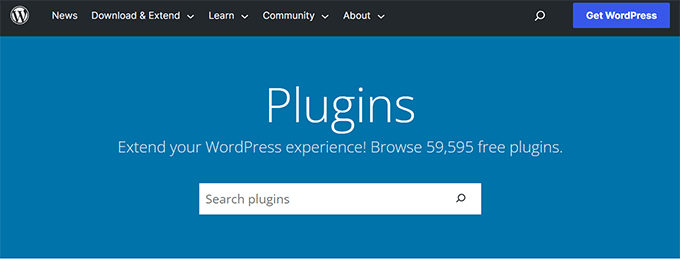
You can find plugins in the official WordPress Plugin Directory. It has thousands of free plugins. You can also buy premium plugins from trusted marketplaces.
Always download plugins from reliable sources to keep your site safe. Check reviews and ratings before installing any plugin.
Credit: www.wpbeginner.com
How Plugins Integrate With WordPress
Plugins connect with WordPress to add new features and improve your site. They work by interacting with WordPress core without changing its main code. This keeps your site safe and easy to update. Understanding how plugins integrate helps you choose and use them better.
Plugin Architecture
Each plugin is a set of files stored in the WordPress plugin folder. These files include PHP code, stylesheets, and sometimes JavaScript. The plugin’s main file tells WordPress how to load and run the plugin. WordPress reads this file to activate the plugin’s functions.
Hooks And Filters
Hooks let plugins tap into WordPress at specific points. Actions are hooks that run code at certain times, like when a post is published. Filters change data before WordPress shows it. Plugins use hooks to add or change features without changing core files.
Plugin Api
The Plugin API is a set of tools that WordPress offers to developers. It helps plugins talk to WordPress safely. The API includes functions to add menus, create settings, and handle user input. Using the API ensures plugins work well and don’t break the site.
Installing And Activating Plugins
Installing and activating plugins in WordPress is a simple process that adds new features to your website. Plugins help customize your site without coding. Understanding how to install and activate plugins ensures your site works the way you want.
Using The WordPress Dashboard
Go to your WordPress dashboard to install plugins quickly. Click on “Plugins” and then “Add New.” Use the search bar to find a plugin by name or function. Click “Install Now” on the plugin you want. After installation, click “Activate” to enable the plugin on your site. This method is fast and safe for most users.
Manual Installation
Manual installation is needed if a plugin is not in the WordPress directory. Download the plugin file as a .zip from the plugin developer. In the dashboard, go to “Plugins” and then “Add New.” Click “Upload Plugin” and select the .zip file. Click “Install Now” and then “Activate” after the upload completes. This method is useful for premium or custom plugins.
Managing Active Plugins
Manage your active plugins from the “Installed Plugins” page in the dashboard. Here, you can deactivate or delete plugins you no longer need. Keep plugins updated to ensure site security and performance. Disable plugins that cause conflicts or slow your site. Regularly review active plugins to keep your site clean and fast.
Extending Website Functionality
Plugins help you extend the functionality of your WordPress website. They add new tools and features without changing the core code. This makes your site more powerful and flexible. You can tailor your site to meet your needs easily. Plugins work behind the scenes to improve user experience and site performance. They allow you to build a unique and efficient website.
Adding New Features
Plugins add new features to your WordPress site quickly. You can install a plugin to create contact forms, online stores, or photo galleries. These features improve what your website can do without coding. Each plugin brings specific functions, making your site more useful. You only activate the features you need, keeping your site simple.
Customizing User Experience
Plugins let you customize how visitors interact with your site. You can change the layout, add social sharing buttons, or show personalized content. This makes browsing easier and more enjoyable for users. Custom options help keep visitors on your site longer. Tailoring the experience can boost engagement and satisfaction.
Improving Performance
Some plugins improve your site’s speed and security. Caching plugins store parts of your site to load faster. Security plugins protect your site from hackers and spam. These tools keep your site safe and fast. A well-performing site attracts and retains more visitors. Performance plugins help your site run smoothly at all times.
Security And Compatibility Considerations
Security and compatibility are key when using WordPress plugins. Plugins add features but can also create risks. Poorly built plugins might expose your site to hackers or cause errors. Ensuring plugins work well together keeps your site stable and safe.
Choosing Trusted Plugins
Select plugins from reputable sources only. Check ratings and reviews by other users. Look for plugins updated regularly by developers. Avoid plugins with few downloads or old versions. Trusted plugins reduce security risks and improve performance.
Keeping Plugins Updated
Update plugins as soon as new versions appear. Updates often fix bugs and security issues. Running old versions can leave your site vulnerable. Use automatic updates if possible to stay protected. Regular updates help maintain smooth plugin operation.
Avoiding Conflicts
Plugins can clash and cause site errors. Test new plugins on a staging site first. Disable plugins one by one to find conflicts. Use only necessary plugins to reduce risks. Resolving conflicts keeps your site fast and reliable.
Popular Plugins And Use Cases
Plugins add extra features to WordPress websites. They help customize sites without coding. Many plugins serve different purposes. Some improve search rankings. Others support online stores. Some make websites faster and smoother. Here are popular plugins and their common uses.
Seo Enhancements
SEO plugins help websites rank higher on search engines. They guide users to add keywords and meta tags easily. Popular options like Yoast SEO check content for readability. They also generate sitemaps automatically. These plugins help attract more visitors by improving site visibility.
E-commerce Solutions
Plugins like WooCommerce turn WordPress into an online store. They enable product listings, shopping carts, and payment processing. Users can manage orders and inventory within WordPress. These plugins make selling products or services simple and efficient.
Performance Optimization
Speed is crucial for user experience and SEO. Performance plugins help by caching pages and compressing images. They reduce load times and server strain. Plugins like WP Rocket or W3 Total Cache improve site speed. Faster websites keep visitors engaged and reduce bounce rates.
Troubleshooting Plugin Issues
Plugins add many features to WordPress sites. They make websites more powerful and flexible. Sometimes, plugins cause problems. Troubleshooting plugin issues is important to keep your site running smoothly.
Understanding common errors helps fix problems faster. Using debugging techniques can show what is wrong. Seeking support can provide extra help from others.
Common Errors
Plugins may cause site crashes or slow loading. Errors like white screens or broken pages are common. Conflicts between plugins or with themes often cause issues. Outdated plugins may not work well with WordPress updates.
Some plugins create database errors or show warnings. Missing files or permission problems can stop plugins from working. Knowing these errors helps identify the problem quickly.
Debugging Techniques
Start by turning off all plugins. Turn on one plugin at a time to find the troublemaker. Use WordPress debug mode to see error messages. Check the error log files for details about problems.
Clear your browser cache and cookies. Test the site in different browsers. Disable your theme temporarily to check for conflicts. Update plugins and WordPress to the latest versions.
Seeking Support
Visit the plugin’s support forum for help. Describe the problem clearly and include error messages. Share your WordPress version and plugin details. Many developers and users answer questions quickly.
Contact the plugin author if needed. Use WordPress community groups for advice. Professional help can fix tough plugin issues fast.
Credit: www.wpbeginner.com
Credit: fluentforms.com
Frequently Asked Questions
What Are WordPress Plugins And How Do They Work?
WordPress plugins are software add-ons that extend website functions. They integrate seamlessly to add features without coding. When activated, plugins modify or enhance site behavior, improving design, SEO, security, or performance.
How Do I Install A WordPress Plugin Safely?
To install safely, use the WordPress plugin directory or trusted sources. Always check reviews and compatibility. Install via the dashboard, activate, and configure settings to avoid security risks or conflicts.
Can Plugins Slow Down My WordPress Site?
Yes, poorly coded or excessive plugins can reduce speed. Choose lightweight, updated plugins and limit the number installed. Regularly monitor site performance to maintain fast loading times.
Are WordPress Plugins Compatible With All Themes?
Most plugins work with many themes, but some may conflict. Always test new plugins in a staging environment before live use. Check developer notes for theme compatibility details.
Conclusion
Plugins help add features and improve your WordPress site. They connect with your website’s core to extend its functions. You can easily install and activate plugins from the dashboard. Each plugin works by running its own code alongside WordPress. This makes your site more flexible and tailored to your needs.
Always choose plugins carefully to keep your site safe and fast. Understanding how plugins work helps you manage your site better. Experiment with plugins to see which ones fit your goals best.


