
Are you struggling to find the right way to login to your WordPress dashboard? You’re not alone.
Accessing your dashboard is the first step to taking full control of your website, from publishing posts to customizing your design. But if you don’t know where to start, it can feel confusing and frustrating. You’ll discover simple, clear steps that will get you inside your WordPress dashboard quickly and securely.
Keep reading, and you’ll be managing your site like a pro in no time.
Accessing The Login Page
Accessing the WordPress login page is the first step to managing your website. This page lets you enter your username and password securely. Knowing the right URL helps you reach the login screen quickly. Most WordPress sites follow a common pattern. Some sites use custom login URLs for extra security. Understanding both types makes it easy to access your dashboard anytime.
Common Url Formats
The standard WordPress login page URL is simple. You add /wp-login.php or /wp-admin after your website address. For example, www.yoursite.com/wp-login.php or www.yoursite.com/wp-admin. Both URLs take you to the login screen. These formats work for most WordPress sites unless changed by the user.
Using Custom Login Urls
Some websites change their login URL to improve security. They use plugins or manual edits to create a custom login page address. This URL may not include wp-login.php or wp-admin. It could be something like www.yoursite.com/login or another unique path. Check with your site administrator or hosting provider for the custom login link. Keep this URL safe to prevent unauthorized access.
Entering Your Credentials
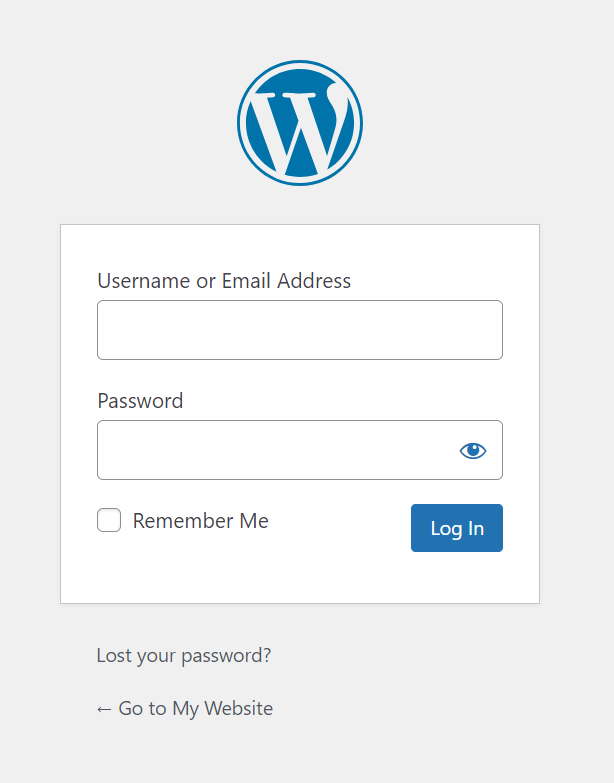
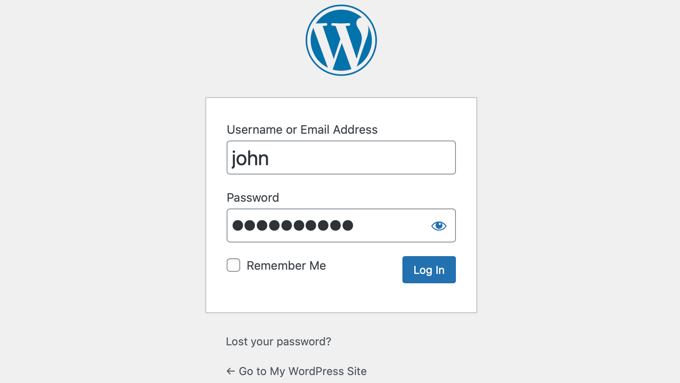
Entering your credentials is the main step to access your WordPress dashboard. This is where you provide your username or email and your password. These details prove your identity to WordPress. They keep your website safe and private. Always type your information carefully.
Username Or Email Address
Use the username or email address you chose during setup. Your username is unique to your site. The email address also works as an alternative login. Make sure there are no typos or extra spaces. This helps avoid login errors and saves time.
Password Tips
Choose a strong password with letters, numbers, and symbols. Avoid simple words or common phrases. Strong passwords protect your site from hackers. Remember to keep your password private and never share it. Use a password manager if you have trouble remembering it. Change your password regularly for extra security.
Troubleshooting Login Issues
Facing trouble logging into your WordPress dashboard can be frustrating. Many common issues have simple fixes. Knowing how to solve these problems saves time and stress. This section guides you through practical steps to regain access quickly.
Resetting Your Password
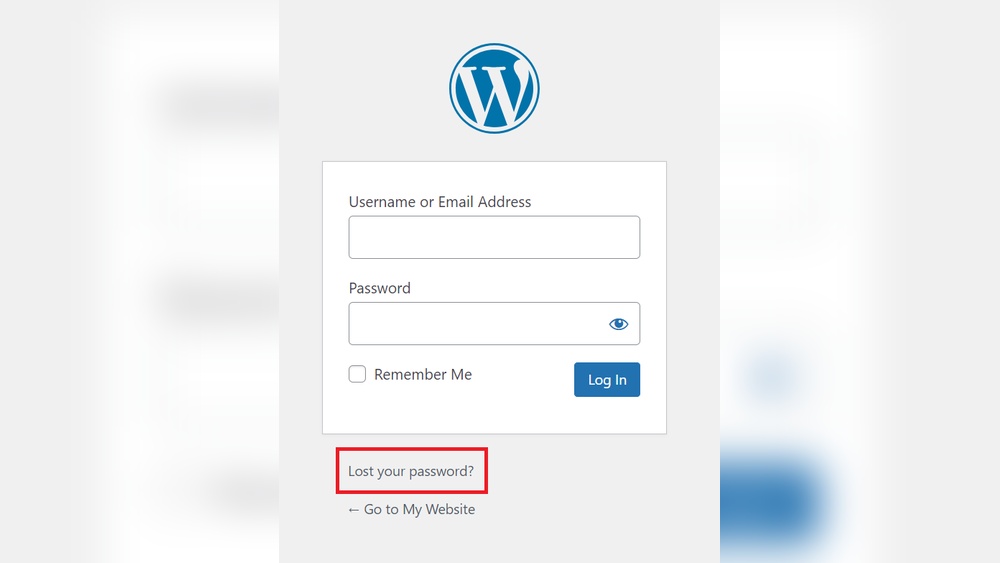
Start by resetting your password. On the login page, click the “Lost your password?” link. Enter your username or email address. Check your email for a reset link. Follow the link to create a new password. Choose a strong, easy-to-remember password. This step often solves login problems caused by forgotten passwords.
Clearing Browser Cache
Your browser might store old data causing login errors. Clear the cache to fix this. Open your browser settings and find the cache or history section. Select the option to clear cached files and cookies. Restart the browser and try logging in again. This refreshes your browser data and often solves loading issues.
Checking User Permissions
Sometimes, login issues happen due to incorrect user permissions. Make sure your user role allows dashboard access. Admins can check this by going to the Users section in WordPress. Verify your account has the right role, like Administrator or Editor. If permissions are wrong, correct them or ask an admin for help. Proper permissions ensure you can log in without trouble.
Credit: www.hostinger.com
Securing Your Dashboard Access
Protecting your WordPress dashboard is essential for your website’s safety. Unauthorized access can lead to data loss or website damage. Strong security steps help keep your site safe. Simple actions can stop many hacking attempts.
Enabling Two-factor Authentication
Two-factor authentication adds an extra security layer. You enter your password and a code sent to your phone. This makes it hard for hackers to access your dashboard. Many plugins offer easy setup for two-factor authentication.
Using Strong Passwords
Create passwords with letters, numbers, and symbols. Avoid using common words or simple sequences. Strong passwords reduce the chance of being hacked. Change passwords regularly to keep your account secure.
Limiting Login Attempts
Limiting login attempts stops repeated password guesses. After several tries, the system blocks the user. This prevents hackers from trying many passwords quickly. You can use plugins to set limits on login attempts.
Alternative Login Methods
Alternative login methods help you access your WordPress dashboard without using the usual URL and password. These methods can save time and add security. They offer different ways to get into your site, especially if you face login issues.
These options are useful for quick access or when you forget your credentials. They also work well for site owners who manage multiple WordPress sites. Explore these methods for easier and safer logins.
Logging In Via Hosting Provider
Many hosting providers offer direct WordPress login from their dashboard. You do not need to enter your username or password again. This method uses your hosting account details to grant access.
It simplifies the login process and keeps your site secure. Check your hosting control panel for a WordPress management section. Click the login button next to your website to enter the dashboard instantly.
Using Password Managers
Password managers store your WordPress login details safely. They fill in your username and password automatically. This saves time and avoids typing errors.
Use popular password managers like LastPass or Bitwarden. These tools also generate strong passwords for better security. With one click, you can log in to your WordPress dashboard safely and quickly.
Credit: wpexperts.io
Credit: www.wpbeginner.com
Frequently Asked Questions
How Do I Access My WordPress Dashboard Url?
To access your WordPress dashboard, add “/wp-admin” or “/wp-login. php” after your website’s domain name in the browser. For example, “www. yoursite. com/wp-admin” takes you directly to the login page where you enter your credentials.
What If I Forgot My WordPress Dashboard Password?
If you forget your password, click the “Lost your password? ” Link on the login page. Enter your username or email to receive a reset link via email. Follow the instructions to create a new password and regain access.
Can I Login To WordPress Dashboard Without Admin Rights?
No, you need appropriate user roles like Administrator or Editor to access the dashboard. Without sufficient permissions, WordPress restricts access for security and management purposes.
How To Secure My WordPress Dashboard Login?
Use strong, unique passwords and enable two-factor authentication. Limit login attempts and keep WordPress updated to protect against unauthorized access and attacks.
Conclusion
Logging into your WordPress dashboard is simple and quick. Just use your username and password on the login page. Keep your details safe to avoid trouble. If you forget your password, use the reset option. Regular access helps you manage your website with ease.
Practice these steps, and you will feel confident. Managing your site starts here. No need to worry—just follow the steps clearly. Your WordPress dashboard is ready for you anytime.


