
Are you struggling to find the right way to log into your WordPress blog? You’re not alone.
Logging in might seem simple, but missing a step can lock you out or slow you down. Imagine quickly accessing your blog anytime, making updates, and sharing your ideas without hassle. You’ll discover clear, step-by-step instructions that make logging into your WordPress blog easy and stress-free.
Keep reading, and you’ll never worry about getting stuck at the login screen again.
Accessing The Login Page
Accessing the login page is the first step to manage your WordPress blog. Without this page, you cannot enter your dashboard or make changes. Knowing how to find this page saves time and avoids confusion.
There are two main ways to reach the login page: using the default URL or a custom login URL. Each method depends on your site’s setup and security settings.
Using The Default Url
The default WordPress login page is easy to find. Simply add /wp-login.php at the end of your website address. For example, www.yoursite.com/wp-login.php. This URL takes you straight to the login screen.
Another option is to use /wp-admin. Typing www.yoursite.com/wp-admin redirects you to the login page if you are not logged in. This is a quick way to access the dashboard.
Most new WordPress sites use this default URL. It works well unless you or your host changed it for security reasons.
Custom Login Urls
Some WordPress users change their login page URL. This helps protect the site from hackers and spam attacks. The custom URL is different from the standard /wp-login.php.
To find a custom login URL, check your email or site setup instructions. It might look like www.yoursite.com/login or another unique path.
Plugins like WPS Hide Login allow easy URL changes. Using a custom login URL keeps your site safer by hiding the usual login page.
Entering Your Credentials
Entering your credentials is the key step to access your WordPress blog. It involves providing your username or email address and your password. This information helps WordPress recognize you as the blog owner or an authorized user.
Typing your details correctly is important. Small mistakes can cause login errors and block access. Understanding what to enter and how to protect your login details helps keep your blog safe and easy to reach.
Username Or Email Address
You can use either your username or the email address linked to your WordPress account. Both work as a login ID. Your username is the name you chose during setup. The email address is the one you provided for notifications.
Using your email can be easier to remember. Your username may be unique and harder to recall. Make sure you enter the full email correctly, including the “@” and domain.
Password Tips
Your password protects your blog from unwanted access. Use a strong password with letters, numbers, and symbols. Avoid simple words or common phrases. Strong passwords keep hackers away.
Type your password slowly and carefully. Watch out for uppercase and lowercase letters. Passwords are case-sensitive. If you forget your password, use the “Lost your password?” link to reset it securely.
Troubleshooting Login Issues
Having trouble logging into your WordPress blog? This is a common issue that many users face. Problems can happen for many reasons, but most can be fixed quickly. Knowing how to troubleshoot helps you get back to your blog fast.
Below are simple steps to solve common login problems. Try these solutions one by one until you regain access to your blog.
Resetting Your Password
Start by resetting your password. Click the “Lost your password?” link on the login page. Enter your username or email address. WordPress will send a reset link to your email. Follow the link and create a new password. Choose a strong but easy-to-remember password. This step solves most login issues caused by forgotten passwords.
Clearing Browser Cache
Your browser stores files to load pages faster. Sometimes, this cache causes login errors. Clear your browser cache and cookies. This removes old data that may block access. After clearing, close and reopen your browser. Try logging in again. This method fixes problems caused by outdated or corrupted files.
Disabling Plugins
Some plugins can block your login page. To check, disable all plugins temporarily. Use FTP or your hosting control panel to rename the plugins folder. This stops all plugins from running. Try logging in again. If it works, rename the folder back and enable plugins one by one. This helps find the plugin causing the problem.
Credit: designforhackers.com
Enabling Two-factor Authentication
Enabling two-factor authentication (2FA) adds an extra layer of protection to your WordPress blog. It helps keep your account safe from hackers. Even if someone knows your password, they need a second step to log in. This makes your blog more secure.
Choosing An Authentication Method
There are several ways to use two-factor authentication. The most common methods are using an authentication app, SMS codes, or email codes. Authentication apps like Google Authenticator and Authy generate unique codes every few seconds. SMS codes send a text message to your phone with a code. Email codes send a code to your email address. Choose a method that you find easy and safe to use.
Setting Up Two-factor Authentication
First, log in to your WordPress dashboard. Then go to the security or plugins section. Install a two-factor authentication plugin if your site does not have one. Popular plugins include “Two Factor” and “Wordfence.” Activate the plugin and follow its setup instructions. Usually, you link your account to the authentication app or enter your phone number for SMS. After setup, test the login to check if 2FA works correctly. Keep backup codes in a safe place in case you lose your phone.
Managing Login Security
Managing login security is important for every WordPress blog. Protecting your login page stops hackers and unwanted users from accessing your site. Good security keeps your content safe and your visitors’ data private.
Simple steps can make your login much safer. Use strong passwords and limit login attempts. These methods lower the risk of attacks and keep your blog secure.
Using Strong Passwords
Create passwords that are hard to guess. Use a mix of letters, numbers, and symbols. Avoid common words or simple sequences. Change passwords often to stay safe. Strong passwords protect your site from easy hacking.
Limiting Login Attempts
Limit the number of times someone can try to log in. This stops hackers from guessing your password. Use plugins or built-in features to set limits. After several failed tries, block the user for a while. This keeps your blog secure from repeated attacks.

Credit: theme.co
Accessing Your Dashboard
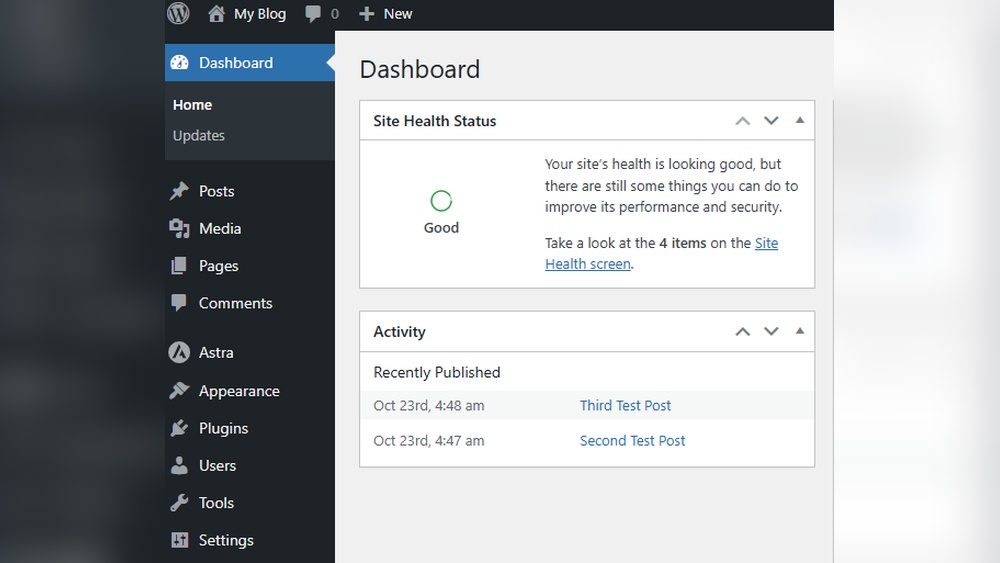
Accessing your WordPress dashboard is the first step to managing your blog. This area lets you control everything on your site. From here, you can write posts, add pages, and change settings. The dashboard is user-friendly and built for easy navigation.
Understanding how to use your dashboard saves time. It helps you keep your blog organized and up-to-date. Spend some time exploring the different sections. Each part has a purpose that helps you run your blog smoothly.
Navigating The Admin Panel
The admin panel is the main menu on the left side of the dashboard. It includes links to posts, pages, comments, and settings. Clicking on a menu item opens its section. You will see tools to manage that part of your site.
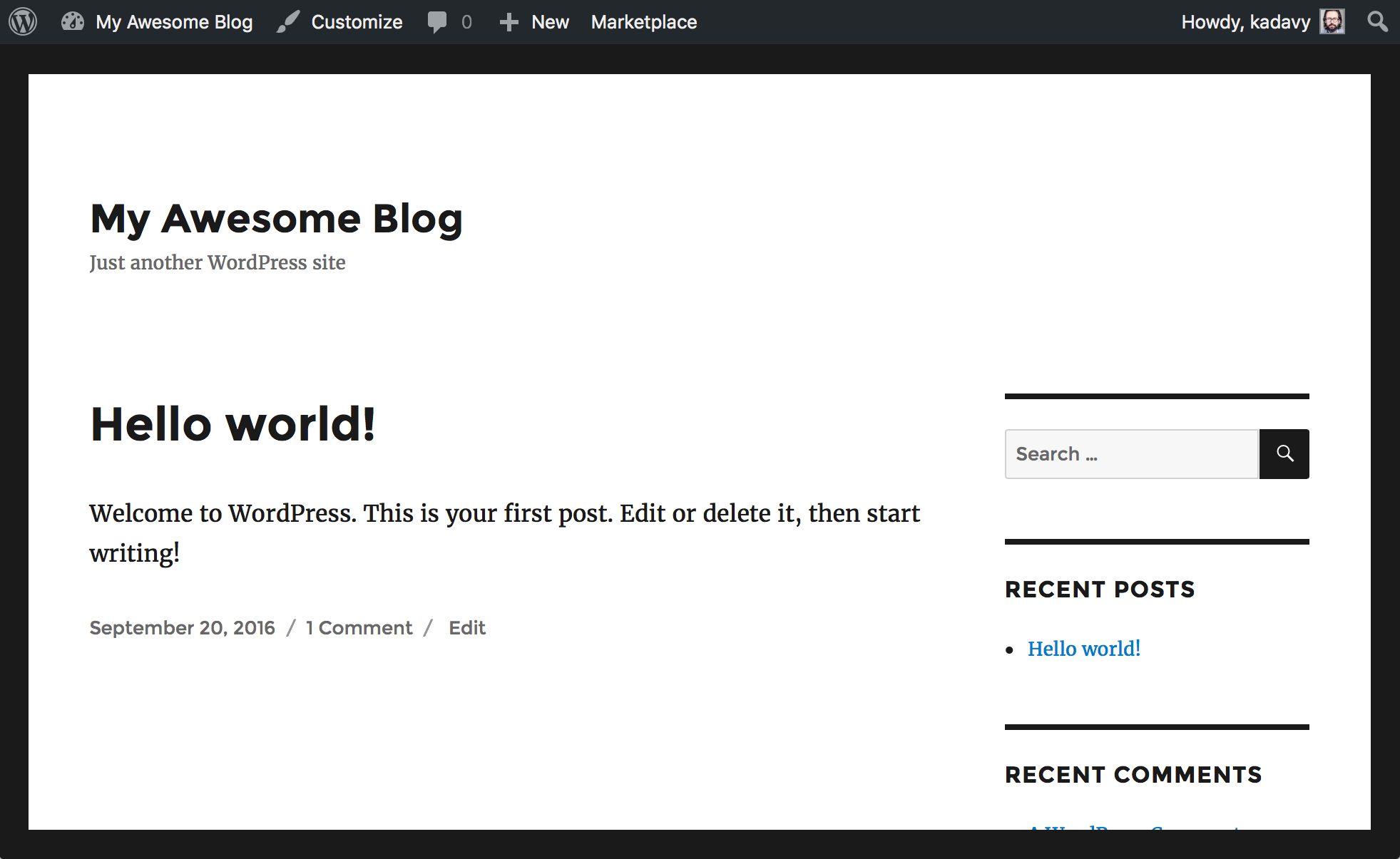
The top bar shows your site’s name and quick links. You can access your profile or log out from here. The admin panel is always visible, making it easy to move around.
Customizing Your Dashboard
You can change how your dashboard looks to fit your needs. Use the “Screen Options” at the top right corner to show or hide widgets. Widgets give quick information like recent posts or site stats.
Drag and drop widgets to arrange them. This lets you prioritize the information you want first. Customizing the dashboard makes managing your blog easier and faster.

Credit: wpmudev.com
Frequently Asked Questions
How Do I Find My WordPress Login Url?
To find your WordPress login URL, add “/wp-admin” or “/wp-login. php” to your website address. For example, www. yourwebsite. com/wp-admin. This URL directs you to the login page where you enter your username and password.
What Do I Do If I Forget My WordPress Password?
Click the “Lost your password? ” Link on the WordPress login page. Enter your username or email to receive a reset link. Follow the email instructions to create a new password securely.
Can I Log Into WordPress Using My Email Address?
Yes, WordPress allows login with either your username or registered email address. Use the same password for both methods to access your dashboard easily.
How Do I Stay Logged Into My WordPress Blog?
Check the “Remember Me” box on the login page before signing in. This keeps you logged in longer, avoiding repeated logins unless you clear browser cookies.
Conclusion
Logging into your WordPress blog is simple and quick. Just visit your login page, enter your username and password, and click “Log In. ” Keep your login details safe and use strong passwords. Regularly update your password to protect your blog.
If you forget your password, use the reset option to regain access. Now, you can easily start creating and managing your content. Enjoy sharing your ideas with the world!


