
Are you unsure who’s actually hosting your domain? Knowing your domain host is crucial for managing your website, updating settings, and keeping your online presence secure.
But how do you find out where your domain lives if you don’t remember signing up with a specific provider? Don’t worry—you’re not alone, and it’s easier than you think to discover your domain host. You’ll learn simple, step-by-step methods to identify your domain host quickly, so you can take full control of your website without confusion or delays.
Keep reading, and you’ll never be left guessing about your domain host again.
Check Domain Registrar Online
Checking your domain registrar online is a quick way to find out who manages your domain. This information helps you manage your domain settings and renewals easily. You do not need special tools or software. Just use a reliable online lookup service to get accurate details about your domain registrar.
Use Icann Lookup Tool
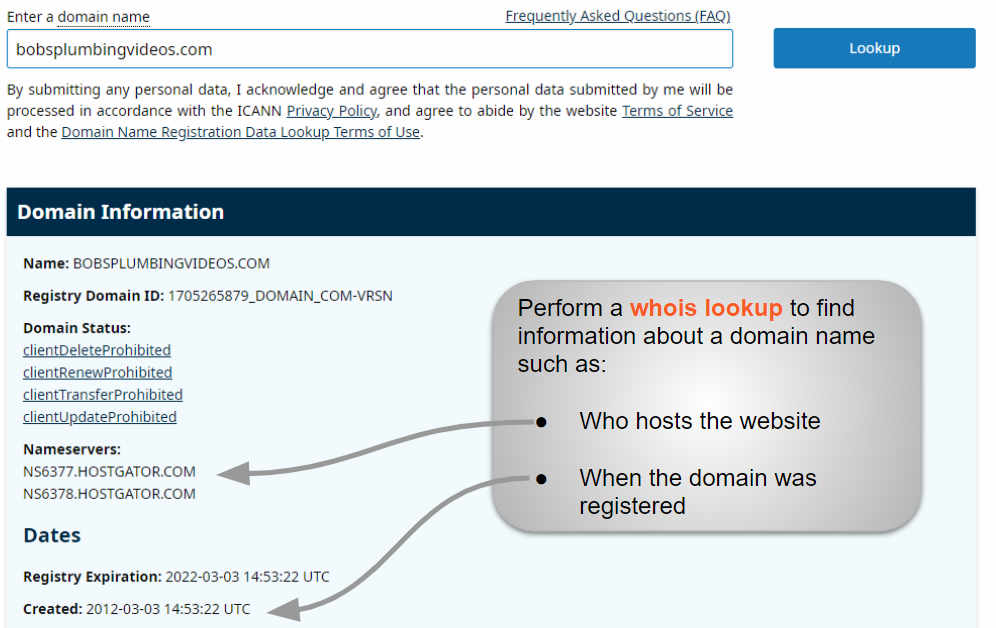
ICANN Lookup is a free service that shows who registered your domain. Visit lookup.icann.org and type your domain name in the search box. Click the “Lookup” button to get results. The tool displays details like registrar name, contact info, and registration dates. This method works for most domains worldwide.
Interpret Registrar Information
After you use ICANN Lookup, find the section called “Registrar Information.” It shows the company that registered your domain. This company is usually your domain host or provider. Check the registrar’s name and website. Use this info to contact them for support or renew your domain. Keep a record of these details for future reference.
Credit: www.boldgrid.com
Use Command Line Tools
Command line tools offer a quick and direct way to find your domain host. They work on almost all operating systems. These tools help you check domain details without opening websites. Using simple commands, you can discover your domain host’s name and other DNS information. This method is useful for those who prefer technical accuracy and speed.
Find Hostname On Windows
Open the Command Prompt by typing cmd in the Start menu. Type hostname and press Enter. This command shows your computer’s local hostname. To find DNS details, type nslookup yourdomain.com. The response includes the domain host and DNS server information. This method works well for quick checks on Windows machines.
Use Nslookup On Macos And Linux
Open the Terminal application. Enter the command nslookup yourdomain.com. This command queries the domain’s DNS records. Look for the “Name” or “Server” fields in the output. They reveal your domain host or DNS server. Nslookup is simple and works on both macOS and Linux systems.
Use Dig And Host Commands On Linux
Launch your terminal. Type dig yourdomain.com and press Enter. This command returns detailed DNS information, including the domain host. Alternatively, use host yourdomain.com. This command gives a brief summary of the domain’s DNS data. Both commands help you identify the domain host quickly and accurately.
Identify Dns Host
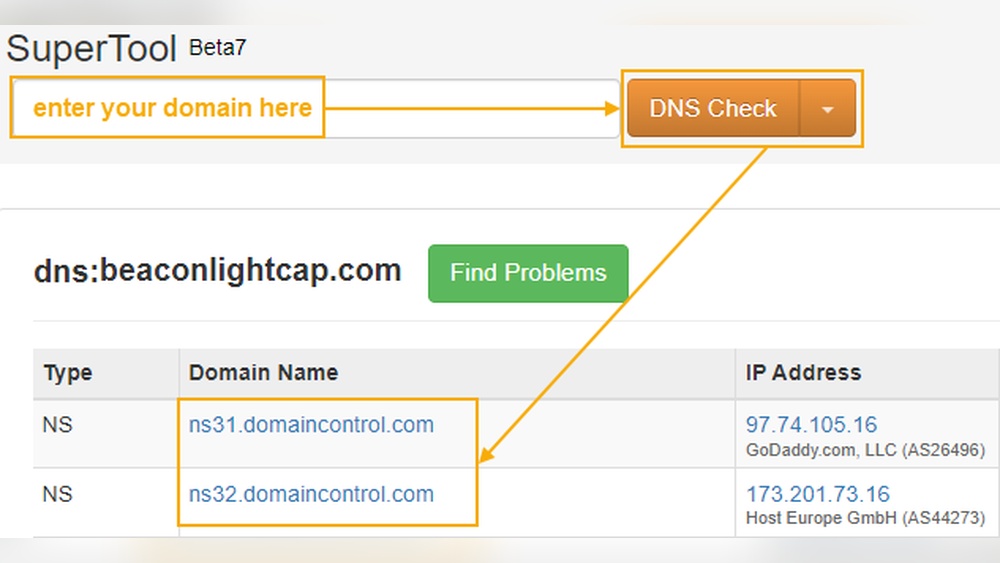
Identifying your DNS host helps you understand who manages your domain’s DNS settings. DNS hosts control where your domain points on the internet. Knowing your DNS host is important for managing your website and email services. You can find this information using your computer’s operating system. Each system has simple commands to check your DNS server details.
Check Dns Server On Windows
Open the Command Prompt by typing cmd in the Start menu. Type ipconfig /all and press Enter. Look for the line labeled DNS Servers. This shows the IP addresses of your DNS servers. These addresses usually belong to your DNS host. You can also use nslookup followed by your domain name to see detailed DNS info.
View Dns Configuration On Macos
Open the Terminal app from Applications > Utilities. Type scutil --dns and press Enter. This command lists all DNS configurations on your Mac. Look for the nameserver entries under each resolver. These nameservers are your DNS hosts. You can also use dig yourdomain.com to query DNS records directly.
Query Dns Records On Linux
Open your terminal window. Use the command host yourdomain.com or dig yourdomain.com. These commands show your domain’s DNS records and the servers providing them. The output includes your DNS host’s name and IP address. It helps confirm who manages your DNS settings on Linux systems.

Credit: hostarmada.com
Verify Domain Host With Google Workspace
Verifying your domain host with Google Workspace helps clarify who manages your domain services. This process ensures your email and other services run smoothly. It also helps you find the right place to update your domain settings.
Google Workspace manages email and apps for your domain. But your domain host controls your domain registration and DNS records. Knowing the difference is key to managing your online presence.
Differentiate Domain Registrar And Service Host
Your domain registrar is where you bought your domain name. They handle domain registration and ownership. The service host manages your website and email servers. Sometimes, these roles are handled by different companies.
Google Workspace hosts your email and collaboration tools. It does not register your domain name. Your domain host controls DNS settings that connect your domain to Google’s services.
Check Google Workspace Domain Settings
Login to your Google Workspace Admin Console to check domain settings. Navigate to the Domains section to see your verified domain names. Google shows if your domain is verified and connected properly.
Look for DNS records such as MX, TXT, and CNAME that Google Workspace requires. These records must be set up with your domain host, not Google. If records are missing, email and apps may not work correctly.
Use Google’s domain verification tool to confirm your domain host. This tool helps you identify where to add or update DNS records. Correct settings ensure your domain works with Google Workspace.
Troubleshoot And Confirm Domain Host
Identifying your domain host is key to managing your website effectively. Troubleshooting and confirming your domain host helps solve issues fast. It ensures you update settings at the right place. This process involves checking domain information and verifying data through reliable tools. Follow these steps to confirm your domain host with confidence.
Compare Whois Data
WHOIS data provides details about your domain registration. It shows the registrar name, contact info, and registration dates. Check this data to find your domain host. Visit a WHOIS lookup website and enter your domain name. Review the registrar or hosting company listed. This info often points to your domain host. Make sure the details match your known provider. Differences may indicate a need for further checks.
Use Multiple Lookup Services
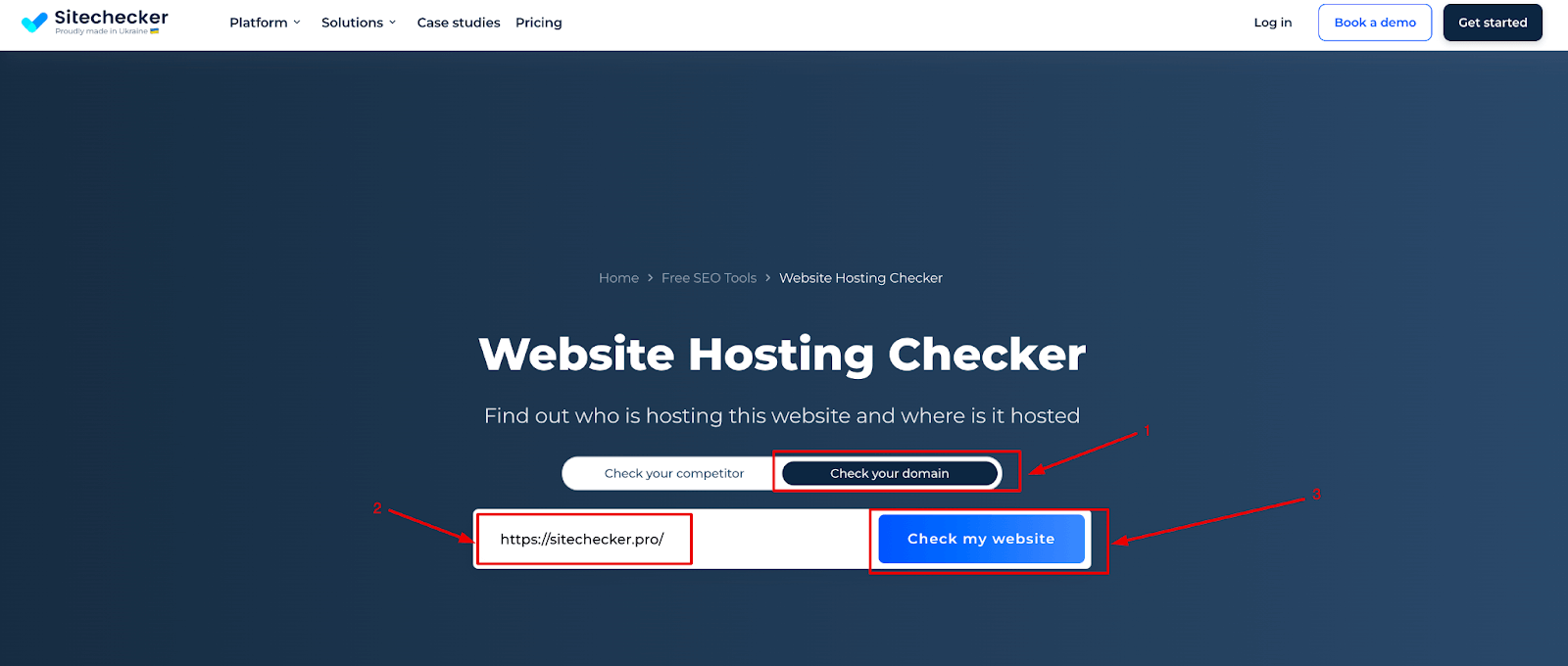
Using several lookup services improves accuracy. Different tools may show varying results due to data updates. Try sites like ICANN WHOIS, DomainTools, and Whois.net. Enter your domain in each and compare results. Confirm the registrar and hosting provider names. This cross-check reduces errors and gives a clearer picture. Multiple sources confirm your domain host with more certainty.
Credit: sitechecker.pro
Frequently Asked Questions
How Do I Find Out Who My Domain Host Is?
Visit lookup. icann. org and enter your domain name. The Registrar Information section shows your domain host.
How Do I Find Out My Host?
To find your host, visit lookup. icann. org and enter your domain name. Check the Registrar Information for your hosting provider. Alternatively, use command prompt or terminal with commands like nslookup, host, or ipconfig /all to identify your host details.
Is Google My Domain Host?
Google does not host your domain name itself. It manages services like Gmail if you use Google Workspace. Your domain stays hosted by a separate domain registrar or hosting provider. Check your domain registrar via tools like ICANN Lookup to identify your actual domain host.
How Do I Find My Dns Host Name?
Open your computer’s command prompt or terminal. Type nslookup followed by your IP address or domain. Press Enter to see the DNS hostname. On Windows, use ipconfig /all to find DNS server info. Mac and Linux users can also try host or scutil –dns commands.
Conclusion
Knowing your domain host helps you manage your website better. Use simple tools like WHOIS or ICANN Lookup to find your host. Checking your domain registrar is quick and free. Keep your login details safe to avoid losing control. Regularly verify your host to stay updated on changes.
Understanding your domain host protects your online presence. Take small steps today to secure your website’s future.


