

Are you struggling to find your way into your WordPress dashboard? You’re not alone.
Getting access to this powerful control panel is the first step to customizing your website, adding content, and managing everything with ease. Imagine having full control at your fingertips—no more confusion or wasted time. In this guide, you’ll discover simple, clear steps to log in quickly and securely.
Keep reading, and soon you’ll be navigating your WordPress dashboard like a pro.
Credit: www.hostinger.com
Accessing The Login Page
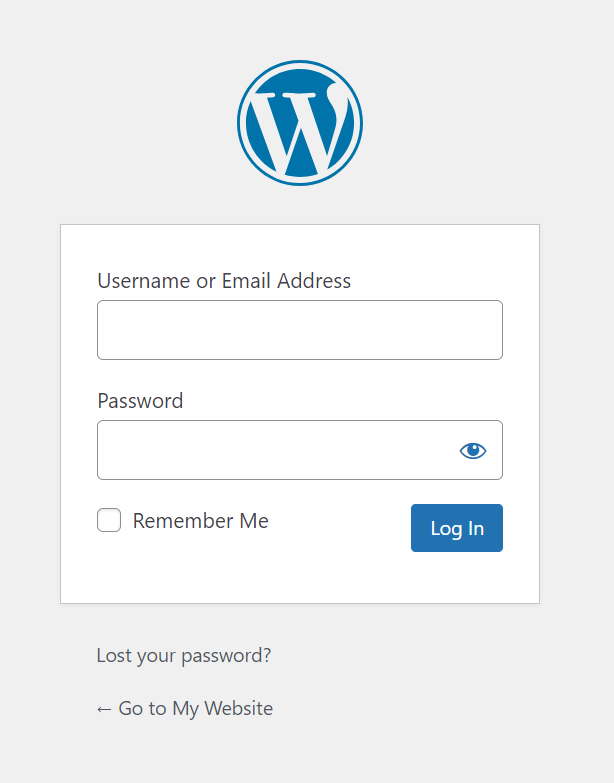
Accessing the WordPress login page is the first step to managing your website. This page lets you enter your username and password to reach the dashboard. The dashboard is where you control your site’s content, design, and settings.
Finding the login page is usually easy, but it depends on your site setup. Some sites use the standard WordPress login URL. Others change the login address for security or branding reasons. Understanding these options helps you find the right login page quickly.
Common WordPress Login Urls
The most common way to access the WordPress login page is by adding /wp-login.php to your website’s URL. For example, www.yoursite.com/wp-login.php. This will take you directly to the login screen.
Another common option is to add /wp-admin after your site’s domain. For example, www.yoursite.com/wp-admin. This URL redirects to the login page if you are not logged in yet.
Custom Login Urls
Some WordPress sites use custom login URLs to improve security. These URLs replace the default login page address. Custom URLs help protect your site from hackers and bots.
You or your site administrator may change the login URL using plugins or code. Custom URLs might look like www.yoursite.com/my-login or something unique. To find a custom login URL, check your site documentation or ask your web developer.
Credit: wpexperts.io
Entering Your Credentials
Entering your credentials is the first step to access your WordPress dashboard. This process ensures only authorized users can manage the site. You need to provide your username or email and password to log in. Keep your details ready before you start.
Using Username Or Email
You can enter either your username or email address in the login field. Both work the same way. Choose whichever you remember more easily. Your username is the unique name you created. Your email is the one linked to your account.
Make sure to type them correctly. Check for spelling mistakes or extra spaces. This avoids login errors and saves time.
Password Tips
Use a strong password to protect your site. Combine letters, numbers, and symbols. Avoid common words or simple sequences.
Keep your password private. Change it regularly to stay secure. Use a password manager if remembering is hard. It helps store and fill passwords safely.
Troubleshooting Login Issues
Login problems can stop you from accessing your WordPress dashboard. These issues may happen for many reasons. This section shows simple ways to fix common login problems. Follow these steps to get back into your site quickly and safely.
Resetting Your Password
Start by resetting your password. Click the “Lost your password?” link on the login page. Enter your email or username to receive a reset link. Check your inbox and spam folder for the email. Click the link and create a new password. Use a strong but easy-to-remember password.
Clearing Browser Cache And Cookies
Old cache and cookies can cause login errors. Clear your browser’s cache and cookies to fix this. Open your browser settings and find the clear data option. Select cache and cookies, then confirm. Close and reopen your browser. Try logging in again.
Checking User Permissions
Incorrect user permissions may block access to the dashboard. Ask your site administrator to check your user role. Ensure your account has the right permissions to log in. The correct role for dashboard access is usually “Administrator” or “Editor.” Adjust permissions if needed to restore access.

Credit: wordpress.com
Using Password Recovery Options
Accessing your WordPress dashboard is easy with password recovery options. These tools help regain control when you forget your password. WordPress offers simple, safe ways to reset your login information. Follow the steps below to recover your password and enter your dashboard quickly.
Reset Link Via Email
Start by clicking the “Lost your password?” link on the login page. Enter your username or email address linked to your account. WordPress sends a reset link to that email.
Open your email inbox and find the message. Click the reset link inside. This link takes you to a page where you can create a new password. Choose a strong password and save the changes. Now, use the new password to log in.
Security Questions And Two-factor Authentication
Some WordPress sites add extra security steps. Security questions can verify your identity. Answer these questions correctly to reset your password.
Two-factor authentication (2FA) adds a second layer of protection. After entering your password, enter a code sent to your phone or email. This method keeps your site safer from hackers. Use 2FA codes to complete login and access your dashboard.
Accessing Dashboard Via Hosting Provider
Accessing your WordPress dashboard through your hosting provider is a simple and secure way to manage your website. Hosting companies often provide tools that let you enter the WordPress admin area without typing your login details manually. This method saves time and reduces errors, especially for beginners.
Most hosting providers offer a control panel with various options to handle your website. These panels include features to access your WordPress dashboard directly, making site management easier. You can find these options right after logging into your hosting account.
Using Hosting Control Panel
Log in to your hosting account’s control panel, like cPanel or Plesk. Look for a section named “WordPress” or “Website Management.” There, you will see a link or button to open your WordPress dashboard. Click it, and you will enter your admin area without extra steps.
This method works well when you forget your WordPress login or want quick access. The control panel is secure and designed for easy website management. It also allows you to manage multiple sites if your hosting plan supports it.
One-click WordPress Access
Many hosts offer one-click WordPress login features. This tool lets you open your dashboard with a single click from your hosting panel. No need to enter usernames or passwords again.
One-click access speeds up your workflow. It is perfect for quick edits and updates. Just find the WordPress section in your hosting dashboard and click the login button. You will be taken directly to your WordPress admin area.
Enhancing Dashboard Security
Keeping your WordPress dashboard secure is very important. A safe dashboard protects your website from hackers and unwanted access. Simple steps can improve your dashboard’s safety a lot. These steps reduce risks and keep your data safe.
Using Strong Passwords
Always use strong passwords for your WordPress login. A strong password has letters, numbers, and symbols. Avoid easy words like “password” or your name. Change passwords regularly to stay secure. Strong passwords stop hackers from guessing your login details.
Limiting Login Attempts
Limit how many times someone can try to log in. This stops hackers from trying many passwords fast. Use plugins that block users after a few wrong attempts. It slows down attacks and protects your site from being hacked.
Enabling Two-factor Authentication
Two-factor authentication adds an extra step to login. Besides the password, you enter a code from your phone. This code changes every time you log in. It makes it harder for hackers to enter your dashboard.
Frequently Asked Questions
How Do I Access My WordPress Dashboard?
To access your WordPress dashboard, type your website URL followed by /wp-admin. Enter your username and password. This will log you in and show the dashboard where you manage your site’s content and settings.
What If I Forget My WordPress Dashboard Password?
Click the “Lost your password? ” link on the login page. Enter your username or email. You’ll receive a password reset link via email. Follow the instructions to create a new password and regain dashboard access.
Can I Change The WordPress Dashboard Login Url?
Yes, you can change the login URL using security plugins like WPS Hide Login. This improves security by hiding the default /wp-admin URL. Always back up your site before making changes.
Why Can’t I Reach My WordPress Dashboard?
This could be due to incorrect login credentials, plugin conflicts, or server issues. Clear browser cache, disable plugins via FTP, or contact your hosting provider for support to fix access problems.
Conclusion
Accessing your WordPress dashboard is simple and quick. Just remember your login URL, username, and password. Enter these details on the login page. Once logged in, you can easily manage your site. Keep your credentials safe to avoid trouble. If you forget your password, use the reset option.
Regular practice will make you confident navigating the dashboard. Start exploring today to create and update your website. The WordPress dashboard is your control center. Use it to keep your site fresh and secure.


