
Are you looking to access your WordPress site files quickly and securely? Knowing how to FTP to your WordPress site puts you in control.
You can upload themes, fix issues, or back up your content without relying on complicated tools. You’ll discover simple, clear steps to connect to your site using FTP. By the end, you’ll feel confident managing your site like a pro.
Ready to unlock this essential skill? Let’s dive in.
Credit: dnsmichi.at
Choosing An Ftp Client
Choosing the right FTP client is important for managing your WordPress site files easily. An FTP client helps you connect your computer to the web server. This connection lets you upload, download, and edit site files directly.
Not all FTP clients are the same. Some are simple and easy to use. Others have more advanced tools. Pick one that fits your skill level and needs. The right client saves time and avoids frustration.
Popular Ftp Clients
FileZilla is a top choice. It is free and works on Windows, Mac, and Linux. WinSCP is another option for Windows users. It has a clean, simple interface. Cyberduck suits Mac users well. It supports many file types and cloud storage.
Features To Consider
Look for a client with a clear interface. Drag-and-drop support speeds up file transfers. Secure connection options, like SFTP, protect your data. Automatic reconnect helps if the connection drops. Check if the client supports bookmarks for quick server access.
Installation Steps
Download the installer from the official website. Run the setup file and follow on-screen instructions. Choose your preferred language and install location. After installation, open the client and enter your FTP details. Save your settings for easy future logins.
Credit: www.wpbeginner.com
Gathering Ftp Credentials
Before you connect to your WordPress site via FTP, you need the right credentials. These details let your FTP client talk to your website’s server. Without them, you cannot access your files or make changes.
Gathering FTP credentials is a simple step. It saves time and avoids connection errors. Know what to look for and where to find it. This ensures smooth access to your WordPress files.
Finding Hostname And Username
The hostname is the address of your website’s server. Usually, it looks like ftp.yoursite.com or yoursite.com. Check your hosting account’s dashboard or welcome email. Hosting providers often list the hostname clearly there.
The username is your login ID for FTP access. It might be the same as your hosting control panel username. Sometimes, hosts create a special FTP username. Look in your hosting account or FTP settings to find it.
Locating Password
The FTP password is the key to your server files. It may be the same as your hosting account password. Sometimes, you set a unique FTP password when creating an FTP user.
If you forgot your password, reset it in your hosting control panel. Never share this password publicly. Keep it safe to protect your website.
Determining Port Number
The port number tells your FTP client how to connect. The default FTP port is 21. Some hosts use different ports for security.
Check your hosting provider’s documentation for the exact port number. Use the given port in your FTP client to avoid connection problems.
Connecting To Your WordPress Site
Connecting to your WordPress site using FTP is an important step for managing files. It allows you to upload, download, or edit files directly on your server. This process helps you fix issues, add themes, or backup data safely. The connection requires a few simple steps to start working smoothly.
Launching The Ftp Client
First, open your FTP client. Popular options include FileZilla, Cyberduck, and WinSCP. These programs help you connect to your website’s server. Launch the software on your computer. You will see a place to enter your site details.
Entering Credentials
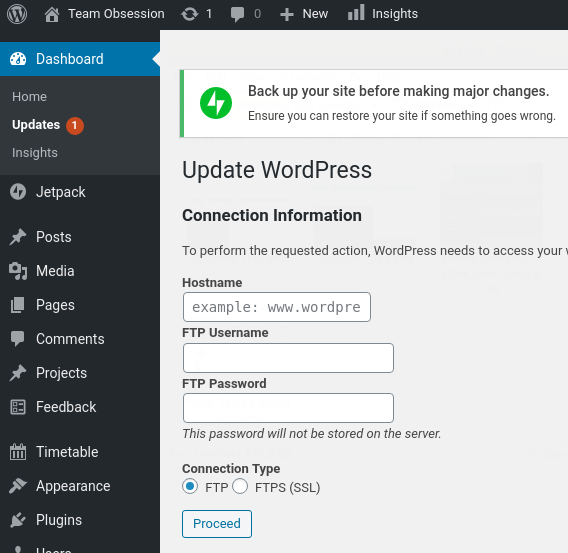
Next, input the FTP credentials. These include the host, username, and password. You get these details from your hosting provider. The host is often your domain or an IP address. Make sure to enter everything correctly. A small mistake can stop the connection.
Establishing Connection
After entering credentials, click the connect button. The client will try to link your computer to the server. If successful, you will see your WordPress files. Now, you can upload, download, or edit files easily. If the connection fails, double-check your information and try again.
Navigating WordPress Files
Navigating WordPress files is an important step for managing your website. It helps you find specific files to edit or upload safely. Using FTP allows you to access these files directly from your computer. Understanding the file system makes working with WordPress easier and safer.
Locating The Root Directory
The root directory is the main folder of your WordPress site. It contains all core files and folders needed for your site to run. Usually, it is named public_html or www. Sometimes, it matches your website name. This is the first place to look when you connect via FTP.
Understanding File Structure
WordPress files follow a clear structure. The root directory holds important files like wp-config.php and folders such as wp-content. Each folder has a specific role. Knowing what each folder does helps avoid mistakes when editing or deleting files.
Accessing Important Folders
The wp-content folder stores your themes, plugins, and uploads. Themes control your site’s look and feel. Plugins add new features. The uploads folder contains images and media you add. Access these folders to customize or fix your site.
Uploading And Downloading Files
Uploading and downloading files is a key part of managing your WordPress site with FTP. It lets you add new themes, plugins, and keep backups safe. You can also fix problems by changing files directly. This section explains how to upload themes and plugins, download backups, and manage file permissions.
Uploading Themes And Plugins
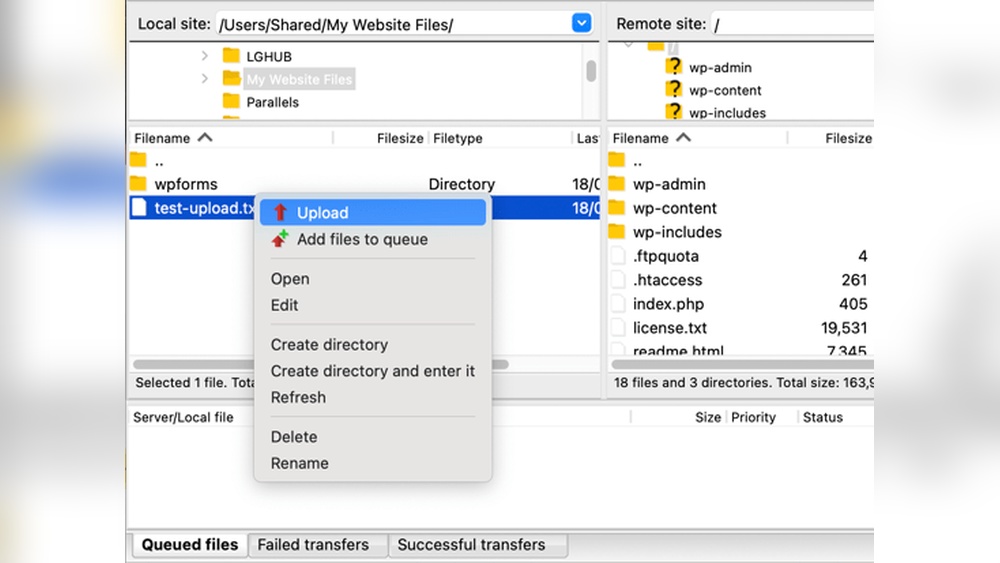
To upload themes or plugins, connect to your site using an FTP client. Go to the wp-content folder. Inside, find the themes or plugins folder. Drag and drop the theme or plugin files from your computer to the right folder.
Make sure the files are unzipped before uploading. Uploading zipped files will not work. After uploading, check your WordPress dashboard. The new theme or plugin should appear ready to activate.
Downloading Backups
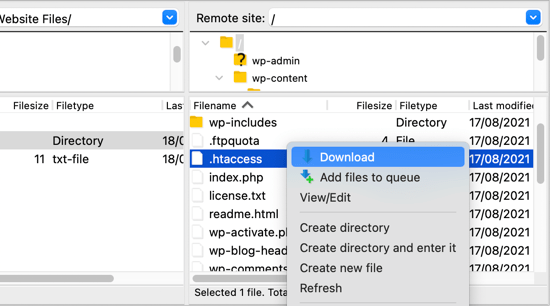
Downloading backups is important for site safety. Use FTP to copy your WordPress files to your computer. Focus on the entire WordPress folder, especially wp-content. It contains uploads, themes, and plugins.
Download your database backup if you have it saved as a file. Store all backups in a safe place. Regular backups help you restore your site if something goes wrong.
Managing File Permissions
File permissions control who can read, write, or execute files. Correct permissions keep your site secure and working well. Use your FTP client to check permissions.
Folders usually need permission 755. Files often need 644. Avoid setting permissions to 777, as it is unsafe. Change permissions carefully to prevent errors or security risks.
Troubleshooting Common Issues
Troubleshooting common issues when FTPing to your WordPress site helps keep things running smoothly. Problems can stop file transfers or cause errors. Knowing how to fix these issues saves time and stress.
Focus on the most frequent problems. Connection errors, permission denied messages, and timeout problems often occur. Each has simple fixes you can try yourself.
Connection Errors
Connection errors happen when your FTP client cannot reach the server. Check your hostname, username, and password first. Make sure you use the correct FTP port, usually 21 or 22 for SFTP.
Your internet must be stable. Restart your router if needed. Firewalls or antivirus software can block FTP connections. Temporarily disable them to test if they cause the problem.
Permission Denied
Permission denied errors mean your FTP user lacks rights to access files or folders. Check your user permissions in the hosting control panel. Set proper read and write permissions for WordPress files.
Folders usually need 755 permissions and files 644. Avoid giving 777 permissions as it is unsafe. Contact your host if you cannot change permissions yourself.
Timeout Problems
Timeout problems occur when the server takes too long to respond. Increase the timeout setting in your FTP client. Try lowering the transfer speed to reduce server load.
Large files can cause timeouts. Upload smaller files one by one. Also, check if your hosting server has issues or limits FTP connections.
Securing Your Ftp Connection
Securing your FTP connection is crucial for protecting your WordPress site from hackers. FTP transfers files between your computer and the server. Unsecured FTP sends data in plain text. This makes it easy for attackers to steal passwords and files. Follow best practices to keep your connection safe.
Using Sftp Instead Of Ftp
SFTP encrypts all data sent between your device and server. It uses SSH (Secure Shell) to create a secure tunnel. This stops hackers from intercepting your information. Most web hosts support SFTP. Use an FTP client that offers SFTP for safer file transfers.
Changing Default Ports
FTP often uses port 21 by default. Hackers target this port first. Changing the default port makes it harder to find your FTP service. Choose a random port number between 1024 and 65535. Update your FTP client settings to match the new port.
Regularly Updating Credentials
Passwords protect your FTP access. Use strong, unique passwords with letters, numbers, and symbols. Change your FTP password regularly to reduce risks. Avoid using the same password for multiple accounts. Keep your username and password private.
Credit: www.reddit.com
Frequently Asked Questions
What Is Ftp And Why Use It With WordPress?
FTP, or File Transfer Protocol, lets you transfer files between your computer and WordPress server. It helps manage themes, plugins, and backups outside the WordPress dashboard.
How Do I Find My WordPress Ftp Credentials?
You can find FTP credentials in your hosting control panel or welcome email. Look for the FTP server, username, and password details.
Which Ftp Client Is Best For WordPress?
Popular FTP clients like FileZilla, Cyberduck, and WinSCP work well. They are user-friendly and support secure file transfers to WordPress sites.
How Do I Connect To WordPress Using Ftp?
Open your FTP client, enter your site’s FTP server, username, and password, then connect. You can now upload or edit WordPress files directly.
Conclusion
Connecting to your WordPress site via FTP is simple and useful. You can upload, edit, or back up files fast. Always keep your FTP details safe and private. Use a good FTP client for better control and ease. Practice a few times to get comfortable with the steps.
This skill helps you manage your website with more freedom. Start exploring FTP today and see how it works for you.


