
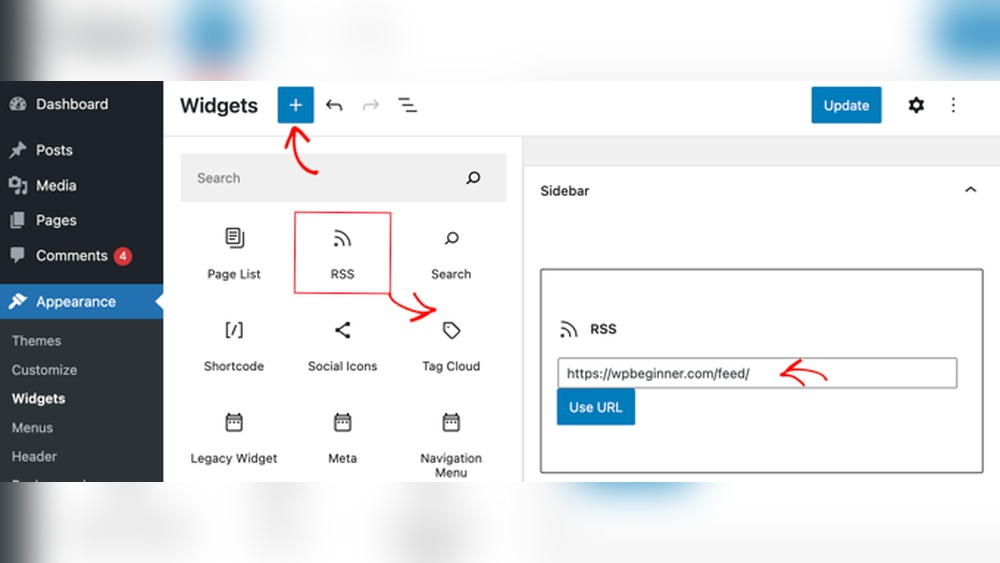
Are you looking to share your WordPress content more easily or stay updated with your favorite blogs? Finding your RSS feed is the key.
But if you’re unsure where to start, don’t worry—you’re not alone. Knowing exactly how to locate your RSS feed can open up new ways to connect with your audience and keep your content flowing smoothly. You’ll discover simple steps to find your WordPress RSS feed quickly, so you can take full control of your content distribution without any hassle.
Keep reading, and you’ll have your feed ready in no time!
Locate Default Rss Feed Url
Finding your default RSS feed URL in WordPress is simple. Your RSS feed lets readers subscribe to your content. It helps share your posts with others automatically. Knowing the URL is important for promoting your blog.
Common Url Structures
WordPress uses standard URLs for RSS feeds. The most common URL is your site’s main address with “/feed” added. For example, https://yoursite.com/feed. This link shows the full RSS feed with all your latest posts.
Category feeds also follow a pattern. Add “/category/categoryname/feed” after your site’s URL. For example, https://yoursite.com/category/news/feed. This URL shows posts in a specific category only.
For comment feeds, use “/comments/feed”. This URL gives updates on new comments on your posts.
Accessing Feed Via Browser
To check your RSS feed, open a browser. Type your feed URL directly in the address bar. The browser will display your feed in XML format. This format works with most feed readers and apps.
Some browsers show the feed as plain text or a simple layout. This view confirms your feed is working. You can copy this URL to share or add to other platforms.
Credit: www.hostpapa.com
Use WordPress Dashboard
The WordPress dashboard is your main control center for managing your site. It helps you access and adjust many features, including your RSS feed. Using the dashboard, you can find your feed settings quickly. You can also change how your feed looks and works. This makes the dashboard a handy tool for managing your RSS feed.
Finding Feed Settings
Log in to your WordPress dashboard first. Then, go to the “Settings” menu on the left side. Click on “Reading.” Here, you can see the options related to your RSS feed. Look for the section labeled “Syndication feeds show the most recent.” This shows how many posts appear in your feed. You can change this number to fit your needs.
Below that, you will find the “For each article in a feed, show” option. Choose between showing the full text or a summary. This setting controls what your readers see in the feed. Save your changes by clicking the “Save Changes” button at the bottom.
Customizing Feed Options
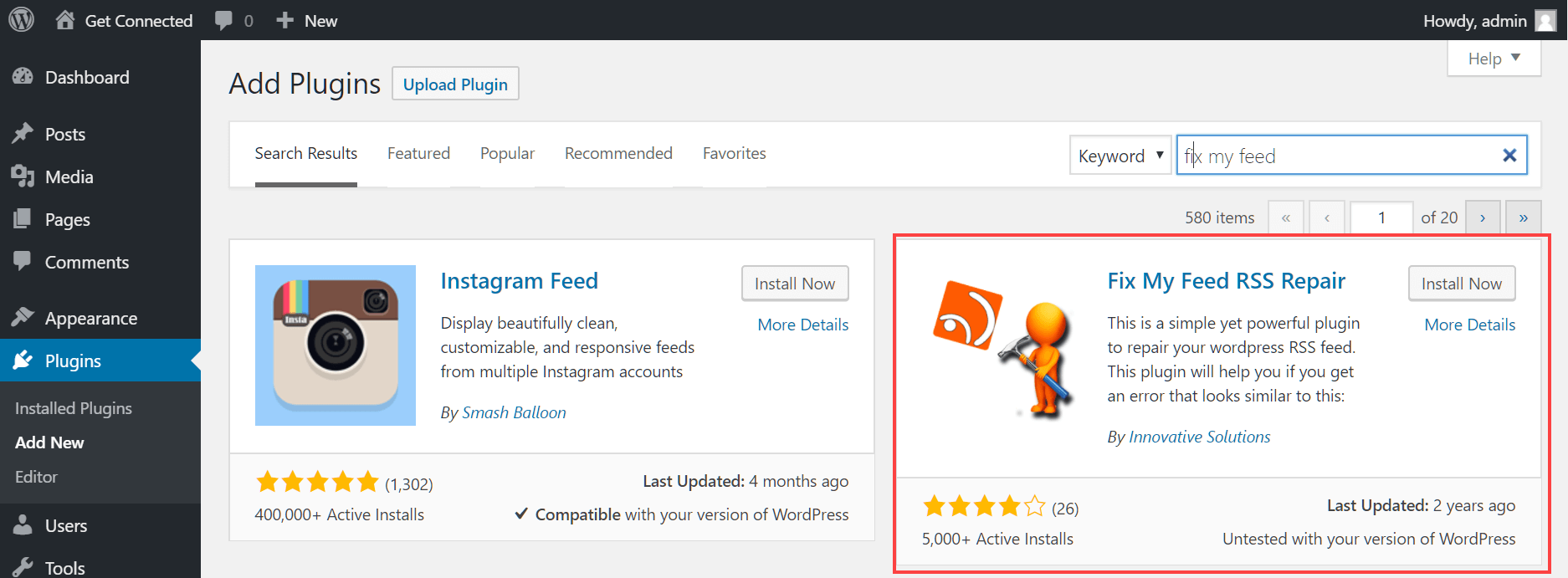
Some themes and plugins add extra feed options in the dashboard. Check under “Appearance” or “Plugins” menus to find these. They may let you change feed titles, add images, or manage feed categories. Explore these options to make your feed more useful and attractive.
You can also install plugins to enhance your RSS feed. These tools let you add custom content or control who can see your feed. Keep your plugins updated to avoid security issues and keep your feed running smoothly.
Identify Category And Tag Feeds
Finding your RSS feeds for categories and tags helps you organize your WordPress content better. These feeds let readers subscribe to specific topics or themes on your site. This makes it easier for users to get updates on what interests them most. Knowing how to find these feeds also improves your site’s SEO and user engagement.
Category Feed Urls
Each category in WordPress has its own RSS feed. The URL is simple to find and use. Start with your site’s main address. Add /category/ followed by the category name. Then add /feed/ at the end.
For example, if your site is example.com and the category is news, the feed URL looks like this:
This URL shows only posts in the “news” category. Users can subscribe to this feed to get news updates.
Tag Feed Urls
Tag feeds work like category feeds but use tags instead. Use your site’s main URL. Add /tag/ plus the tag name. End with /feed/.
For example, a tag called travel would have this feed URL:
This feed delivers posts tagged with “travel” only. It keeps readers focused on specific content themes.
Check Theme And Plugin Impact
Checking how your theme and plugins affect your RSS feed is important. Sometimes, themes or plugins can change or break your feed. This can stop your readers from getting updates. It can also cause problems with feed readers or services.
Understanding these impacts helps you keep your feed working well. It also ensures your content reaches your audience without issues.
Theme Modifications
The theme controls how your site looks and works. Some themes change the default WordPress RSS feed. They might add custom code or remove parts of the feed.
Try switching to a default theme like Twenty Twenty-Three. Check if your RSS feed works correctly with the default theme. If it does, your current theme might be the cause.
You can also check your theme’s functions.php file. Look for any code related to feeds. Removing or adjusting this code may fix feed issues.
Plugins Affecting Feeds
Plugins add features to your WordPress site. Some plugins can modify or disable your RSS feed. This often happens with caching, SEO, or security plugins.
Deactivate your plugins one by one. After each deactivation, check your RSS feed. This process helps find which plugin affects your feed.
Once you find the plugin, look for settings that control the feed. Adjusting these settings might solve the problem. If not, consider finding an alternative plugin.
Validate Your Rss Feed
Validating your RSS feed is important to ensure it works correctly. A valid feed helps readers get your updates without errors. It also improves your site’s visibility on feed readers and search engines. Checking your feed is simple and takes just a few minutes.
Using Online Validators
Online validators check your RSS feed for errors. They scan your feed code and point out problems. Popular tools include W3C Feed Validation Service and FeedValidator. Copy your feed URL and paste it into the validator. The tool will show if your feed is valid or list errors.
These tools help keep your feed clean and error-free. Fixing errors makes your feed more reliable. Use validators often after making changes to your site.
Troubleshooting Common Issues
Errors in RSS feeds often come from missing tags or wrong syntax. Look for messages about invalid characters or broken links. Check your WordPress theme or plugins if errors appear after updates. Sometimes, caching plugins can cause feed problems. Clear your cache and test again.
Make sure your feed URL is correct and active. Fix any errors shown by validators quickly. A working feed means your readers get fresh content smoothly.
Credit: es.wordpress.org
Subscribe And Share Your Feed
Subscribing and sharing your WordPress RSS feed helps your audience stay updated. It also boosts your blog’s reach and engagement. Making your feed easy to find and share is key for growth.
Use simple methods to add your feed to email newsletters and social media. This makes sharing your content quick and effective.
Adding Feed To Email Newsletters
Include your RSS feed link in email newsletters. This lets subscribers get new posts automatically. Most email services support RSS-to-email features. Just paste your feed URL in the designated area.
Use clear calls to action. Encourage readers to subscribe for updates. Keep emails brief and focused on your latest content. This keeps readers interested and engaged.
Sharing Feed On Social Media
Share your RSS feed link on social media profiles. Pin it to your bio or posts. This gives followers easy access to your latest updates. Use simple posts asking followers to subscribe.
Post regularly with fresh content from your feed. This keeps your social media active and attractive. Followers can click the feed link to stay informed. Sharing your feed is a smart way to grow your audience.

Credit: www.youtube.com
Frequently Asked Questions
How Do I Locate My WordPress Rss Feed Url?
To find your WordPress RSS feed URL, add /feed/ to your site’s main URL. For example, www. yoursite. com/feed/. This URL delivers your latest posts in RSS format, ready for readers and feed readers.
Can I Access Rss Feeds For Specific WordPress Categories?
Yes, you can access RSS feeds for categories by appending /category/categoryname/feed/ to your site URL. Replace categoryname with the actual category slug. This allows users to subscribe to topic-specific content.
How Do I Verify If My WordPress Rss Feed Works?
To verify your RSS feed, open your feed URL in a browser or an RSS reader. If it displays a list of recent posts in XML format, your feed is working correctly.
Is It Possible To Customize My WordPress Rss Feed?
Yes, you can customize your RSS feed using plugins or by editing your theme’s functions. php. Customization includes adding images, excerpts, or modifying the feed’s layout for better user experience.
Conclusion
Finding your RSS feed on WordPress is simple and quick. Just add “/feed” to your website’s URL. This small step helps you share your content easily. RSS feeds keep your readers updated without extra effort. Use this tool to grow your audience and keep them informed.
Now, you know how to find your WordPress RSS feed with ease. Start sharing your posts more effectively today.


