
Want to make your WordPress homepage truly yours? Editing your home page might sound tricky, but it doesn’t have to be.
Whether you want to update text, add images, or change the layout, you can do it step-by-step—no tech skills required. In this guide, you’ll discover simple, clear ways to take control of your website’s front door and make it shine.
Keep reading, and by the end, you’ll know exactly how to edit your WordPress home page with confidence.
Accessing The WordPress Dashboard
Accessing the WordPress dashboard is the first step to editing your home page. This dashboard is the control center for your website. It lets you change content, add images, and manage settings easily.
Finding and logging into the dashboard is simple. You only need a few details to get started. Once inside, you can see all the tools to customize your site.
How To Find The WordPress Login Page
To reach the dashboard, start at your website’s login page. Type your website address in the browser. Add “/wp-admin” or “/wp-login.php” after it. For example, www.yoursite.com/wp-admin.
Logging Into Your WordPress Account
Enter your username and password on the login page. These details are set when you install WordPress. Click the “Log In” button to continue. If you forget your password, use the reset link below the form.
What You See In The WordPress Dashboard
The dashboard shows a menu on the left side. This menu has options for posts, pages, media, and more. The main area shows updates and quick links. Use these to start editing your home page right away.

Credit: www.reddit.com
Locating The Home Page Settings
Editing your WordPress home page starts by finding the right settings. This step is simple but important. It controls what visitors see first on your site.
WordPress allows you to choose a static page or your latest posts as the home page. Knowing where to adjust these options helps you manage your site easily.
First, log in to your WordPress dashboard. This is the control center for your website. You can find all your site settings here.
Look for the menu on the left side. It contains links to different sections like posts, pages, and settings.
Finding The Reading Settings
In the dashboard menu, scroll to the Settings tab. Click it to open more options. Then, select Reading.
This section controls how your website displays content. It includes the home page setup and blog page options.
Selecting Your Home Page
Inside the Reading Settings, look for the Your homepage displays option. Here, choose between your latest posts or a static page.
If you want a fixed page, select the static page option. Then pick the page you want as your home page from the dropdown menu.
Using The WordPress Customizer
The WordPress Customizer is a simple tool for changing your home page. It shows a live preview of your site as you edit. You can change colors, logos, layout, and more without coding. This helps you see changes immediately and adjust easily.
Access the Customizer from the WordPress dashboard under Appearance > Customize. Each option is organized clearly. Let’s explore key features you can use to edit your home page.
Editing Site Identity
Site Identity controls your site’s name, tagline, and logo. Click on this section in the Customizer. Upload your logo or change the site title here. You can also add a short description. These elements show on your home page and browser tab.
Changing the site identity helps visitors recognize your site. Make sure your logo fits well and your title is clear. This builds your site’s brand and trust.
Modifying Colors And Background
The Colors section lets you customize your site’s look. Change the background color or add an image. Pick colors that match your brand style. This makes your home page more attractive.
Use simple colors for easy reading. Avoid bright or clashing colors. A nice background sets the right mood for visitors.
Adjusting Layout And Widgets
Layout settings control how your content appears. Choose full width or boxed layout. Adjust the position of sidebars if your theme supports it. This changes how visitors navigate your home page.
Widgets add extra features like search bars, menus, or recent posts. Drag and drop widgets into footer or sidebar areas. Widgets improve your site’s function and user experience.
Editing The Home Page With A Page Builder
Editing the home page with a page builder lets you customize your site easily. It gives you control over the layout without coding. You can create a unique look that matches your style.
Page builders offer drag-and-drop tools. These tools help you add text, images, and buttons quickly. You see changes in real-time, making design simple and fun.
Choosing A Page Builder Plugin
Select a page builder plugin that fits your needs. Popular options include Elementor, Beaver Builder, and Divi. Check if the plugin is compatible with your WordPress theme.
Look for a plugin with good reviews and regular updates. Choose one with an easy interface for beginners. Make sure it offers the elements you want to use.
Adding And Arranging Elements
Open the page builder on your home page. Use the drag-and-drop feature to add elements like text, images, and videos. Arrange these elements by dragging them to new positions.
You can resize sections or columns to fit your design. Experiment with colors and fonts to match your brand. Keep the layout clean and easy to read.
Saving And Previewing Changes
After editing, save your changes to avoid losing work. Use the preview option to see how the page looks on desktop and mobile. Make adjustments as needed to improve appearance.
Once satisfied, publish the changes to update your live site. Regularly check the home page to ensure it displays correctly. Editing with a page builder makes updates quick and simple.
Setting A Static Front Page
Setting a static front page in WordPress helps control what visitors see first on your website. Instead of showing your latest posts, you can display a specific page. This makes your site look more like a traditional website. It gives a clear message to your visitors right away.
This method is common for business sites or portfolios. It lets you highlight important information or services. You can easily change the page anytime. The process is simple and takes only a few clicks.
Accessing The Reading Settings
First, log into your WordPress dashboard. Look for the “Settings” menu on the left side. Click on “Reading” to open the reading settings page. This area controls what your homepage shows visitors.
Choosing A Static Page
Find the section labeled “Your homepage displays.” Select the option “A static page.” This option lets you pick a specific page for your front page. It stops WordPress from showing your blog posts there.
Selecting Your Front Page
Below the static page option, use the dropdown menu to choose a page. This page will be your new homepage. You must have created the page already. If not, create it first under “Pages” in the dashboard.
Saving Your Changes
After choosing your front page, scroll down and click “Save Changes.” This updates your site immediately. Visit your website to see the new homepage in action. Change the page anytime by repeating these steps.
Updating Menus For Navigation
Updating menus for navigation helps visitors find pages easily. Menus guide users through your website. Clear menus improve user experience and keep people on your site longer.
WordPress makes changing menus simple. You can add, remove, or reorder menu items quickly. This section explains how to update your menus step-by-step.
Accessing The Menu Editor
First, log in to your WordPress dashboard. Look for the “Appearance” tab on the left. Click “Menus” to open the menu editor. This area controls your site’s navigation menus.
Adding New Menu Items
In the menu editor, find pages, posts, or custom links. Check the boxes next to the items you want to add. Click the “Add to Menu” button. The new items appear in the menu structure.
Rearranging Menu Items
Drag and drop menu items to change their order. Move items slightly to the right to create submenus. This helps organize your navigation clearly and logically.
Saving And Assigning Menus
After editing, click “Save Menu” to keep your changes. Assign the menu to a location like “Primary Menu” or “Footer Menu.” This shows the menu in the right spot on your site.
Optimizing Images And Media
Optimizing images and media helps your home page load faster. Fast pages keep visitors happy and improve your site’s ranking on search engines. Properly sized and compressed images use less space and speed up loading times.
Using the right image format and size also keeps your site looking good on all devices. This section explains simple steps to optimize images and media in WordPress.
Choosing The Right Image Format
JPEG works well for photos with many colors. PNG is best for images with fewer colors or transparent backgrounds. WebP offers good quality with smaller file sizes. Use WebP when possible to improve speed.
Resizing Images Before Uploading
Large images slow down your site. Resize images to fit the space on your home page. Use free tools or WordPress plugins to resize images easily. Aim for width under 1200 pixels for most images.
Compressing Images For Faster Loading
Compression reduces file size without losing quality. Use plugins like Smush or ShortPixel to compress images automatically. Smaller files load faster and save bandwidth.
Using Lazy Loading For Media
Lazy loading delays image loading until needed. This improves page speed and saves data for visitors. WordPress supports lazy loading by default for images. Enable lazy loading for videos and other media too.
Previewing And Publishing Updates
Previewing and publishing updates on your WordPress home page is an important step. It lets you check your changes before visitors see them. This helps avoid mistakes and ensures your site looks great. You can see how your edits appear on different devices too. Once satisfied, you can publish the changes for everyone to view. This process keeps your site fresh and professional.
Preview Changes Before Publishing
After editing your home page, use the preview button. It shows your changes in a new tab. This preview looks like the live site but is not visible to others. Check text, images, and layout carefully. Make sure everything is correct and fits well on the screen. Previewing saves time and avoids errors on your live site.
Publish Your Home Page Updates
Once happy with the preview, click the publish button. Publishing makes your changes live immediately. Visitors will see the updated home page. WordPress often asks for confirmation before publishing. Confirm to complete the process. You can always update and publish again later if needed.
Troubleshooting Common Issues
Troubleshooting common issues on your WordPress home page saves time and stress. Problems like broken layouts or plugin conflicts can stop your site from working well. Knowing simple fixes helps keep your page looking good and running smooth. This section covers key tips for common problems.
Fixing Layout Problems
Layout problems often happen after updates or theme changes. Check if your theme supports the current WordPress version. Clear your browser cache to see recent changes. Use the WordPress Customizer to adjust your layout settings. Sometimes, disabling custom CSS can reveal the issue. Always preview changes before saving. Resetting the homepage layout might fix broken sections.
Resolving Plugin Conflicts
Plugins can clash and cause errors on your home page. Deactivate all plugins and see if the problem stops. Activate plugins one by one to find the troublemaker. Look for updates or alternatives if a plugin causes errors. Avoid using many plugins that do the same job. Keep plugins updated for security and compatibility. Conflicts often arise from outdated or poorly coded plugins.
Credit: docs.presscustomizr.com

Credit: docs.themeisle.com
Frequently Asked Questions
How Do I Access The WordPress Home Page Editor?
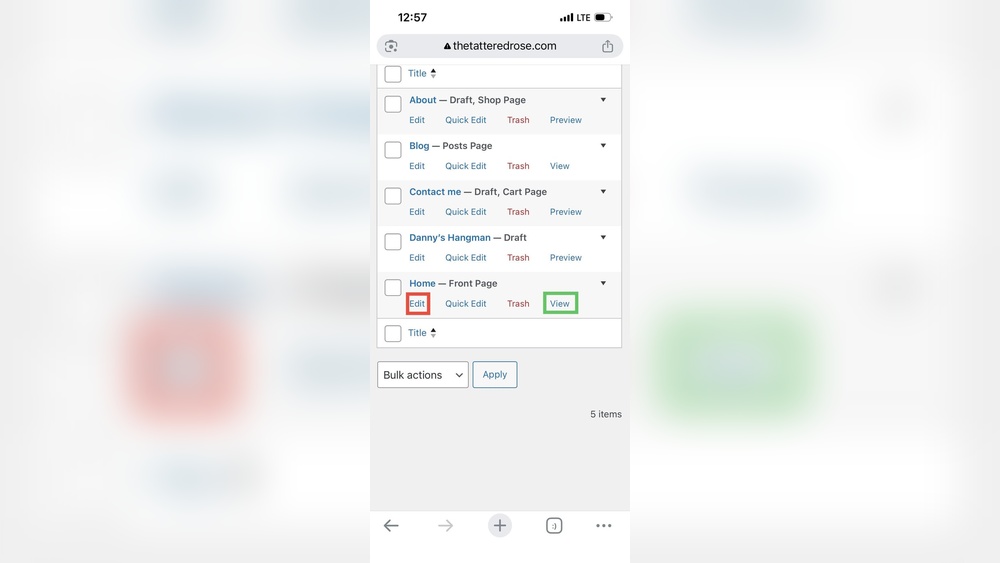
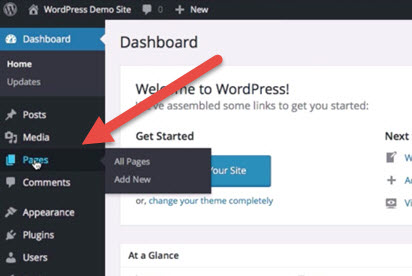
To edit your home page, log into your WordPress dashboard. Go to Pages, then find and select “Home. ” Click “Edit” to open the editor and start customizing your content, layout, or design.
Can I Change The Home Page Layout In WordPress?
Yes, you can change the home page layout using themes or page builders. Many themes offer custom templates. Plugins like Elementor or Divi let you create unique layouts without coding.
How Do I Update Text And Images On My Home Page?
In the WordPress editor, click on text or image blocks to edit. Replace text directly or upload new images. Save changes to update your home page instantly.
What If My Home Page Doesn’t Update After Editing?
Clear your browser cache and refresh the page. Also, clear any caching plugins on your site. This ensures you see the latest home page version after edits.
Conclusion
Editing your WordPress home page is simple and useful. You can change text, images, and layout quickly. This helps your site look fresh and match your style. Try different edits to see what works best. Keep your content clear and easy to read.
Regular updates keep visitors interested and coming back. Practice makes editing easier over time. Start editing today and make your home page your own.


