

Are you struggling to clean up your WordPress dashboard and wondering how to delete themes you no longer need? Keeping unused themes can slow down your site and create security risks.
But don’t worry—removing them is simpler than you think. In this guide, you’ll discover step-by-step how to safely delete WordPress themes and keep your website running smoothly. By the end, you’ll feel confident managing your themes like a pro. Ready to clear out the clutter?
Let’s get started!

Credit: themelooks.com
Accessing The Themes Section
Accessing the themes section in WordPress is the first step to manage your site’s design. This area allows you to see all installed themes. You can activate, preview, or delete themes here. Knowing how to reach this section saves time and effort.
Finding the themes section is easy. It is located in the WordPress dashboard. You just need to follow a few simple steps to get there.
Log Into Your WordPress Dashboard
Start by logging into your WordPress admin panel. Use your username and password. The dashboard is the control center of your website. It shows all the tools you need to manage your site.
Navigate To Appearance Menu
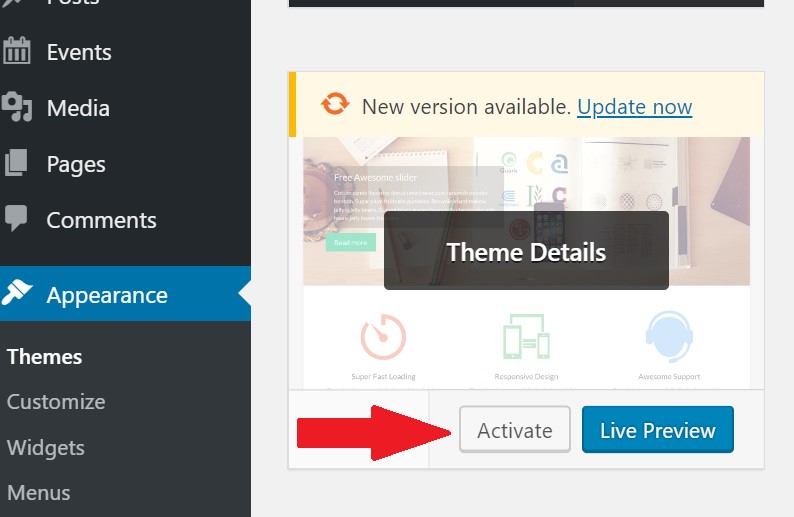
On the left side of the dashboard, find the menu called “Appearance.” Click on it. This menu holds all design-related settings. It is your gateway to themes, widgets, and menus.
Select The Themes Option
Under the Appearance menu, click on “Themes.” This opens the themes section. Here you will see all themes installed on your website. You can view active and inactive themes.
Credit: mekshq.com
Identifying Unused Themes
Identifying unused themes in WordPress helps keep your website clean and fast. Old themes take up space and can cause security risks. Removing them improves site performance and reduces clutter in your dashboard.
Unused themes are those not currently active or needed for testing. They might be leftover from previous designs or experiments. Spotting these themes is the first step to deleting them safely.
Check Your Active Theme
Start by knowing which theme your site uses now. Go to the WordPress dashboard and open the Appearance section. The active theme shows at the top. Do not delete this theme.
Review Installed Themes
Look through all themes installed on your site. Some themes are default ones from WordPress. Others you added but never used. List the ones you do not plan to use again.
Consider Child Themes And Customizations
Check if you use child themes connected to a parent theme. Deleting a parent theme can break your site. Know which themes support your custom work before removal.
Identify Themes For Testing Or Backup
Sometimes, themes stay for testing or backup. Confirm if you need them for future changes. Otherwise, mark them as unused and ready for deletion.
Deleting Themes Via WordPress Dashboard
Deleting themes through the WordPress dashboard is a simple and safe way to clean your site. It helps keep your website fast and secure by removing old or unused themes. This process does not require any coding skills. Just follow a few easy steps inside your dashboard.
Navigating To Theme Details
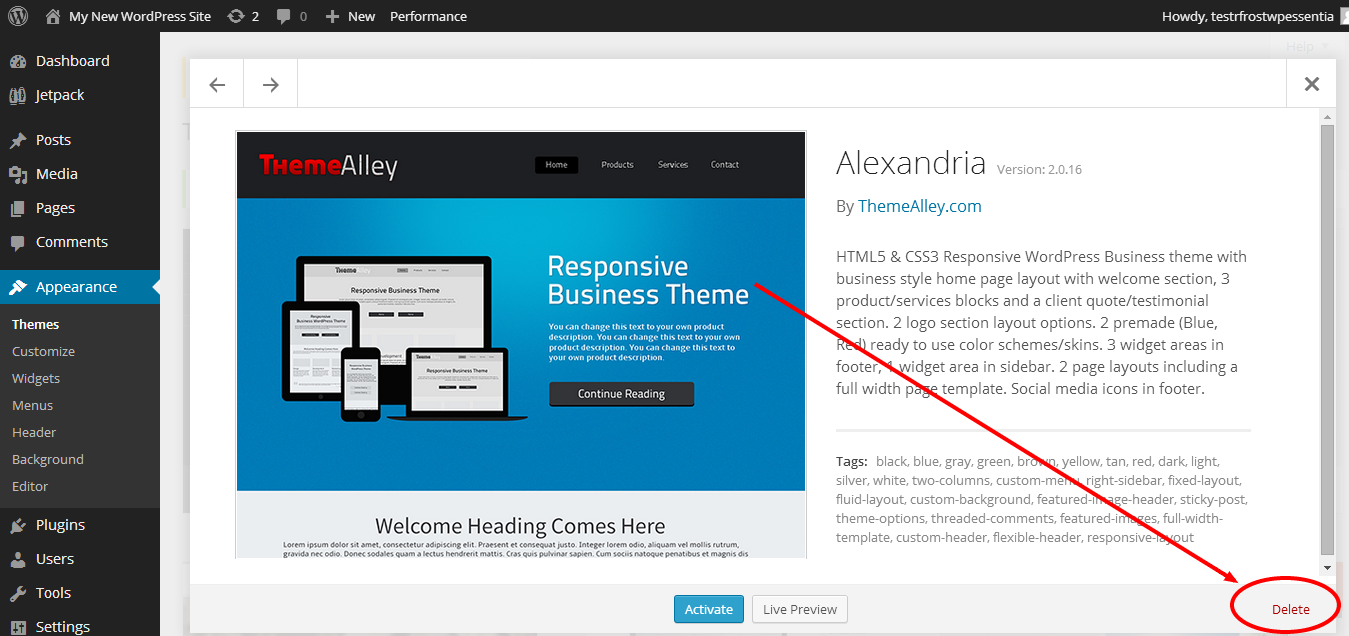
First, log into your WordPress dashboard. Go to the “Appearance” menu on the left side. Click on “Themes” to see all installed themes. Find the theme you want to delete and click on it. This action opens the theme details window. Here, you can see information about the theme, including its version and author.
Using The Delete Option
At the bottom-right corner of the theme details window, find the “Delete” button. Click on this button to remove the theme from your WordPress site. A confirmation box will appear asking if you really want to delete the theme. Confirm your choice by clicking “OK.” The theme will be deleted immediately. This method ensures that the theme files are fully removed from your server.
Credit: www.ipage.com
Removing Themes Via Ftp
Removing themes via FTP is a reliable way to delete unwanted themes from your WordPress site. This method works well if you cannot delete themes through the WordPress dashboard. It gives you direct control over your site files. You can remove themes safely without affecting your live site.
Connecting To Your Site With Ftp
First, you need an FTP client like FileZilla or Cyberduck. Open the client and enter your FTP details. These details include host, username, password, and port number. You get them from your web hosting provider. After connecting, you will see your website’s files on the server.
Locating The Themes Folder
Navigate to the WordPress installation folder, usually named public_html or www. Open the wp-content folder. Inside, find the themes folder. This folder contains all your installed themes. Each theme is in its own folder with the theme name.
Deleting Theme Files Safely
Before deleting, ensure the theme is not active. Delete only themes you do not use. Right-click the theme folder you want to remove. Select the delete option in your FTP client. Wait for the process to finish. The theme folder and all files inside will be removed from your server.
Best Practices For Theme Management
Managing WordPress themes properly keeps your website safe and running well. Good theme management stops problems before they start. It also helps your site stay fast and look professional. Follow simple steps to handle themes wisely. This makes deleting themes easy and risk-free.
Backing Up Your Site
Always back up your site before changing themes. A backup saves your content and settings. It protects against mistakes or errors. Use plugins or your hosting service to create backups. Store backups in a safe place. Regular backups keep your site secure and easy to restore.
Keeping Your Active Theme Updated
Keep your active theme updated to fix bugs and improve security. Updates also add new features and keep your site compatible. Check for updates often in the WordPress dashboard. Install updates quickly to avoid issues. An updated theme helps your site run smoothly and safely.
Troubleshooting Common Issues
Deleting themes in WordPress is usually easy, but some issues can appear. These problems might stop you from removing a theme. Knowing common troubles helps fix them fast. This saves time and keeps your site clean.
Theme Deletion Errors
Sometimes WordPress shows errors when deleting a theme. One common error is “Are you sure you want to delete this theme?” but the delete button is missing. This happens if the theme is active. WordPress does not allow deleting active themes.
Another error is “Failed to delete the theme.” This can occur if your server has permission issues. WordPress needs the right file permissions to remove theme files. You can check permissions through your hosting control panel or FTP.
Restoring Deleted Themes
Accidentally deleting a theme can cause worry. You can restore deleted themes by reinstalling them. Download the theme from the WordPress theme repository or the original source. Then upload and activate it again.
Another way is using backups. If you have a site backup, restoring it brings back deleted themes. Always keep regular backups to protect your site. This helps recover lost themes quickly and safely.
Frequently Asked Questions
How Do I Delete A WordPress Theme Safely?
To delete a WordPress theme safely, first deactivate it by activating another theme. Then, go to Appearance > Themes, select the theme, and click “Delete. ” This ensures your website remains functional without the deleted theme.
Can I Delete A Theme Directly From WordPress Dashboard?
Yes, you can delete themes directly from the WordPress dashboard. Navigate to Appearance > Themes, click on the theme you want to remove, and select “Delete” at the bottom-right corner of the popup window.
What Happens If I Delete The Active WordPress Theme?
You cannot delete the active WordPress theme directly. You must activate a different theme first. Deleting an active theme without activation will cause errors on your website.
Why Should I Delete Unused WordPress Themes?
Deleting unused WordPress themes improves website security and performance. Old themes can have vulnerabilities and take up server space, so removing them keeps your site clean and faster.
Conclusion
Deleting unused WordPress themes keeps your site clean and safe. It frees up space and reduces risks. Always back up your site before deleting themes. Use the WordPress dashboard to find and remove themes easily. Avoid deleting the active theme to prevent issues.
Regular checks help maintain a smooth website. Simple steps make managing themes less stressful. Stay organized to focus on building great content. Clean themes mean faster, more secure websites. Try it today for better site performance.


