
Are you looking to add HTML code to your WordPress website but don’t know where to start? You’re not alone.
Adding custom HTML can seem tricky at first, but it’s easier than you think—and it gives you the power to make your site truly yours. Whether you want to embed a special widget, customize your layout, or add unique features, this guide will walk you through simple steps to add HTML code quickly and safely.
Keep reading, and you’ll soon be in full control of your website’s design and functionality.
Why Add Html To WordPress
Adding HTML to your WordPress website gives you more control over your site. It lets you customize the look and feel beyond the usual options. HTML code helps you improve how your site works. You can create unique features and styles that match your needs. Understanding why to add HTML helps you make smart website decisions.
Enhance Customization
HTML lets you change your site’s design freely. You can add special text styles, colors, and layouts. This customization helps your site stand out. It also improves user experience by making pages easier to read and navigate. Simple HTML edits can make big visual differences.
Improve Website Functionality
HTML code allows you to add new functions. You can insert forms, buttons, or interactive content. This makes your site more useful for visitors. It also helps you collect information or guide users. Adding HTML can make your site work exactly how you want.
Control Over Design
Using HTML gives you full control over your site’s design. You decide where elements appear and how they behave. This control helps you keep a consistent look. It also lets you fix issues that themes or plugins cannot solve. Direct HTML editing is a powerful way to shape your website.

Credit: wordpress.com
Accessing WordPress Editor
Accessing the WordPress editor is the first step to adding HTML code to your website. This editor is where you create and change your posts or pages. Understanding how to open and use it helps you insert custom HTML easily.
WordPress offers two main editors. Each one handles HTML differently. Knowing which editor you use is important before adding code.
Classic Editor Vs Block Editor
The Classic Editor looks like a simple text box. It feels like a word processor. You can switch to an HTML view with one click. This lets you type or paste your HTML code directly.
The Block Editor is newer and uses blocks for content. Each block holds text, images, or other items. To add HTML, you use a special block called “Custom HTML.” This block shows a space where you write your code.
Locating The Html Section
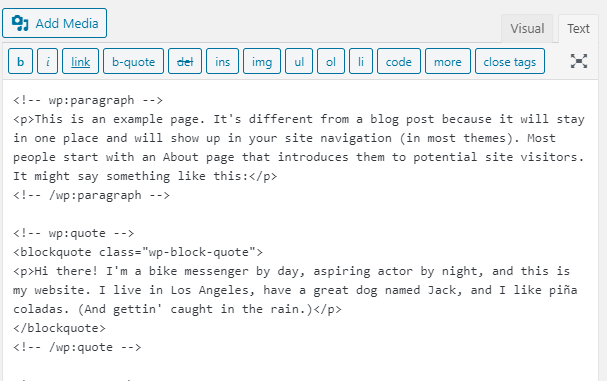
In the Classic Editor, find the “Text” tab next to “Visual.” Click “Text” to see the HTML. Add your code here. Switch back to “Visual” to see how it looks.
In the Block Editor, click the plus (+) sign to add a new block. Search for “Custom HTML.” Select it to open a box. Enter your HTML code in this box. Preview your changes before publishing.
Adding Html In Posts And Pages
Adding HTML code to your WordPress posts and pages lets you customize content easily. You can insert elements like buttons, images, and special formatting. This helps your site look unique and professional.
WordPress offers simple ways to add HTML without needing extra tools. Two main methods are using the Custom HTML block and switching to the Text Editor mode. Both methods are easy to use and work well.
Using The Custom Html Block
The Custom HTML block is part of the WordPress block editor. It lets you enter HTML code directly inside your post or page. Just add the block, paste your code, and see the preview.
This block helps you control your content’s design. It keeps your HTML separate from the rest of the text. You can edit your code anytime without breaking other parts.
Switching To Text Editor Mode
Another way to add HTML is by switching from Visual to Text editor. The Text editor shows your content as HTML code. You can write or paste your code here.
This mode gives full control over all HTML in your post or page. Be careful not to remove important tags. Saving changes updates your content immediately on the site.
Inserting Html In Widgets
Inserting HTML code into WordPress widgets is a simple way to customize your site. Widgets let you add content or features to sidebars, footers, and other areas. Using HTML in widgets allows precise control over what appears on your site. This method is perfect for small code snippets, like buttons, links, or custom text.
Using The Custom Html Widget
The Custom HTML widget lets you add your own code easily. Go to the WordPress dashboard and open the Widgets section. Find the Custom HTML widget and drag it to your chosen widget area. Paste your HTML code into the widget box. Save your changes. The widget will display the HTML content exactly as you wrote it.
Placing Widgets In Sidebars Or Footers
Sidebars and footers are common areas for widgets. To place your Custom HTML widget, drag it into the sidebar or footer section. This placement depends on your WordPress theme. After adding the widget, check your website to see how it looks. Adjust the code if needed to fit the layout. This approach makes your site more functional and unique.
Embedding Html In Theme Files
Embedding HTML in theme files lets you customize your WordPress site deeply. You can change layouts, add new sections, or insert special scripts directly into your theme. This method gives control beyond what plugins or widgets offer. But it requires care to avoid breaking your site.
Editing theme files is powerful but risky. A small mistake can cause errors or make your site inaccessible. Knowing the right way to add HTML keeps your site safe and working well. The next sections explain how to edit safely and use child themes for your custom code.
Using Theme Editor Safely
The Theme Editor is inside your WordPress dashboard under Appearance. It lets you view and edit theme files like header.php or footer.php. Always back up your site before making changes. This protects your content if something goes wrong.
Work with small code pieces at a time. Check your changes on a test site first if possible. Avoid editing theme files during high traffic hours. This reduces the impact if your site breaks temporarily.
Child Themes For Custom Code
A child theme is a copy of your main theme. It keeps your changes separate from the original theme files. This way, updates to the main theme do not overwrite your custom HTML.
Create a child theme folder and add a style.css file. Then add your custom HTML or PHP code in the child theme files. Activate the child theme in WordPress to apply your changes. This method is safer and best for long-term customization.
Credit: www.cyberoptik.net
Using Plugins For Html Integration
Adding HTML code to your WordPress site is easier with plugins. Plugins help you place code safely without editing theme files. They offer a user-friendly way to include custom HTML in posts, pages, or widgets. This method suits users who prefer not to touch the core code directly.
Plugins also keep your site secure by preventing code errors. They offer options to manage and organize your HTML snippets. This control helps maintain your site’s design and function without hassle.
Popular Html Editor Plugins
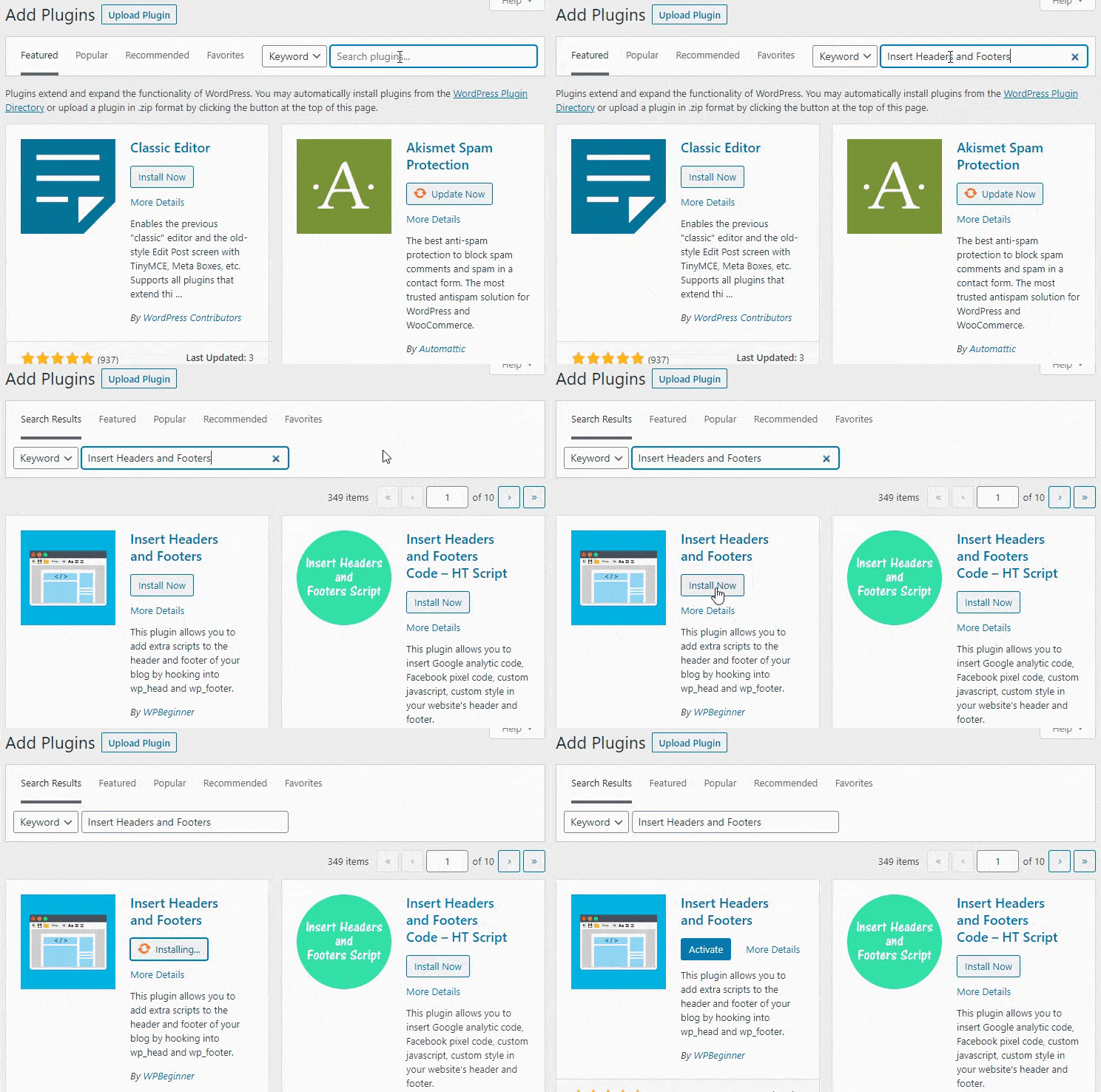
Some plugins stand out for HTML editing in WordPress. “Insert Headers and Footers” allows adding code to your site’s header or footer easily. “WPCode” offers a simple interface to insert HTML, CSS, and JavaScript. “Advanced Custom Fields” gives more control for developers to add custom HTML fields. These tools fit different user needs from beginners to advanced users.
Benefits Of Using Plugins
Plugins save time by simplifying HTML integration. They reduce the risk of breaking the site with wrong code. Plugins often come with built-in editors that highlight errors. Many plugins allow you to add code to specific areas only. This flexibility keeps your site clean and organized. Updates from plugin developers keep the tools compatible with new WordPress versions.
Common Html Code Tips
Adding HTML code to your WordPress site can improve design and function. Follow key tips to keep your code clean and safe. Use simple steps to avoid errors and issues.
These tips help you write better code. They make your site work well across browsers and devices.
Validating Your Html
Check your HTML code before adding it to WordPress. Validation finds mistakes like missing tags or bad structure. Use free tools like the W3C Validator online. Fix errors to avoid display problems. Clean code improves website speed and SEO. Validation helps your site stay professional and error-free.
Avoiding Conflicts With WordPress
WordPress uses its own code and scripts. Your HTML must not break these parts. Avoid using tags that WordPress blocks or changes. Stay clear of scripts that affect themes or plugins. Test new code in a staging site first. This stops your live site from crashing. Keep code simple and separate to reduce risk.
Troubleshooting Html Issues
Troubleshooting HTML issues on a WordPress site can be challenging. Small errors in code can cause big problems. Understanding common problems helps fix your site quickly. This section covers two key areas to check when HTML does not work as expected.
Fixing Display Errors
Display errors often happen due to incorrect HTML tags. Missing closing tags or extra characters break the layout. Check your code carefully for syntax mistakes. Use a simple online HTML validator tool. It helps find errors and suggests fixes.
Clear your browser cache after changes. Sometimes, old files cause display problems. Refresh the page to see updates. Also, test your site on different browsers. This shows if the issue is browser-specific.
Dealing With Plugin Conflicts
Plugins can interfere with custom HTML code. Some plugins change how code appears or behaves. Disable all plugins temporarily to see if the problem ends. If the code works, enable plugins one by one.
Find which plugin causes the conflict. Check plugin settings for code-related options. Contact plugin support if needed. Keep plugins updated to avoid bugs and conflicts.
Credit: www.cyberoptik.net
Frequently Asked Questions
How Can I Add Html Code To A WordPress Post?
To add HTML code, switch to the WordPress editor’s “Text” or “Code” view. Paste your HTML directly where needed. This method ensures your code displays correctly within posts or pages.
Can I Use Html Code In WordPress Widgets?
Yes, WordPress allows adding HTML in Text or Custom HTML widgets. Navigate to Appearance > Widgets, add a Custom HTML widget, and insert your code. This helps customize sidebars and footers easily.
Is It Safe To Add Custom Html In WordPress?
Adding custom HTML is safe if the code is clean and secure. Avoid scripts from untrusted sources to prevent security risks. Always back up your site before editing code to protect your data.
What WordPress Editor Supports Html Code Insertion?
Both Classic Editor and Gutenberg support HTML insertion. In Classic Editor, use the “Text” tab. In Gutenberg, use the Custom HTML block for precise coding control.
Conclusion
Adding HTML code to your WordPress site is simple and useful. You can customize your pages quickly and easily. Use the WordPress editor or widgets to insert your code. Always check your code for errors before saving. This helps your site run smoothly and look great.
Practice these steps to feel more confident. Your website will stand out with your own unique style. Keep experimenting and learning as you go.


