

Are you struggling to upload pictures to your WordPress site? It’s frustrating when you want to share your images but keep running into errors or glitches.
You’re not alone—many WordPress users face this problem, and it can stop your content from looking its best. But don’t worry, there are simple fixes you can try right now. Keep reading, and you’ll discover easy solutions to get your pictures uploaded smoothly and your site looking great again.
Credit: muffingroup.com
Common Upload Issues
Uploading pictures to WordPress can sometimes be tricky. Several common issues may stop your images from uploading. Understanding these problems helps you fix them fast.
File Size Limits
WordPress sets a limit on the size of files you can upload. Large images often exceed this limit. When a file is too big, WordPress rejects the upload. You can reduce the image size using free tools or change the upload limit in your hosting settings.
Unsupported File Types
WordPress supports specific image formats like JPEG, PNG, and GIF. Uploading files in other formats causes errors. Check your image format before uploading. Convert unsupported files to a supported format using simple image editors.
Permission Errors
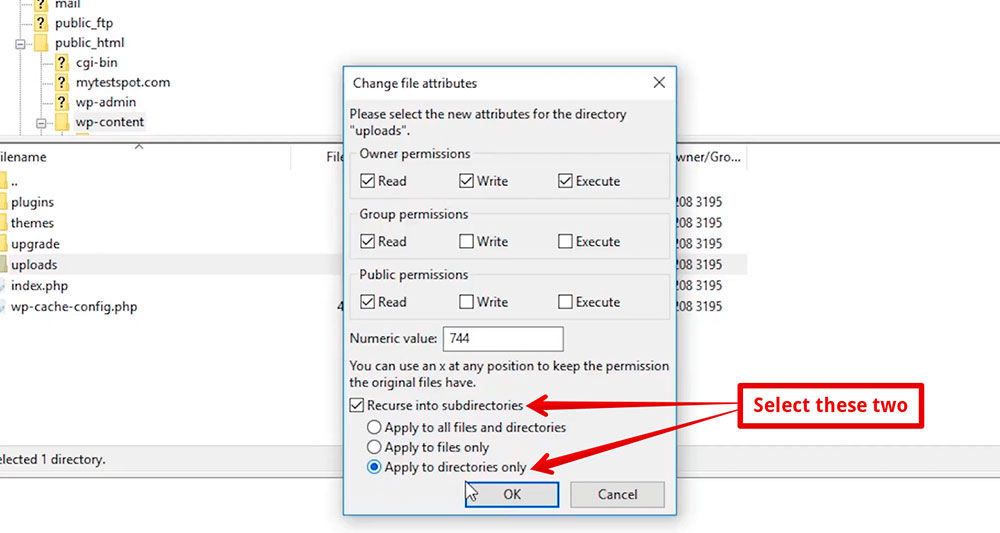
Permission errors occur when WordPress cannot access the upload folder. This issue happens if folder permissions are incorrect. Set the upload folder permissions to 755 or 775. Correct permissions allow WordPress to save your images properly.
Check Server Settings
Checking server settings is an important step when pictures won’t upload to WordPress. These settings control how files are handled and stored on your site. Incorrect configurations can stop uploads from working properly. Focus on the main areas that affect image uploads to find the problem fast.
Php Configuration
PHP settings often limit file upload size. The upload_max_filesize and post_max_size values must be large enough. Smaller limits block bigger pictures. Also, check max_execution_time. If it’s too low, uploads might time out. Adjust these settings in your php.ini file or ask your host for help.
File Permissions
WordPress needs permission to save files on the server. The wp-content/uploads folder must be writable. Permissions usually set to 755 or 775 work best. Too strict permissions stop uploads. Use FTP or hosting control panel to change folder permissions. Correct permissions help WordPress create and save image files properly.
Disk Space
Full disk space stops new files from uploading. Check your hosting account for available storage. If your disk is almost full, delete unnecessary files or upgrade your plan. Low disk space causes upload errors and website issues. Keep enough free space for smooth image uploads and site performance.
Troubleshoot Plugin Conflicts
Sometimes, WordPress plugins cause problems when uploading pictures. Plugins can clash with each other or with the WordPress core. This can stop images from uploading correctly. Troubleshooting plugin conflicts is key to fixing this issue. Follow these steps to find and solve plugin problems quickly.
Deactivate Plugins
Start by turning off all plugins on your site. This stops any plugin from interfering with uploads. Check if you can upload images now. If uploads work, the problem is caused by a plugin conflict.
Identify Problematic Plugins
Turn on plugins one at a time. After activating each plugin, try uploading pictures again. This helps find the plugin causing the issue. Note which plugin stops the upload from working.
Update Or Replace Plugins
Update the problematic plugin to its latest version. Updates often fix bugs and improve compatibility. If the problem stays, look for another plugin with similar features. Replace the faulty plugin to restore smooth uploads.

Credit: www.youtube.com
Theme-related Problems
Theme-related problems often cause issues with uploading pictures in WordPress. Themes control the look and feel of your site, but they can also affect functionality. Sometimes, a theme may have bugs or conflicts that block image uploads. Identifying and fixing theme problems can restore your upload ability quickly.
Switch To Default Theme
Switch your site to a default WordPress theme like Twenty Twenty-Three. This step checks if your current theme causes the problem. If image uploads work with the default theme, your theme likely has an issue. You can then focus on fixing or replacing the theme safely.
Check Theme Functions
Look into your theme’s functions file for errors. This file controls many features, including media handling. Errors or custom code in functions.php might block uploads. Clean or correct any suspicious code. Removing faulty code can fix upload problems quickly.
Update Theme
Outdated themes can cause conflicts with WordPress updates. Update your theme to the latest version available. New updates fix bugs and improve compatibility. An updated theme often resolves upload issues without extra effort.
Fix Media Library Issues
Fixing media library issues can solve many upload problems in WordPress. Sometimes images do not show or upload correctly. This section covers easy steps to fix these issues. Follow them one by one for best results.
Regenerate Thumbnails
Thumbnails are small versions of your images. Sometimes they get corrupted or missing. Use a plugin like Regenerate Thumbnails to fix this. It recreates all thumbnails for your existing images. This helps your media library display images properly.
Clear Media Cache
Media cache stores image data for faster loading. Old or corrupted cache can cause upload errors. Clear the media cache from your caching plugin or hosting panel. This forces WordPress to reload fresh image files. It often resolves upload problems.
Reset Upload Path
WordPress saves images to a specific folder called upload path. A wrong or changed path stops uploads. Go to Settings > Media and check the upload path. Reset it to the default folder if needed. This makes sure images save to the right place.
Use Alternative Upload Methods
Uploading pictures to WordPress can sometimes fail due to server limits or plugin conflicts. Using alternative upload methods helps bypass these problems. These methods offer simple ways to add images without relying on the standard media uploader.
Ftp Upload
FTP lets you upload files directly to your WordPress server. Use an FTP client like FileZilla to connect to your hosting. Place images inside the wp-content/uploads folder. Then, use a plugin to register these files in your media library. This method avoids upload size limits and server errors.
Media Library Plugins
Some plugins improve media uploads in WordPress. They offer drag-and-drop features and bulk upload options. Plugins like “Enhanced Media Library” help organize files better. They can also fix upload problems by handling images differently. These tools make adding pictures faster and easier.
Cloud Storage Integration
Cloud storage services like Google Drive and Dropbox connect with WordPress. Upload images to these platforms first. Then, link them to your website with plugins. This saves server space and speeds up your site. Cloud integration offers a reliable way to manage media files.
Seek Professional Help
Sometimes, you may face issues uploading pictures to WordPress. Fixing these problems alone can be tough. Seeking professional help can save time and avoid frustration. Experts know common causes and solutions. They provide clear guidance and fast fixes.
Contact Hosting Support
Your hosting provider controls server settings. These settings affect image uploads. Contact hosting support to check server issues. They can identify problems like file size limits or permission errors. Hosting experts can adjust settings to allow uploads. They also help with storage space or security blocks.
Consult WordPress Experts
WordPress experts understand the platform deeply. They can find plugin conflicts or theme problems causing upload issues. These professionals offer advice on updates and backups. They guide you through troubleshooting steps. WordPress experts ensure your site runs smoothly and safely.

Credit: stackoverflow.com
Frequently Asked Questions
Why Can’t I Upload Pictures To WordPress?
This issue often occurs due to file permission errors, plugin conflicts, or exceeding upload limits. Check your media folder permissions, disable conflicting plugins, and verify your upload size limits in WordPress settings.
How Do I Fix WordPress Image Upload Errors?
Clear your browser cache, update WordPress, and deactivate plugins temporarily. Also, increase PHP memory limit and check file size or format restrictions to resolve image upload errors.
What File Types Are Allowed In WordPress Uploads?
WordPress supports JPG, JPEG, PNG, GIF, and ICO image formats by default. Ensure your images are in one of these formats to upload successfully without errors.
Can Plugin Conflicts Cause Image Upload Problems?
Yes, some plugins may conflict with WordPress media uploader. Disable all plugins temporarily to identify the culprit, then reactivate them one by one to fix upload issues.
Conclusion
Troubles with uploading images on WordPress can feel frustrating. Check file sizes and formats first. Clear your browser cache to avoid glitches. Make sure your WordPress and plugins are up to date. Sometimes, server settings or permissions block uploads. Try these steps one by one.
Most issues resolve with simple fixes. Keep your site running smoothly and look professional. Don’t let upload problems stop your content. Stay patient and follow the tips carefully. You will get your pictures online soon.


