
Can’t find your WordPress site? That frustrating moment when you type your web address and nothing shows up can leave you feeling stuck and worried.
You’ve put time and effort into building your site, and now it seems lost in the digital world. But don’t panic just yet. You’ll discover simple, clear steps to quickly locate your WordPress site and get it back online. Keep reading—your website is closer than you think.
Common Reasons For Missing WordPress Site
Finding your WordPress site missing can be frustrating. Many users face this issue without knowing why. Understanding common causes helps solve the problem faster.
Several factors can make your WordPress site disappear. Some relate to your domain, others to hosting or software conflicts. Identifying the exact reason is key to restoring your site.
Domain Issues
Your domain name might have expired or is not pointed correctly. DNS settings could be wrong, causing your site to be unreachable. Sometimes, domain registration problems block access.
Hosting Problems
Server downtime can make your site disappear. Your hosting account might be suspended for non-payment or policy violations. Server misconfigurations also prevent your site from loading.
Plugin Conflicts
Plugins add features but can cause errors. Conflicting plugins may break your site or stop it from showing. Outdated or incompatible plugins often lead to missing content.
Theme Errors
The active theme could have bugs or corrupted files. Incorrect theme updates might cause your site to crash. Sometimes, themes do not work well with WordPress versions.
Immediate Steps To Restore Access
Lost access to your WordPress site? Quick action can help you restore it fast. Follow these steps to find the root cause and fix the problem.
Check Domain Registration
Start by confirming your domain registration is active. Visit your domain registrar’s website and log in to your account. Look for any expiration or suspension notices. Renew the domain if it has expired. An inactive domain stops your site from showing online.
Verify Hosting Status
Next, check your hosting account status. Log into your hosting provider dashboard. Ensure your hosting plan is active and paid. If the hosting is suspended or expired, your site won’t load. Contact your hosting support if you see any issues.
Disable Plugins Via Ftp
Faulty plugins can cause site access problems. Connect to your site using an FTP client. Go to the wp-content folder and find the plugins folder. Rename the plugins folder to something like plugins-old. This disables all plugins and helps identify if a plugin is the issue.
Switch To Default Theme
A broken theme can block access. Use FTP to enter the wp-content/themes folder. Rename your active theme’s folder to disable it. WordPress will revert to a default theme like Twenty Twenty-One. Check your site again to see if it loads properly.
Fixing WordPress Url And Permalink Issues
Fixing WordPress URL and permalink issues is key to getting your site back online. These problems often stop visitors from finding your pages. They can also hurt your SEO rankings and user experience.
Understanding how to reset your site URL and refresh permalinks helps solve many common errors. This section guides you through simple steps to fix these issues fast. No coding skills needed.
Resetting Site Url
The site URL tells WordPress where your website lives. If it is wrong, your site won’t load correctly. You can reset it from the WordPress dashboard.
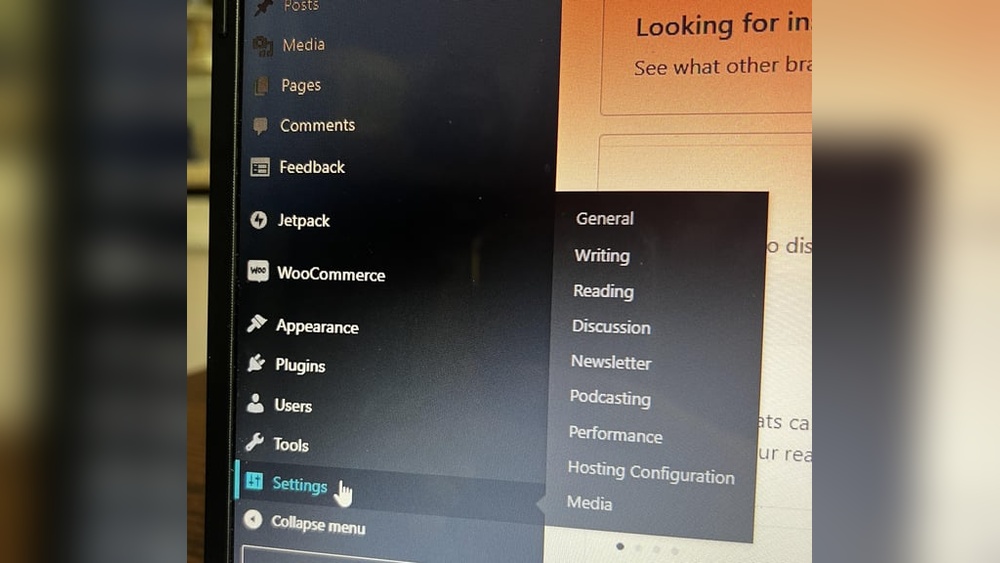
Go to Settings > General. Check the “WordPress Address (URL)” and “Site Address (URL)” fields. They should match your actual website address.
Update these fields if needed. Save changes and clear your browser cache. This refreshes your site’s connection to the correct URL.
Refreshing Permalinks
Permalinks are the links to your posts and pages. Broken permalinks cause 404 errors. Fix this by refreshing the permalink settings.
Navigate to Settings > Permalinks in your dashboard. Without changing anything, click the “Save Changes” button. WordPress will rebuild the permalink structure.
This simple action fixes most link issues. It makes sure your URLs work and pages load properly.
Credit: www.nudgify.com
Dealing With Dns And Cache Problems
Problems with DNS and cache often cause WordPress sites to be unreachable. Understanding these issues helps fix the problem faster. DNS connects your domain name to your website’s server. Cache stores website data to load pages faster. Clearing these can solve many access issues.
Clear Browser And Server Cache
Start by clearing your browser cache. Old data may prevent loading the latest site version. Use browser settings to clear cache and cookies. Next, clear your server cache. Many hosting providers offer tools for this. A fresh server cache ensures the site updates properly.
Flush Dns Cache
DNS cache stores domain information on your computer. This cache can have outdated data. Flushing it forces your system to get new DNS details. On Windows, open Command Prompt and type ipconfig /flushdns. Mac users can use Terminal with sudo killall -HUP mDNSResponder. This step often fixes site connection errors.
Check Dns Settings
Incorrect DNS settings block access to your site. Verify your domain points to the right server IP. Check your domain registrar’s dashboard for DNS records. Look for A records, CNAMEs, and nameservers. Make sure they match your hosting provider’s instructions. Any mismatch can cause site downtime.
Recovering From Hacked Or Compromised Site
Recovering from a hacked or compromised WordPress site is urgent. A hacked site can cause data loss, damage your reputation, and hurt your search rankings. Acting fast limits the damage and gets your site back online safely.
Follow clear steps to clean and secure your site. This process restores control and protects your content and visitors. Stay calm and work through each step carefully.
Scan For Malware
Start by scanning your site for malware. Use trusted security plugins or online tools. These tools detect infected files and suspicious code. Identify malware helps to remove threats accurately. Do a full scan of all files and databases.
Restore From Backup
Find a clean backup of your site. Backups from before the hack are best. Restore your site files and database using this backup. This removes injected malware and corrupted data. Always test your restored site on a staging environment first.
Change Passwords And Keys
Change all passwords immediately. Update admin, FTP, database, and hosting passwords. Also, regenerate your WordPress security keys in the wp-config.php file. Strong, unique passwords and new keys stop attackers from re-entering your site. Use a password manager to create and store passwords safely.

Credit: wordpress.com
Preventive Measures To Avoid Future Downtime
Preventing downtime is key to keeping your WordPress site live and accessible. Small steps can stop big problems. Taking action now saves time and stress later. Here are simple ways to keep your site running smoothly and avoid future downtime.
Regular Backups
Back up your site often. Store copies safely on a cloud or external drive. Backups protect your data from loss or damage. They allow quick recovery after errors or hacks. Set automatic backups to run daily or weekly.
Update Plugins And Themes
Keep plugins and themes updated. Updates fix bugs and improve security. Outdated software can cause crashes or conflicts. Check for updates regularly and install them promptly. This keeps your site stable and safe.
Use Security Plugins
Install security plugins to protect your site. They block hackers and malware. Some plugins scan for vulnerabilities and alert you. A secure site faces fewer downtime risks. Choose trusted plugins with good reviews.
Monitor Site Uptime
Use uptime monitoring tools to track your site’s availability. Receive alerts if your site goes down. Monitoring helps detect issues early. Quick action reduces downtime length. Many tools offer free plans for small sites.

Credit: www.reddit.com
Frequently Asked Questions
Why Can’t I Find My WordPress Site Online?
Your WordPress site may be down, or the domain isn’t connected. Check hosting status and DNS settings first. Ensure your website is published and not set to private or under maintenance mode.
How Do I Check If My WordPress Site Is Down?
Use online tools like DownDetector or IsItDownRightNow. Also, try accessing your site from different devices or networks to confirm if the issue is local or global.
What Causes WordPress Site Not To Appear In Search Results?
Your site might not be indexed by search engines or blocked by robots. txt. Check SEO settings and submit your sitemap to Google Search Console for faster indexing.
How Can I Restore Access To My WordPress Site?
Reset your WordPress password or check with your hosting provider for server issues. Clear your browser cache and disable conflicting plugins if you regain access.
Conclusion
Finding your WordPress site can feel tricky at times. Check your domain and hosting first. Clear your browser cache and try again. Make sure your site is not set to private. Double-check your site’s URL for any typos. Remember, small mistakes cause big problems.
Take it step by step, and don’t rush. With patience, your site will appear soon. Keep these tips in mind to avoid future trouble. Your WordPress site is closer than you think. Stay calm and keep trying.


