
Are you wondering if you can upload videos directly to your WordPress site? You’re not alone.
Videos can boost engagement, keep visitors longer, and make your content stand out. But how easy is it to add videos to WordPress? Can you do it without hassle or extra costs? Keep reading to discover everything you need to know about uploading videos to WordPress and how to make your site more dynamic and captivating.
Uploading Videos To WordPress
Uploading videos to WordPress is simple and effective. Videos make your site more lively and keep visitors interested. WordPress offers different ways to add videos. You can upload files directly or use blocks to place videos in posts. Understanding the supported formats and methods helps you share videos smoothly.
Supported Video Formats
WordPress supports common video formats for easy uploads. MP4 is the most popular and widely used format. It works well on almost all browsers and devices. Other supported formats include WebM and Ogg. Using these formats ensures your videos play smoothly on your site.
Uploading Directly To Media Library
To upload videos, go to the Media Library in WordPress. Click “Add New” and select your video file. The upload speed depends on your internet and file size. Keep videos small to avoid slow loading. After uploading, WordPress stores the video safely for use.
Using Video Blocks In Gutenberg Editor
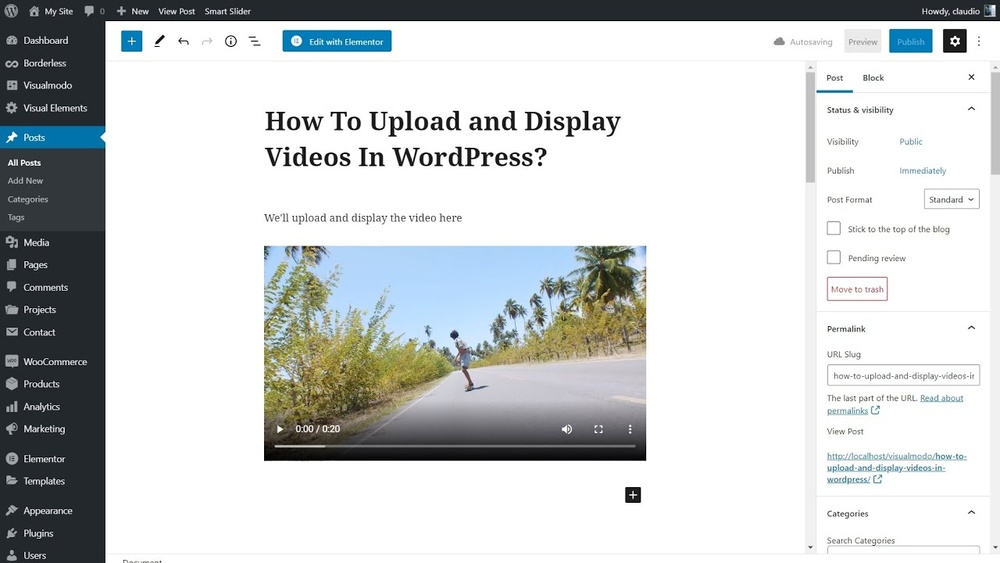
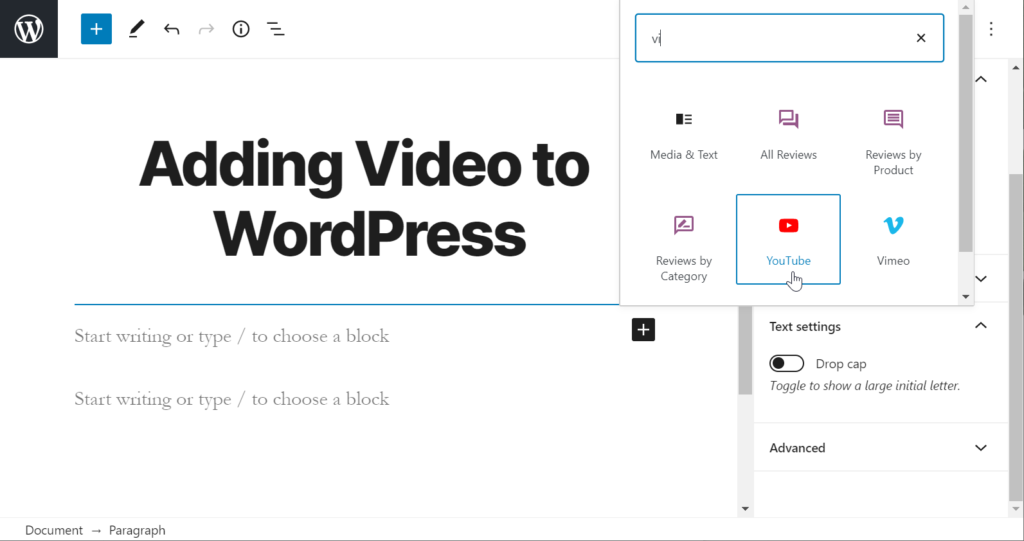
The Gutenberg editor uses blocks to insert content. Choose the Video block to add your video easily. You can upload a new video or select one from the Media Library. The block allows you to control video size and alignment. This method fits perfectly for blog posts or pages.
Video Hosting Options
Choosing the right video hosting option affects your website’s speed and user experience. WordPress offers several ways to add videos. Each method has benefits and limitations. Understanding these options helps you pick what fits your site best.
Self-hosting Pros And Cons
Self-hosting means uploading videos directly to your WordPress server. You control all your video files. This can improve privacy and branding. But videos take up a lot of space. They can slow down your website. Your server needs enough bandwidth to handle many viewers. Without it, videos may load slowly or not at all.
Third-party Platforms Overview
Third-party platforms store and stream your videos for you. They handle traffic and bandwidth. This keeps your site fast. Popular platforms include YouTube, Vimeo, and others. They offer tools for video management and sharing. Some platforms have limits on video length or file size. Choose one that matches your needs and budget.
Embedding Youtube And Vimeo Videos
Embedding means adding a video player from YouTube or Vimeo to your site. Your visitors watch videos without leaving your page. You only need to copy and paste the video link or embed code. This method saves server space and bandwidth. Both platforms support mobile devices and offer customization options. Embedding is easy and works well for most sites.
Optimizing Video Performance
Uploading videos to WordPress is easy, but making them run smoothly is key. Videos can slow down your site if not handled well. Optimizing video performance helps keep your pages fast and visitors happy.
Choosing The Right Video Size
Large videos take longer to load. Choose a size that fits your website layout. Compress videos before uploading. Use formats like MP4 for good quality and smaller size. Keep videos under 100MB when possible. Smaller files load faster and save bandwidth.
Using Content Delivery Networks
Content Delivery Networks (CDNs) store videos on many servers worldwide. This helps videos load from the closest server to the user. It reduces buffering and speeds up playback. Many WordPress plugins support CDN integration. Using a CDN reduces strain on your main web host.
Lazy Loading Videos
Lazy loading means videos load only when visitors scroll to them. This saves data and speeds up the initial page load. Use WordPress plugins or built-in features for lazy loading. It improves user experience, especially on mobile devices. Visitors see your content faster without waiting for videos to load first.
Credit: www.inmotionhosting.com
Enhancing User Experience
Enhancing user experience is key when you upload videos to WordPress. Videos should be easy to watch and understand. Simple tools can make a big difference. These help keep visitors interested and coming back to your site.
Adding Captions And Subtitles
Captions and subtitles help users follow your video content. They make videos accessible to people who are deaf or hard of hearing. Captions also help visitors understand videos in noisy places. Search engines can read captions, which improves SEO. Adding captions is easy with WordPress plugins or manual uploads.
Customizing Video Player Settings
Customizing video players improves how users watch videos. You can change controls like play, pause, and volume. Adjusting settings lets users watch comfortably on any device. Some players let you add a logo or change colors. This creates a consistent look for your website. Simple controls keep viewers from getting frustrated.
Responsive Video Design
Responsive videos fit any screen size automatically. They look good on phones, tablets, and desktops. This design stops videos from cutting off or looking too small. WordPress themes and plugins often support responsive video. A flexible video layout keeps visitors engaged across all devices. Responsive design is essential for a good user experience.
Troubleshooting Common Issues
Uploading videos to WordPress can sometimes bring challenges. These issues can stop your video from playing or block uploads. Understanding common problems helps fix them fast. This section covers three main troubles and how to solve them.
Video Not Playing
Sometimes videos do not play after uploading. This can happen if the video format is not supported by the browser. WordPress works best with MP4 files using H.264 codec. Make sure your video uses these settings.
Another cause is slow internet connection. Large videos need more bandwidth to load smoothly. Try reducing video size or using a faster connection.
Upload Size Limits
WordPress has limits on file upload size. Most sites allow only a few megabytes by default. Videos are often larger than this limit. You can increase the limit through your hosting control panel or by editing the php.ini file.
Check with your hosting provider about the maximum upload size. Splitting a large video into smaller parts can also help.
Compatibility Problems
Different devices and browsers support different video formats. A video that works on one browser may not play on another. Use common formats like MP4 for best results.
Plugins and themes may also cause conflicts with video playback. Disable plugins one by one to find any that cause issues. Always keep WordPress, themes, and plugins updated for better compatibility.
Credit: cloudinary.com
Credit: www.wpbeginner.com
Frequently Asked Questions
Can You Upload Videos Directly To WordPress?
Yes, WordPress allows you to upload videos directly through the media library. However, hosting large videos may slow down your site. It’s better to use external platforms like YouTube for better performance and faster loading times.
What Video Formats Does WordPress Support?
WordPress supports common video formats such as MP4, MOV, AVI, and WMV. MP4 is the most recommended due to its compatibility and small file size. Always optimize videos before uploading to ensure smooth playback.
How Can I Embed Videos From Youtube In WordPress?
To embed YouTube videos, simply paste the video URL into the WordPress editor. WordPress automatically converts it into an embedded video player. This method saves hosting space and improves site speed.
Are There Plugins To Enhance Video Uploads On WordPress?
Yes, plugins like WP Video Lightbox and Video Gallery help manage and display videos effectively. They offer features like responsive design, lightbox effects, and video organization to improve user experience.
Conclusion
Uploading videos to WordPress is simple and effective. You can add videos directly to your posts or pages. WordPress supports many video formats for easy use. Keep in mind file size limits to avoid slow loading. Using external services like YouTube can save space and improve speed.
Videos help engage visitors and make content richer. Start adding videos today to make your site more lively and interesting.


