
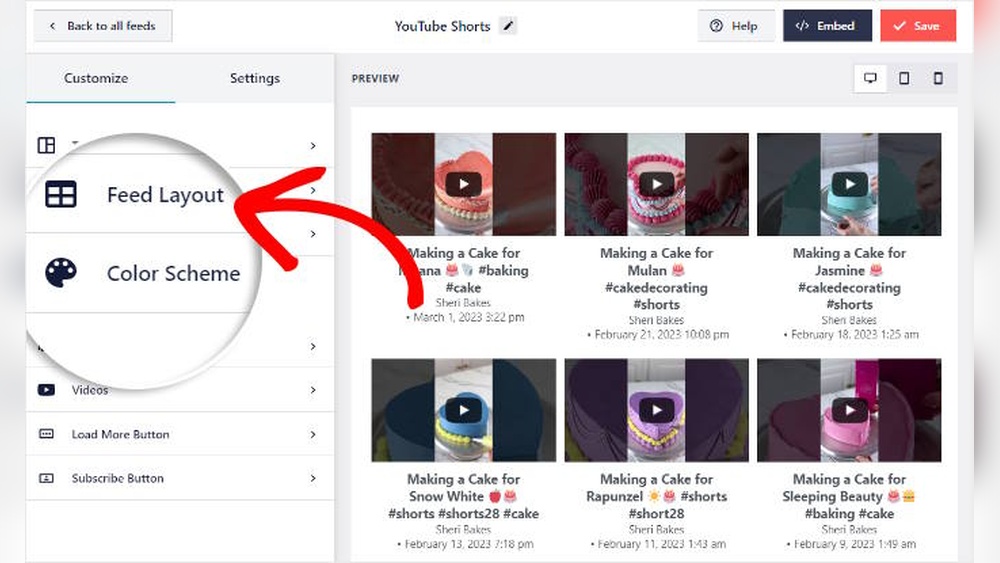
Are you looking to spice up your WordPress site with the latest video trend? You might be wondering, can you embed YouTube Shorts directly into your posts or pages?
If you’ve seen those quick, catchy clips and want to share them easily with your visitors, this guide is exactly what you need. By the end, you’ll know simple steps to add these short videos and keep your audience engaged like never before.
Ready to make your content more dynamic and interactive? Let’s dive in!
Credit: wpmet.com
What Are Youtube Shorts
YouTube Shorts are short, vertical videos on YouTube. They last up to 60 seconds. These videos are designed to be quick and easy to watch. Shorts allow creators to share fast, engaging content. They are similar to TikTok or Instagram Reels. Shorts appear in a special section on YouTube and on users’ home pages.
Key Features Of Shorts
Shorts are vertical videos, perfect for mobile viewing. They can be up to 60 seconds long. Creators use music, text, and filters to enhance videos. Shorts play in a loop automatically. Viewers can swipe up to see the next Short. This format helps videos go viral quickly. Shorts get special exposure on YouTube’s platform.
Why Use Shorts On Your Site
Shorts attract more visitors with quick content. They keep users on your site longer. Short videos can explain ideas fast and clearly. They boost user engagement and interaction. Adding Shorts helps your content stay fresh. Shorts are easy to share on social media. They improve your site’s visibility in search results.
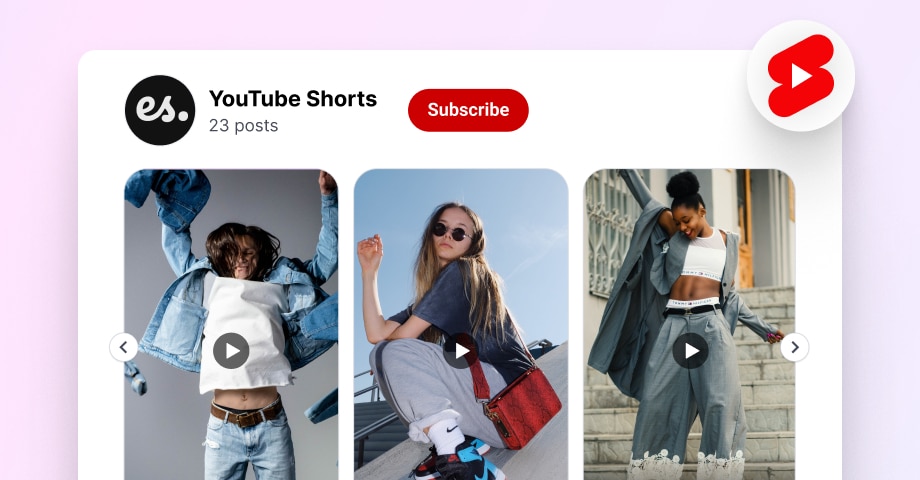
Credit: embedsocial.com
Embedding Basics For WordPress
Embedding YouTube Shorts in WordPress is simple once you know the basics. WordPress supports embedding videos directly, making it easy to share Shorts. Understanding how WordPress handles embeds helps you add videos correctly.
This section explains the key points about embedding Shorts in WordPress. It covers which editors support embedding and the default options available. Learning these basics ensures smooth video integration on your site.
Supported WordPress Editors
WordPress has two main editors: the Classic Editor and the Block Editor (Gutenberg). Both support embedding YouTube Shorts, but the process differs slightly.
The Block Editor allows you to add a YouTube block. Paste the Shorts URL there. The editor automatically converts it into an embedded video.
The Classic Editor requires pasting the URL directly into the content area. WordPress recognizes the link and embeds the video automatically.
Both editors support embedding without needing extra plugins. This makes adding YouTube Shorts quick and easy.
Default Embed Options
WordPress uses oEmbed technology for video embedding. This means simply pasting a YouTube Shorts link turns it into a video player.
The embedded video adapts to your site’s layout. It resizes to fit the content area, ensuring good appearance on all devices.
Embedding via default options does not offer many customization features. You cannot change player controls or autoplay settings without plugins.
Still, the default embed option provides a clean and functional video display. It works well for most basic needs.
Step-by-step Embedding Process
Embedding YouTube Shorts in WordPress is simple and quick. Follow these steps to add short videos easily to your posts or pages. This guide covers both WordPress editors, so you can choose the one you use.
Finding The Short Video Url
First, open YouTube and find the Short video you want to embed. Click the video to play it. Below the video, click the “Share” button. A box will appear with a link. Copy this URL—it is the video’s address. This link works for embedding the Short in WordPress.
Using The Block Editor To Embed
Go to your WordPress dashboard and open the post or page. Click the plus (+) icon to add a new block. Search for the “YouTube” block and select it. Paste the copied URL into the block field. WordPress will load the Short video automatically. Adjust the block settings if needed, then save or publish your content.
Embedding With Classic Editor
Open your post or page in the Classic Editor. Switch to the “Text” tab to see the HTML view. Paste the YouTube Short URL where you want the video to appear. WordPress will convert the URL into an embedded video. Save or update your post to make the Short visible on your site.
Troubleshooting Common Issues
Embedding YouTube Shorts in WordPress usually works well. Sometimes, issues appear that stop videos from showing or playing right. Troubleshooting helps find and fix these common problems fast. This section covers easy solutions for common embedding troubles.
Video Not Displaying
Check the embed code first. Make sure you copied it correctly from YouTube Shorts. Sometimes, the video may be private or deleted. Confirm the video’s visibility on YouTube. Clear your browser cache to remove old data. Disable any WordPress plugins that block scripts or videos. These can stop videos from loading.
Playback Problems
Slow internet can cause videos to buffer or not play. Test the video on a different device or network. Update your browser to the latest version. Outdated browsers may not support YouTube Shorts well. Disable ad blockers that may interfere with video playback. Try changing the video quality settings on YouTube.
Responsive Design Fixes
Sometimes, videos do not resize on mobile devices. Use a responsive embed wrapper around the video iframe. This ensures it fits all screen sizes. Add CSS code to make the video width 100% and height auto. Avoid fixed pixel sizes in the embed code. Test the video on phones and tablets to confirm it looks good.
Enhancing Shorts On Your Site
Adding YouTube Shorts to your WordPress site can make it more dynamic. Visitors see short, engaging videos right on your pages. This keeps them interested and encourages more visits. Enhancing how these Shorts appear improves user experience and site design. Customizing the size and using plugins give you more control over the display. These steps help Shorts fit perfectly with your content style.
Customizing Embed Size
You can change the size of embedded Shorts easily. WordPress allows you to adjust width and height. Smaller sizes work well for sidebars or smaller sections. Larger sizes fit main content areas better. Changing dimensions helps Shorts look balanced on any device. It avoids awkward white space or cramped videos. Use simple code or WordPress block settings to resize. This makes videos clear and attractive to viewers.
Using Plugins For Better Control
Plugins give you extra options for embedding Shorts. They let you customize appearance and behavior. Some plugins add lazy loading to speed up pages. Others offer autoplay or loop controls for videos. These tools make embedding smoother and more professional. Plugins also help manage multiple Shorts on one page. They save time by automating embed processes. Choose plugins that are easy to use and update regularly.
Credit: www.greengeeks.com
Frequently Asked Questions
Can You Embed Youtube Shorts Directly In WordPress?
Yes, you can embed YouTube Shorts in WordPress by copying the Shorts URL. Use the WordPress block editor’s “YouTube” or “Embed” block to paste the link. The Short will display and play just like a regular YouTube video on your site.
What Is The Best Way To Embed Youtube Shorts?
The best way is to use the official YouTube embed code or simply paste the Shorts URL in the WordPress editor. This method ensures fast loading and proper display across devices, keeping your site user-friendly and SEO optimized.
Will Embedding Youtube Shorts Affect Site Speed?
Embedding YouTube Shorts uses YouTube’s player, which loads externally. It may slightly affect page speed but not significantly. Using lazy loading plugins can help reduce any impact on your WordPress site’s performance.
Can I Customize The Appearance Of Embedded Shorts?
YouTube’s default embed options offer limited customization for Shorts. You can adjust size and alignment in WordPress, but advanced styling requires additional CSS or third-party plugins.
Conclusion
Embedding YouTube Shorts in WordPress is simple and effective. It helps you share quick videos with your audience easily. Use the embed code or WordPress block to add Shorts quickly. This keeps your site fresh and engaging for visitors. Short videos can boost interaction and keep readers interested.
Try adding Shorts to your posts and see the difference. Keep your content lively and easy to watch. This small step can improve your site’s appeal. Give it a try today!


