
Are you wondering if it’s safe to delete the error_log file in your WordPress site? That little file can seem confusing and even worrying when you first spot it.
You might be asking yourself, “Will deleting it cause problems? ” or “Is it even necessary to keep it? ” Understanding what this file does and how it affects your website is key to keeping your site running smoothly. Keep reading, and you’ll discover the simple truth about the error_log file and learn exactly what you should do with it.
Credit: assaptr.com
What Is Error_log In WordPress
The error_log file in WordPress keeps track of errors and warnings. It helps site owners and developers find issues quickly. This file records problems like plugin errors, theme conflicts, or server troubles.
Finding the cause of errors is easier with the error_log. It shows exactly when and where problems happen. This information is useful for fixing your website fast.
What Does Error_log Contain?
The error_log contains messages about mistakes or warnings from WordPress. Each entry shows the date, time, and error details. This helps identify the source of the problem.
Where Is Error_log Located?
The error_log file usually lives in the root WordPress folder or inside the wp-content directory. Hosting setups might place it in different locations. You can access it via FTP or your hosting control panel.
How Does Error_log Help?
The error_log helps troubleshoot issues by giving clear error messages. Developers use it to debug code and fix bugs. It also prevents small problems from becoming bigger.
Reasons For Error_log Growth
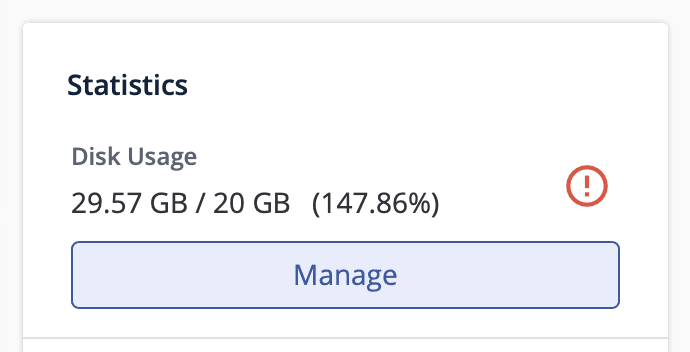
The error_log file in WordPress grows because of repeated errors and warnings. These errors come from different parts of your website. Understanding the reasons for this growth helps you manage the file better. It also helps you keep your site running smoothly and avoid storage problems.
Plugin And Theme Issues
Plugins and themes add features and design to your site. Sometimes, they have bugs or conflicts. These problems create error messages. Each error gets saved in the error_log file. Using outdated plugins or themes can cause more errors. Poorly coded plugins also increase log size. Checking and updating your plugins and themes reduces errors.
Server Configuration Errors
Your server runs the WordPress site. Wrong settings can cause errors. These include permission problems or missing files. Server errors get recorded in the error_log file. Server timeouts or limits also add to errors. Fixing server settings stops error_log from growing fast. Talk to your hosting provider to check server health.
Coding Mistakes
Custom code or edits in WordPress can cause errors. Simple typos or wrong functions create log entries. These coding mistakes appear every time the code runs. Repeated errors quickly fill the error_log file. Careful coding and testing prevent these errors. Use debugging tools to find and fix code problems early.
Risks Of Deleting Error_log
Deleting the error_log file in WordPress carries risks that can affect your site’s health. This log stores essential information about problems your site faces. Removing it may seem like a quick fix, but it can cause bigger issues later.
Loss Of Debugging Information
Error logs help developers find and fix problems. Without this file, tracking errors becomes harder. You lose clues that show what caused a problem. Debugging takes longer and costs more effort.
Potential To Miss Critical Errors
Some errors are small but signal bigger issues ahead. Error logs catch these early warnings. Deleting the log means missing these signals. This can lead to site crashes or security risks.

Credit: www.domains.co.za
Safe Methods To Clean Error_log
Cleaning the error_log file in WordPress helps keep your site organized. Large error logs can slow down your site and use server space. Removing or managing these logs safely avoids losing important error details. Use methods that protect your website’s health and make maintenance easier.
Manually Deleting Via Ftp Or File Manager
Access your website files using an FTP client or your hosting file manager. Locate the error_log file in the WordPress root or wp-content folder. Download a backup before deleting the file. Delete the error_log file safely. WordPress will create a new one if needed. This method is simple but requires care to avoid deleting wrong files.
Using WordPress Plugins
Some plugins help manage or clear error logs automatically. Install a reliable plugin that offers log cleaning features. Use the plugin’s settings to delete or clear error_log files. Plugins reduce manual work and lower risks of mistakes. Choose plugins updated regularly for security and performance.
Setting Up Automatic Log Rotation
Log rotation limits error_log file size by creating new logs after a set time or size. Configure your server or use a plugin for automatic log rotation. This keeps error logs from growing too large. Automatic rotation keeps your server clean without manual intervention. It also helps keep old error data organized for review.
Preventing Excessive Error_log Growth
Preventing excessive error_log growth is important for WordPress sites. Large error logs take up disk space and slow down your site. Managing error logs helps keep your server clean and your site fast. Focus on reducing errors and controlling what gets logged.
Fixing Underlying Issues
Errors fill your error_log file quickly. Find the root cause of these errors. Check for outdated plugins or themes. Look for coding mistakes or conflicts. Fixing these problems stops errors from repeating. This keeps your error_log smaller.
Disabling Debug Mode In Production
WordPress debug mode writes lots of errors to the log. It is useful for development but not for live sites. Turn off debug mode on your live site. This prevents unnecessary errors from filling the log. Use debug mode only on test environments.
Monitoring Server And Site Performance
Keep an eye on your server and site health. Use tools to track errors and performance. Regular checks help catch issues early. Fix problems before they cause large error logs. Good monitoring keeps your site smooth and error-free.
Credit: developerrocket.com
When To Consult A Developer
Deleting the error_log file in WordPress might seem easy. But sometimes, it can hide bigger problems. Knowing when to ask a developer for help saves time and protects your site.
Errors in WordPress can come from many sources. Some errors need a simple fix. Others need deeper knowledge of coding and site structure. A developer knows how to check these issues safely.
Understanding The Cause Of Errors
Developers can find what causes the errors in error_log. They know how to read the log and spot the real problems. This helps stop errors from happening again.
Safe Deletion Of The Error_log File
Sometimes, deleting error_log is not safe. Developers can back up important files first. They make sure deleting the file will not harm your site.
Fixing Recurring Errors
If the error_log keeps growing fast, there might be ongoing issues. A developer can find and fix these issues. This stops the file from filling up and slowing the site.
Improving Site Performance
Errors can slow your WordPress site. Developers use error_log to find slow parts. They help improve your site’s speed and user experience.
Frequently Asked Questions
What Is The WordPress Error_log File?
The error_log file records PHP errors and warnings in WordPress. It helps developers identify and fix issues quickly. This log is essential for troubleshooting site problems and improving performance.
Can I Safely Delete The Error_log File?
Yes, you can delete error_log safely if you don’t need past error records. However, deleting it removes valuable debugging information for developers. It will be recreated automatically when new errors occur.
How Often Should I Clear The Error_log File?
Clear the error_log file periodically to free up server space. Monthly or quarterly deletion is common for most websites. Regular maintenance ensures your logs don’t consume excessive disk space.
Why Does Error_log File Keep Growing Fast?
A rapidly growing error_log indicates persistent errors or misconfigurations in your site. It’s crucial to fix these issues to prevent server overload. Ignoring errors may lead to poor site performance or crashes.
Conclusion
Deleting the error_log file can free up space on your server. But keep in mind, it helps track issues on your WordPress site. Regularly check the file to catch problems early. If the file grows too large, consider clearing it safely.
Always back up before deleting important files. Managing error logs keeps your website healthy and running smooth. Simple steps like these protect your site from bigger troubles later. Stay aware and maintain your WordPress site with care.


