
Are you wondering, “Can I change my WordPress domain name?” If you’ve built your website but now feel the need for a fresh start or a better web address, you’re not alone. Changing your domain name can seem tricky and even risky.
What if you lose your traffic or break your site? Don’t worry—this guide will walk you through everything you need to know. By the end, you’ll feel confident about making the switch without hurting your site’s performance. Ready to discover how simple it can be?
Keep reading!
Credit: wedevs.com
Reasons To Change Your WordPress Domain
Changing your WordPress domain name can be an important step for many website owners. It helps align your site with new goals or fix existing problems. Understanding the reasons behind this change can guide you in making the right decision.
Here are some common reasons why people change their WordPress domain names.
Rebranding And Business Growth
Businesses evolve over time. Sometimes your current domain no longer fits your brand identity. A new domain can reflect changes in products, services, or business focus. It helps present a fresh image to your audience. This change can support your growth and attract new customers.
Fixing Seo And Branding Issues
Old domains may carry SEO baggage or negative associations. Poor rankings or penalties can hurt your site’s performance. Switching to a clean domain can improve search engine results. It also allows you to build a stronger brand name without past issues.
Switching To A More Relevant Domain
Your current domain might be hard to remember or spell. A shorter, clearer domain improves user experience. Choosing a domain that matches your niche makes your site more relevant. This can increase direct traffic and brand recognition over time.
Preparing For Domain Change
Changing your WordPress domain name needs careful planning. It affects your website’s traffic and ranking. Preparing properly helps avoid data loss and downtime. Follow these key steps to get ready for the change.
Backup Your Website
Always back up your entire website before changing the domain. Include all files, databases, and media. Use a reliable plugin or your hosting provider’s backup tool. Keep a copy safe on your computer or cloud storage. This step protects your site from unexpected errors or data loss.
Choose And Register New Domain
Select a new domain that matches your brand and content. Keep it short, easy to remember, and relevant. Check if the domain is available for registration. Use trusted registrars to buy your new domain. Secure it quickly to avoid losing it to others.
Check Domain Compatibility
Ensure the new domain works well with your hosting and WordPress setup. Confirm SSL certificate support for secure connections. Test domain propagation and DNS settings after registration. Check email accounts if you use domain-based emails. Correct compatibility prevents technical issues later.
Changing Domain In WordPress
Changing your domain name in WordPress is a common task. Many site owners do this to rebrand or move to a better URL. The process needs care to keep your site working well. Several steps make sure everything updates properly.
This guide shows three key ways to change your domain in WordPress. Each method helps update your site address safely. Follow these steps to avoid errors and keep your visitors happy.
Update WordPress Address And Site Address
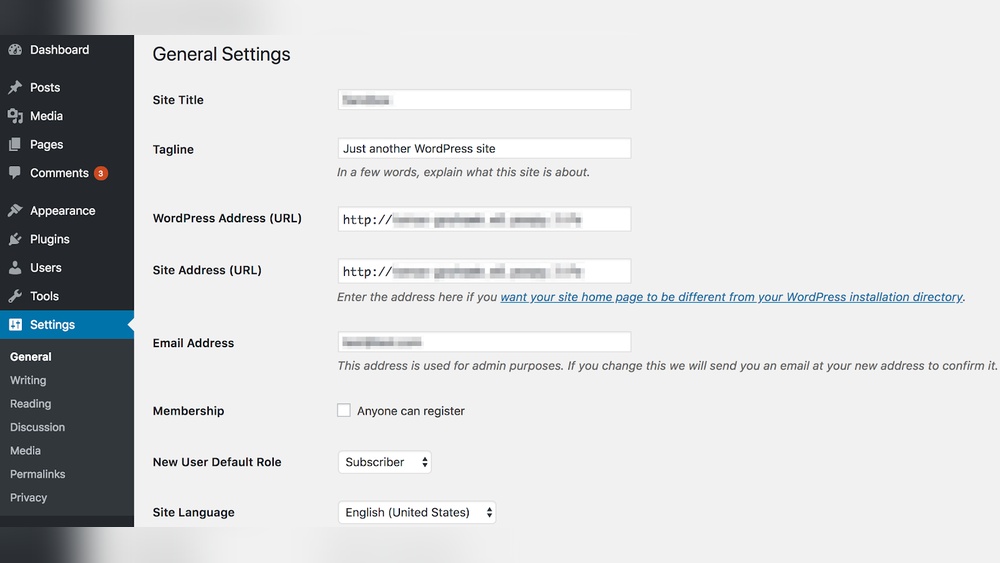
First, log in to your WordPress dashboard. Go to Settings and then General. Find the fields named “WordPress Address (URL)” and “Site Address (URL).” Change both to your new domain name. Save the changes. This tells WordPress where your site now lives.
After this, check your site to see if the domain updates. Clear your browser cache if old pages appear. This step is simple but very important.
Modify Wp-config.php File
The wp-config.php file controls many WordPress settings. You can add two lines here to set your new domain. Use an FTP program or your hosting file manager to open wp-config.php.
Add these lines with your new URL:
define('WP_HOME','http://yournewdomain.com'); define('WP_SITEURL','http://yournewdomain.com');Save the file and upload it back to your server. This forces WordPress to use the new domain. It works even if the dashboard settings don’t update properly.
Adjust Database Urls
WordPress stores your old domain in many database places. These include posts, links, and settings. You must update all these URLs to avoid broken links.
Use a plugin like Better Search Replace or a database tool. Search for the old domain and replace it with the new one. This process updates every instance of the old URL.
Back up your database before making changes. This protects you from accidental errors. After updating, check your site for missing images or links.
Handling Redirects And Seo
Changing your WordPress domain name affects your website’s traffic and search rankings. Properly handling redirects and SEO keeps your visitors and search engines happy. It guides users to your new site and preserves your SEO strength.
Set Up 301 Redirects
301 redirects send visitors from your old domain to the new one automatically. This tells search engines your site has moved permanently. Use a plugin or edit your .htaccess file to create these redirects. Each old URL should point to the matching new URL. This helps keep your SEO value and avoids broken links.
Update Google Search Console
Google Search Console tracks your site’s performance in search results. Add your new domain as a new property in Search Console. Use the Change of Address tool to notify Google about the domain switch. Submit new sitemaps to help Google crawl your updated site faster. This keeps your SEO data accurate and helps maintain rankings.
Notify Users And Update Links
Tell your visitors about the domain change. Use blog posts or emails to inform them. Update all internal links on your site to the new domain. Also, update links on social media and other websites you control. This improves user experience and avoids confusion. It also helps search engines index your new domain correctly.
Testing And Troubleshooting
After changing your WordPress domain name, testing and troubleshooting are key steps. These steps ensure your site works well and visitors have a good experience. Careful checks help avoid errors and keep your site healthy.
Check Website Functionality
Test all pages on your website. Make sure they load quickly and display correctly. Try submitting forms and using search features. Confirm plugins and themes work with the new domain. Check mobile and desktop versions for consistency.
Fix Broken Links And Images
Look for links that do not work or lead to old URLs. Update these links to the new domain. Check images to ensure they appear properly. Use tools or plugins to find and fix broken links fast. This keeps visitors from facing errors.
Monitor Traffic And Rankings
Watch your website’s traffic closely after the change. Note any drops or unusual patterns. Track search engine rankings for your main keywords. Use Google Analytics and Search Console for data. Act quickly if you see negative trends.

Credit: wordpress.com
Tools And Plugins To Simplify Process
Changing your WordPress domain name can seem hard. Tools and plugins make the task easier. They help update links, move your site, and keep SEO intact. Using the right tools saves time and prevents mistakes. Below are some helpful plugins to use.
Using Search And Replace Plugins
Search and replace plugins help update all old domain links. They scan your database for old URLs. Then, they replace them with the new domain. This keeps internal links working perfectly after the change. These plugins are simple and fast. They reduce manual work and avoid broken links.
Migration Plugins For Domain Change
Migration plugins move your entire website to a new domain. They copy files, databases, and settings. These plugins handle complex tasks automatically. They ensure your site works well on the new domain. Migration plugins are ideal for large sites. They lower the risk of errors during the move.
Seo Plugins For Redirect Management
SEO plugins help create redirects from old URLs to new ones. Redirects prevent losing visitors and search rankings. They guide users and search engines to the right pages. SEO plugins make managing redirects easy. They also track broken links and fix them quickly.
Credit: www.hostinger.com
Frequently Asked Questions
Can I Change My WordPress Domain Name Easily?
Yes, you can change your WordPress domain name by updating settings and migrating files. It requires careful steps to avoid downtime or SEO loss.
What Happens To Seo After Changing WordPress Domain?
Changing your domain can affect SEO temporarily. Use 301 redirects and update backlinks to maintain rankings and traffic.
How Do I Update Urls After Changing Domain?
You must update WordPress settings, database URLs, and internal links. Tools like plugins can automate this process efficiently.
Is Changing Domain Name Free On WordPress?
Changing domain name itself is free, but buying a new domain and hosting may incur costs. Some services might charge fees.
Conclusion
Changing your WordPress domain name is possible with some careful steps. Prepare your site by backing up all files and data first. Update settings in WordPress and your hosting provider. Don’t forget to check links and images after the change.
Take time to test your site for any errors. A domain change can improve your brand or site focus. Just follow the process slowly and carefully. Your website will be ready with the new domain soon. Stay patient and watch your site grow with the new name.


