
You’ve just purchased a WordPress theme. Exciting, right?
You’re probably imagining the slick, professional look your website will soon have. But then, you pause. What do you do next? How do you transform this freshly bought theme into a fully functioning website that reflects your vision and captivates your audience?
Relax, you’re not alone. Many people find themselves in this exact situation, feeling both thrilled and overwhelmed. The good news is that with a few strategic steps, you can streamline the process and have your site up and running smoothly. Are you ready to turn your theme into the perfect digital showcase for your ideas or business? Let’s dive into the essential steps you need to take to make it happen.
Setting Up Your WordPress Environment
Start by downloading WordPress from the official site. Make sure the version is the latest. Extract the files to your computer. Upload them to your server using an FTP client. Run the installer by going to your domain name. Follow the steps on the screen. Enter your database information. Create a username and password. Now, WordPress is ready to use.
Find a good hosting provider. Some popular ones include Bluehost, SiteGround, and HostGator. Check the plans they offer. Look for features like 24/7 support and free backups. Choose a plan that fits your needs. Make sure it supports WordPress. Sign up and get your hosting account ready.
Log in to your domain registrar. Go to the domain management section. Update the DNS settings to point to your hosting. This connects your domain to your website. It might take a few hours to update. Check if your site is live by typing your domain in the browser. If it works, your setup is complete.
Uploading Your Theme
Log in to your WordPress account. Find the dashboard on the left side. It helps you manage your site. Click on Appearance. It’s where themes live. Make sure you see the Themes option.
Select Add New under Themes. Choose Upload Theme at the top. Click on Choose File. Pick your theme file. Press Install Now. Wait for the upload to finish. It’s quick if your file is small.
Find your new theme under installed themes. Click on Activate. Your theme is now live. Visit your site to see changes. Adjust settings if needed. Themes can alter the look and feel.
Customizing Your Theme
The Customizer Tool helps you make your site unique. Open the tool from your WordPress dashboard. You can change colors and fonts with ease. Preview changes before saving them. This way, you see how they look first.
Change your website’s layout to fit your needs. Select from many options available in the theme. You can move sections around. Make sure your layout is easy to read. Visitors will enjoy a clear and simple design.
Add your site’s name and tagline in the settings. Upload your logo for brand identity. Ensure the logo size fits well on the page. A clear logo helps users remember your site. You can also add a site icon. This small image appears in browser tabs.
Enhancing Functionality With Plugins
Plugins add cool features to your WordPress site. Some plugins are very important. Security plugins keep your site safe. SEO plugins help people find your site. Backup plugins save your site data. This is very helpful. Contact form plugins let visitors send you messages. Adding these plugins makes your site better.
Installing plugins is easy. Go to your WordPress dashboard. Click on “Plugins”. Search for the plugin you need. Click “Install” and then click “Activate”. Now, the plugin is ready to use. Install one plugin at a time. This helps avoid problems.
After activation, check the settings. Each plugin has different settings. You can find these under the plugin name. Change the settings to suit your needs. Read instructions for each plugin. This helps you understand better. It keeps your site running smoothly. Keep plugins updated. This is very important.
Adding Content To Your Site
Start by making new pages. Click on “Pages” in your dashboard. Add a title. Write your content. Remember, short sentences are best. For posts, go to “Posts”. Add a title. Write your story. People love stories. Use simple words. They are easy to understand.
Menus help people find things. Go to “Appearance”. Click “Menus”. Add pages to your menu. Drag and drop them. Make sure important pages are easy to find. People like simple menus. They make navigation easy.
Images make your site fun. Click “Add Media”. Choose a picture. Add it to your page. Videos are great too. Click “Add Media”. Upload a video. People love watching videos. Remember, pictures and videos should be clear. They help tell your story.
Optimizing For Performance
Faster websites attract more visitors. Speed is crucial. Reduce the time it takes to load. Use tools to analyze speed. Make changes based on results. A quicker site keeps users happy.
Caching helps speed up websites. It stores data for quick access. Install a caching plugin in WordPress. This saves time. Visitors see content faster. Improve website efficiency with caching. It is simple and effective.
Large images slow down sites. Optimize them to load faster. Use smaller file sizes. Choose the right format. Scripts can also lag websites. Minimize and compress them. Keep your site running smoothly. Faster sites are more engaging.
Ensuring Security And Backup
WordPress needs protection. Security plugins help keep it safe. They block hackers. Some popular plugins are Wordfence and Sucuri. They stop threats before they reach your site. Updating these plugins is important. It keeps protection strong.
Backing up your site is a must. Regular backups save your data. Use tools like UpdraftPlus. They make backup easy. Store backups in different places. Try cloud storage or external drives. This way, data is safe if something goes wrong.
Monitoring your site is key. Vulnerabilities can harm your site. Use tools to check for weaknesses. Security plugins often have monitoring features. They alert you about threats. Always keep an eye on updates. This helps fix vulnerabilities quickly.

Credit: wpthemego.com
Seo And Analytics Setup
SEO plugins help your site rank better. Start with Yoast SEO or All in One SEO. These plugins are popular and easy to use. They will guide you to optimize your posts. They also help with meta descriptions and keywords. Install one and follow the setup wizard. This makes your site more search engine friendly.
Analytics tools show how visitors use your site. Google Analytics is a good choice. It tracks user behavior. Create an account and link it to your site. Use the plugin MonsterInsights for easy setup. This plugin simplifies the process. It shows data inside your WordPress dashboard. Track visits, bounce rate, and more.
Metrics show how well your site performs. Look at page views and unique visitors. Check the bounce rate to see if users stay. Monitor your site’s loading speed. Fast sites rank better. Use tools like Google PageSpeed Insights. They help you improve speed. Regularly review these metrics to keep improving.
Launching Your WordPress Site
Check all your website pages. Ensure they load quickly. Fix any broken links. Review images for correct display. Confirm that all forms work. Test your site on different devices. Make sure it looks good everywhere. Double-check your content for mistakes. Read everything out loud. It helps catch errors.
Share your site on social media. Tell friends and family. Ask them to visit your site. Write a post about it. Include a link to your site. Join online groups related to your site topic. Share your site there too. Use simple words to describe your site. Make it easy for people to understand.
Respond to comments on your site. Thank visitors for their feedback. Ask them questions to keep them talking. Create a newsletter. Share updates with your audience. Offer helpful tips in your emails. Keep your audience interested. Post new content regularly. Encourage visitors to return often.
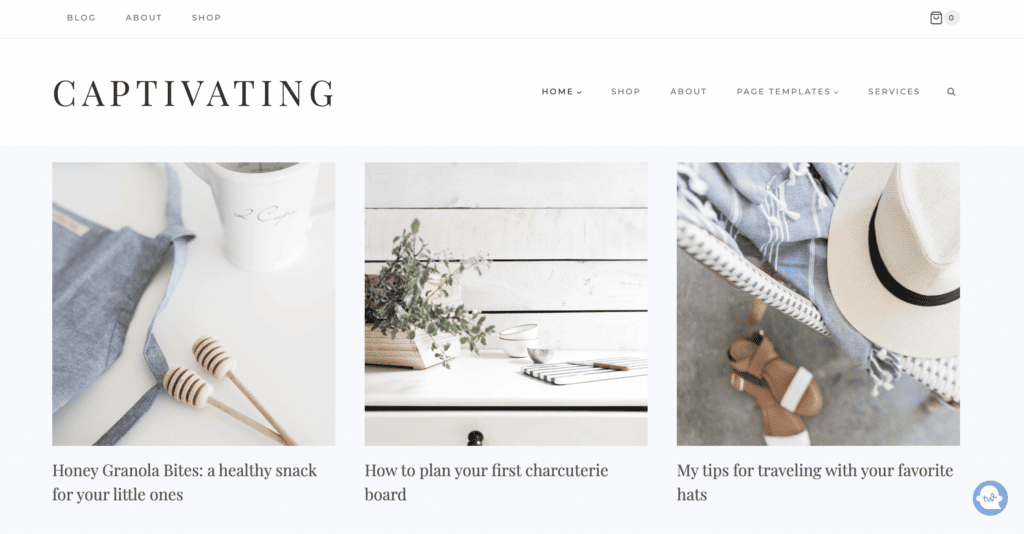
Credit: thesheapproach.com
Credit: themeforest.net
Frequently Asked Questions
How To Install A WordPress Theme?
To install a WordPress theme, log into your WordPress dashboard. Navigate to ‘Appearance’ and select ‘Themes’. Click ‘Add New’, then ‘Upload Theme’. Choose the downloaded theme file from your computer and click ‘Install Now’. Once installed, activate it to apply the theme to your site.
What To Do After Theme Installation?
After installing your theme, customize it to suit your brand. Go to the ‘Customizer’ under ‘Appearance’ in your dashboard. Adjust settings like colors, fonts, and layout. Ensure plugins are compatible with your theme. Test the site’s responsiveness and speed. Finally, review all pages to ensure they display correctly.
How To Customize My WordPress Theme?
To customize your WordPress theme, go to ‘Appearance’ and select ‘Customize’. You’ll find options to change site identity, colors, fonts, and layout. Use widgets to add functionality and plugins for additional features. Always preview changes before publishing. Ensure your customizations align with your brand and enhance user experience.
Why Is A Child Theme Important?
A child theme allows safe customization of your WordPress site. It inherits the functionality of the parent theme without affecting its core files. This means updates to the parent theme won’t overwrite your customizations. It’s crucial for maintaining custom changes while keeping your theme updated and secure.
Conclusion
You’ve bought a WordPress theme. What’s next? Time to customize! Start by installing your theme. Adjust colors and fonts to match your brand. Add essential plugins for functionality. Create engaging content to attract visitors. Optimize your site for search engines.
Keep an eye on performance and speed. Regularly update your theme and plugins. Backup your site to avoid data loss. Make sure your site is mobile-friendly. Test everything before going live. Engage with your audience through comments. Monitor analytics to track success.
With these steps, you’re on your way to a great site!


