
Are you looking to refresh the appearance of your WordPress site? Changing the banner in your WordPress theme can instantly transform your site’s look and feel, capturing the attention of your visitors.
Imagine a vibrant, eye-catching banner that not only tells your story but also keeps your audience engaged from the very first glance. In this guide, we’ll walk you through the simple steps to update your WordPress banner effortlessly. You’ll discover how easy it is to make a striking impact on your website without needing advanced technical skills.
So, let’s dive in and unleash the potential of your website’s visual appeal!
Credit: www.theblogstarter.com
Choosing The Right Theme
Check if the theme supports custom banners. Some themes limit changes. Look for themes with flexible options. Ensure the theme is responsive. This means it looks good on all devices. Test the theme on different screens. You want a theme that works everywhere. Consider the theme’s updates and support. Regular updates keep your site safe. Support helps if you face issues.
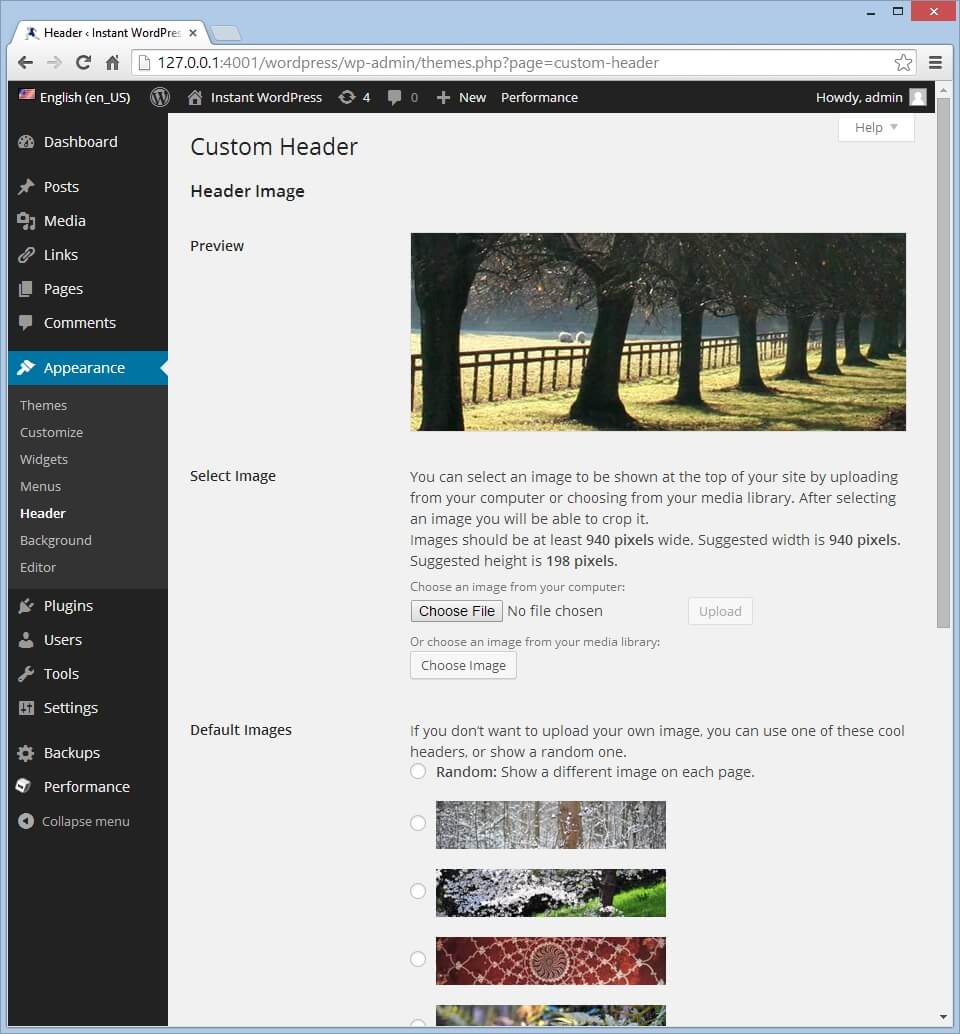
Explore the theme options panel. This is where you change the banner. Look for upload buttons for images. Many themes have this feature. Check for banner size settings. This helps fit the banner perfectly. Some themes allow text over banners. Try adding a call-to-action or slogan. Always save changes after editing. This ensures your banner updates on the site.
Credit: www.inmotionhosting.com
Locating The Banner Section
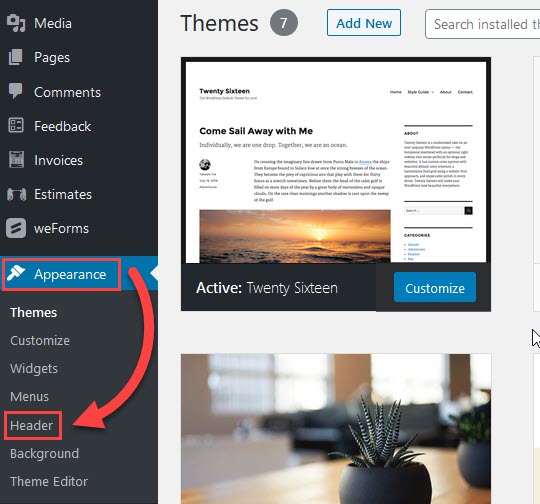
First, find the Appearance tab in your WordPress dashboard. Click on Customize to open the theme customizer. Look for a section labeled Header Image or Banner. This section controls the banner. Click on it to see options for changing the banner. You can upload a new image or choose one from the media library. Save changes to see the new banner on your site.
Open the Appearance tab and select Theme Editor. Find the header.php file. This file often contains the banner code. Use caution when editing code. Look for image tags or divs related to the banner. Replace the image URL with the new one. Save the file to update the banner. Make sure you have a backup before editing theme files.
Preparing Your New Banner
Start by creating a unique banner. This will make your site special. Choose colors that match your theme. Use simple shapes and clear text. This helps visitors understand your message. Try using an online design tool. These tools make design easy. Many of them are free to use.
Check your theme’s recommended size for banners. This size ensures the banner fits well. A common size is 1200 pixels wide. The height can vary, often around 600 pixels. Keep the file size small. This helps your site load fast. Use image formats like JPEG or PNG. They are web-friendly and look good.
Credit: www.elegantthemes.com
Uploading The Banner
First, open the WordPress dashboard. Click on Media and then Add New. Here, you can choose the banner image you want. Drag and drop the file, or use the Upload button. Wait for the upload to finish. After that, find the image in the media library. Click on the image to open it. Copy the URL of the image. You’ll need this for the next step.
Go to the Appearance section in the dashboard. Click on Customize and find the Header option. There, you’ll see a place to add your banner. Paste the image URL you copied earlier. Click on Save & Publish. Your new banner should now be visible on your site.
Applying Changes In The Theme
First, login to your WordPress dashboard. Go to Appearance and click on Customize. Find the option for Header or Banner. This is where you will change the image.
Upload the new banner image. Make sure it is the right size. Sometimes, resizing might be needed. Check the recommended dimensions for your theme. This ensures the image fits well.
Before making the banner live, it’s good to preview it. Click on the Preview button. This shows how your site looks with the new banner. Adjust if necessary. This step helps avoid mistakes.
Once satisfied, click on Publish. Your new banner is now on the site. Enjoy the fresh look!
Troubleshooting Common Issues
Sometimes, the banner does not show. First, check if the banner image is uploaded. Look in the media library. If the image is there, check your theme settings. Make sure the right image is selected. Also, verify that the image size is correct.
Clearing your browser cache can fix problems too. If you still have trouble, deactivate plugins one by one. Some plugins can cause conflicts. Lastly, ensure your theme is up-to-date. An outdated theme may cause display issues.
Banners may not line up right. Check your theme’s CSS settings. Sometimes padding or margin values are too large. Adjust these values for better alignment. If the problem persists, use a custom CSS code. Add it in the WordPress customizer.
Ensure your image size fits the banner area. If too big or small, it won’t align well. Also, look at the theme’s documentation. It may offer extra tips on alignment.
Enhancing Banner Design
Incorporating Call to Action can make your banner more effective. Use simple words to prompt users. Phrases like “Click Here” or “Learn More” work well. Place the call to action at the center. Make it easy to see. Choose a color that stands out. This attracts the user’s attention.
Adding Animation or Effects can make the banner lively. Simple animations like a slide or fade effect work best. These animations grab the viewer’s eye. Keep animations subtle. Too much movement can be distracting. Always test the effects on different devices. Ensure they work on phones and tablets. This ensures everyone can see your design.
Frequently Asked Questions
How Do I Change The Banner In WordPress?
Go to your WordPress dashboard and select “Appearance” and then “Customize. ” Choose “Header” or “Header Media. ” Upload your new banner image, and save changes. Ensure the image size matches your theme’s requirements for optimal display.
How Do I Change The Header On My WordPress Theme?
Go to your WordPress dashboard and navigate to Appearance > Customize. Select ‘Header’ or ‘Site Identity’ to modify. Save changes. For further customization, consider editing header. php or using a page builder plugin. Always back up your site before making changes.
How Do I Edit The Top Bar On A WordPress Website?
Navigate to the WordPress dashboard, select “Appearance,” then “Menus” or “Customize. ” Edit the top bar settings. Save changes.
How Do I Add A Banner On WordPress?
Add a banner in WordPress by using a plugin like “Simple Banner. ” Install and activate the plugin. Customize your banner in the plugin settings. You can also use the “Appearance” menu, choose “Widgets,” and add a banner image to a widget area.
Save changes to display your banner.
Conclusion
Changing a banner in WordPress is simple with these steps. First, navigate to your theme’s customization settings. Here, locate the header or banner section. Upload your new banner image. Adjust the size to fit your theme. Always preview changes before saving.
This ensures the banner looks good on your site. Remember, a captivating banner enhances your website’s appeal. Regular updates keep your site fresh and engaging. With practice, these changes become quick and easy. Now, enjoy a refreshed look for your WordPress site.
Happy customizing!


