
Are you tired of the same old font on your WordPress site? Want to give your blog a fresh and unique look?
Changing the theme font in WordPress is easier than you might think, and it can completely transform the feel of your website. Imagine how your content will shine with a font that perfectly matches your brand’s personality. Whether you’re looking to make a bold statement or keep things clean and professional, the right font can make all the difference.
In this guide, you’ll discover simple steps to customize your font, even if you’re not a tech wizard. Let’s dive in and unlock the full potential of your WordPress site!
Credit: www.inmotionhosting.com
Accessing WordPress Dashboard
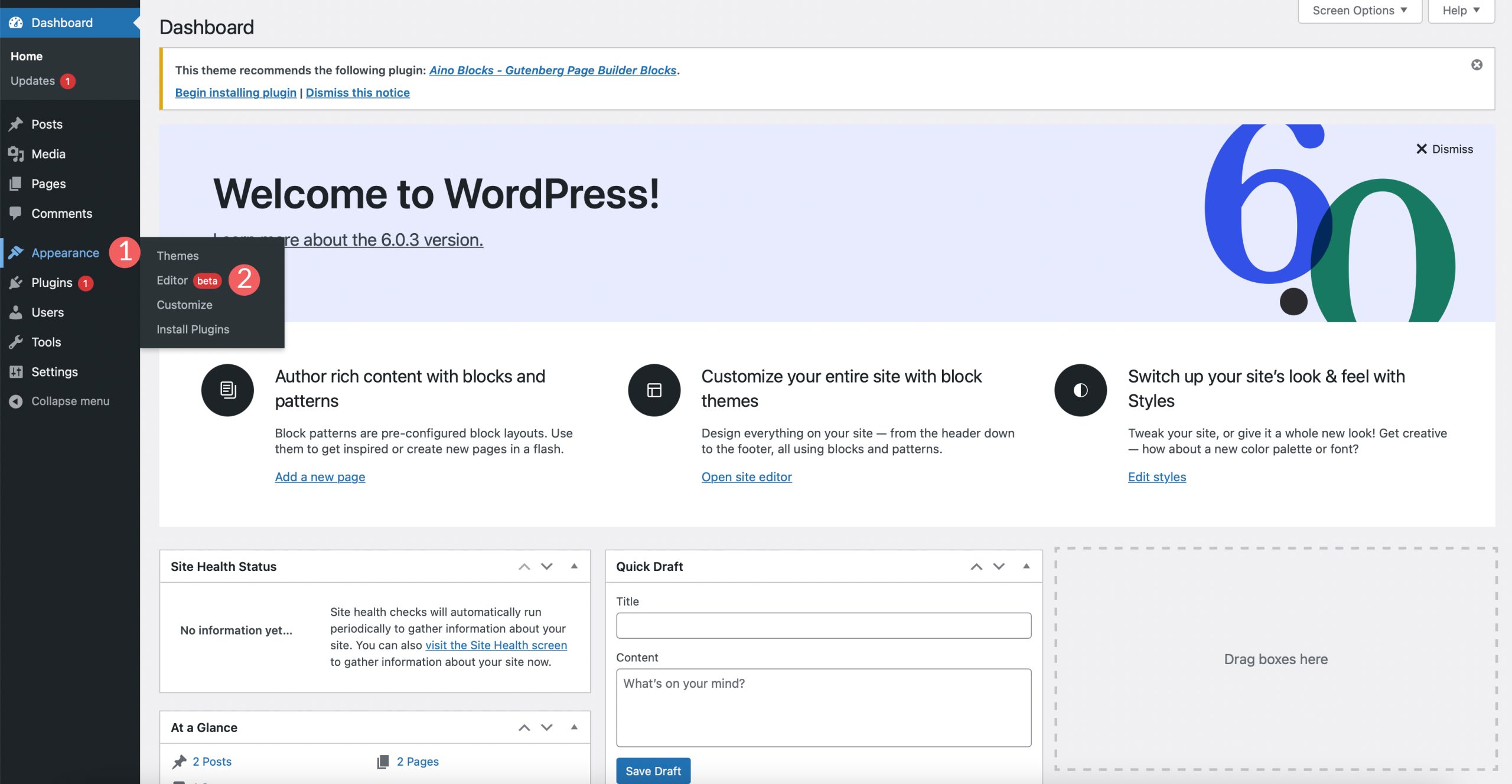
First, log in to your WordPress Dashboard. This is the control center. Use your username and password to enter. Once inside, you will see many options. Look for the Appearance tab on the left side. Click on it. Now, you are in the Appearance section. Here, you can change the look of your site. Find the Theme Options or Customize option. Sometimes, it’s called Customize. Click on it to open. This section lets you change fonts, colors, and more. Explore all available settings. Make sure to save any changes. Your site will look great with new fonts.
Locating Theme Customizer
First, go to your WordPress dashboard. Find the Appearance section on the left. Click on it. You will see Theme Customizer. Select it. The customizer helps you change your theme’s look. Now, you can explore different options. You can change colors and fonts. Make your site unique. The customizer is user-friendly. It’s easy to use. Even kids can do it.
Look for the Typography option. It might be there. Some themes have this feature. Others might not. If you see it, click on it. You can change font style and size. Experiment with different fonts. Find the one you love. Save changes once done. Your site will look different now.
Navigating To Typography Settings
Start by logging into your WordPress dashboard. Look for the Appearance section on the left menu. Click on Customize. You will see different options for your theme. Find the Typography or Fonts section. This is where you can change your theme’s font.
Some themes may have different names for font settings. If you can’t find it, check the theme’s documentation. Changing fonts can make your site look unique. It can also help with readability. Experiment with different fonts to find the best one for your site.
Choosing The Right Font
Fonts can change the look of your WordPress site. They make it unique and readable. There are many font choices available. Google Fonts is a popular choice. It offers a wide range of styles. You can find fonts that suit different moods and themes. Some fonts are simple. Others are fancy or bold.
Readability is key when picking a font. Fonts should be easy to read. Avoid fonts with curly or thin letters. These can be hard to read. Test different fonts before deciding. Check how they look on mobile devices. Pick a font that looks good everywhere.
Implementing Font Changes
Changing the font in your WordPress theme can be simple. First, go to your theme customizer. This is found under the Appearance menu. Click on Customize. Look for the Typography section. Here, you can choose new fonts. Pick a style that you like. Make sure it matches your website’s feel. Save your changes before leaving.
Some themes may not have direct font options. Use a plugin instead. Plugins like Easy Google Fonts are helpful. Install and activate it. Go back to the customizer. You will see new font choices. Experiment with different fonts. Don’t forget to save. Your website will now have a fresh look!
Credit: themeisle.com
Using Additional Plugins
Changing your WordPress theme font becomes easy with additional plugins. Choose a plugin, install it, and explore customization options to adjust font style and size effortlessly. This straightforward method enhances your website’s aesthetic without technical skills.
Popular Font Plugins
Many plugins can change your WordPress theme font. Google Fonts plugin is popular. It offers a wide range of fonts. Easy Google Fonts is another choice. It helps you customize fonts easily. Fontsy plugin provides unique fonts. Choose based on your needs. Each plugin has unique features. Check reviews before installation.
Installing A Plugin
First, visit your WordPress dashboard. Find the Plugins section. Click on Add New. Search for your desired font plugin. Click Install once you find it. After installation, activate the plugin. Follow on-screen steps to change fonts. Always backup your site before changes. This ensures safety if problems occur. Enjoy your new theme fonts!
Custom Css For Advanced Users
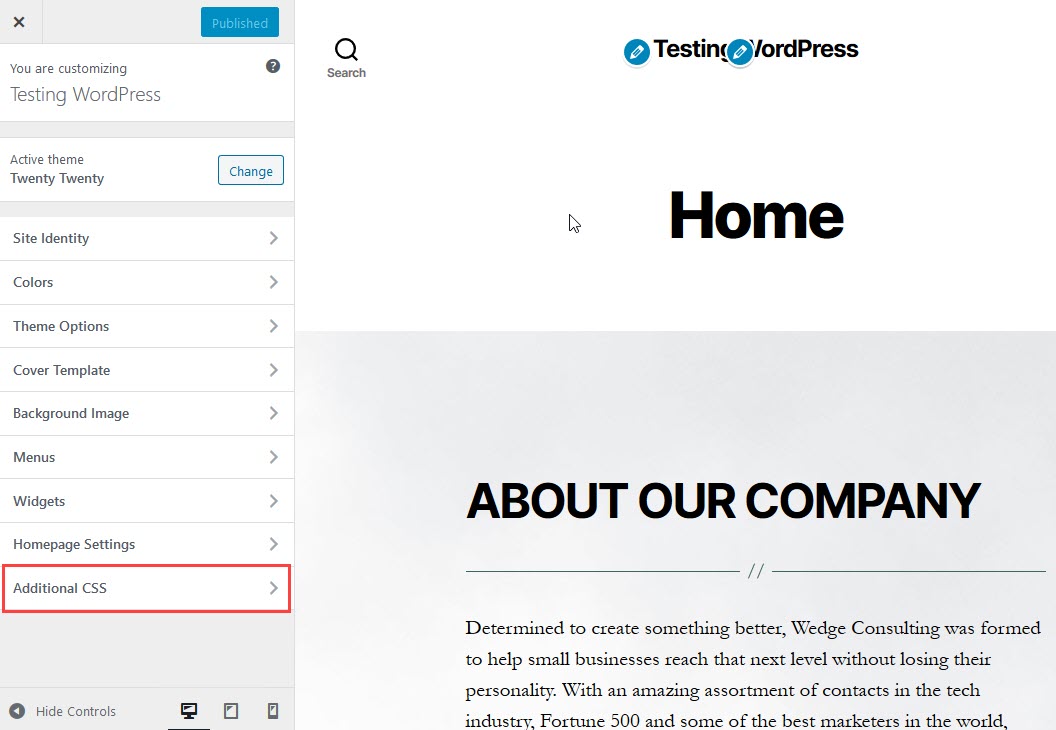
Custom CSS empowers advanced users to modify the theme font in WordPress. Access the WordPress dashboard and navigate to Appearance, then Customize. Add CSS code to change your site’s typography, tailoring the design to your preference.
Accessing Custom Css
Find the WordPress Customizer in the dashboard. Click on Appearance, then Customize. Search for Additional CSS in the menu. This section allows adding custom styles.
Writing Css For Fonts
Choose a font style using CSS. Use the font-family property. Example: font-family: ‘Arial’, sans-serif; This changes the text style. Set the font-size to adjust text size. Example: font-size: 16px;
Control text weight using font-weight. Example: font-weight: bold; To change text color, use color. Example: color: #000000; Explore more properties for advanced styling.
Testing And Previewing Changes
Testing your font changes is crucial. First, go to your WordPress dashboard. Find the Appearance section. Click on Customize. Here, you can see your changes instantly. Ensure everything looks good. Check every page carefully. Make sure text is readable. Check different devices too. A phone might show fonts differently. Previewing helps catch errors early. Make adjustments if needed. Your site should look professional. Visitors love clean and readable fonts. Keep testing until satisfied.
Troubleshooting Common Issues
Changing the theme font in WordPress can be tricky. Access the Theme Customizer or use Custom CSS for adjustments. Ensure compatibility with your theme and test changes thoroughly for best results.
Fonts Not Displaying
Sometimes, fonts may not appear correctly on your WordPress site. This can happen due to compatibility issues with the theme or plugins. First, check if your chosen font is available in your theme options. Use the WordPress Customizer or theme settings to look for font selections.
If the font is still missing, clear browser cache. Cached files may cause display errors. Try refreshing the page after clearing cache. Another solution is to check plugin conflicts. Some plugins can interfere with font display. Disable plugins one by one. See if the font appears after disabling each one. Re-enable plugins that do not affect fonts.
Resolving Compatibility Problems
Sometimes, themes may not support all fonts. Choose fonts that are widely compatible. Google Fonts are a good option. They work well with most themes. Ensure your theme’s CSS files are up to date. Outdated files can cause compatibility issues. Update your theme regularly to fix problems.
Consider using custom CSS for more control. Add custom font styles in your theme’s custom CSS section. This allows you to override default settings. Always backup your site before making changes. This will help you recover if something goes wrong.
Credit: www.elegantthemes.com
Tips For Selecting Fonts
Maintaining brand consistency is crucial for your website’s look. Use fonts that match your brand’s style. This keeps your site looking professional. Choose fonts that reflect your brand’s personality. Consistent fonts help users recognize your brand easily. Different fonts can confuse visitors. Stick to one or two fonts for clarity.
Balancing style and functionality is important. Pretty fonts can be hard to read. Choose fonts that are easy to read. Avoid fancy fonts for long texts. Simple fonts work best for reading. Keep the balance between style and readability. Fonts should look good but be user-friendly. A well-chosen font makes your content clear and attractive.
Frequently Asked Questions
How Do I Change Theme Fonts In WordPress?
Change WordPress theme fonts using the Customizer or a plugin. Access Customizer via Appearance > Customize. Select “Typography” for font settings. Alternatively, install a font plugin like Easy Google Fonts for more options. Save changes to update your site’s font style instantly.
How Do I Change The Font On My Theme?
To change your theme font, access the theme settings in your website’s dashboard. Navigate to the typography section, select your preferred font, and save changes. If needed, use custom CSS for more advanced adjustments. Always preview changes to ensure compatibility and appearance.
How To Change WordPress Theme Text?
Access the WordPress Dashboard. Navigate to Appearance > Editor. Select the file containing the text. Edit and save changes. Use a child theme for customizations to preserve changes after updates.
How Do I Change The Style Of My WordPress Theme?
Access your WordPress dashboard. Go to Appearance > Customize. Use the built-in options to modify your theme’s style. For advanced changes, edit the CSS under Additional CSS. Always preview changes before publishing.
Conclusion
Changing your WordPress theme font is simple and effective. It helps create a unique look for your site. Start by accessing the WordPress dashboard. Navigate to the theme customizer. Select the typography settings. Choose the font that fits your style.
Preview the changes to ensure satisfaction. Save your work to apply the new font. A new font can enhance readability and design. It keeps your audience engaged and interested. Remember, fonts influence the overall feel of your website. Experiment with different styles.
Find the perfect fit for your brand. Your site’s personality will shine through.


