
Are you feeling overwhelmed with your WordPress theme settings? Perhaps you’ve made a few tweaks and things didn’t turn out as expected, or maybe you just want a fresh start.
Resetting your theme settings can seem daunting, but it doesn’t have to be. Imagine the relief of starting over with a clean slate, knowing you can redefine the look and feel of your site effortlessly. In this guide, we’ll walk you through the simple steps to reset your theme settings in WordPress, ensuring you regain control and confidence in your website’s design.
Discover how this straightforward process can enhance your creativity and bring your vision to life without the frustration of tangled settings. Let’s dive in and unlock the potential to transform your WordPress experience.

Credit: wpmudev.com
Accessing The WordPress Dashboard
First, open your browser and go to your WordPress login page. Enter your username and password to log in. Once logged in, you’ll see the WordPress Dashboard. This is the main area for managing your site. On the left side, there’s a menu with different options. Look for the Appearance tab. Click on it to see more options. This is where you can manage your theme settings. Always make sure to save changes. If you need help, check the Help tab in the upper corner. You can find useful tips there.
Locating Theme Settings
Begin by logging into your WordPress dashboard. The dashboard is your main control panel. Look for the Appearance tab on the left side. Click on it to see more options. Next, find and click on Customize. This will open the theme settings area. You can see many options here. Each option lets you change a part of your site. It’s like a toolkit for your theme. Take your time to explore these settings. Make sure to note any changes you make. This helps if you want to undo something later. Always remember to save your settings. Look for the save button at the top. It keeps your changes safe.
Backup Current Settings
Before changing any theme settings, it’s wise to backup current settings. This helps if something goes wrong. Start by accessing your WordPress dashboard. Find the “Tools” section and click on “Export”. This will allow you to save your current theme settings. You can choose to export all content or just specific parts. Download the export file to your computer. Store it in a safe place. You might need it later.
Some themes have an in-built backup option. Check if yours has this feature. If available, use it to save the settings directly. This can be easier and faster. Remember, having a backup is always a smart move.
Using Theme Customizer
Explore resetting theme settings in WordPress using the Theme Customizer. Navigate to Customizer, find the reset option, and click. This restores default settings without affecting your content. Make sure to review changes before saving.
Navigating To Customizer
Open the WordPress dashboard. Find the ‘Appearance’ option. Click on it. Look for ‘Customize’. This opens the theme customizer. It lets you see changes live. It is easy to use. You can change many things here. Choose what you want to change. Look around. You will see many options. It is like a big toolbox. Everything you need is here.
Reset Options In Customizer
Find the reset button. It is usually at the bottom. Click it to start fresh. All changes go back to default. Be careful. You lose all your custom settings. Use this when things go wrong. It helps fix big mistakes. Keep your site safe. Always double-check before clicking. Some themes have extra reset options. Look for them. They can be helpful. They offer more control.
Resetting Through Theme Options
Finding Theme Options is the first step. Open your WordPress dashboard. Go to Appearance then click Customize. This is where you adjust your theme. Look for a tab labeled Theme Options or similar. Different themes may have different names. It’s usually easy to spot.
Selecting Reset Option comes next. Within the Theme Options, find the Reset button. It might be under a Settings tab. Or, it could be at the bottom of the page. Click the Reset button carefully. You may get a warning message. This is normal. Confirm your choice to reset. Your theme will return to default settings.
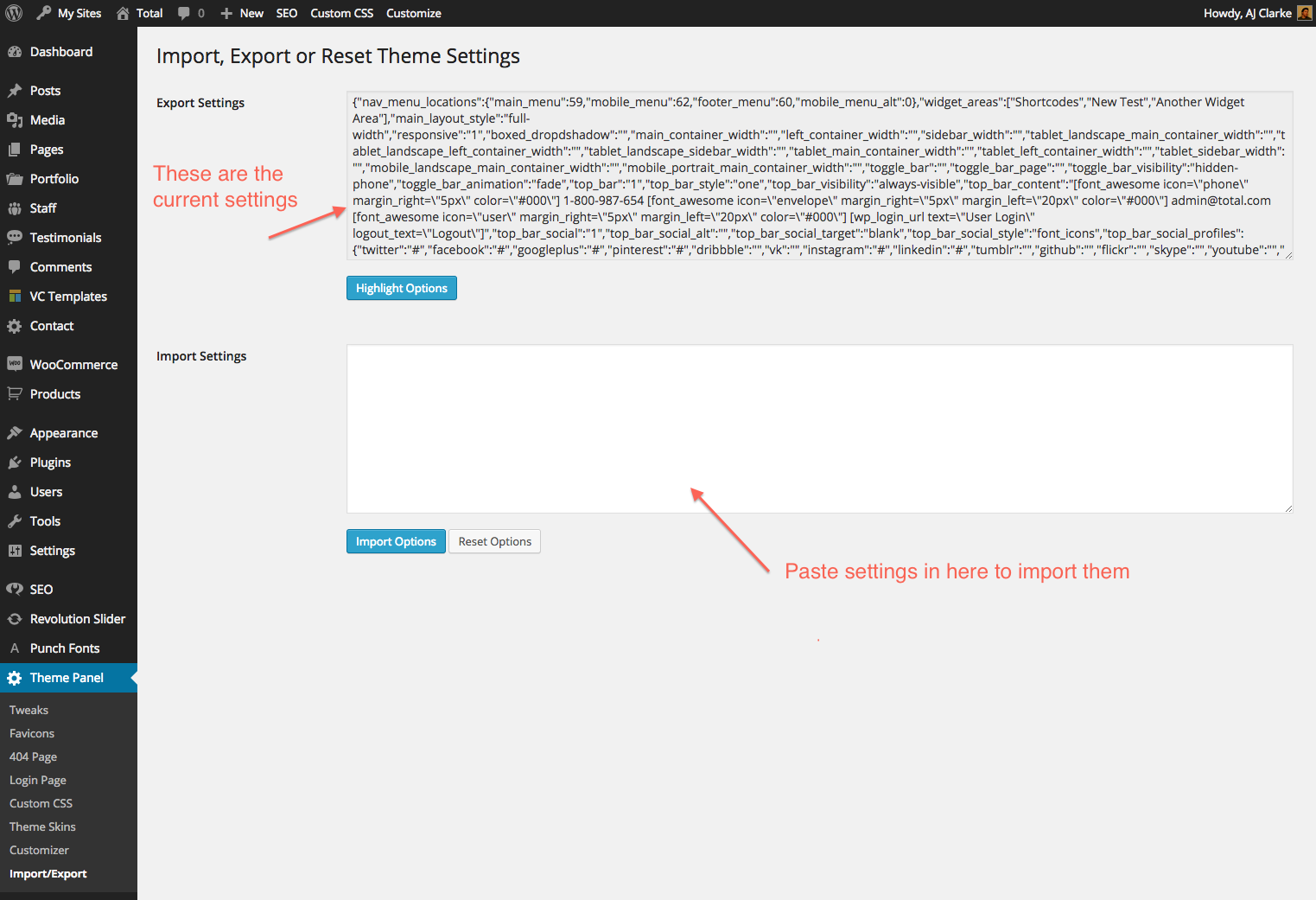
Credit: totalwptheme.com
Using Plugins For Reset
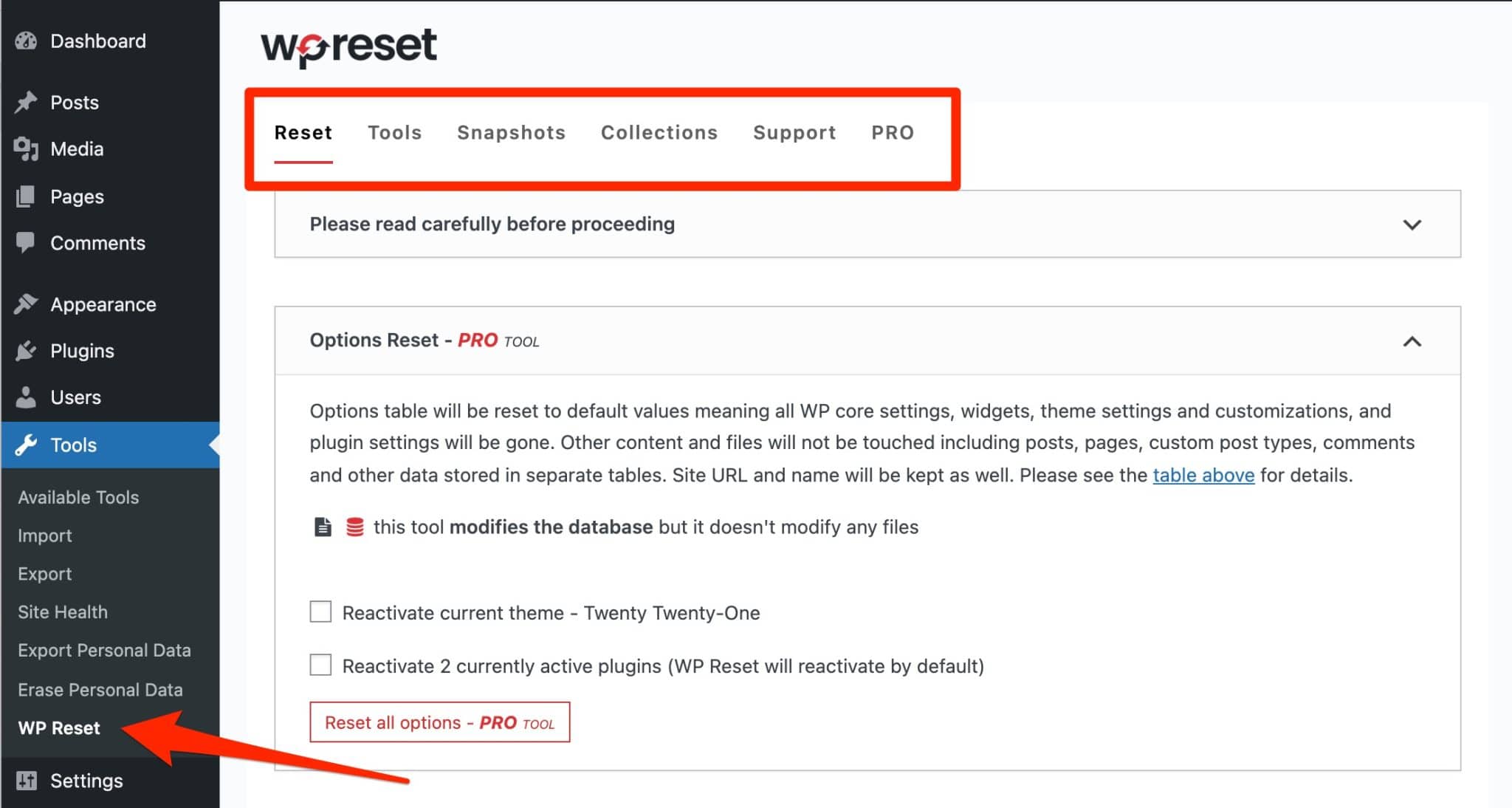
To reset theme settings in WordPress, plugins offer an easy solution. They help you restore default settings quickly. This is useful for troubleshooting or starting fresh with a theme.
Popular Reset Plugins
WordPress has many plugins for resetting themes. These plugins make the process simple. They save time and effort. WP Reset is a well-known plugin. It resets themes with a few clicks. Advanced WordPress Reset is another option. It helps to reset themes quickly. Both are popular among users.
Installing And Activating Plugins
Installing plugins is easy. Go to your dashboard. Find the Plugins section. Click on Add New. Search for the plugin you want. Click Install. Once installed, click Activate. The plugin is now ready to use. Always check for updates. Keep plugins updated for best results.
Manual Code Edits
Open the WordPress dashboard. Go to Appearance and click on Theme Editor. A list of theme files will appear. Find the file named functions.php. This file holds important theme functions. Make sure to backup before editing. You might lose settings if edited wrongly.
Open the functions.php file. Add or remove code carefully. Insert new functions if needed. Save the changes after editing. Check the website to see updates. If errors occur, restore the backup. Always test changes on a staging site. This ensures safety.
Troubleshooting Common Issues
Resetting theme settings in WordPress can solve design issues quickly. Visit the WordPress dashboard, select “Appearance,” and choose “Themes. ” Click “Customize” and reset settings for a fresh start. This simple process often resolves theme-related problems.
Failed Reset Attempts
Resetting theme settings can be tricky. Sometimes, the reset does not work. This can be due to several reasons. The theme may have bugs. Or, there might be plugin conflicts. Always check for theme updates. Disable plugins one by one. This helps find the problem. Never forget to clear the cache. It might hold old settings. If the reset fails, try again. Ensure all steps are correct. Follow guides or watch tutorials. They can be very helpful.
Restoring Backup
Backups are lifesavers. Always make a backup before any changes. If things go wrong, you can restore it. This brings back your old settings. Use plugins for easy backups. Many plugins offer free backup options. Always store backups safely. Use cloud storage or external drives. Restoring from a backup is simple. Follow the plugin instructions. This ensures a smooth restoration. Remember, backups save time and stress.
Best Practices For Theme Reset
Keep your website safe. Make regular backups of your WordPress site. A backup saves all your website data. If something goes wrong, you can restore it. Use plugins like UpdraftPlus or BackupBuddy. These tools make backups easy. Store backups in a safe place. Cloud storage is a good option. This way, your data is always secure.
Always test changes before applying them. Use a staging site for testing. This is a copy of your website. You can try new themes here. Check if everything works well. Look for errors or broken links. Fix any issues you find. Once you are happy, apply changes to your main site. This keeps your live site safe.
Credit: wpmarmite.com
Frequently Asked Questions
How Do I Reset My WordPress Theme To Default Settings?
Go to your WordPress dashboard. Click on Appearance, then Themes. Activate a default theme like Twenty Twenty-One. Use a plugin like “Customizer Reset” to restore default settings. Always back up your site before resetting.
How To Restore WordPress Settings?
Restore WordPress settings by accessing your dashboard. Navigate to “Settings” and click “Restore Default Settings. ” Confirm the restoration process. Use plugins like WP Reset for more options. Always backup before making changes to avoid data loss.
How Do I Revert Back To An Old Theme On WordPress?
Go to your WordPress dashboard. Click “Appearance” and select “Themes. ” Find your old theme and click “Activate. ” Your site will revert to the previous theme settings. Remember to check your site for any changes or adjustments needed after activation.
How Do I Reset The Style In WordPress?
Navigate to Appearance > Themes in your WordPress dashboard. Activate a default theme, like Twenty Twenty-Three. Go to Appearance > Customize and reset your styles. Use a child theme or custom CSS for further adjustments. Remember to backup before making changes.
Conclusion
Resetting theme settings in WordPress is simple with this guide. Follow each step carefully. Your site will look fresh and organized. Avoid frustration with easy adjustments. Customize to fit your style and needs. Enjoy the process of making your site unique.
Feel confident in managing your WordPress theme. Practice makes perfect, so keep exploring. Happy blogging and designing! Keep learning new tricks. Your website reflects your creativity. It’s easier than you think. Share your experiences with others. Help friends who need guidance.
Embrace changes and updates. Keep your site lively and engaging!


