
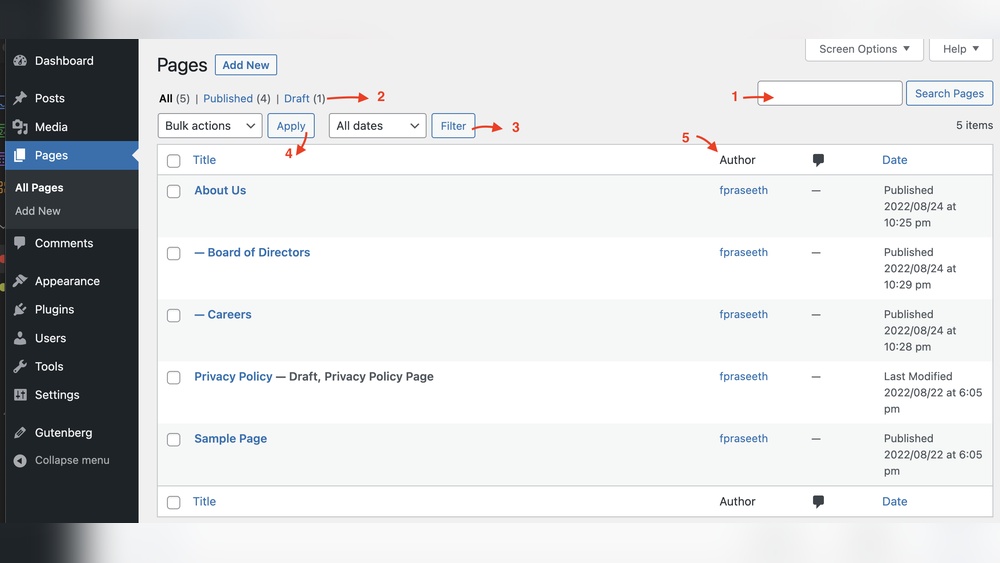
Are you looking to organize your WordPress site better and make it easier for visitors to find what they need? Adding subpages is a simple way to do just that.
When you create subpages, you build a clear structure that guides your audience smoothly through your content. This not only improves user experience but also boosts your site’s SEO. You’ll learn exactly how to add subpages on WordPress step by step.
By the end, you’ll have a well-organized website that keeps your visitors engaged and coming back for more. Let’s get started!

Credit: wpwax.com
Creating A New Page
Creating subpages in WordPress helps organize your website better. Choose a parent page, then set the new page as its child. This keeps your site clear and easy to navigate.
Accessing The WordPress Dashboard
Start by logging into your WordPress website. Use your username and password to enter the dashboard. The dashboard is the control center for your site. It holds all the tools you need to create and manage content.
Navigating To The Pages Section
Look for the “Pages” option in the left sidebar of the dashboard. Click on it to see a list of all your existing pages. This section lets you manage your website’s pages easily. Here, you can add, edit, or delete pages as needed.
Adding A New Page
To create a new page, click the “Add New” button at the top of the Pages screen. A blank page editor will open. Enter a title for your new page. Then, add content using the blocks or classic editor. When finished, click “Publish” to make the page live on your site.
Setting Up Subpages
Setting up subpages in WordPress helps organize your website content clearly. Subpages create a hierarchy that improves site navigation. This structure also helps visitors find related content easily.
The process is simple and quick. It involves choosing a parent page, assigning it, and publishing the subpage. Each step ensures your subpages appear correctly under the main page.
Choosing A Parent Page
Start by deciding which page will be the main page. The parent page acts like a folder for subpages. Pick a page that relates closely to your subpage topic. This choice keeps your site organized and logical.
Assigning The Parent Page
Go to the WordPress editor for your new page. Find the “Page Attributes” box on the right side. Click the dropdown menu under “Parent.” Select the parent page you chose earlier. This links your new page as a subpage.
Publishing The Subpage
After assigning the parent, review your subpage content. Check for errors and make sure it fits your site’s theme. Click the “Publish” button to make the subpage live. Your subpage now appears under the parent page in menus.
Organizing Your Pages
Organizing your pages in WordPress helps visitors find content easily. It creates a clear structure for your site. Well-organized pages improve user experience and SEO. You can arrange pages by order, customize menus, and set page hierarchy.
Using The Page Order Feature
WordPress allows you to set the order of your pages. Go to the page editor and find the “Page Attributes” box. Enter a number in the “Order” field. Pages with lower numbers appear first. This method helps you control the sequence of pages in menus and lists.
Customizing Navigation Menus
Navigation menus show your page links to visitors. Access the menu settings under “Appearance” > “Menus.” Add pages, rearrange them by dragging, or remove unwanted links. Create custom menus to highlight important subpages. This makes your site easier to navigate.
Managing Page Hierarchy
Page hierarchy means parent and child pages. Set a parent page in the “Page Attributes” section. Child pages become subpages under the parent. This structure shows clear relationships between pages. It helps organize content logically for users and search engines.

Credit: wpwax.com
Enhancing Subpages
Enhancing subpages helps improve your website’s structure and user experience. Subpages support main pages by providing detailed information. Well-designed subpages keep visitors engaged and encourage them to explore more.
Focus on making subpages clear and visually appealing. Organize content so visitors find what they need fast. Adding useful elements can boost your site’s professionalism and trust.
Adding Content And Media
Start by adding clear and relevant text to each subpage. Use short paragraphs and simple words. Insert images, videos, or audio to make pages lively and interesting. Media helps explain ideas better than text alone. Use captions to describe images. Avoid clutter; keep media balanced with text.
Using Page Templates
Page templates control how subpages look and feel. Choose a template that fits your content style. Templates save time by keeping design consistent. Customize colors, fonts, and layouts to match your brand. Test templates on different devices to ensure they display well everywhere.
Incorporating Seo Best Practices
Use keywords naturally in your subpage titles and content. Write unique descriptions for each subpage. Add alt text to images to help search engines understand them. Use headings to organize content clearly. Include internal links to related pages. Fast loading speed improves SEO and user experience.
Troubleshooting Common Issues
Troubleshooting common issues with subpages on WordPress can save time and reduce frustration. Many users face problems such as subpages not showing or menu errors. These issues often have simple fixes that anyone can apply. Understanding these solutions helps keep your website organized and user-friendly.
Fixing Subpage Visibility Problems
Subpages might not appear if they are not published. Check the page status in the WordPress editor. Make sure it is set to “Published,” not “Draft” or “Private.” Also, verify if the parent page allows subpages. Some themes or settings hide child pages by default. Adjust these settings or switch themes if needed. Clear your site cache after changes to see updates.
Resolving Menu Display Errors
Menus may not show subpages correctly if they are not added properly. Go to Appearance > Menus in the dashboard. Add the subpages manually if they do not appear automatically. Drag and drop subpages under the correct parent menu item. Save the menu after editing. Check for plugin conflicts by disabling them temporarily. Sometimes, plugins affect menu display.
Updating Permalink Settings
Permalink issues can cause broken links or missing pages. Visit Settings > Permalinks in WordPress. Choose a permalink structure that fits your site. Click “Save Changes” even without changes to refresh settings. This flushes rewrite rules and fixes link problems. Test subpages after updating permalinks to ensure they load correctly.

Credit: wordpress.org
Frequently Asked Questions
How Do I Create A Subpage In WordPress?
To create a subpage, first create a new page. Then, under “Page Attributes,” select a parent page. Publish the page, and it will appear as a subpage under the chosen parent.
Can I Organize Subpages Under Multiple Parent Pages?
No, each subpage can only have one parent page. Organize your content by assigning each subpage to the relevant parent for clear site structure.
How Do Subpages Affect WordPress Url Structure?
Subpages inherit the parent page’s URL as a prefix. This creates a logical hierarchy, improving site navigation and SEO for your WordPress website.
Is Adding Subpages Beneficial For Seo On WordPress?
Yes, subpages help organize content logically. This improves user experience and search engines’ understanding of your site’s structure, boosting SEO performance.
Conclusion
Adding subpages on WordPress helps organize your website clearly. It makes navigation easier for visitors. You can create a neat structure without technical skills. Just follow simple steps to add and arrange subpages. This keeps your site clean and professional.
Try adding subpages today to improve your site’s layout. Your visitors will find information faster. Keep your WordPress site user-friendly and well-organized. Small changes like these make a big difference.


