
Are you looking to give someone new responsibilities on your WordPress site? Adding a role in WordPress lets you control what users can and cannot do.
This is powerful because it keeps your site safe while allowing others to help manage content, design, or settings. If you want to learn the simple steps to add a role and make your site teamwork-ready, you’re in the right place.
By the end of this article, you’ll know exactly how to set up roles that fit your needs perfectly. Let’s dive in!
Credit: www.inmotionhosting.com
WordPress User Roles Basics
WordPress user roles control what users can do on your website. Each role has a set of permissions. These permissions help you manage your site safely. Understanding these basics helps you assign the right role to the right user. It keeps your site organized and secure.
Types Of User Roles
WordPress has several user roles by default. Each role fits a different need. The main roles are Administrator, Editor, Author, Contributor, and Subscriber.
The Administrator has full control. They manage everything on the site. Editors can publish and manage posts. Authors write and publish their own posts. Contributors write posts but cannot publish. Subscribers can only read content and manage their profiles.
Role Capabilities Explained
Capabilities define what each user role can do. They include tasks like publishing posts, editing pages, and managing plugins.
Administrators have all capabilities. Editors can moderate content and manage others’ posts. Authors focus on their own content. Contributors can write but need approval to publish. Subscribers have limited capabilities for reading and commenting.
These roles and capabilities help keep your site secure. Assign roles carefully based on user needs and trust levels.
Preparing To Add A New Role
Preparing to add a new role in WordPress takes some thought. It helps to plan carefully before creating roles. This step ensures users get the right access and nothing more. Proper preparation keeps your site safe and organized. Below are key points to consider before you add a new role.
Assessing User Needs
Start by understanding what each user needs to do. List the tasks they must perform on your site. Think about editing posts, managing plugins, or handling comments. This helps avoid giving too many or too few permissions. Clear needs guide the role’s setup and keep things simple.
Choosing The Right Permissions
Pick permissions that match user tasks exactly. WordPress has many capabilities to assign. Choose only those essential for the role’s functions. Avoid giving admin rights unless absolutely necessary. Proper permissions prevent errors and keep your site secure.
Adding Roles Using Plugins
Adding roles in WordPress is easier with plugins. Plugins help create and manage roles without coding. They give you control over user permissions. This method suits beginners and busy site owners.
Plugins offer ready tools to add, edit, or delete roles. You can assign specific permissions to each role. This keeps your site organized and secure. Let’s explore popular plugins and how to use them.
Top Plugins For Role Management
Several plugins simplify role management in WordPress. “User Role Editor” is popular for its ease of use. It lets you add new roles and change permissions quickly. Another option is “Members” by MemberPress. It focuses on creating custom roles and controlling access. “PublishPress Capabilities” is good for detailed permission control. Each plugin has unique features and user interfaces. Choose one that fits your needs and skill level.
Step-by-step Plugin Setup
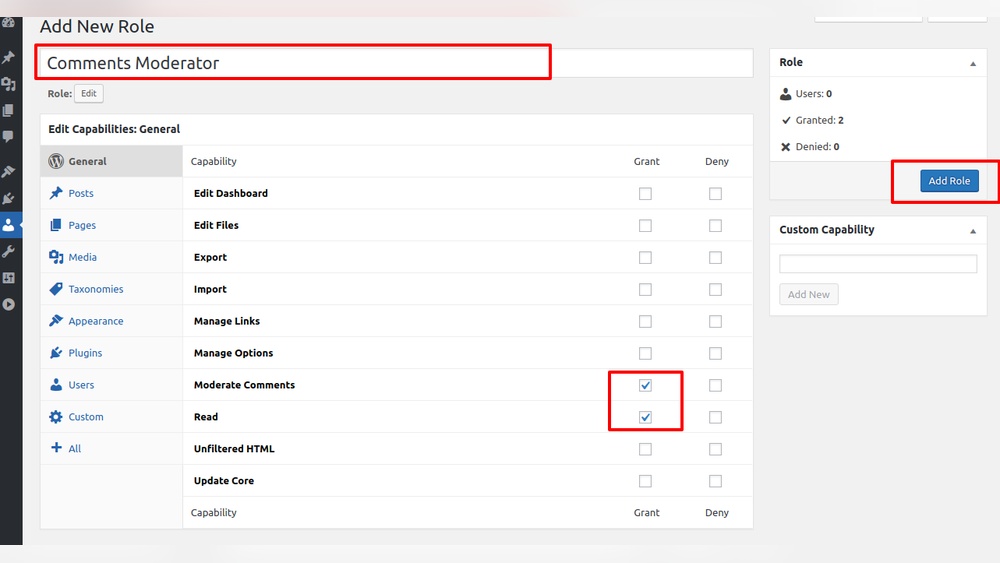
First, install your chosen plugin from the WordPress dashboard. Go to Plugins > Add New, then search the plugin name. Click Install Now and Activate it. Next, find the plugin’s settings in the dashboard menu. Usually, it appears under Users or Tools.
To add a role, look for a button like “Add Role” or “Create Role.” Enter a name for the new role. Set permissions by checking or unchecking capabilities. Save your changes to apply the new role. Assign the role to users under the Users menu. This simple process helps manage site access easily.
Credit: wedevs.com
Manually Adding Roles With Code
Manually adding roles with code gives you full control over user permissions. It lets you create custom roles tailored to your site’s needs. This method uses PHP and requires editing theme files. Always back up your site before making changes. Small errors can cause site problems.
Using Functions.php
The functions.php file is part of your WordPress theme. You can add code here to create new roles. This file runs every time your site loads. Adding roles here makes them available immediately.
Access functions.php via the WordPress dashboard or through FTP. Open the file and add your custom role code at the bottom. Save and upload the file back to your server. Refresh your site to see the changes.
Custom Role Creation Example
Here is a simple example to add a new role called “Editor Plus”. This role can edit posts and moderate comments.
function add_editor_plus_role() { add_role( 'editor_plus', 'Editor Plus', array( 'read' => true, 'edit_posts' => true, 'delete_posts' => false, 'moderate_comments' => true, ) ); } add_action('init', 'add_editor_plus_role'); This code defines capabilities for the new role. You can change them to fit your needs. Add this snippet to your functions.php file. Save and reload your site to activate the role.
Editing And Managing Roles
Editing and managing roles in WordPress lets you control user permissions easily. This helps keep your site safe and organized. You can change what users can do or assign them new roles based on their tasks.
Understanding how to modify roles and assign them correctly makes site management smoother. It also improves teamwork by giving users only the access they need.
Modifying Existing Roles
WordPress has default roles like Administrator, Editor, and Subscriber. You can change what these roles allow users to do. Use a plugin like “User Role Editor” to customize permissions. This tool shows a list of capabilities you can add or remove. For example, allow Editors to publish posts or restrict them from deleting content. Always save changes and test the role to avoid mistakes.
Assigning Roles To Users
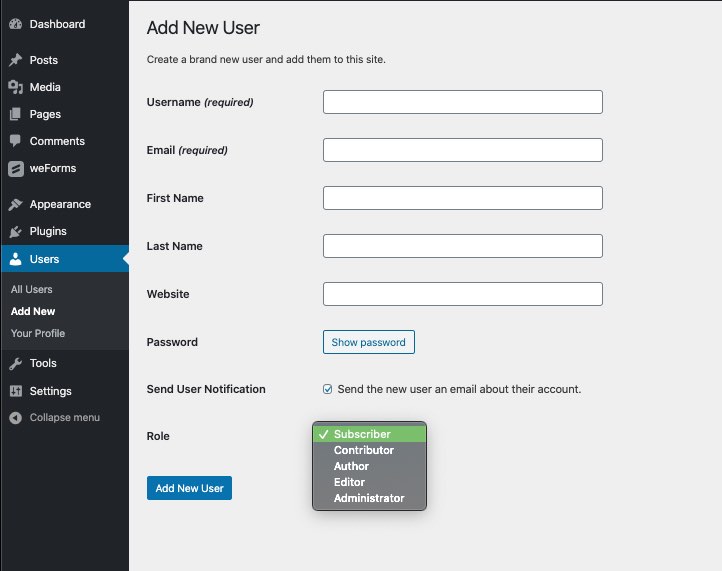
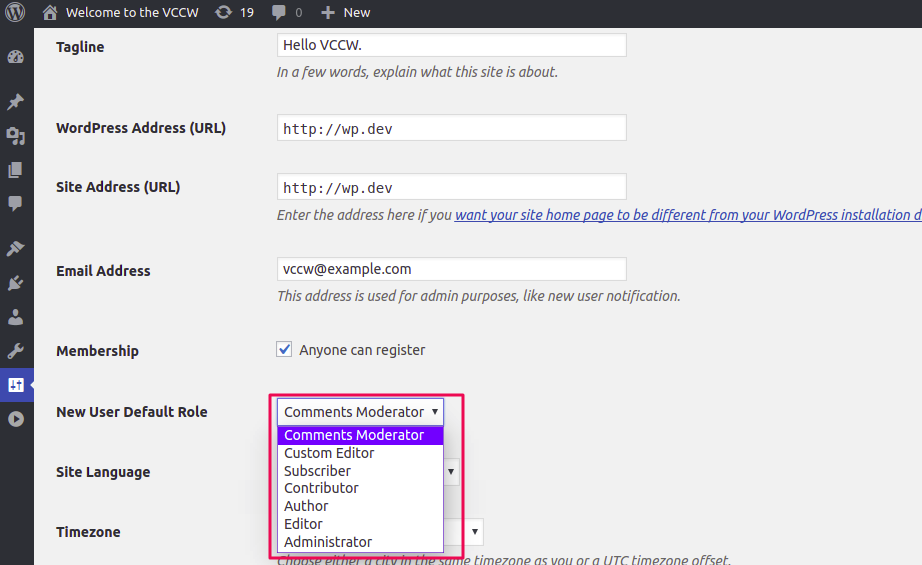
Assigning roles gives users the right access level. Go to the Users menu in your WordPress dashboard. Select a user and click “Edit.” Find the Role dropdown and choose the correct role. Save the changes to update the user’s permissions. Assign roles based on each user’s job or responsibility. This keeps your site secure and running well.
Best Practices For Role Management
Managing roles in WordPress needs careful planning. Proper role management helps keep your site safe and organized. Assigning the right permissions makes work easier for your team. Follow these best practices to handle roles smartly and securely.
Security Considerations
Limit permissions to what each user really needs. Avoid giving admin rights unless it is necessary. Too many high-level permissions increase security risks. Use strong passwords and enable two-factor authentication. Monitor user activity to catch unusual actions quickly. Keep WordPress and plugins updated to close security gaps.
Regular Role Audits
Check user roles often to ensure they are correct. Remove old or unused accounts to reduce risk. Confirm that each user still needs their assigned permissions. Adjust roles if job duties change. Regular audits help maintain control and prevent mistakes. Set a schedule for these checks, like once every few months.

Credit: wedevs.com
Frequently Asked Questions
How Do I Add A New Role In WordPress?
To add a new role, use a plugin like “User Role Editor. ” Install it, go to Users > User Role Editor, then click “Add Role” and define capabilities easily.
Can I Customize WordPress Roles And Permissions?
Yes, WordPress allows role customization via plugins or code. Adjust capabilities to control what users can do on your site efficiently.
What Default Roles Exist In WordPress?
Default roles include Administrator, Editor, Author, Contributor, and Subscriber. Each role has predefined permissions suited to different user tasks.
Is It Safe To Add Custom Roles In WordPress?
Adding custom roles is safe if done properly. Always backup your site before changes and use trusted plugins to avoid conflicts.
Conclusion
Adding a role in WordPress helps control who can do what. It keeps your site safe and organized. You can create new roles or change existing ones easily. This way, you give the right access to the right people. Try these steps and see how simple it is.
Managing roles well saves time and avoids mistakes. Keep your WordPress site running smoothly with clear user roles.


