
Want to make it easy for your visitors to find you on social media? Adding social links to your WordPress site is a simple way to boost your online presence and connect with your audience.
But if you’re not sure where to start, don’t worry. This guide will show you exactly how to add social links quickly and easily. By the end, your site will look more professional and inviting—making your visitors want to follow and engage with you.
Ready to get started? Let’s dive in!
Choosing Social Networks
Choosing the right social networks for your WordPress site is important. The social links you add should help visitors connect with your brand easily. Picking networks that fit your goals and audience makes your site stronger. This section explains how to select the best platforms for your needs.
Popular Platforms To Consider
Facebook remains one of the top social networks worldwide. It offers a broad audience and many features for sharing content. Instagram focuses on images and short videos, ideal for visual brands. Twitter suits fast updates and quick communication. LinkedIn targets professionals and businesses, good for B2B connections. Pinterest is popular for ideas and inspiration, especially in lifestyle and design. YouTube works well for video content and tutorials.
Matching Networks To Your Audience
Think about who visits your site and what they like. Younger users often prefer Instagram and TikTok. Older audiences might use Facebook more. Business visitors will expect LinkedIn links. Consider your content type. Visual content fits Instagram and Pinterest best. Text and news updates match Twitter. Videos belong on YouTube. Choose networks where your audience spends time. This helps increase engagement and builds trust.
Using WordPress Widgets
Using WordPress widgets is a simple way to add social links to your website. Widgets let you place social icons in sidebars, footers, or other widget-ready areas. This method does not require coding skills and works with most themes.
You can add social icons quickly and control where they appear on your site. Widgets also allow easy updates and changes without touching any code.
Adding Social Icons With Widgets
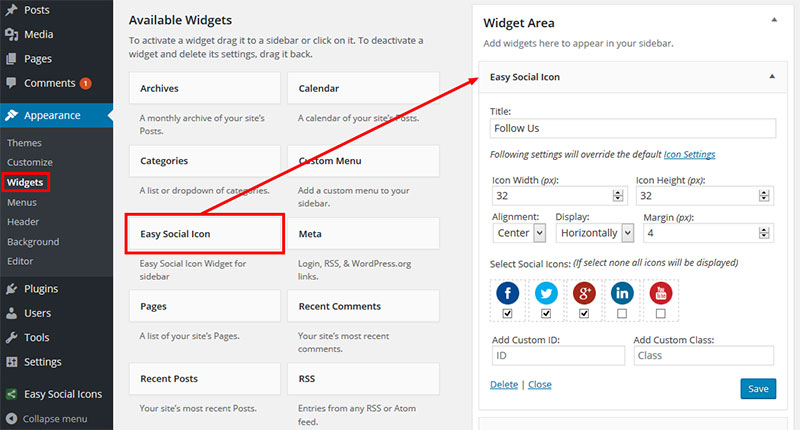
Go to your WordPress dashboard and open the Appearance menu. Click on Widgets to see available widget areas. Find the widget labeled “Custom HTML” or “Text.”
Drag the widget to your chosen widget area, like the sidebar or footer. Inside the widget, add the HTML code for your social icons or use a plugin that creates social icon widgets. Save your changes to make the icons visible on your site.
Customizing Widget Appearance
To change how social icons look, use the widget’s settings or add custom CSS. Many plugins offer options to pick icon styles, sizes, and colors. Adjust spacing and alignment to fit your site’s design.
Preview changes before saving to ensure the icons look good on both desktop and mobile devices. Keep the design simple and clear for easy navigation.
Installing Social Media Plugins
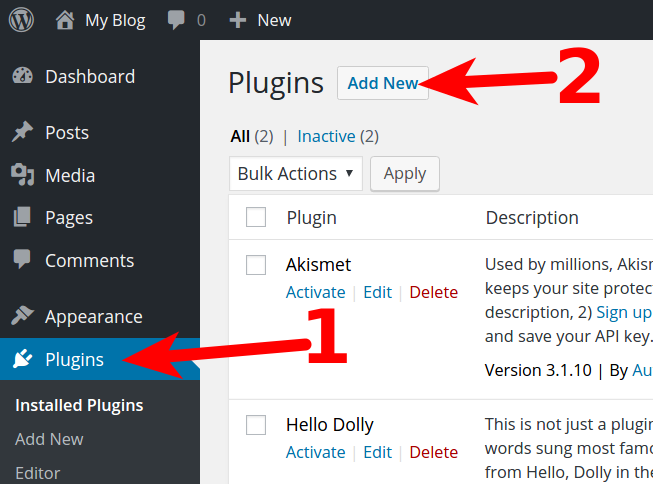
Installing social media plugins is a quick way to add social links to your WordPress site. These plugins make it easy to display icons that link to your social profiles. Most plugins offer customization options for style and placement.
Plugins help you connect your website visitors with your social media pages. They improve user engagement and make sharing content simple. Choosing the right plugin is important for your site’s look and performance.
Top Plugins For Social Links
Several plugins work well for adding social links. Social Icons Widget by WPZoom is simple and easy to use. It supports many social networks and shows icons in sidebars or footers.
Another good choice is Smash Balloon Social Photo Feed. It shows your social media posts directly on your site. This plugin helps visitors see your latest updates without leaving your page.
Simple Social Icons lets you add clean, customizable icons. It fits well with most themes and does not slow down your site.
Configuring Plugin Settings
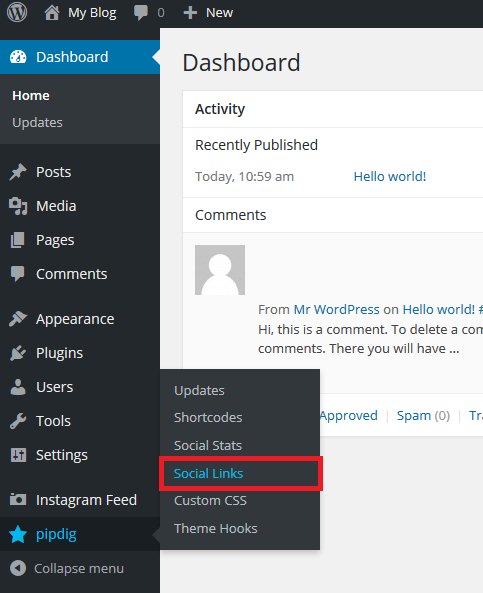
After installing a plugin, open its settings page. Enter your social media profile URLs carefully. Check that all links are correct and working.
Choose icon styles that match your website design. Adjust icon sizes and colors for best visibility. Decide where to place the icons on your site for easy access.
Save the settings and preview your site. Make sure the social links appear as you want. Test the links to ensure they open the right pages.
Adding Social Links In Menus
Adding social links to your WordPress menus helps visitors find your social profiles easily. It makes your site more interactive and connects your audience with your social presence. This section shows how to add these links directly into your menu.
Creating Custom Menu Items
Go to the WordPress dashboard and open the Menus page under Appearance. Select the menu you want to edit or create a new one. Use the “Custom Links” option to add new items. Enter the full URL of your social profile in the URL field. Type the name of the social platform in the Link Text box. Click “Add to Menu” to insert this item into your menu list. Drag and drop it to the desired position. Save the menu to apply changes to your website.
Linking To Social Profiles
Use the exact URL of your social media accounts for each custom menu item. For example, use https://facebook.com/yourpage for Facebook. This ensures visitors are directed to the correct page. Check each link after saving to confirm it works properly. You can also add icons by using plugins or custom CSS. Icons make your social links clear and attractive. Make sure your links open in a new tab to keep visitors on your site.
Embedding Social Icons In Content
Embedding social icons in your WordPress content helps visitors find your social profiles easily. Social icons act as clickable buttons linking to your social media accounts. Placing these icons inside posts or pages improves user experience and encourages sharing. This section explains how to embed social icons using WordPress tools.
Using Block Editor For Social Links
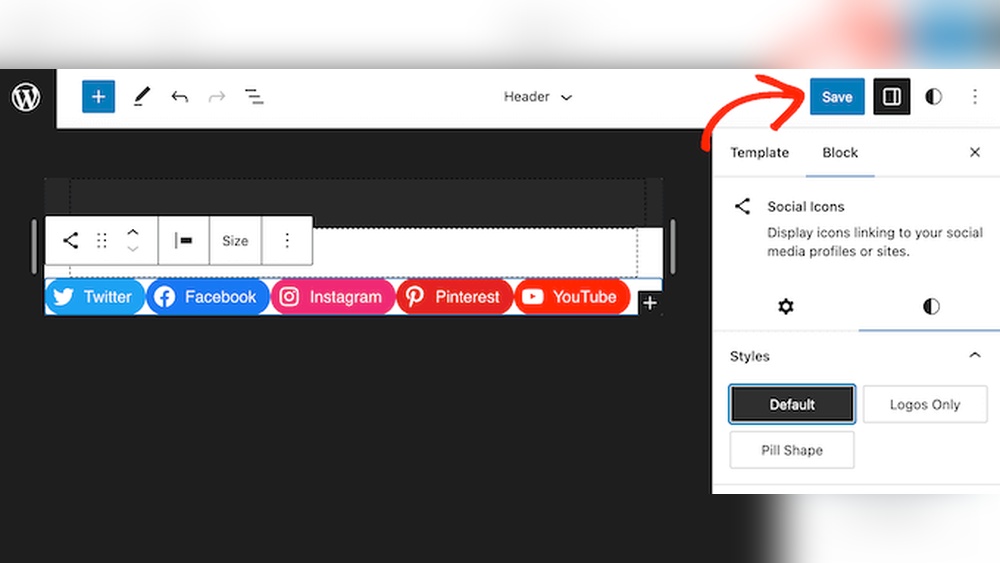
The WordPress block editor has a built-in Social Icons block. It makes adding social links simple and fast. Just open the post or page where you want the icons. Click the plus (+) button to add a new block. Search for “Social Icons” and select it.
After adding the block, click the icons to edit the links. You can add icons for Facebook, Twitter, Instagram, and more. The block automatically shows the correct icon for each social network. You can also change the icon size and style in the block settings. This method needs no coding skills.
Inserting Icons In Posts And Pages
You can place social icons anywhere in your content with the block editor. Just add the Social Icons block inside your paragraphs or at the end of posts. You can also use columns or groups to arrange icons neatly.
If you want more styles, plugins offer extra icon sets and customization. Install a plugin and follow its instructions to add icons in posts or pages. Some plugins let you add icons with shortcodes for more control.
Credit: www.inmotionhosting.com
Optimizing For Mobile Users
Optimizing social links for mobile users is essential for a smooth experience. Most visitors use phones or tablets to browse websites. Social icons must look good and work well on small screens. Easy tapping and fast loading improve user engagement. Mobile-friendly social links help keep visitors connected to your brand.
Responsive Design Tips
Use flexible layouts that adjust to any screen size. Choose icon sizes that are easy to tap with fingers. Space icons evenly to avoid accidental clicks. Avoid using fixed widths or heights for social buttons. Use CSS media queries to make social links adapt to devices. Keep the design simple for faster loading on mobile networks.
Testing Social Links On Devices
Check how social links appear on different phones and tablets. Test all icons to ensure they open the right social media pages. Use tools like browser developer mode to simulate mobile views. Ask friends to test on their devices for real feedback. Fix any issues with alignment, size, or loading speed. Repeat tests after updates to keep mobile experience smooth.
Tracking Social Link Performance
Tracking social link performance helps you understand how visitors interact with your social media buttons. It shows which links get the most clicks and how users engage with your content. This data guides you to improve your strategy and reach more people effectively.
Using Analytics Tools
Analytics tools track user behavior on your WordPress site. Google Analytics is a popular choice. It records how many times users click your social links. You can set up goals to measure these clicks easily. Other tools like Jetpack and MonsterInsights also offer social link tracking features. These tools provide reports that show which social platforms drive traffic.
Measuring Clicks And Engagement
Clicks show the number of times visitors select your social links. Engagement measures how visitors interact after clicking. Look for patterns such as peak click times or popular social platforms. Use this data to adjust link placement and design. Higher engagement means your social links attract and hold visitor interest better.
Credit: support.pipdig.co
Credit: wpdatatables.com
Frequently Asked Questions
How Do I Add Social Media Icons In WordPress?
You can add social media icons using WordPress plugins like “Social Icons Widget. ” Alternatively, use your theme’s built-in social links feature for easy integration.
Can I Customize Social Links In WordPress?
Yes, most plugins and themes allow customization of icon style, size, and placement. This ensures your social links match your site’s design.
Are Social Links Seo Friendly In WordPress?
Yes, properly added social links improve user engagement and can enhance your site’s SEO by driving traffic from social platforms.
Which WordPress Plugin Is Best For Social Links?
Popular options include “Social Icons Widget” and “WP Social Icons. ” Choose one that fits your needs and offers easy customization.
Conclusion
Adding social links to WordPress helps visitors find you easily. It boosts your site’s reach and connects you with more people. You can use widgets, plugins, or custom menus to add links. Keep your social icons clear and visible for best results.
Regularly update your links to stay current. Simple steps make your website more user-friendly and engaging. Start adding social links today to grow your online presence.


