
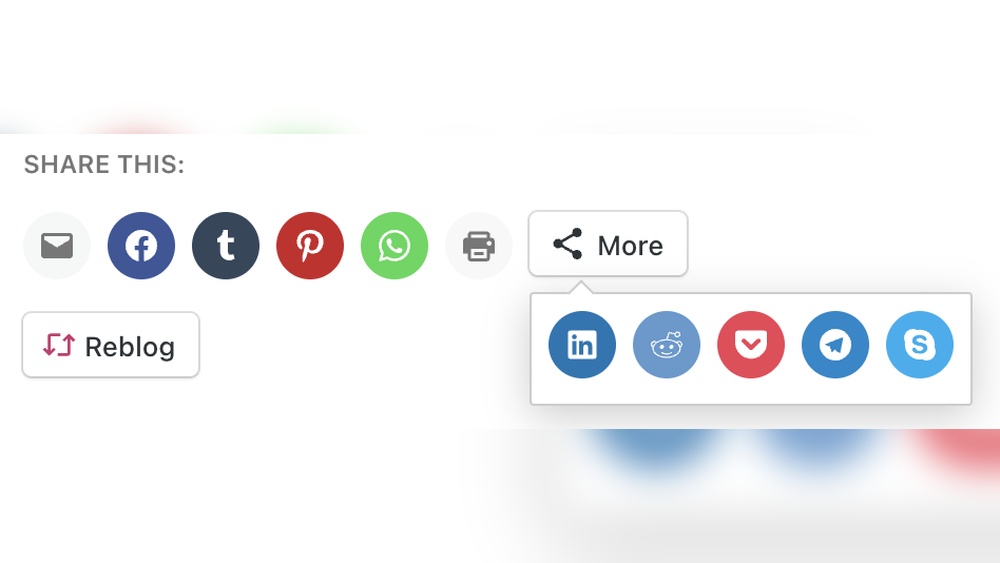
Want more people to see and share your WordPress content? Adding a share button is one of the easiest ways to boost your website’s reach.
Imagine your posts spreading across social media with just one click. Sounds good, right? You’ll learn simple, step-by-step methods to add share buttons to your WordPress site—no tech skills needed. Keep reading, and you’ll have your share buttons up and running in minutes, helping you grow your audience faster than ever.
Credit: veppa.com
Benefits Of Share Buttons
Share buttons play a key role in growing your WordPress site. They let visitors share your content with their friends and followers. This small feature can bring many benefits to your website and your business.
Increase User Engagement
Share buttons encourage visitors to interact with your content. They feel more involved when they can share posts easily. This interaction keeps users on your site longer. It also makes them more likely to return for new content.
Drive More Traffic
When users share your posts, your site gets seen by more people. This brings new visitors who might not find you otherwise. More traffic means better chances to grow your audience and sales. Share buttons help spread your message beyond your regular readers.
Enhance Content Visibility
Sharing boosts your content’s reach on social networks. More shares increase the chances of your posts appearing in feeds. This visibility helps build your brand and authority. Your content gets noticed by a larger, diverse audience.
Credit: happyaddons.com
Choosing The Right Share Button Plugin
Choosing the right share button plugin for WordPress is important. It affects how visitors share your content. A good plugin makes sharing easy and quick. It also fits well with your site’s design and speed.
Many plugins offer different features. Some are simple, others have many options. Picking one that suits your needs saves time and effort. It ensures your site works smoothly and looks good.
Popular WordPress Plugins
Several plugins are popular for adding share buttons. “AddToAny” is widely used for its simplicity and many social networks. “ShareThis” offers customizable buttons and analytics. “Social Warfare” is known for fast loading and stylish buttons. These plugins have large user bases and positive reviews.
Key Features To Look For
Choose a plugin with easy setup and clear options. Buttons should be visible but not intrusive. Look for mobile-friendly designs that work well on phones and tablets. Check if the plugin supports major social networks. Some plugins offer share counts and analytics. These features help track how your content spreads.
Compatibility And Updates
Ensure the plugin is compatible with your WordPress version. Plugins that receive regular updates are more secure and reliable. Check the last update date before installation. Avoid plugins that are outdated or unsupported. Compatibility with your theme and other plugins is also key. This prevents conflicts that can break your site.
Manual Share Button Integration
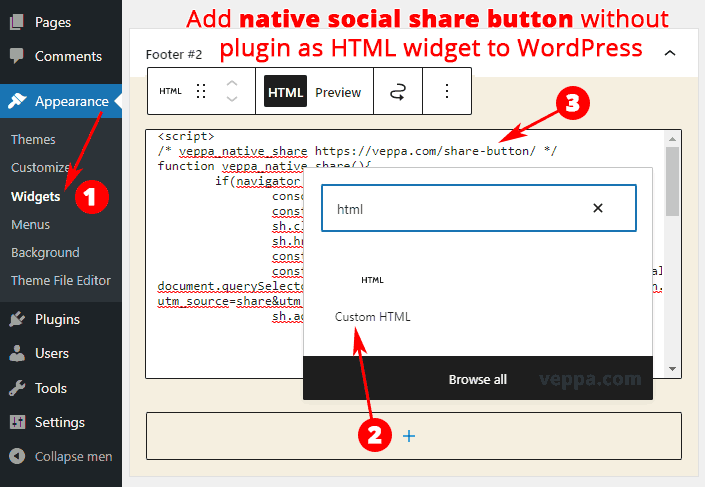
Manual share button integration means adding share buttons by writing code yourself. This method gives full control over how the buttons look and where they appear. It is perfect for those who want a simple, clean design without extra plugins.
Adding share buttons manually improves your site speed. It also reduces security risks from third-party plugins. Let’s explore how to add and customize share buttons using code in WordPress.
Adding Share Buttons With Code
Start by copying the share button code for social networks. Use HTML and simple JavaScript for basic functionality. For example, create a link that shares the current page URL on Facebook or Twitter.
Place this code in your theme’s files, like single.php or page.php. Use WordPress functions to get the current URL, such as get_permalink(). This ensures the share button always links to the correct page.
Customizing Button Appearance
Style your share buttons with CSS to match your site design. Change colors, sizes, and hover effects for better user experience. Keep buttons clear and easy to tap on mobile devices.
Use simple shapes or icons for each social network. Font Awesome icons or SVG images work well. Adjust spacing between buttons for a neat layout.
Placing Buttons On Pages And Posts
Decide where to show the share buttons. Common places are above or below content. Use WordPress hooks like the_content filter to add buttons automatically.
You can also insert buttons manually in page or post templates. This gives you full control over placement. Test on different devices to ensure buttons are visible and functional.
Using Plugins To Add Share Buttons
Using plugins to add share buttons is the easiest way to let visitors share your content. Plugins do most of the work for you. They offer ready-made buttons and features that fit many websites. You do not need to know coding. Just install a plugin and set it up. This saves time and improves your site’s reach.
Installing And Activating Plugins
First, go to your WordPress dashboard. Click on “Plugins” and then “Add New.” Type “social share buttons” in the search box. Choose a plugin with good ratings and many installs. Click “Install Now” and wait a moment. After installation, click “Activate” to enable the plugin on your site.
Configuring Plugin Settings
Open the plugin settings from your dashboard menu. Here, you can choose which social networks to include. Pick the buttons your audience will use most. Adjust colors, sizes, and styles to match your site. Set options for button behavior, like hover effects or counters. Save changes before leaving this page.
Positioning Buttons Automatically
Most plugins let you place share buttons automatically. Choose where the buttons appear, such as above or below posts. Some plugins add buttons to pages, archives, or even widgets. Automatic placement saves time and keeps your site tidy. Test your site on different devices to check the button position.
Optimizing Share Buttons For Mobile
Optimizing share buttons for mobile is important. Many users visit websites on phones and tablets. Share buttons must work well on small screens. They should be easy to see and tap. Poorly designed buttons can frustrate users and reduce sharing. Focus on clear, simple designs that fit any screen size.
Responsive Design Tips
Use flexible layouts that adjust to screen size. Buttons should resize and rearrange for mobile devices. Keep button size large enough for tapping with a finger. Avoid placing buttons too close together. Use icons that are clear and simple. Test colors for good contrast on small screens. Place buttons where users can easily reach them with thumbs.
Testing On Different Devices
Check your share buttons on multiple phones and tablets. Use real devices when possible. Emulators can help but may miss issues. Test different screen sizes and orientations. Try both Android and iOS devices. Look for slow loading or broken buttons. Make sure buttons stay visible during scrolling. Fix any problems before going live.

Credit: www.wpbeginner.com
Tracking Share Button Performance
Tracking share button performance helps you understand how visitors interact with your content. It shows which posts get shared the most. This insight guides your marketing efforts and improves engagement.
Without tracking, you miss key data about your audience’s behavior. Measuring share activity reveals what works and what doesn’t. It also helps you spot trends over time.
Using Analytics Tools
Analytics tools track clicks on your share buttons. Google Analytics is a popular option. You can set up event tracking to see share button clicks. Other plugins may offer built-in tracking features. These tools give clear reports on share activity.
Measuring Traffic Growth
Share buttons can increase your site’s traffic. Track how much traffic comes from social shares. Look at referral sources in your analytics dashboard. Compare traffic before and after adding share buttons. This shows the real impact of your sharing features.
Adjusting Strategies Based On Data
Data helps you improve your sharing strategy. Focus on content that gets more shares. Change button placement or design if clicks are low. Test different social networks to find the best fit. Use data to make smart, informed decisions.
Frequently Asked Questions
How Do I Add A Share Button In WordPress?
To add a share button, use a plugin like ShareThis or AddToAny. Install, activate it, then configure social networks and button placement.
Which Plugins Are Best For WordPress Share Buttons?
Top plugins include ShareThis, AddToAny, and Monarch. They offer easy setup, customization, and support popular social platforms for sharing.
Can I Add Share Buttons Without Plugins?
Yes, you can add share buttons manually using custom HTML and JavaScript. However, plugins are easier and more reliable for beginners.
Where Should I Place Share Buttons On My Site?
Place share buttons at the top, bottom, or side of posts. This maximizes visibility and encourages users to share your content.
Conclusion
Adding a share button helps your content reach more people. Visitors can easily share posts on social media. This boosts your website’s visibility and traffic. Choose a method that fits your WordPress setup. Test the button to make sure it works well.
Keep your site simple and user-friendly. Small steps like this make a big difference. Start adding share buttons today and watch your audience grow.


