
Are you looking for a simple way to add a Table of Contents to your WordPress site? A clear Table of Contents helps your readers find what they need fast and keeps them engaged longer.
It also improves your SEO by making your content easier to navigate. You’ll discover easy steps to create a Table of Contents that fits your site perfectly. Keep reading, and you’ll be able to guide your visitors through your posts like a pro.
Why Use A Table Of Contents
A table of contents helps organize long articles. It shows readers what topics the post covers. This makes the content clearer and easier to follow. Readers can jump straight to the part they want. This simple tool improves both the website and user experience.
Boosting Seo
Search engines like clear structure. A table of contents creates this structure. It helps search engines find important headings. This improves the chance of ranking higher. Clear sections make content easier to understand.
Improving User Experience
Readers spend more time on easy-to-read pages. A table of contents makes navigation simple. Visitors find what they need without scrolling. This lowers bounce rates. Users feel more satisfied and engaged.
Enhancing Content Navigation
Long posts can be hard to follow. A table of contents breaks the content into parts. Readers jump to sections with a single click. This saves time and effort. It makes browsing smooth and fast.
Choosing The Right Plugin
Choosing the right plugin for your table of contents can make your website easier to use. The right tool helps visitors find information fast. It also improves your site’s structure and SEO. Focus on plugins that fit your needs and work well with your theme and other tools.
Popular Table Of Contents Plugins
Several plugins are trusted by many WordPress users. “Easy Table of Contents” is simple and automatic. “Table of Contents Plus” offers more control and style options. “LuckyWP Table of Contents” is lightweight and user-friendly. Each plugin has its own strengths. Choose one that matches your website style and content length.
Features To Look For
A good plugin should create clear and clickable lists. It should support headings from H1 to H6. Check if it updates automatically when you add new content. Customization options are important. You want control over colors, fonts, and placement. Also, a smooth user experience is key. Avoid plugins that slow down your site.
Compatibility Considerations
Ensure the plugin works with your WordPress version. It must be compatible with your theme and other plugins. Some plugins cause conflicts or errors. Test the plugin on a staging site first. Check for regular updates and good user support. This keeps your website safe and running smoothly.
Manual Table Of Contents Creation
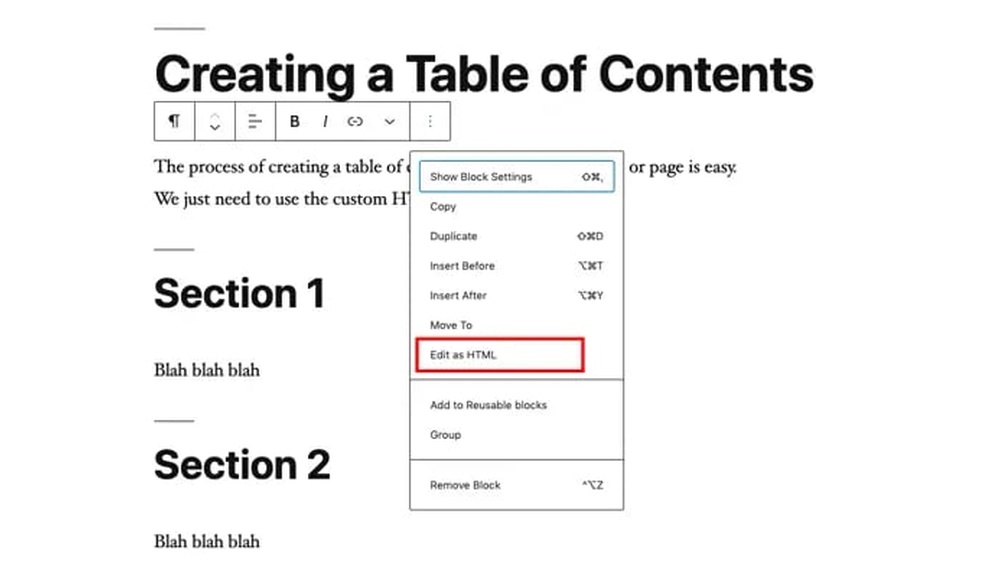
Creating a table of contents manually in WordPress gives full control over its look and function. It requires adding HTML code and links inside your post. This method suits users who want a simple, lightweight solution without extra plugins.
Manual creation lets you design the table of contents exactly as you want. You can change styles and structure to match your site’s theme. It also helps improve user experience by guiding readers through long articles.
Using Html And Anchor Links
Start by adding a list at the top of your post. Use
Insert anchors by adding id attributes to headings. For example, Section 1
Section 1.
This simple setup allows readers to jump to specific parts of your post easily. It works well on any device and browser.
Customizing With Css
Use CSS to style the table of contents. Change fonts, colors, spacing, and borders. This makes the list more attractive and readable.
Add CSS rules inside your theme’s stylesheet or in the post’s custom CSS box. For example, style the list with padding and background color.
Custom CSS helps your table of contents blend with your site design. It improves visual appeal without slowing down your page.
Pros And Cons
Manual creation uses no plugins. This reduces site load and security risks. It is fully customizable and lightweight.
On the downside, it takes time and some HTML knowledge. Updating links can be tricky if you change headings later. It lacks automatic updates.
This method suits simple posts and those comfortable with code. For dynamic content, a plugin may be easier.
Credit: www.greengeeks.com
Installing A Table Of Contents Plugin
Adding a table of contents to your WordPress posts helps readers find information quickly. Plugins make this process simple and fast. Installing a table of contents plugin does not require coding skills. Just follow a few easy steps to get started.
Step-by-step Installation Guide
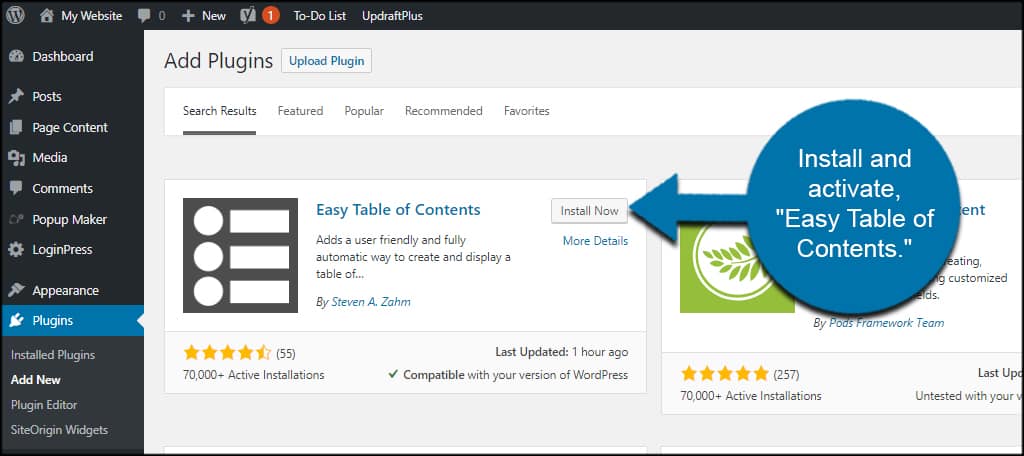
First, log in to your WordPress dashboard. Go to the “Plugins” menu and click “Add New.” Use the search bar to find a table of contents plugin. Popular choices include “Easy Table of Contents” and “Table of Contents Plus.” Click “Install Now” on your chosen plugin. After installation, click “Activate” to enable the plugin on your site.
Basic Plugin Configuration
Once activated, find the plugin settings in the dashboard menu. Most plugins add a new menu item or appear under “Settings.” Start by enabling the table of contents for posts or pages. Choose where the table appears, such as before the first heading. Save your changes to apply the basic setup.
Common Settings To Adjust
Adjust the appearance to fit your site style. Change the width, font size, or colors if the plugin allows. You can set which heading levels show in the table. For example, include only H2 and H3 headings. Enable smooth scrolling for better user experience. Test your settings by viewing a post with many headings.
Adding Toc To Posts And Pages
Adding a Table of Contents (TOC) to your posts and pages improves navigation. It helps readers find information quickly. TOCs also make long articles easier to read. WordPress offers several ways to add a TOC. You can choose automatic or manual methods. Some plugins use shortcodes or widgets for placement. Each method fits different needs and skills.
Automatic Insertion Options
Many WordPress TOC plugins include automatic insertion. This feature places the TOC at the start of posts or pages. You can set rules based on headings or content length. It saves time by adding the TOC without editing each post. Some plugins allow automatic removal on specific pages. This option works well for beginners and busy bloggers.
Manual Placement Techniques
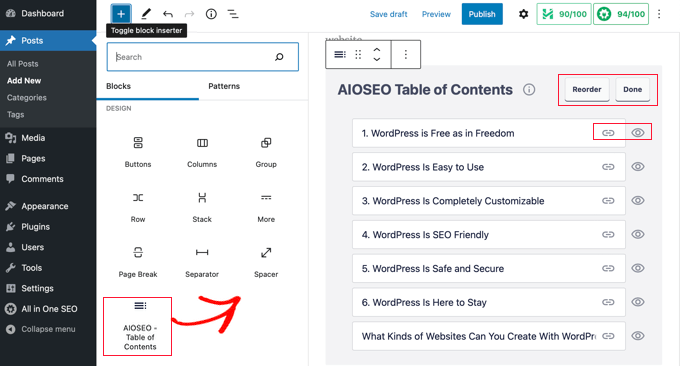
Manual placement gives full control over TOC location. You copy and paste a code snippet where you want the TOC to appear. This method suits users who want TOCs inside content sections. It works well for custom layouts or special post types. Manual placement requires basic editing but no coding skills. It helps keep the design clean and organized.
Shortcodes And Widgets
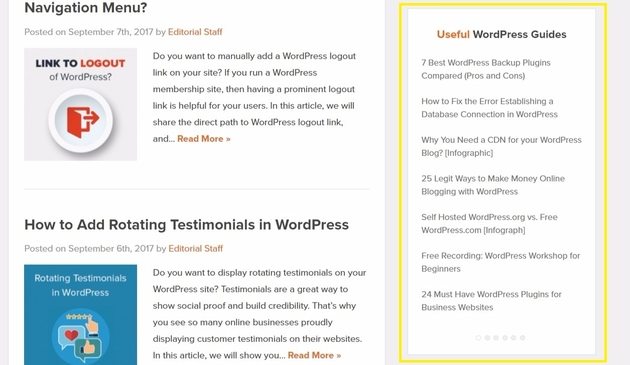
Shortcodes offer a simple way to insert TOCs anywhere. Add a shortcode in the post editor to display the TOC. Widgets let you place TOCs in sidebars or footers. Both methods work well for flexible layouts. Shortcodes and widgets are easy to manage without changing templates. They provide options to show TOCs on posts, pages, or both.
Credit: wpengine.com
Optimizing Table Of Contents For Seo
Optimizing the table of contents (TOC) for SEO helps search engines understand your page better. A well-structured TOC improves user experience and boosts your content’s ranking. It makes your page easier to navigate for both visitors and search bots. Follow these tips to make your TOC SEO-friendly.
Using Proper Heading Tags
Use correct heading tags like H2, H3, and H4 for TOC items. These tags show the content structure clearly. They help search engines know which parts are most important. Avoid using only bold or styled text without proper tags. Proper headings improve readability and SEO value.
Improving Crawlability
Make sure the TOC links lead directly to the right sections. Use anchor links that match heading IDs. This helps search engines crawl your page smoothly. A clear TOC allows bots to index your content better. It also helps users jump to the information they need fast.
Enhancing Keyword Relevance
Include relevant keywords naturally in your TOC titles. Use the same terms your audience searches for. This boosts your page’s relevance for those keywords. Avoid keyword stuffing or unnatural phrases. A keyword-rich TOC signals search engines about your content topics clearly.
Troubleshooting Common Issues
Troubleshooting common issues with your Table of Contents (TOC) can save time and improve user experience. Many problems are simple to fix with a few checks and adjustments. Understanding typical errors helps you keep your site professional and easy to navigate.
Toc Not Showing Up
Check if the TOC plugin is activated. Sometimes, it is installed but not enabled. Verify the plugin settings to confirm TOC is set to display on the right pages. Clear your site cache and browser cache to see recent changes. Also, ensure your theme supports TOC plugins. Some themes may block or hide TOCs unintentionally.
Formatting Problems
Formatting issues often arise from CSS conflicts. Inspect your TOC styles and adjust font size, colors, or spacing in the plugin settings. Use simple HTML tags in your headings for better compatibility. Avoid custom code that overrides TOC styles. Preview changes on different devices to ensure consistency.
Plugin Conflicts
Multiple plugins can interfere with your TOC plugin. Deactivate other plugins one at a time to find conflicts. Focus on plugins that change page layout or add scripts. Update all plugins and WordPress to the latest versions. Sometimes, switching to a default theme helps identify theme-related conflicts.
Credit: www.wpbeginner.com
Advanced Toc Customization
Advanced TOC customization helps your Table of Contents fit your website style perfectly. It makes navigation easier and boosts user experience. Custom options let you change looks and add cool features.
Styling And Design Tips
Change font size and color for better reading. Use background colors that match your site theme. Add borders or shadows to make the TOC stand out. Keep spacing clear so the list looks neat. Use bullet styles that fit your design style.
Adding Smooth Scroll Effects
Smooth scroll improves how users jump to sections. It creates a slow, flowing move instead of a sudden jump. This effect feels natural and keeps visitors on the page longer. Enable smooth scroll with simple code or plugins. Test it to ensure it works on all devices.
Using Javascript Enhancements
JavaScript can add interactive features to your TOC. Highlight the current section as users scroll down. Collapse or expand TOC items for a clean look. Add animations to catch visitor attention. Use lightweight scripts to keep your site fast. Update scripts regularly to avoid errors.
Frequently Asked Questions
What Is The Easiest Way To Add A Table Of Contents In WordPress?
The easiest way is using a plugin like Easy Table of Contents. It automatically generates and inserts TOC based on headings in your post or page.
Can I Create A Table Of Contents Without A Plugin?
Yes, you can manually create a TOC using HTML anchors and links. However, plugins save time and update TOC automatically.
How Do I Customize The Table Of Contents Appearance In WordPress?
Most TOC plugins offer customization options like colors, font size, and position. You can adjust these settings in the plugin’s dashboard.
Will A Table Of Contents Improve My WordPress Seo?
Yes, a TOC improves user experience by making content easy to navigate. It also helps search engines understand page structure.
Conclusion
Adding a table of contents helps readers find information fast. It makes long posts easier to read and navigate. WordPress offers simple tools to create one quickly. Choose a plugin or use built-in features to add it. A clear table of contents can improve your site’s user experience.
Try it on your next post and see the difference. Small steps like this can boost your blog’s appeal. Keep your content organized and reader-friendly for best results.


