
Is your WordPress site showing old content or not updating as it should? If so, your website’s cache might be the culprit.
Clearing your WordPress cache is a simple yet powerful step to fix this issue and make sure your visitors see the freshest version of your site. You’ll learn exactly how to clear your WordPress cache quickly and easily, even if you’re not a tech expert.
Keep reading, and you’ll get your site running smoothly again in no time.
Credit: docs.themeisle.com
Why Clear WordPress Cache
Clearing the WordPress cache is important for your website’s performance. Cached files store old versions of your site pages. Over time, these files can cause problems. Visitors may see outdated content or broken pages. Clearing the cache removes these old files. This action helps your website show the latest updates and run smoothly.
Improves Website Speed
Cache stores copies of your web pages to load faster. But too much cache can slow your site down. Clearing cache removes excess files. This makes your website faster and more responsive for visitors.
Shows Latest Content
When you update your site, cache may still show old content. Visitors miss your new posts, images, or changes. Clearing cache forces the browser to load fresh content. This keeps your site up-to-date for everyone.
Fixes Display Issues
Sometimes cached files cause layout or design problems. Pages might look broken or missing parts. Clearing cache removes these corrupted files. Your site returns to normal, showing correct design and content.
Helps With Plugin Or Theme Changes
Updating plugins or themes may not show immediately due to cache. This can cause conflicts or errors. Clearing cache ensures all new changes apply properly. Your site works better with fresh code.
Types Of WordPress Cache
WordPress cache helps websites load faster by saving copies of pages and files. Different types of cache work at various levels to boost site speed. Understanding these types makes it easier to clear cache effectively.
Browser Cache
Browser cache stores website files on a visitor’s device. It keeps images, scripts, and stylesheets for quicker loading next time. Clearing browser cache forces the browser to fetch fresh content from the server.
Plugin Cache
Plugin cache is created by WordPress caching plugins. These plugins save static copies of pages to reduce server processing. Clearing plugin cache updates the saved pages and fixes display issues.
Server Cache
Server cache works on the hosting side. It stores data to speed up server responses. Clearing server cache refreshes the stored data and improves website performance.
Clearing Cache Via Plugins
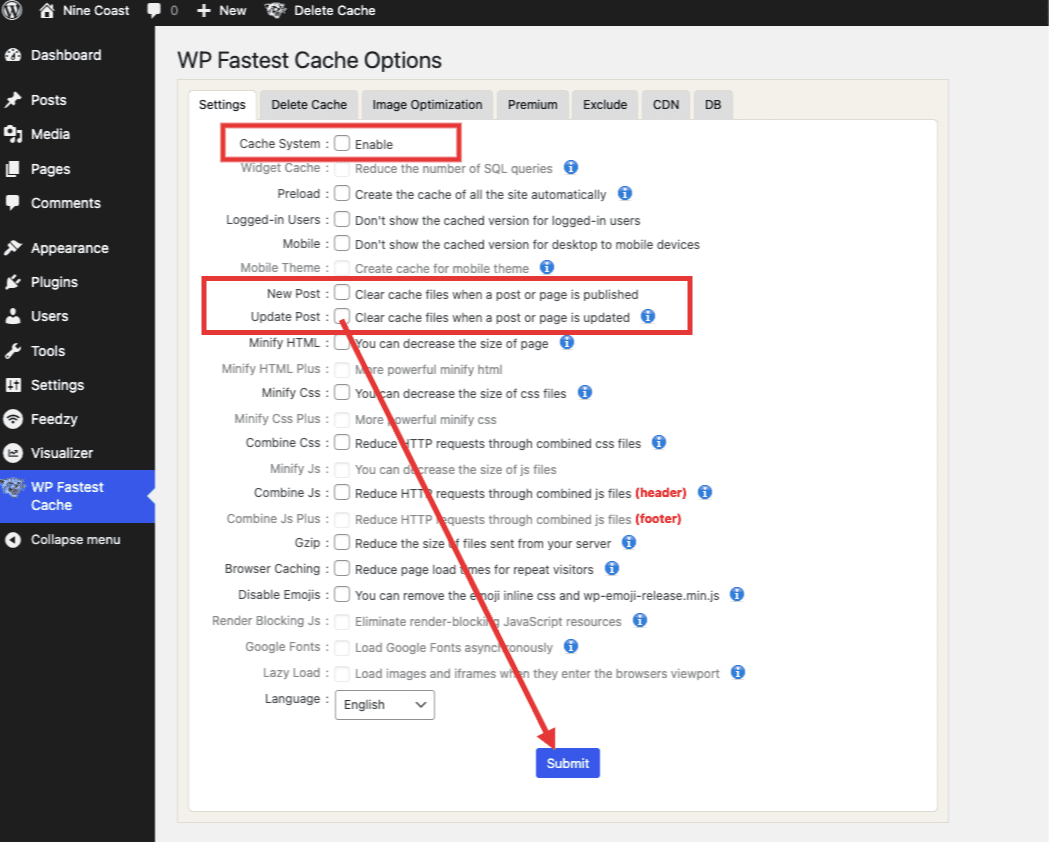
Clearing cache using plugins is the easiest way to refresh your WordPress site. Cache plugins store temporary files to speed up your site. Sometimes, these files get outdated. Clearing the cache removes old files and loads fresh content. Most cache plugins include simple buttons to clear the cache quickly. This keeps your site fast and updated.
Using W3 Total Cache
W3 Total Cache is a popular caching plugin. To clear cache, go to the WordPress dashboard. Find the “Performance” menu. Click “Dashboard” under it. You will see a button labeled “empty all caches.” Click this button. This clears all cached files instantly. Your site will load new content now.
Using Wp Super Cache
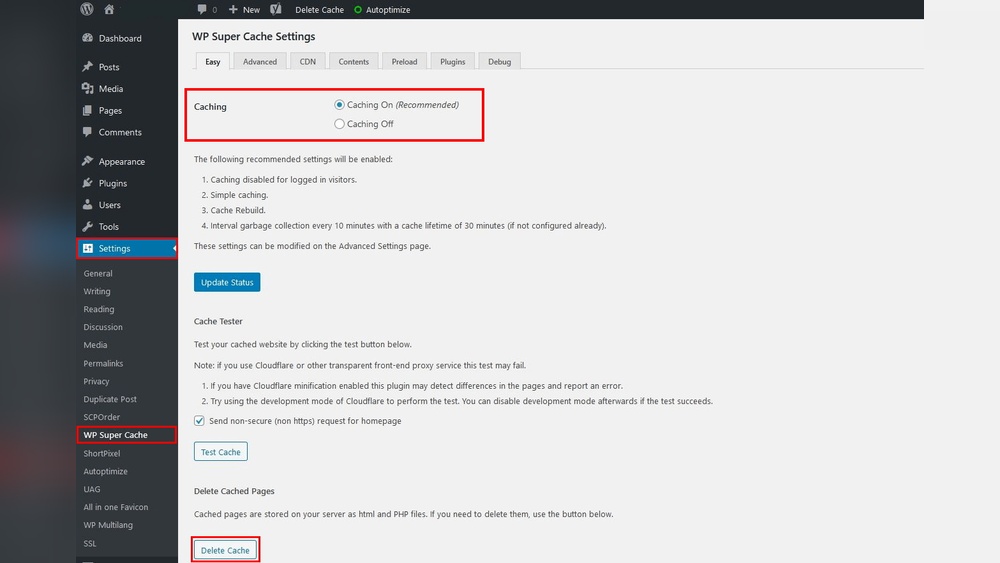
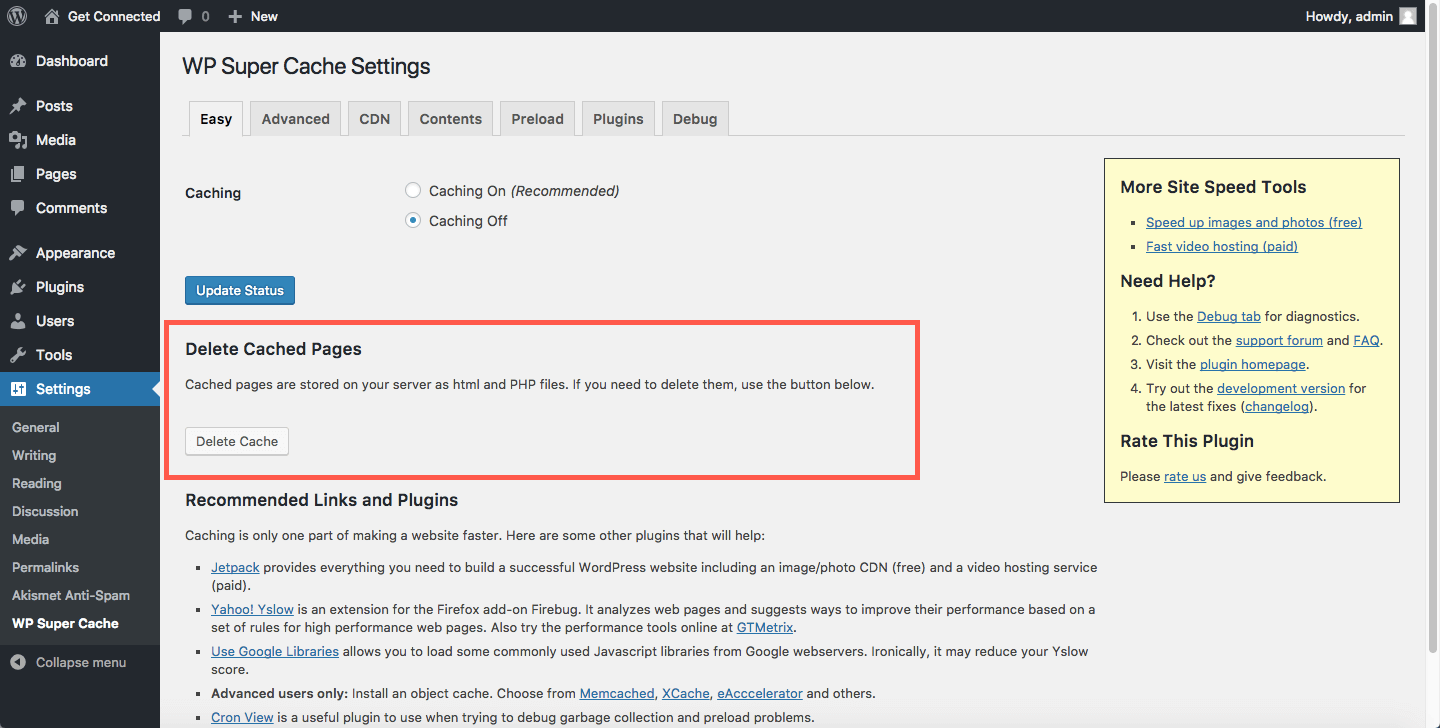
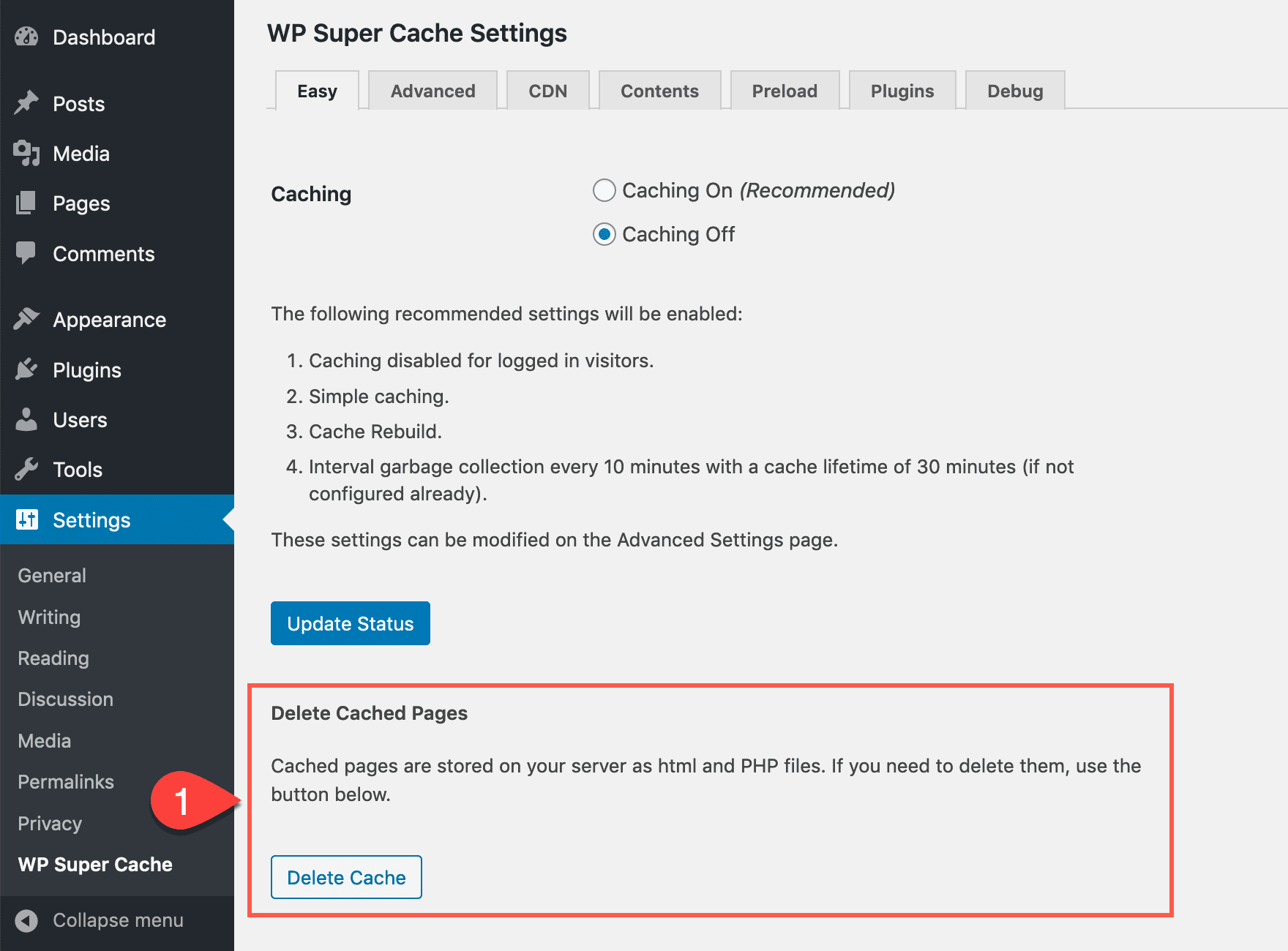
WP Super Cache also makes clearing cache simple. In your WordPress dashboard, open the “Settings” menu. Select “WP Super Cache.” Click the “Delete Cache” button. This removes all cached pages. Visitors will see the updated version of your site right away.
Using Wp Rocket
WP Rocket is easy to use for clearing cache. Go to the WordPress admin area. Click on “WP Rocket” in the sidebar. Find the “Clear Cache” button on the main screen. Click it to delete cached files. Your site will refresh with the latest content immediately.
Clearing Cache Manually
Clearing cache manually in WordPress helps solve many common website issues. Cached files can cause your site to show old content. Removing these files ensures visitors see the latest updates. Manual clearing is useful when automatic tools fail or are not available.
Clearing Browser Cache
Your browser stores temporary files to load pages faster. Sometimes, this cache shows outdated content. Clear your browser cache to fix display problems. Open your browser settings and find the option to clear browsing data. Choose to delete cached images and files only. Refresh your site after clearing the cache.
Deleting Cache Files Via Ftp
Access your website files using an FTP client. Connect to your server with your FTP login details. Navigate to the cache folder, often found in wp-content/cache. Delete all files and folders inside the cache directory. This removes stored data that may cause site errors. After deletion, your site will rebuild fresh cache files.
Resetting Object Cache
Object cache stores database query results to speed up WordPress. Sometimes, this cache needs resetting to fix issues. Use a plugin or command-line tool to clear the object cache. For example, Redis or Memcached caches can be reset with specific commands. Resetting forces WordPress to fetch new data from the database. This improves site performance and accuracy.
Clearing Cache On Hosting Platforms
Clearing cache on hosting platforms helps ensure your WordPress site shows the latest changes. Hosting providers often add their own caching layers. These caches speed up your website but may hold outdated content.
Clearing cache on the host’s side removes stored files. This helps fix display issues or update content quickly. Each hosting platform offers a different way to clear cache. Below are steps for popular hosts.
Siteground Cache
SiteGround uses a caching system called SuperCacher. It speeds up your site by storing static files. To clear this cache, log into your SiteGround account. Go to the Site Tools section for your website. Find the “Speed” menu, then select “Caching.” Click the “Flush Cache” button under Dynamic Cache. This clears stored content and refreshes your site.
Bluehost Cache
Bluehost has built-in caching to improve performance. To clear cache, log into your Bluehost control panel. Navigate to the “My Sites” tab. Choose your website and click on “Manage Site.” Find the “Performance” tab and click on it. There you will see the cache option. Click “Clear Cache” to remove saved files. Your site will now serve the latest content.
Wp Engine Cache
WP Engine provides powerful caching for WordPress sites. To clear cache, log in to your WP Engine dashboard. Select the environment of your website. Click on the “Caching” tab in the menu. Press the “Clear All Caches” button. This action clears page cache, CDN cache, and object cache. It helps show updated content immediately.
Credit: www.hostpapa.com
Automating Cache Clearing
Automating cache clearing saves time and keeps your WordPress site fast. It removes old cached files without manual work. This ensures visitors always see fresh content. Automation helps avoid slowdowns caused by outdated cache. It also reduces errors from forgetting to clear cache regularly.
Setting Cache Expiry Times
Cache expiry times tell your site when to delete old cache. You set how long cached files stay before they refresh. Short expiry times keep content up to date but may increase server load. Longer expiry times reduce server work but may show older content. Choose expiry times that balance speed and freshness for your site.
Using Cache Clearing Schedules
Cache clearing schedules run automatically at set times. You can clear cache daily, weekly, or after content updates. Scheduling helps keep your site fast without manual clearing. Many caching plugins let you set these schedules easily. Set times when your site has low traffic for best results.
Tips To Maintain Fast Loading Speed
Maintaining a fast loading speed is key for a good website experience. Visitors stay longer and search engines rank higher. Clear WordPress cache often, but also focus on other ways to keep your site quick.
Small changes can make a big difference. Follow simple tips to keep your site loading fast and smooth.
Optimizing Images
Large images slow down your website. Resize images before uploading. Use compressed formats like JPEG or WebP. This reduces file size without losing quality. Faster images mean faster pages.
Minimizing Plugins
Too many plugins add extra code and slow the site. Remove plugins you do not use. Choose plugins that are lightweight and well-coded. This keeps your WordPress lean and quick.
Using A Cdn
A Content Delivery Network (CDN) stores your site data on servers worldwide. It delivers content from the nearest server to the visitor. This cuts down loading time significantly. Using a CDN improves speed for global visitors.
Credit: www.elegantthemes.com
Frequently Asked Questions
What Is WordPress Cache And Why Clear It?
WordPress cache stores website data to speed up loading. Clearing cache removes outdated files. This ensures visitors see the latest content and fixes display issues.
How Do I Clear WordPress Cache Manually?
To clear cache manually, log into your WordPress dashboard. Go to your caching plugin settings and click “Clear Cache” or “Purge Cache. ” This refreshes your site’s stored data instantly.
Can Clearing Cache Improve WordPress Site Speed?
Yes, clearing cache can improve speed by removing corrupted or outdated files. It ensures your site loads fresh, optimized content, which enhances performance and user experience.
How Often Should I Clear WordPress Cache?
Clear your WordPress cache after website updates, plugin changes, or design edits. Regular clearing prevents display errors and keeps content current, usually once a week or after edits.
Conclusion
Clearing your WordPress cache keeps your site fresh and fast. It helps show the newest changes to visitors right away. Regularly clearing cache fixes many common website problems. You can do this using plugins or your hosting control panel. Remember, a clean cache improves user experience and site performance.
Keep this simple step part of your routine. Your website will run smoother and look better for everyone. Don’t skip clearing cache after updates or changes. It’s a small effort with big benefits.


