

Have you ever changed your WordPress site’s URL and suddenly found yourself locked out of your admin dashboard? It’s frustrating, confusing, and can make you feel stuck.
But don’t worry—you’re not alone, and this problem is fixable. If you want to regain access quickly and avoid losing control of your website, keep reading. This article will guide you step-by-step through the most effective solutions to get you back into your WordPress admin area without stress.
Credit: mywpdiary.com
Common Causes Of Login Issues
Many WordPress users face login problems after changing their site URL. These issues often stem from a few common causes. Understanding these can save time and reduce frustration. Below are the typical reasons why you might be locked out of your WordPress admin area.
Incorrect Site Url Settings
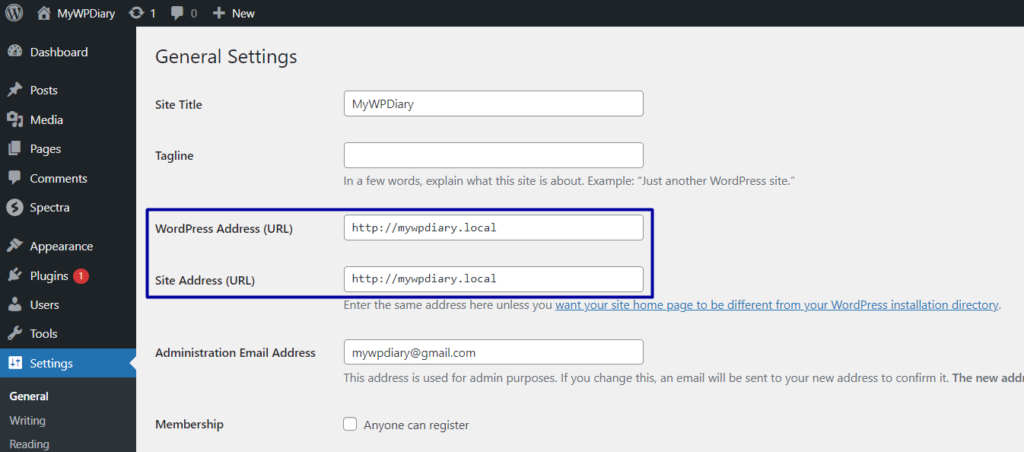
The most frequent cause of login issues is incorrect site URL settings. WordPress relies on correct URLs for its admin and front-end pages. Changing the URL without updating WordPress settings leads to redirect loops or login failures. The site URL and home URL must match the new address exactly.
Cache And Cookie Problems
Browsers store cached data and cookies to speed up loading. Old cached files or cookies may conflict with the new URL. This conflict can block access to the login page or cause login errors. Clearing browser cache and cookies often resolves this problem quickly.
Plugin Conflicts
Some plugins manage URLs or security settings. These can clash with the new URL setup. A conflicting plugin might block access or redirect you incorrectly. Deactivating all plugins temporarily helps identify if a plugin causes the login issue.
Theme Issues
Custom themes sometimes contain hardcoded URLs. These URLs do not update automatically with a site URL change. Such hardcoding can cause broken links or login failures. Switching to a default theme helps check if the theme is the problem.
Database Errors
The WordPress database holds all site settings, including URLs. Errors or corruption in the database can disrupt login processes. Incorrect URL entries in the database cause access problems. Checking and fixing database entries often restores login functionality.
Quick Fixes To Regain Access
Changing your WordPress site URL can sometimes block access to the admin dashboard. This issue can feel frustrating and confusing. Quick fixes can help you regain control without much hassle. Below are simple steps to fix this problem fast.
Reset Site Url Via Wp-config.php
Access your website files using an FTP client or file manager. Open the wp-config.php file in the root folder. Add these two lines to set your URL manually:
define('WP_HOME','http://your-new-url.com'); define('WP_SITEURL','http://your-new-url.com');Replace http://your-new-url.com with your correct site address. Save the file and try logging in again.
Update Url In Database Using Phpmyadmin
Login to your hosting control panel and open phpMyAdmin. Select your WordPress database and find the wp_options table. Locate the rows named siteurl and home. Edit their values to your new URL. This change updates the site address in the database.
Clear Browser Cache And Cookies
Sometimes, your browser keeps old data that blocks login. Clear your browser cache and cookies to remove this stored information. This step helps load the updated URL correctly. After clearing, restart your browser and try accessing the admin panel again.
Disable Plugins Via Ftp
Faulty plugins can cause login problems after URL changes. Access your website files with FTP. Navigate to the wp-content folder and rename the plugins folder to something like plugins_backup. This action disables all plugins. Check if you can log in now. Rename the folder back to plugins to restore plugins later.
Switch To Default Theme
The active theme might conflict with your site after URL changes. Use FTP to go to wp-content/themes. Rename your current theme folder to disable it. WordPress will use a default theme automatically. Try logging into the admin area again with the default theme active.
Preventing Future Login Problems
Preventing login problems after changing your WordPress URL saves time and stress. Small steps before making changes keep your site safe and accessible. Follow these tips to avoid losing access to your admin area.
Backup Before Making Url Changes
Create a full backup of your website before any URL change. Include files and your database in the backup. This step helps you restore your site quickly if something goes wrong. Use reliable backup tools or your hosting provider’s backup service.
Use Maintenance Mode
Activate maintenance mode before updating the URL. It hides your site from visitors while you work. Maintenance mode prevents users from seeing errors or broken pages. Many plugins offer easy ways to enable this mode.
Test Changes On Staging Site
Try URL changes on a staging site first. A staging site is a copy of your live site. Testing here avoids risks on your main website. Check login access and all features after the change.
Keep WordPress And Plugins Updated
Regularly update WordPress core and plugins. Updates fix bugs and improve security. Updated sites face fewer login issues. Set a schedule to check for updates weekly or monthly.
Credit: www.youtube.com

Credit: mywpdiary.com
Frequently Asked Questions
Why Can’t I Login To WordPress Admin After Url Change?
You may face login issues due to incorrect site URL settings. Update the WordPress and Site Address URLs in the database or wp-config. php file to fix it.
How Do I Fix WordPress Login Redirect After Url Change?
Clear your browser cache and cookies first. Then update the site URL in the wp_options table or wp-config. php file to resolve redirect loops.
Can Incorrect Url Cause WordPress Admin Login Failure?
Yes, an incorrect URL in your WordPress settings can block admin access. Always verify and correct the site URL after changing your domain or directory.
How To Access WordPress Admin If Url Is Changed?
Use phpMyAdmin to update the siteurl and home fields in the wp_options table. Alternatively, define URLs in wp-config. php to regain access quickly.
Conclusion
Changing your WordPress URL can cause login problems. Fixing this needs simple steps like clearing cookies or updating settings. Always back up your site before making changes. Small errors in the URL can block access quickly. Staying calm and following each step helps solve the issue.
Taking time now saves frustration later. Keep these tips handy for any future URL changes. Your site will stay safe and easy to manage.


