
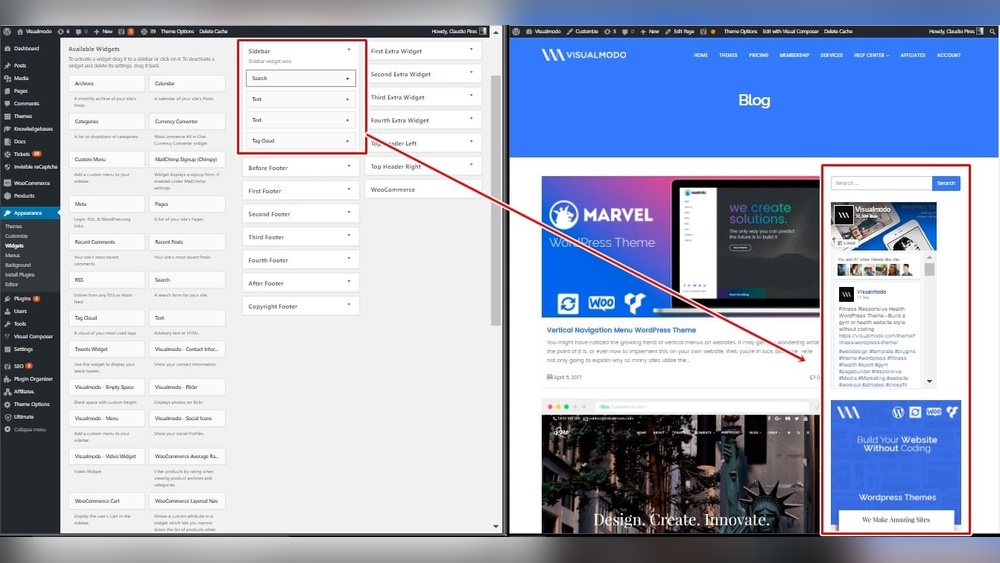
Are you looking to make your WordPress blog page more organized and user-friendly? Adding a sidebar can be a game-changer.
It lets you showcase important info like recent posts, categories, or even ads without cluttering your main content. If you want your readers to stay longer and explore more, a well-designed sidebar is key. In this guide, you’ll learn exactly how to add a sidebar to your WordPress blog page—step by step, with simple instructions you can follow right now.
Ready to boost your blog’s look and functionality? Let’s dive in!
Credit: docs.themefuse.com
Choosing The Right Sidebar
Choosing the right sidebar is key for a WordPress blog page. The sidebar helps visitors find important information fast. It supports your content and guides readers through your site. A good sidebar keeps your blog organized and user-friendly. It also improves engagement by showing relevant links and tools.
Types Of Sidebars In WordPress
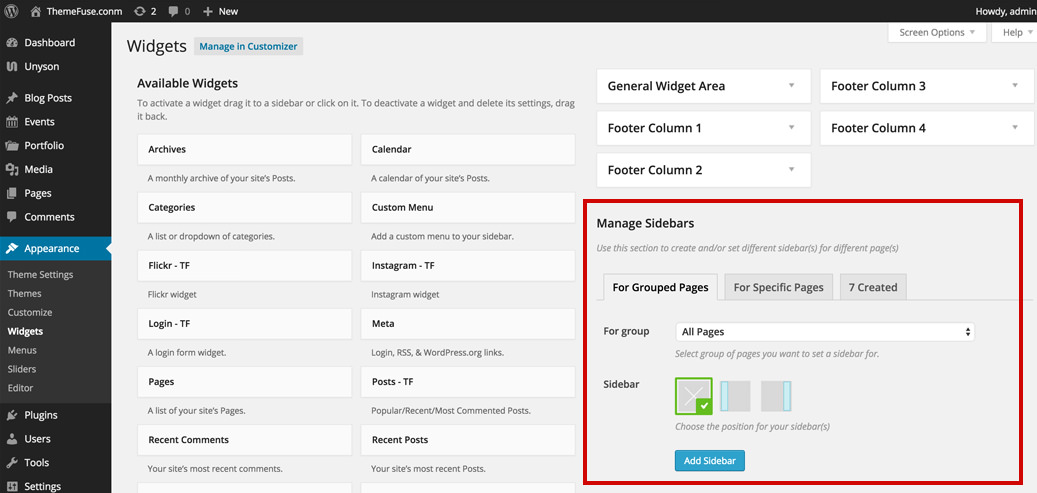
WordPress offers several sidebar types. The most common is the main sidebar, usually on the right or left. Some themes support multiple sidebars for different pages. You can also use sticky sidebars that stay visible as users scroll. Another option is custom sidebars, which change based on the page or post type. Choose the type that fits your blog layout and reader needs.
Selecting Widgets For Your Sidebar
Widgets add content and features to your sidebar. Popular widgets include recent posts, search bars, and categories. Social media links and email signup forms also work well. Avoid clutter by choosing only useful widgets. Think about what your readers want to see or use. Keep the sidebar simple and easy to navigate.
Preparing Your Blog Page
Before adding a sidebar to your WordPress blog page, some steps are important. These steps help avoid problems and make the process smoother. Taking time now saves effort later.
Prepare your blog page carefully. Check your theme and back up your website. These actions protect your content and design.
Checking Your Theme Compatibility
Not all WordPress themes support sidebars. Some themes have built-in sidebar areas. Others do not allow sidebars at all. Check your theme’s documentation or settings first.
Look for a sidebar option in the theme customizer or widgets section. If your theme does not support sidebars, consider switching to a different theme. This helps avoid layout issues.
Backing Up Your Website
Backing up your website is essential before making changes. A backup saves your files and database. It lets you restore your site if something goes wrong.
Use a WordPress backup plugin or your hosting provider’s backup tool. Save the backup in a secure place. With a backup, you can experiment without fear of losing data.
Adding Sidebar Via WordPress Customizer
Adding a sidebar to your WordPress blog page can improve navigation and user experience. The WordPress Customizer offers a simple way to enable and manage sidebars. It allows you to control the layout and content without coding.
This method works well for beginners. It gives you a live preview as you make changes. You can add widgets, change their order, and see the result immediately.
Accessing The Customizer
Log in to your WordPress dashboard. Find the “Appearance” menu on the left side. Click on “Customize” to open the WordPress Customizer.
The Customizer shows a live preview of your site on the right. On the left, you see various settings you can adjust. This is where you will find options for your sidebar.
Enabling Sidebar On Blog Page
Inside the Customizer, look for the “Widgets” section. Click on it to view available widget areas.
Find the sidebar area linked to your blog page. It may be named “Blog Sidebar” or just “Sidebar.” Select it to start adding widgets.
Make sure your theme supports sidebars on blog pages. Some themes allow you to enable or disable sidebars here. Turn on the sidebar if it is off.
Arranging Widgets
After enabling the sidebar, you can add widgets to it. Click “Add a Widget” to see a list of options.
Choose widgets like Recent Posts, Categories, or Search Bar. These help visitors find content easily.
Drag and drop widgets to reorder them. The order you set here shows in the sidebar on your blog page.
Use the live preview to check how the sidebar looks. Adjust widgets until you are happy with the layout.
Credit: elementor.com
Using Widgets To Customize Sidebar
Using widgets is the easiest way to customize your WordPress blog sidebar. Widgets are small blocks that add content and features to your sidebar. You can place different widgets to show recent posts, search bars, categories, and more.
Widgets let you change your sidebar without coding. You can add, adjust, or remove them anytime. This way, your sidebar fits your blog’s style and needs perfectly.
Adding Popular Widgets
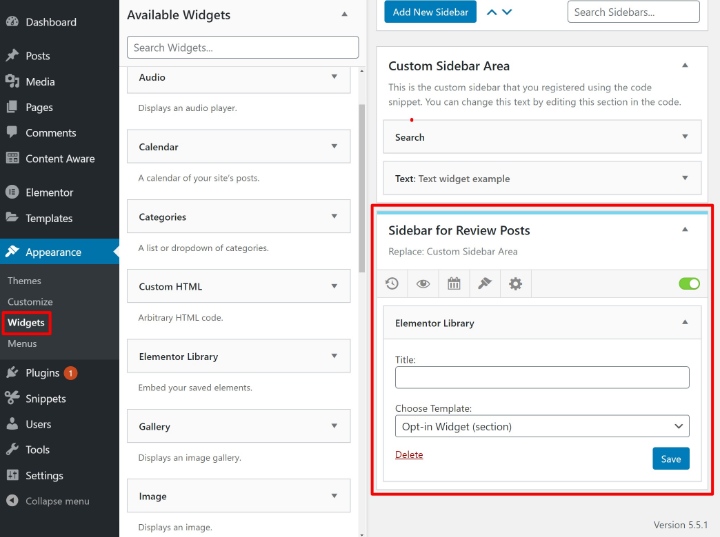
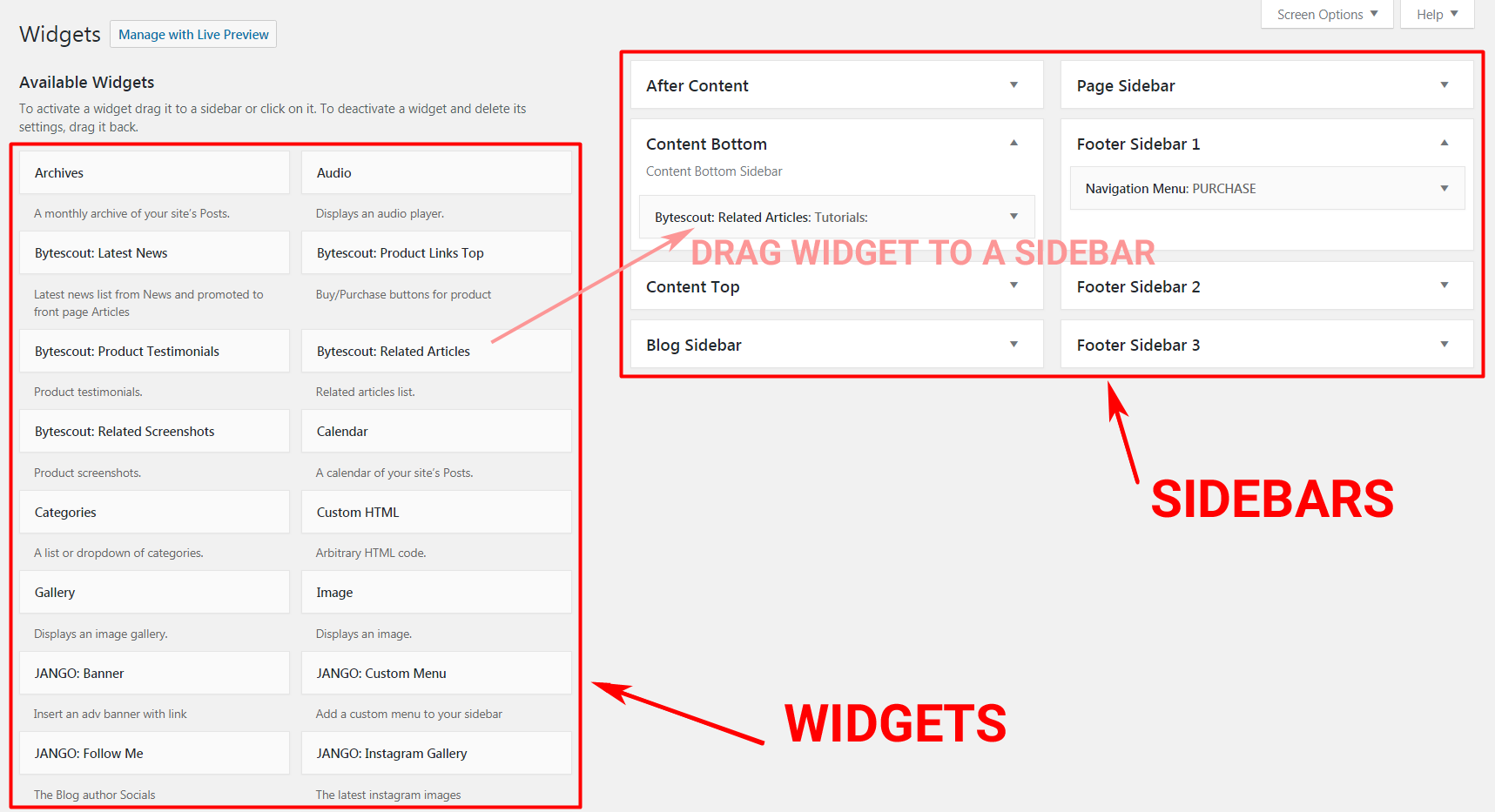
Go to your WordPress dashboard. Click on Appearance, then Widgets. Here, you see a list of available widgets. Drag popular widgets like Recent Posts, Categories, or Search to your sidebar area. These widgets help visitors find content easily.
Configuring Widget Settings
After adding a widget, click its drop-down arrow. Change the title or options to match your blog’s style. For example, set how many posts to show in Recent Posts. Save changes to update your sidebar instantly.
Removing Unwanted Widgets
To remove a widget, open the Widgets screen. Find the widget in your sidebar area. Click Delete or drag it out of the sidebar. This keeps your sidebar clean and focused on what matters most.
Adding Sidebar With Page Builders
Adding a sidebar to your WordPress blog page improves navigation and user experience. Page builders help you create sidebars easily without coding. They offer drag-and-drop tools to place widgets and content exactly where you want. This section explains how to add sidebars using popular page builders.
Using Elementor For Sidebar
Elementor allows you to design custom sidebars with a simple interface. Start by creating a new section on your page layout. Choose a two-column structure to leave room for the sidebar. Drag widgets like text, images, or menus into the sidebar column. You can style the sidebar with colors and spacing to match your blog.
Elementor Pro users can create global sidebars and assign them to multiple pages. This saves time and keeps your design consistent. Adjust the sidebar’s width to ensure it fits well with your main content. Preview your page to check the sidebar’s appearance on desktop and mobile.
Using Beaver Builder For Sidebar
Beaver Builder makes sidebar addition straightforward with its flexible grid system. Open your blog page in the builder editor. Add a new row and split it into two columns for content and sidebar. Insert modules such as recent posts, categories, or custom HTML into the sidebar column.
You can customize each module’s settings to fit your site’s style. Beaver Builder also lets you save sidebar layouts as templates. Reuse these templates on other pages to keep your blog uniform. Check the sidebar on different devices to ensure it looks good everywhere.
Credit: bytescout.com
Editing Sidebar With Code
Editing the sidebar with code gives full control over its look and content. You can create a unique sidebar that fits your blog style. It also helps keep your site fast and clean. Coding a sidebar lets you add or remove elements easily. This method suits users comfortable with basic WordPress files and PHP.
Creating A Custom Sidebar Template
Start by making a new sidebar template file. Name it something like sidebar-custom.php. This file will hold the sidebar’s HTML and PHP code. Use WordPress functions to show widgets and menus. For example, dynamic_sidebar() displays widget areas. Save the file in your theme folder.
Next, tell WordPress to use this sidebar on your blog page. Open the blog page template file, often home.php or index.php. Replace the default sidebar call with your custom sidebar code:
php get_sidebar('custom'); ?This loads your new sidebar template. Customize the template file with your preferred widgets or content. Use simple HTML for structure and CSS for style.
Editing Sidebar In Theme Files
Open your theme’s original sidebar.php file. This file controls the sidebar for many pages. Carefully edit the HTML structure here. Add or remove widget areas with WordPress functions. For example, to display a widget area, use:
php if ( is_active_sidebar( 'sidebar-1' ) ) : ? php dynamic_sidebar( 'sidebar-1' ); ? php endif; ?Modify or add HTML elements to change the sidebar look. Save your changes and check the blog page. Make small changes, then refresh to see updates. Avoid deleting important code to keep the sidebar working.
Testing And Troubleshooting
Testing and troubleshooting your WordPress sidebar is important for a smooth user experience. It helps ensure the sidebar looks good and works well on all devices. Checking your sidebar carefully can prevent problems that confuse visitors or slow down your site.
This section guides you through previewing your sidebar on different devices and fixing common issues. Follow these steps to make sure your sidebar is ready for all your readers.
Previewing Sidebar On Different Devices
Check how your sidebar appears on desktop, tablet, and phone screens. Use your browser’s built-in tools to simulate different devices. This helps you see if the sidebar fits well and does not block main content.
Test the sidebar’s size and position. Confirm all widgets are visible and easy to use. Make sure text and images are clear and not cut off. Adjust settings if the sidebar looks crowded or too small on any device.
Fixing Common Sidebar Issues
Some common problems include the sidebar not showing, overlapping content, or slow loading. Clear your site cache and refresh the page to see if the sidebar appears. Sometimes, a plugin conflict can hide the sidebar. Try deactivating plugins one by one to find the cause.
Check your theme settings to ensure the sidebar is enabled for the blog page. If the sidebar overlaps content, adjust the width or margins in your theme’s customizer. Make sure your widgets are properly configured and do not contain broken links or large images. Fixing these issues improves site speed and visitor experience.
Frequently Asked Questions
How Do I Add A Sidebar To My WordPress Blog Page?
To add a sidebar, go to Appearance > Widgets in your WordPress dashboard. Drag and drop widgets into the Sidebar area. Customize widgets to display content like recent posts, categories, or ads. Save changes to make the sidebar visible on your blog page.
Can I Customize The Sidebar Content In WordPress?
Yes, you can customize sidebar content by adding or removing widgets. Use the Widgets panel to select elements like text, images, or menus. Many themes also allow sidebar layout changes via the Customizer or theme settings for a personalized look.
Why Is My WordPress Sidebar Not Showing On Blog Page?
If your sidebar doesn’t appear, check if your theme supports sidebars on blog pages. Also, ensure widgets are added to the correct Sidebar area. Sometimes, page templates or plugins can disable sidebars, so review those settings too.
What Widgets Are Best For A WordPress Blog Sidebar?
Popular widgets include Recent Posts, Categories, Search Bar, and Social Media links. These improve navigation and user engagement. Choose widgets that match your blog’s niche and audience preferences for better interaction and usability.
Conclusion
Adding a sidebar to your WordPress blog page is simple and helpful. It lets you share extra information and links with your readers. You can choose widgets that fit your blog’s style and needs. This small change makes your blog easier to navigate and more useful.
Keep your sidebar clean and organized for the best effect. Now, you have the tools to improve your blog’s layout with a sidebar. Give it a try and see the difference yourself.


