
Are you struggling to find a simple way to access your WordPress site through GoDaddy? You’re not alone.
Many website owners get stuck right at the start, unsure where to log in or how to manage their site effectively. What if you could unlock your WordPress dashboard quickly and start making changes without any hassle? You’ll discover easy, step-by-step instructions that will get you into your WordPress site through GoDaddy fast.
Keep reading, and you’ll gain the confidence to control your website like a pro.
Setting Up Your Godaddy Account
Starting your WordPress journey with GoDaddy begins by setting up your account. This step is simple but very important. Your GoDaddy account will hold all your website details and hosting services.
Take your time to create your account carefully. This ensures easy access to WordPress and all tools you need. Follow the instructions below to get started smoothly.
Creating A Godaddy Account
Go to the GoDaddy homepage. Click on the “Sign Up” or “Create Account” button. You will need to enter your email address and create a strong password. Choose a username that you will remember easily.
Provide your contact details like name and phone number. Review the terms and conditions. Then, click on the “Create Account” button. You might have to verify your email before proceeding. This step secures your account and confirms your identity.
Choosing The Right Hosting Plan
After creating your account, you must select a hosting plan. GoDaddy offers many plans for WordPress hosting. Pick one based on your website needs and budget.
Shared hosting is best for small websites or blogs. It is affordable and easy to manage. For larger sites or online stores, consider VPS or dedicated hosting. These options provide more power and control.
Look for plans with one-click WordPress installation. This feature saves time and effort. Review what each plan includes like storage, bandwidth, and support. Choose the plan that fits your goals and growth plans.

Credit: www.youtube.com
Installing WordPress On Godaddy
Installing WordPress on GoDaddy is a simple process. It helps you build a website fast. This guide explains how to do it step-by-step. Follow these instructions to get started with WordPress on GoDaddy.
Accessing The Godaddy Dashboard
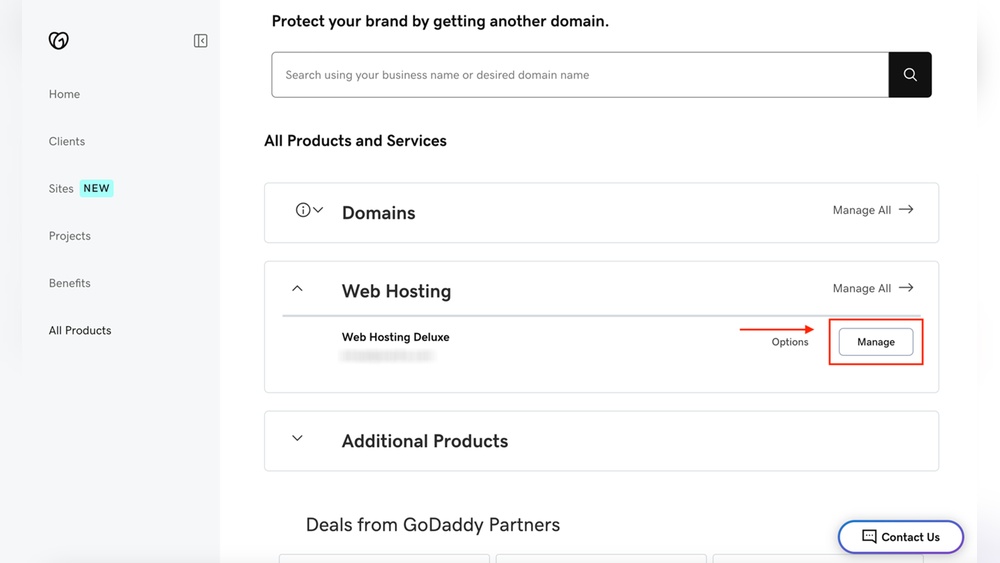
First, sign in to your GoDaddy account. Use your username and password. After logging in, find the “My Products” section. This area shows all your GoDaddy services. Locate your hosting plan here. Click on the “Manage” button next to it. This action opens your hosting dashboard. The dashboard is where you control your website settings.
Using The One-click WordPress Installer
On the hosting dashboard, find the “Web Applications” or “Installatron” section. Here, you will see many apps. Choose WordPress from the list. Click “Install This Application” to start the process. You will need to fill out some details. Enter your website name and admin username. Set a strong password for security. Select the domain where WordPress will install. Finally, click “Install” to begin. The installer sets up WordPress automatically. It takes only a few minutes. After finishing, you get the login URL. Use this to access your WordPress admin panel.
Logging Into Your WordPress Site
Logging into your WordPress site is the first step to managing your website. It lets you add content, change designs, and check your site’s health. Knowing how to find your login page and reset your password saves time and avoids frustration.
Finding Your WordPress Login Url
Your WordPress login URL usually ends with /wp-admin or /wp-login.php. For example, if your domain is example.com, your login page is example.com/wp-admin. Go to this address in your browser to access the login screen.
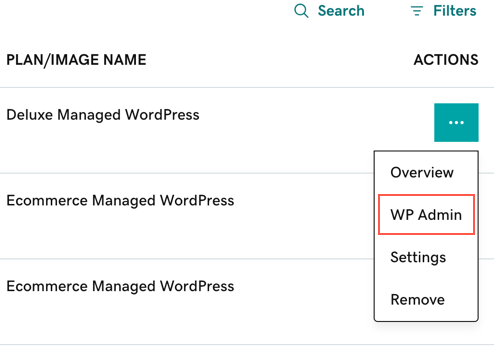
Sometimes, GoDaddy sets up custom login URLs for security. Check your GoDaddy account dashboard or email for any special instructions. If you use GoDaddy’s Managed WordPress hosting, the login link is also available inside your hosting dashboard under the “My Sites” section.
Resetting Your WordPress Password
Forgot your password? No worries. Click the “Lost your password?” link on the login page. Enter your username or email. WordPress sends a reset link to your email.
Open the email and click the link. Then, create a new, strong password. Make sure to save it somewhere safe. If you do not get the email, check your spam folder or contact GoDaddy support for help.
Credit: www.godaddy.com
Managing Your WordPress Site On Godaddy
Managing your WordPress site on GoDaddy is simple and clear. The platform offers tools to keep your website secure and updated. You can control many aspects of your site without technical skills.
Keeping your WordPress site running smoothly requires regular checks. This includes updates and using the GoDaddy control panel for easy management. These tasks help your website stay fast and safe.
Using The Godaddy Hosting Control Panel
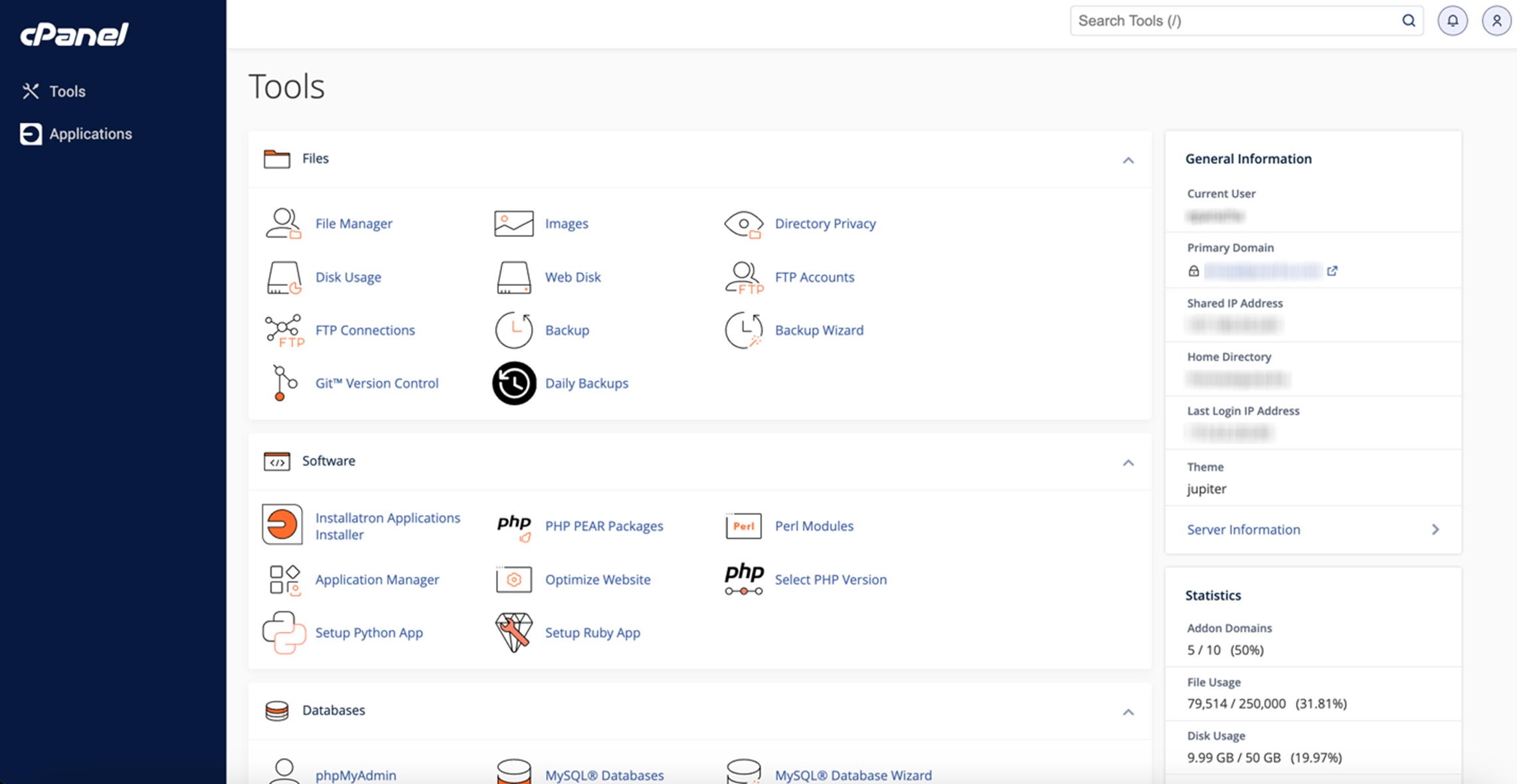
The GoDaddy hosting control panel is your main hub. It lets you manage files, databases, and backups. Access it by logging into your GoDaddy account.
From the control panel, you can open the WordPress dashboard directly. This saves time and effort. You can also manage email accounts and domain settings here.
Use the control panel to create backups before making big changes. Backups protect your site from data loss. You can restore your site quickly if needed.
Updating WordPress And Plugins
Regular updates keep your site secure and fast. WordPress and plugins release updates to fix bugs and add features. Check for updates in your WordPress dashboard.
Update WordPress core first, then update plugins one by one. This order reduces the risk of conflicts. Always back up your site before updating.
Keep your themes updated too. Outdated themes can cause security risks. Updated software ensures your site works well with new browsers and devices.
Troubleshooting Common Issues
Troubleshooting common issues with WordPress on GoDaddy helps keep your site running smoothly. Problems can arise during login or installation. Knowing simple fixes saves time and frustration.
Most issues happen due to small errors. Fixing them quickly restores access and functionality. The next sections cover key solutions.
Fixing Login Problems
Login issues often stem from wrong usernames or passwords. Double-check your credentials carefully. Use the “Forgot Password” link to reset your password.
Clear your browser cache and cookies. Sometimes stored data causes login failures. Try accessing your site in a private browser window.
Disable any browser extensions that block scripts. These can prevent login forms from working. If problems persist, reset your WordPress password through the GoDaddy dashboard.
Resolving Installation Errors
Installation errors usually come from server settings or file permission problems. Verify your hosting plan supports WordPress requirements.
Check that your database details are correct. Incorrect database name, username, or password stops installation. Adjust file permissions to allow WordPress to write files.
Remove any incomplete WordPress files from previous attempts. Re-upload fresh files using GoDaddy’s file manager or FTP client. Follow the installation steps carefully to avoid mistakes.
Credit: www.godaddy.com
Frequently Asked Questions
How Do I Log Into WordPress Via Godaddy?
To log in, visit GoDaddy’s dashboard and select your WordPress site. Click “Manage” and then “WP Admin” to access the login page. Enter your WordPress username and password to start managing your site.
Can I Access WordPress Without Godaddy?
Yes, if you have separate hosting, use your WordPress URL directly. However, if GoDaddy hosts your site, logging in through their dashboard is the simplest way.
How To Reset WordPress Password On Godaddy?
Go to GoDaddy’s WordPress dashboard, click “WP Admin,” then “Lost your password? ” Enter your email to receive a reset link. Follow the link to create a new password.
Is Godaddy’s WordPress Hosting Easy For Beginners?
Yes, GoDaddy’s interface is user-friendly and designed for beginners. It offers one-click WordPress installation and easy access to your site’s dashboard.
Conclusion
Accessing WordPress through GoDaddy is simple and quick. Just follow the steps carefully. You can manage your website without stress. Keep your login details safe and secure. Regularly update your WordPress to stay protected. Enjoy creating and editing your site easily.
This guide helps you start without confusion. Now, your WordPress site is ready to grow. Try it today and see the difference.


